> ## Documentation Index
> Fetch the complete documentation index at: https://docs.gcore.com/llms.txt
> Use this file to discover all available pages before exploring further.
# Create an account for an individual or legal entity
Creating a Gcore account grants access to the [Gcore Customer Portal](https://portal.gcore.com) and every Gcore service, including Cloud, CDN, and Managed DNS. Individuals can sign up directly with an email address, Google, or GitHub, while legal entities that need a signed contract can complete the same sign-up process and contact sales separately.
## For individuals
Creating an account takes a few minutes:
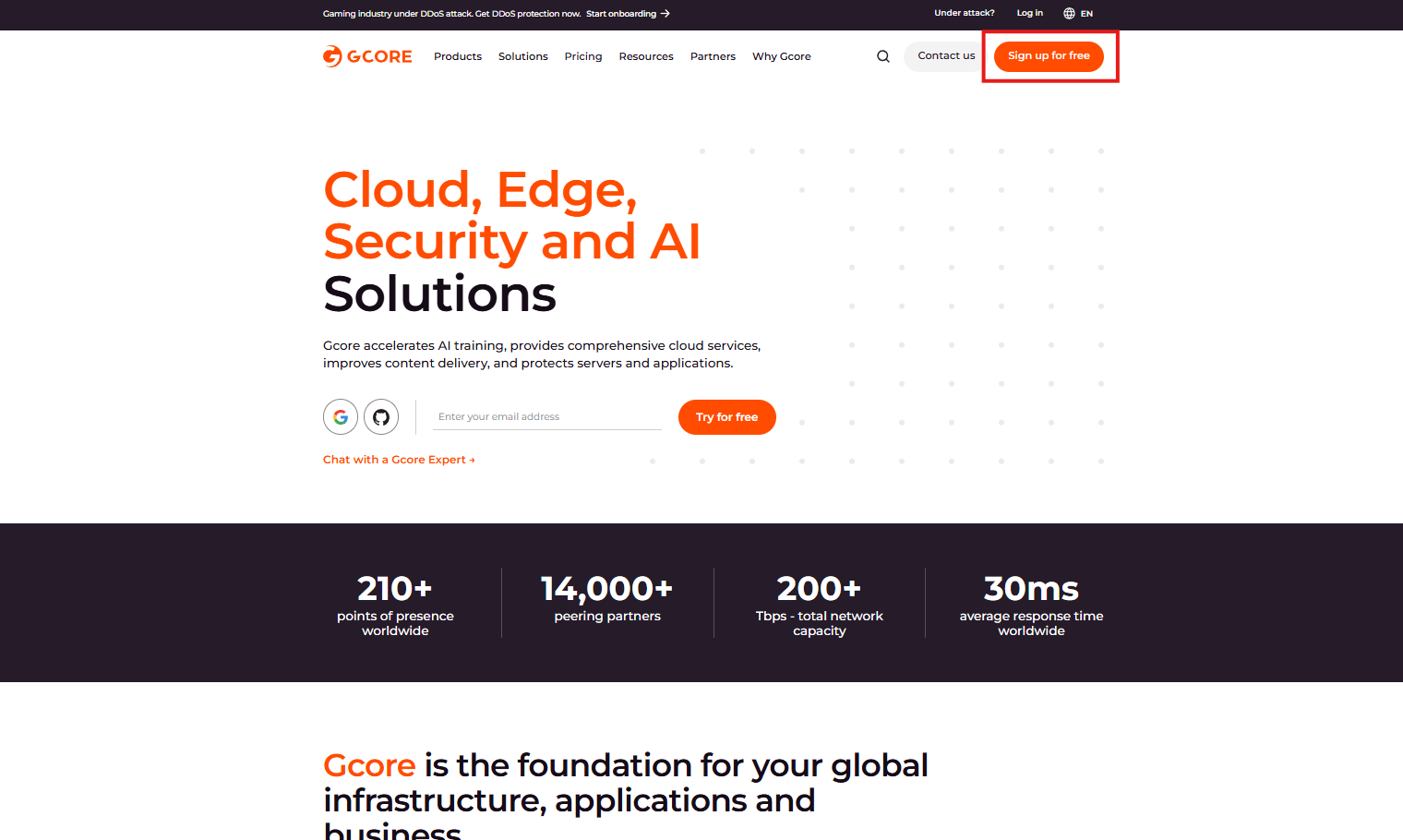
1\. To sign up for Gcore services, navigate to the [Gcore website](https://gcore.com) and click **Sign up for free** in the top navigation.
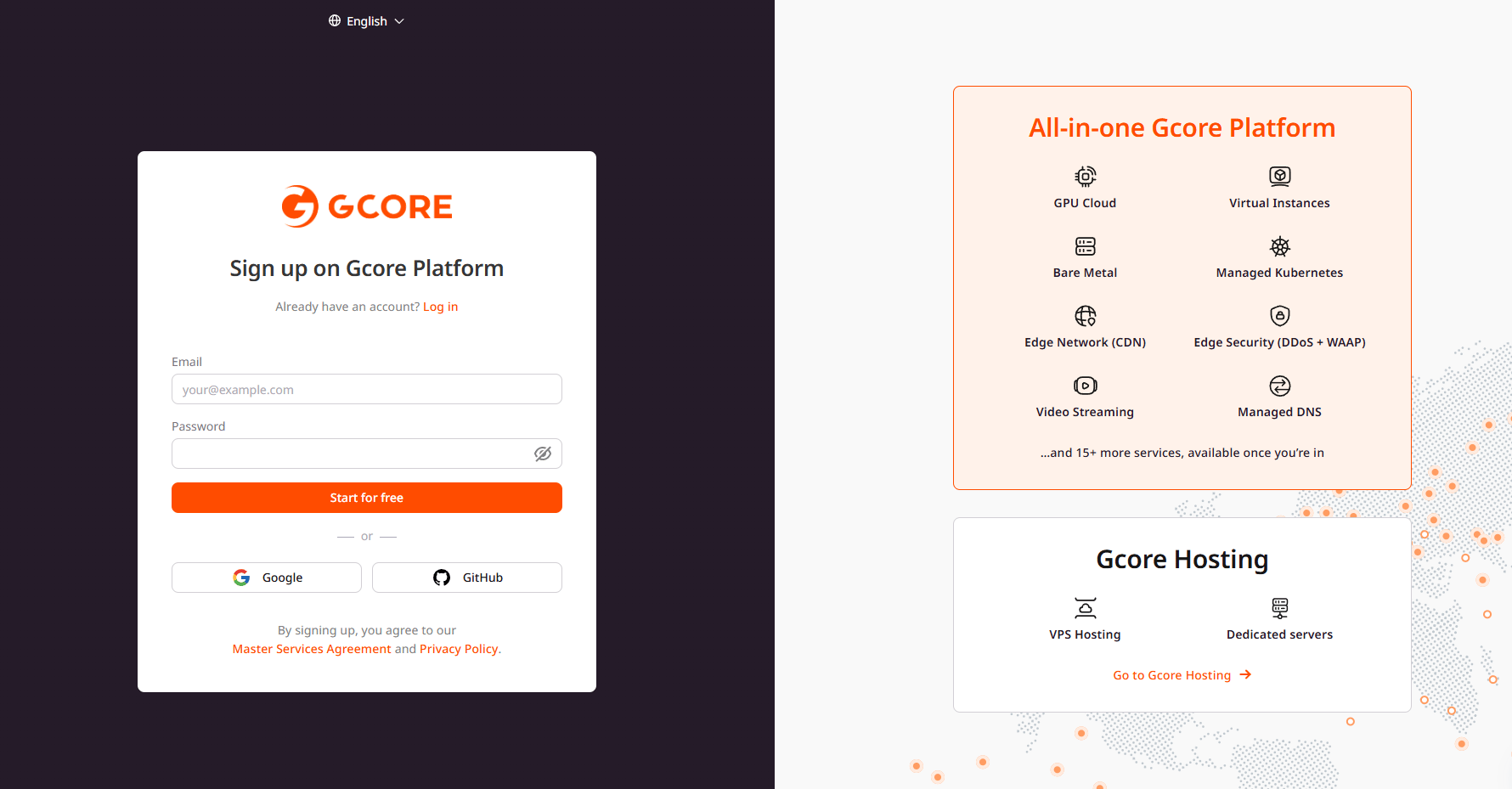
 2\. On the sign-up page, enter an email address and password, then click **Start for free**. Alternatively, click **Google** or **GitHub** to create the account with an existing account from either provider.
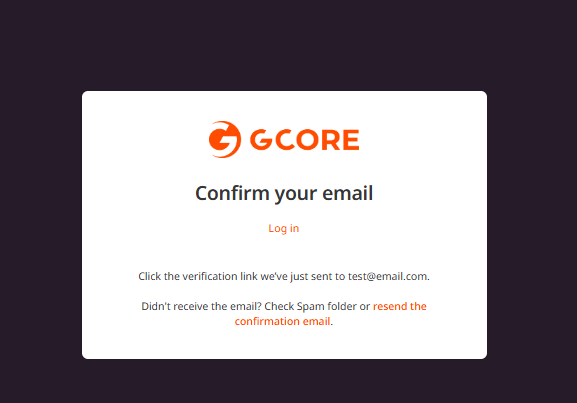
 3\. When signing up with email, a verification link is sent to the specified email address. Click the link to confirm the email. If the email doesn't appear in the inbox, check the spam folder or click **resend the confirmation email**.
 4\. After confirming the email, the Gcore dashboard becomes available in the Customer Portal.
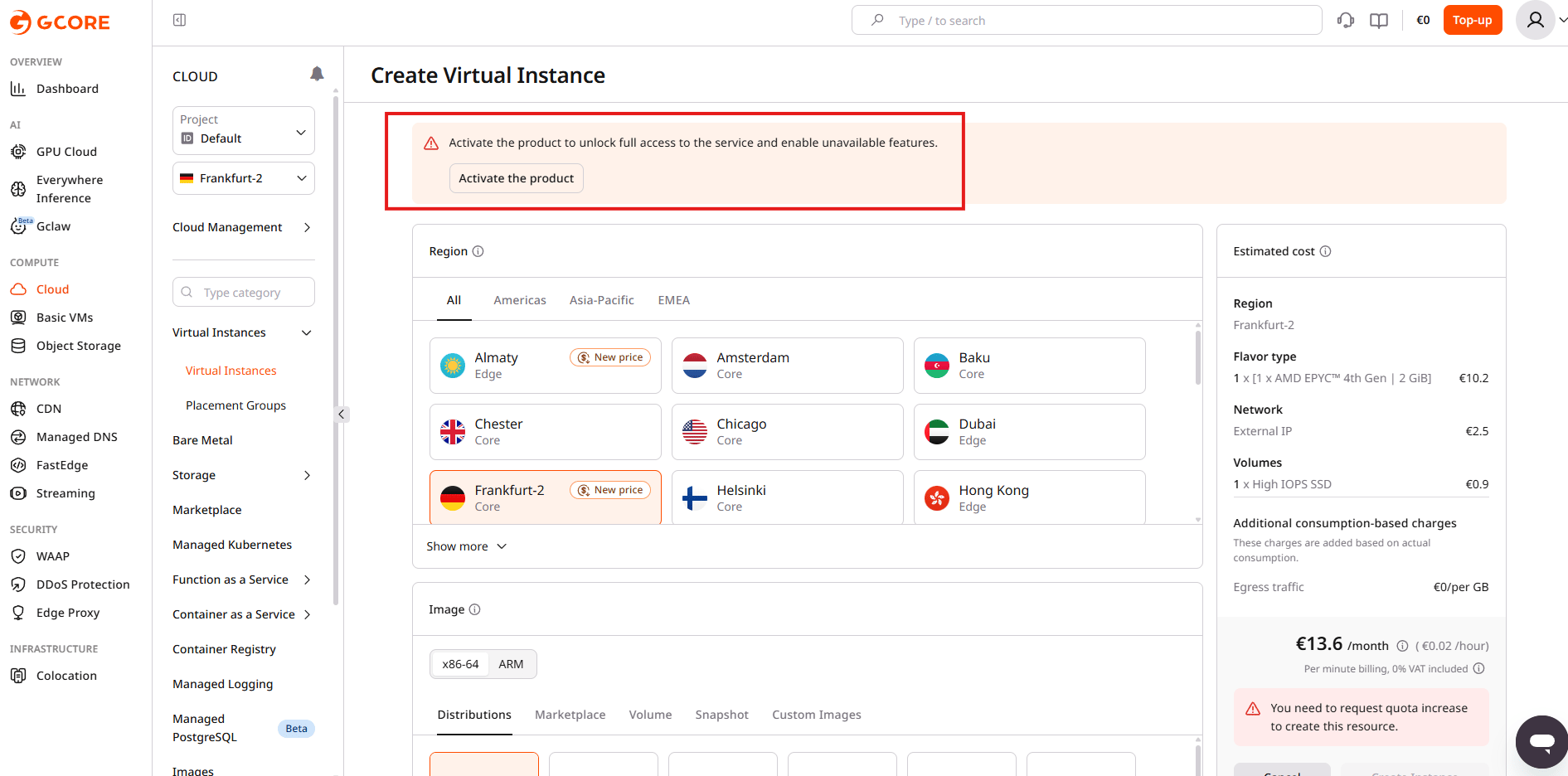
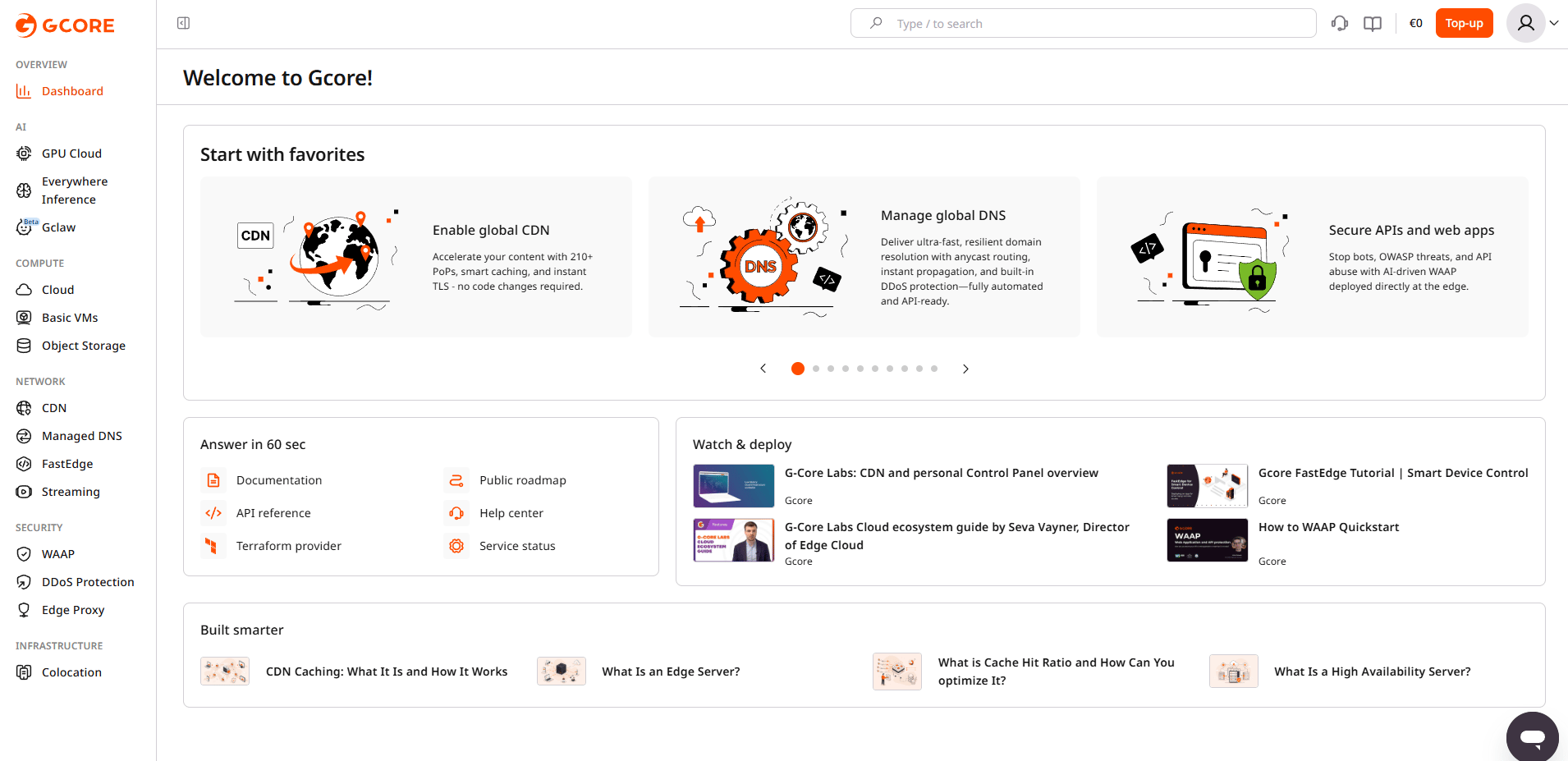 5\. Select a product from the sidebar and start creating a resource. Every product requires activation before it unlocks full access, and the exact prompt depends on the product: in Cloud, creating a virtual instance shows a banner to click **Activate the product**.
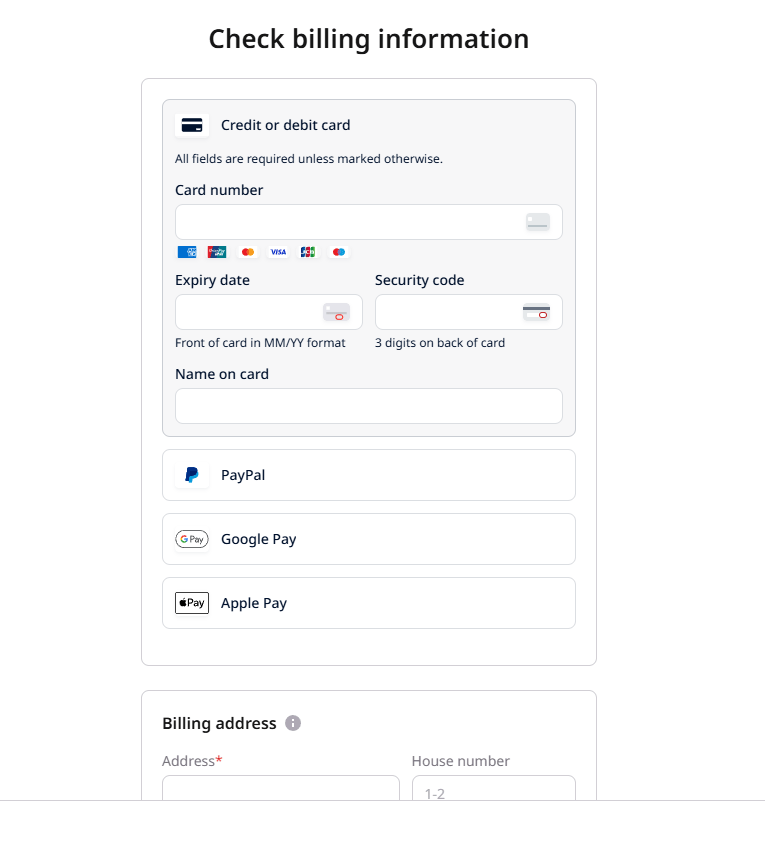
 6\. Select a payment method, either **Credit or debit card**, **PayPal**, **Google Pay**, or **Apple Pay**, then enter the billing address.
 ## For legal entities
Entities that don't need a contract can complete the individual sign-up process described above to start using Gcore services.
Entities that need a contract can reach Gcore via chat or email at [support@gcore.com](mailto:support@gcore.com), and the sales department will follow up. The sign-up process can still be completed to gain access to the services while the contract is being prepared.
## For legal entities
Entities that don't need a contract can complete the individual sign-up process described above to start using Gcore services.
Entities that need a contract can reach Gcore via chat or email at [support@gcore.com](mailto:support@gcore.com), and the sales department will follow up. The sign-up process can still be completed to gain access to the services while the contract is being prepared.