> ## Documentation Index
> Fetch the complete documentation index at: https://docs.gcore.com/llms.txt
> Use this file to discover all available pages before exploring further.
# Account overview
The **Account** section contains configurations that apply to the entire Gcore account, not individual users. This includes account identification, billing information, payment methods, and service management.
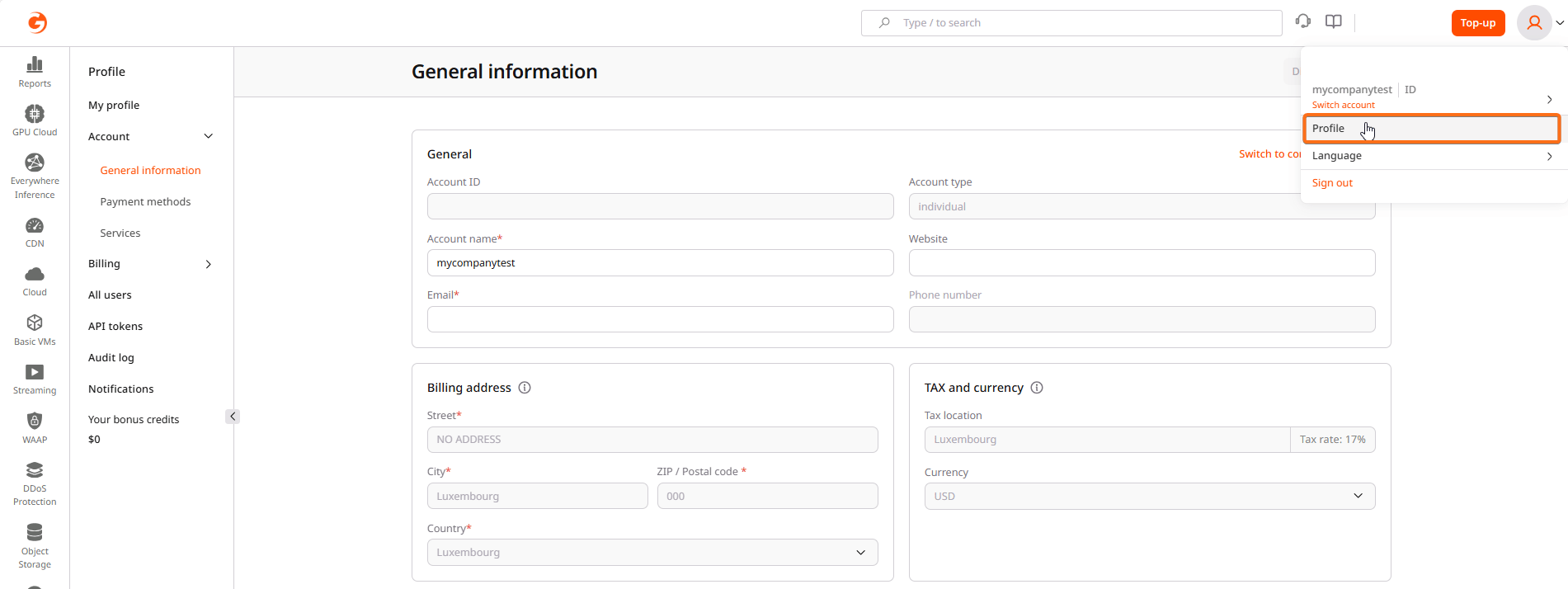
To open this section:
1. Click the avatar in the top-right corner of the Customer Portal.
2. Select **Profile**.
3. In the sidebar, expand **Account** and select **General information**.
 ## General information
The General information page displays core account details and billing configuration.
### Account identification
The following fields identify the account in the Gcore system:
| Field | Description |
| ------------ | ---------------------------------------------------------------------------------------------- |
| Account ID | Unique identifier for the account. This value is read-only and cannot be changed. |
| Account type | Either "individual" or "company". Individual accounts can request to switch to company status. |
| Account name | Display name for the account. This field is editable. |
| Website | Optional company website URL |
| Email | Primary contact email for the account |
| Phone number | Contact phone number (read-only for some account types) |
### Switch to company account
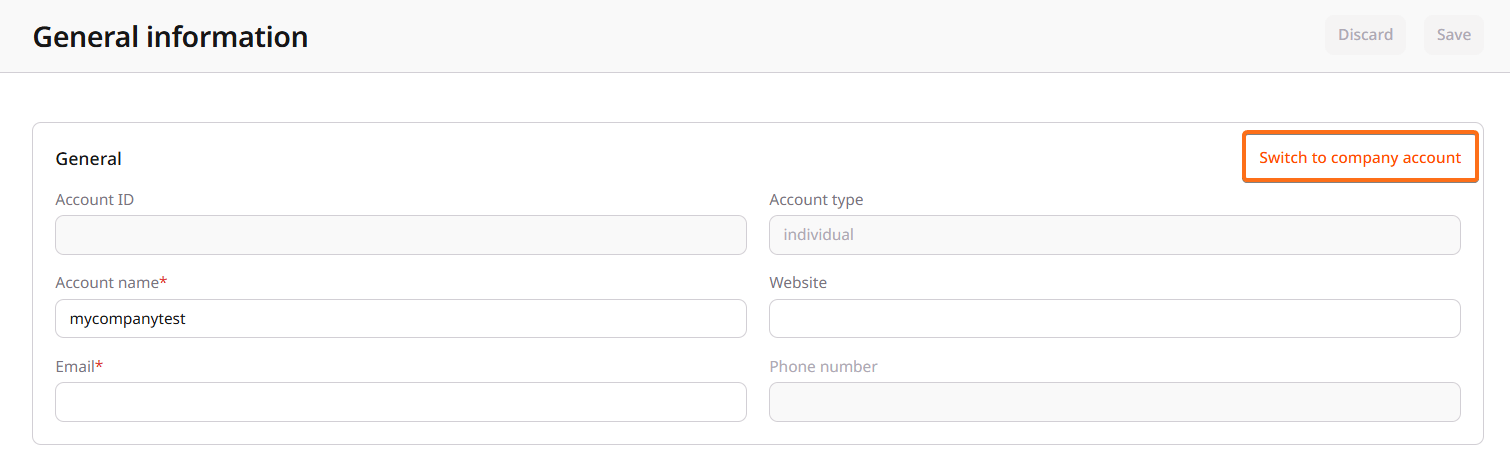
Individual accounts can request to convert to a company account. This process involves identity verification (Know Your Customer, or KYC) and requires business documentation.
To initiate the switch:
1. On the General information page, click **Switch to company account**.
## General information
The General information page displays core account details and billing configuration.
### Account identification
The following fields identify the account in the Gcore system:
| Field | Description |
| ------------ | ---------------------------------------------------------------------------------------------- |
| Account ID | Unique identifier for the account. This value is read-only and cannot be changed. |
| Account type | Either "individual" or "company". Individual accounts can request to switch to company status. |
| Account name | Display name for the account. This field is editable. |
| Website | Optional company website URL |
| Email | Primary contact email for the account |
| Phone number | Contact phone number (read-only for some account types) |
### Switch to company account
Individual accounts can request to convert to a company account. This process involves identity verification (Know Your Customer, or KYC) and requires business documentation.
To initiate the switch:
1. On the General information page, click **Switch to company account**.
 2. Complete the form with the required information:
* Full name of the account holder
* Legal company name
* Website (optional)
* Phone number (optional)
* Business ID (registration number)
* VAT/Tax ID (optional, for billing accuracy)
* Legal address (street, city, postal code, country)
2. Complete the form with the required information:
* Full name of the account holder
* Legal company name
* Website (optional)
* Phone number (optional)
* Business ID (registration number)
* VAT/Tax ID (optional, for billing accuracy)
* Legal address (street, city, postal code, country)
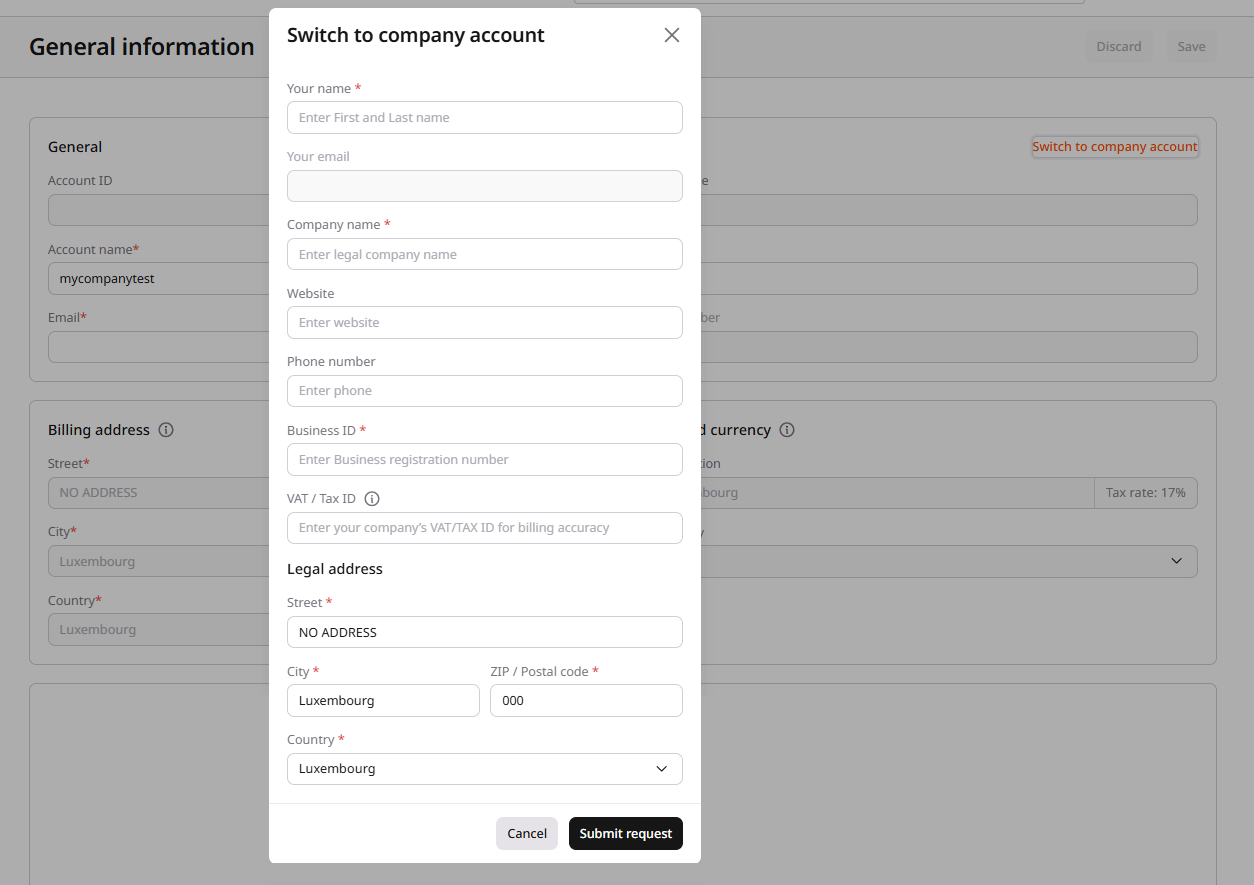 3. Click **Submit request**.
The request is reviewed by Gcore. Status updates are sent via email to the account contact address.
Company accounts have access to additional billing features including VAT invoicing and the ability to add business details to invoices.
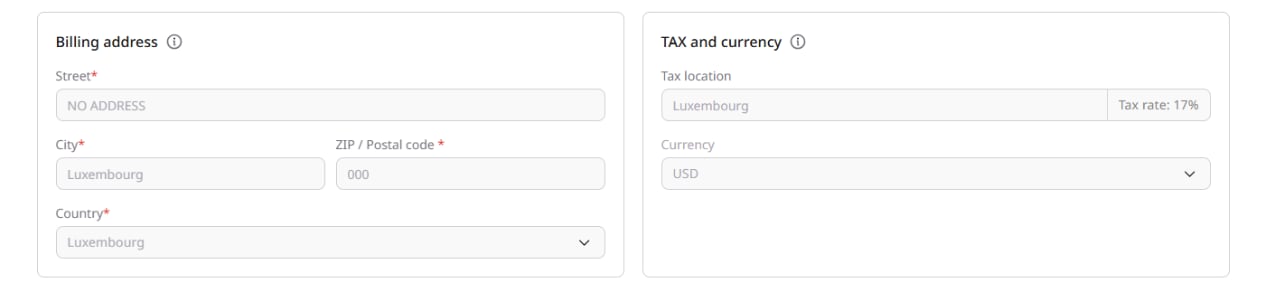
### Billing address
The billing address appears on invoices and is used for tax calculations. Required fields include:
* Street address
* City
* ZIP/Postal code
* Country
To edit the billing address, update the fields and click **Save** in the top-right corner.
The billing address is separate from the address specified in the payment method, so changes made on one page don't affect the other.
### Tax and currency
Tax settings determine how charges are calculated:
* **Tax location**: The country used for tax rate calculation. Displays the applicable tax rate percentage.
* **Currency**: The currency for billing. Options include USD and EUR.
Currency changes may affect existing commitments and payment methods. Contact support before changing the billing currency on accounts with active subscriptions.
3. Click **Submit request**.
The request is reviewed by Gcore. Status updates are sent via email to the account contact address.
Company accounts have access to additional billing features including VAT invoicing and the ability to add business details to invoices.
### Billing address
The billing address appears on invoices and is used for tax calculations. Required fields include:
* Street address
* City
* ZIP/Postal code
* Country
To edit the billing address, update the fields and click **Save** in the top-right corner.
The billing address is separate from the address specified in the payment method, so changes made on one page don't affect the other.
### Tax and currency
Tax settings determine how charges are calculated:
* **Tax location**: The country used for tax rate calculation. Displays the applicable tax rate percentage.
* **Currency**: The currency for billing. Options include USD and EUR.
Currency changes may affect existing commitments and payment methods. Contact support before changing the billing currency on accounts with active subscriptions.
 ## Payment methods
The Payment methods page manages how charges are paid. Gcore supports multiple payment options:
* **Credit or debit card**: Visa, Mastercard, American Express, JCB, and Maestro
* **PayPal**: Link a PayPal account for payments
* **Google Pay**: Pay using Google Pay
* **Apple Pay**: Pay using Apple Pay (available on supported devices)
To add a payment method:
1. In the sidebar, select **Account** > **Payment methods**.
2. Select the payment type.
3. Enter the required information.
4. Confirm the payment method address.
5. Click **Confirm information**.
A small verification charge is processed and immediately refunded to validate the [payment method](/account-settings/billing/payments).
## Services
The [Services](/account-settings/account/services) page lists every Gcore product associated with the account, along with its status, plan, and credit limit, and supports disabling or resuming each one.
## Account deletion
If [account deletion](/account-settings/account/account-deletion) has been requested, the General information page displays an **Account deletion status** section showing the current deletion status.
## Payment methods
The Payment methods page manages how charges are paid. Gcore supports multiple payment options:
* **Credit or debit card**: Visa, Mastercard, American Express, JCB, and Maestro
* **PayPal**: Link a PayPal account for payments
* **Google Pay**: Pay using Google Pay
* **Apple Pay**: Pay using Apple Pay (available on supported devices)
To add a payment method:
1. In the sidebar, select **Account** > **Payment methods**.
2. Select the payment type.
3. Enter the required information.
4. Confirm the payment method address.
5. Click **Confirm information**.
A small verification charge is processed and immediately refunded to validate the [payment method](/account-settings/billing/payments).
## Services
The [Services](/account-settings/account/services) page lists every Gcore product associated with the account, along with its status, plan, and credit limit, and supports disabling or resuming each one.
## Account deletion
If [account deletion](/account-settings/account/account-deletion) has been requested, the General information page displays an **Account deletion status** section showing the current deletion status.