> ## Documentation Index
> Fetch the complete documentation index at: https://docs.gcore.com/llms.txt
> Use this file to discover all available pages before exploring further.
# API tokens
An API token is a unique identifier an application uses to request access to a Gcore account through the API.
## Use cases for API tokens
A standard [authorization token](/api-reference/iam/account/login) is valid for 1 hour, and a [refresh token](/api-reference/iam/account/refresh-token) used to renew it is valid for 24 hours; these short validity periods work for one-time requests but are impractical for an automated process like scheduled CDN cache clearing, which would need to re-authenticate constantly.
An API token solves this by letting the expiration be set at creation, including no expiration at all. Support for API tokens varies by product; the specific product's [API documentation](/api-reference/iam) confirms whether it accepts an API token for authorization. A reseller account can't create an API token, though the reseller's own customers can.
To authorize a request with an API token, add it after `APIKey` in the Authorization header: `Authorization: APIKey 7711_eyJ0eXAiOiJKV`. This differs from a standard authorization token, which uses `Bearer` instead of `APIKey`. The header name is case-insensitive, so `authorization` and `AUTHORIZATION` work identically.
## Create an API token
A maximum of 100 API tokens can be created per account.
1. In the Gcore Customer Portal, click the avatar in the top-right corner, select **Profile**, then **API tokens** in the sidebar.
2. Click **Create token**. The Create API Token dialog opens.
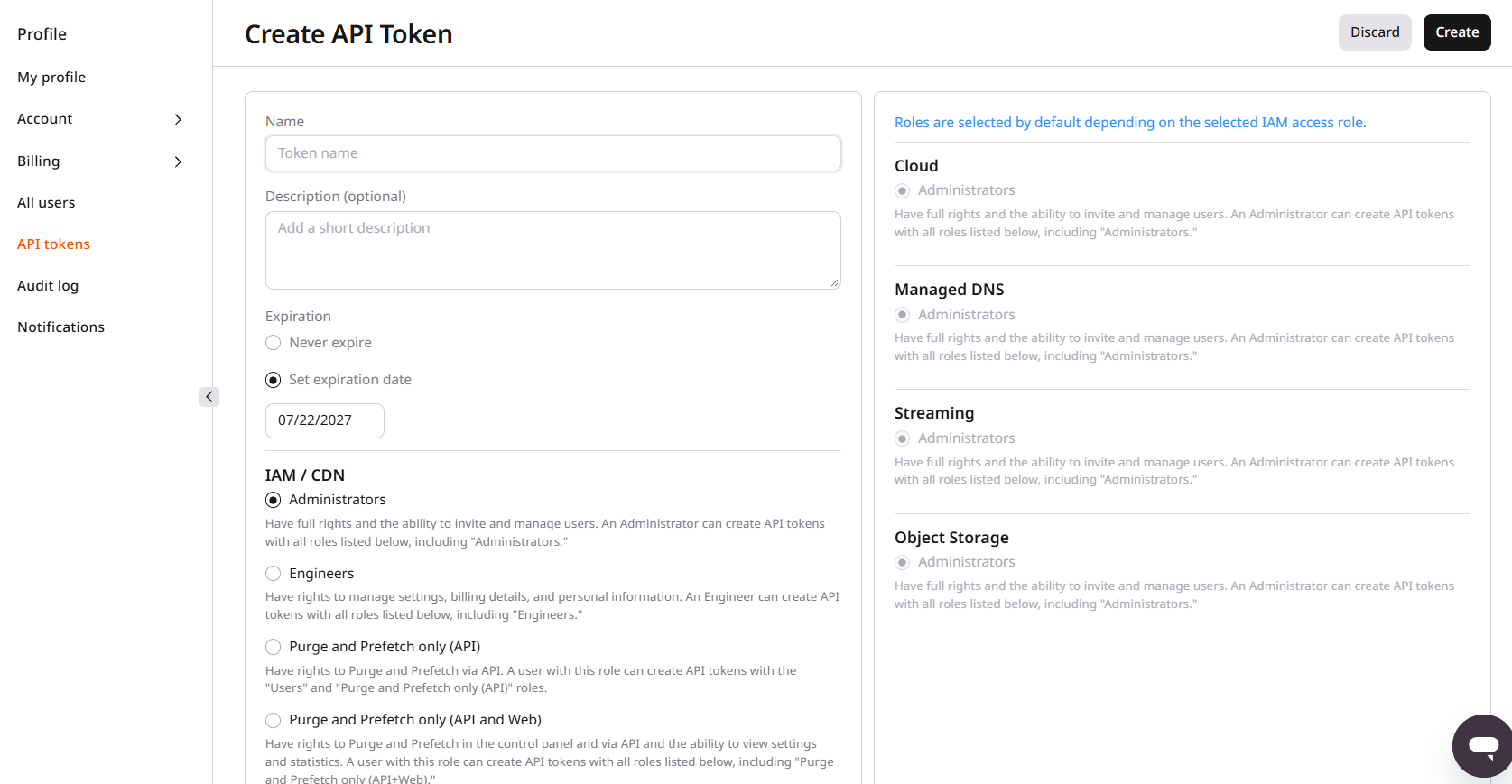 3. In the **Name** field, enter a name for the token. This field is required.
4. In the **Description** field, optionally enter additional information about the token.
5. In the **Expiration** section, select **Never expire** for an unlimited validity period, or **Set expiration date** to set a specific expiration date.
6. For each listed product (Cloud, Managed DNS, Streaming, Object Storage, and Billing) and for IAM/CDN, select the role to assign to the token. Available roles depend on the account's own IAM access role, and a token can't be created with a role higher than the account holder's own: a user with the Users role can't create a token with the Administrators role.
7. Click **Create**.
3. In the **Name** field, enter a name for the token. This field is required.
4. In the **Description** field, optionally enter additional information about the token.
5. In the **Expiration** section, select **Never expire** for an unlimited validity period, or **Set expiration date** to set a specific expiration date.
6. For each listed product (Cloud, Managed DNS, Streaming, Object Storage, and Billing) and for IAM/CDN, select the role to assign to the token. Available roles depend on the account's own IAM access role, and a token can't be created with a role higher than the account holder's own: a user with the Users role can't create a token with the Administrators role.
7. Click **Create**.
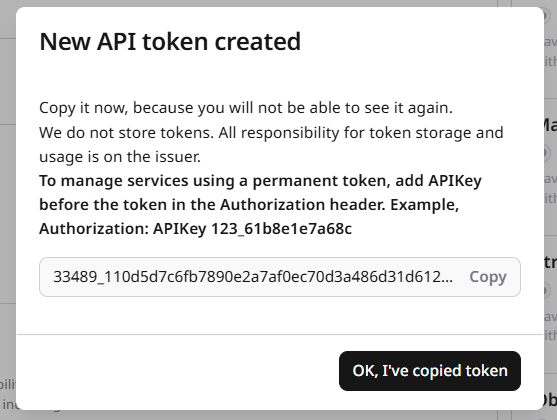 8. Copy the generated token immediately. It's displayed only once and isn't stored by Gcore afterward, so responsibility for storing and using it safely rests with the issuer.
9. Click **OK, I've copied token**. The new token then appears in the API tokens section.
## Delete an API token
A user with the Administrators role can delete any token issued for the account; other users can delete only tokens they issued themselves.
1. In the Gcore Customer Portal, click the avatar in the top-right corner, select **Profile**, then **API tokens** in the sidebar.
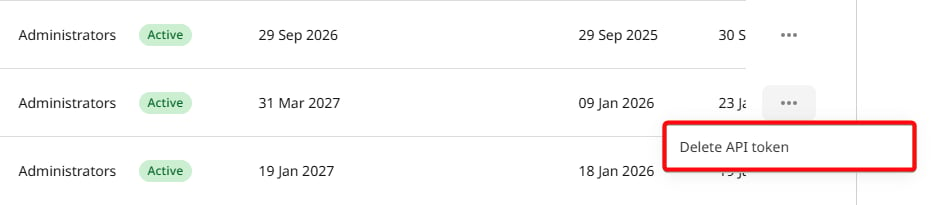
2. Next to the token to remove, click the three-dot icon.
3. Select **Delete API token**.
8. Copy the generated token immediately. It's displayed only once and isn't stored by Gcore afterward, so responsibility for storing and using it safely rests with the issuer.
9. Click **OK, I've copied token**. The new token then appears in the API tokens section.
## Delete an API token
A user with the Administrators role can delete any token issued for the account; other users can delete only tokens they issued themselves.
1. In the Gcore Customer Portal, click the avatar in the top-right corner, select **Profile**, then **API tokens** in the sidebar.
2. Next to the token to remove, click the three-dot icon.
3. Select **Delete API token**.
 ## API tokens section
The API tokens section lists every issued token along with its issuer, role, status, expiration date, and last usage. By default, the list is filtered to active tokens only, shown as a **Status: Active** filter chip; click **Add filter** to filter by other criteria, or **Reset all** to clear filters. The **My Presets**, **Manage Columns**, and **Display Density** controls customize which columns are shown and how the table is displayed.
## API tokens section
The API tokens section lists every issued token along with its issuer, role, status, expiration date, and last usage. By default, the list is filtered to active tokens only, shown as a **Status: Active** filter chip; click **Add filter** to filter by other criteria, or **Reset all** to clear filters. The **My Presets**, **Manage Columns**, and **Display Density** controls customize which columns are shown and how the table is displayed.
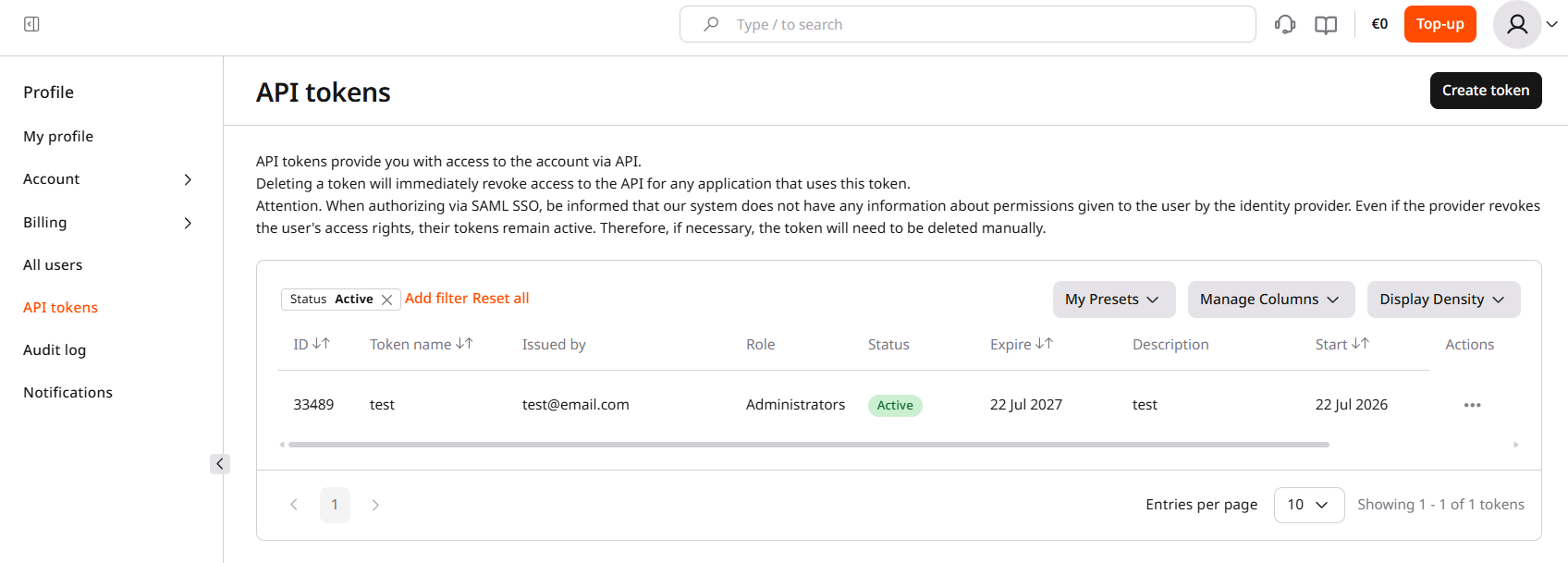 A user with the Administrators role can see and manage every token issued for the account; other users can see and manage only the tokens they issued.
## API token expiration notifications
Expiration notifications are sent by email to the user who issued a token and to users with the Administrators role, 7 days and again 1 day before the token expires. This notification is controlled by the **API token is expiring** toggle in the [Notifications](/account-settings/notifications) section of the Profile tab.
A user with the Administrators role can see and manage every token issued for the account; other users can see and manage only the tokens they issued.
## API token expiration notifications
Expiration notifications are sent by email to the user who issued a token and to users with the Administrators role, 7 days and again 1 day before the token expires. This notification is controlled by the **API token is expiring** toggle in the [Notifications](/account-settings/notifications) section of the Profile tab.
 The API tokens section shows an exclamation mark for any token expiring within 7 days or less.
## API tokens and SSO
When authorizing through SAML SSO, the Gcore system has no information about permissions granted to the user by the identity provider. If the provider revokes the user's access rights, the user's API tokens remain active for account management until deleted manually.
The API tokens section shows an exclamation mark for any token expiring within 7 days or less.
## API tokens and SSO
When authorizing through SAML SSO, the Gcore system has no information about permissions granted to the user by the identity provider. If the provider revokes the user's access rights, the user's API tokens remain active for account management until deleted manually.