> ## Documentation Index
> Fetch the complete documentation index at: https://docs.gcore.com/llms.txt
> Use this file to discover all available pages before exploring further.
# Bonuses and discounts
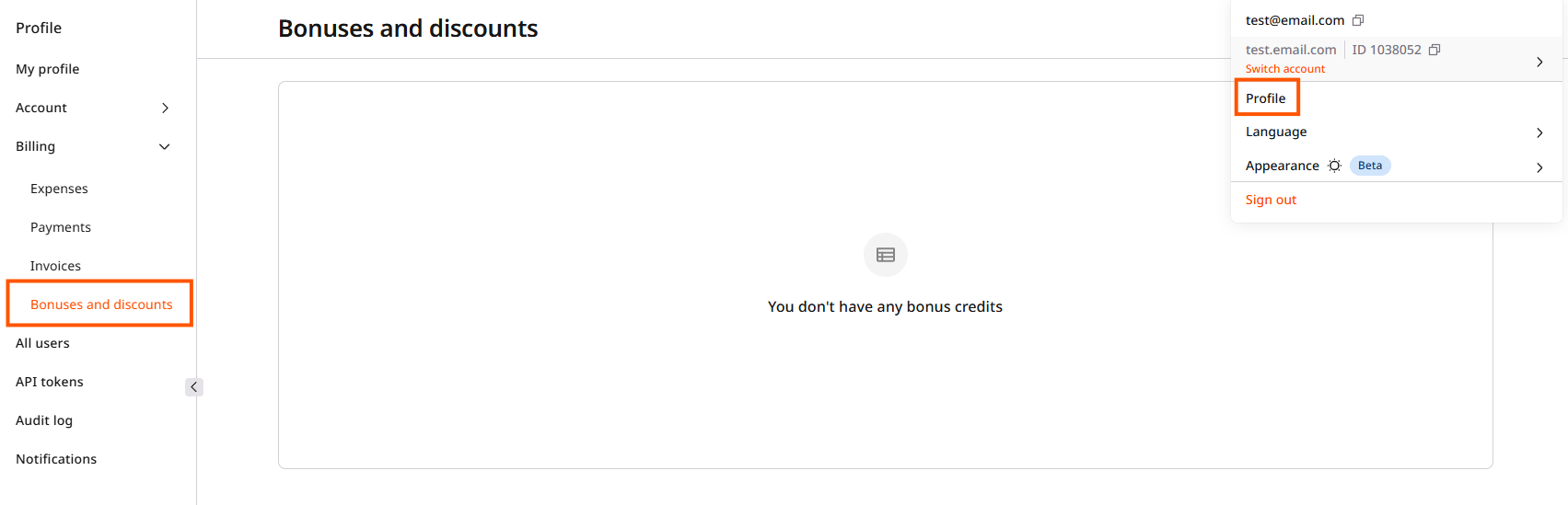
The **Bonuses and discounts** page displays bonus credits and active discounts for the account.
To open this page:
1. Click the profile icon in the top-right corner.
2. Select **Profile**.
3. Navigate to **Billing** > **Bonuses and discounts**.
 ## Bonus credits
Bonus credits are points credited to an account for a limited period and used to pay for Gcore products. They are credited to the bonus account at Gcore's discretion.
Bonuses convert to currency at a fixed one-to-one rate, so 10 bonus credits equal \$10 in the account's currency.
## Bonus credits
Bonus credits are points credited to an account for a limited period and used to pay for Gcore products. They are credited to the bonus account at Gcore's discretion.
Bonuses convert to currency at a fixed one-to-one rate, so 10 bonus credits equal \$10 in the account's currency.
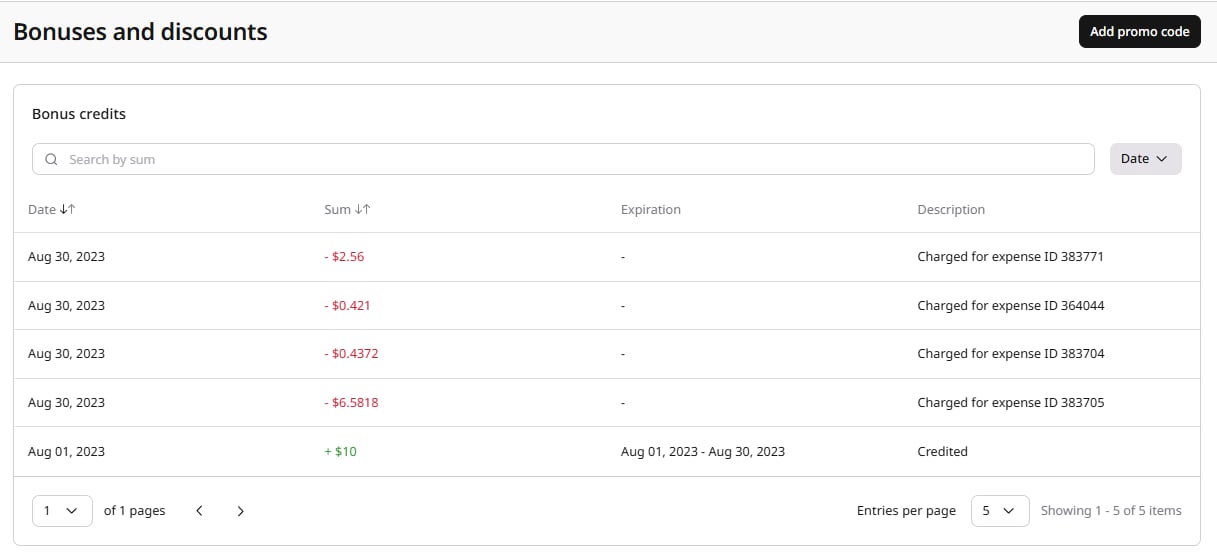 The **Bonus credits** table displays the following information:
| Column | Description |
| ----------- | ---------------------------------------------------------------------------------------------------------------------- |
| Date | Date when bonus credits were credited or charged |
| Sum | Amount of bonus credits; green values with "+" indicate credited bonuses, red values with "-" indicate charged bonuses |
| Expiration | Date range during which the bonus credits are valid |
| Description | Status of the bonus credits operation |
### Bonus credits statuses
The Description column shows one of three statuses.
| Status | Description |
| -------------------------------- | ------------------------------------------------------------------------- |
| Credited | Bonus credits were credited to the account |
| Charged for expense ID \[number] | Bonuses were debited from the balance for a specific expense |
| Expired | Bonuses were canceled because they went unused before the expiration date |
Bonus credits can be searched by sum using the search field, and filtered by date using the **Date** dropdown.
### Bonus applicability
Bonuses can be configured to apply to specific product categories (Cloud, CDN, or another category).
A bonus limited to certain categories applies only to expenses in those categories, while a bonus without category restrictions applies to all eligible expenses. A bonus with a start date in the past is automatically applied to any existing unpaid charges within that period.
### Promo codes
To apply a promo code and receive bonus credits:
1. Click the **Add promo code** button in the top-right corner of the page.
2. In the **Enter promo code** dialog, enter the code and click **Apply**.
The **Bonus credits** table displays the following information:
| Column | Description |
| ----------- | ---------------------------------------------------------------------------------------------------------------------- |
| Date | Date when bonus credits were credited or charged |
| Sum | Amount of bonus credits; green values with "+" indicate credited bonuses, red values with "-" indicate charged bonuses |
| Expiration | Date range during which the bonus credits are valid |
| Description | Status of the bonus credits operation |
### Bonus credits statuses
The Description column shows one of three statuses.
| Status | Description |
| -------------------------------- | ------------------------------------------------------------------------- |
| Credited | Bonus credits were credited to the account |
| Charged for expense ID \[number] | Bonuses were debited from the balance for a specific expense |
| Expired | Bonuses were canceled because they went unused before the expiration date |
Bonus credits can be searched by sum using the search field, and filtered by date using the **Date** dropdown.
### Bonus applicability
Bonuses can be configured to apply to specific product categories (Cloud, CDN, or another category).
A bonus limited to certain categories applies only to expenses in those categories, while a bonus without category restrictions applies to all eligible expenses. A bonus with a start date in the past is automatically applied to any existing unpaid charges within that period.
### Promo codes
To apply a promo code and receive bonus credits:
1. Click the **Add promo code** button in the top-right corner of the page.
2. In the **Enter promo code** dialog, enter the code and click **Apply**.
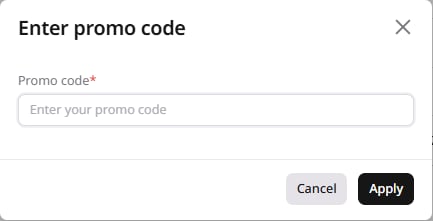 After successful activation, the bonus credits appear in the Bonus credits table.
### Bonus debiting
Bonuses are debited automatically as part of the payment for products, applied to expenses to reduce the total amount due. The applied amount appears in billing details and on invoices as a credit value against the affected expense items, reducing the final invoice total accordingly.
As bonus credits reduce the taxable amount of expenses, the tax is also recalculated downward.
## Discounts
The **Discounts** section displays all active discounts applied to the account.
After successful activation, the bonus credits appear in the Bonus credits table.
### Bonus debiting
Bonuses are debited automatically as part of the payment for products, applied to expenses to reduce the total amount due. The applied amount appears in billing details and on invoices as a credit value against the affected expense items, reducing the final invoice total accordingly.
As bonus credits reduce the taxable amount of expenses, the tax is also recalculated downward.
## Discounts
The **Discounts** section displays all active discounts applied to the account.
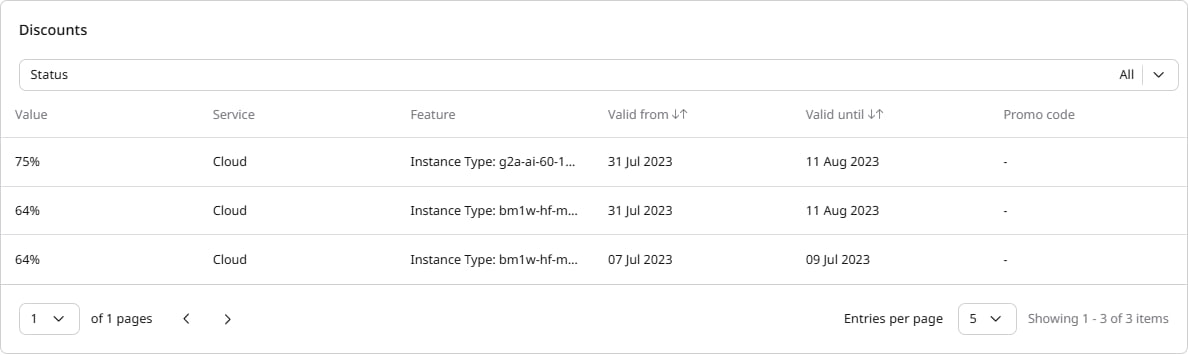 The table shows the following information:
| Column | Description |
| ----------- | ---------------------------------------------------------------------- |
| Value | Discount percentage applied to the expense |
| Service | Gcore service the discount applies to (Cloud, CDN, or another service) |
| Feature | Specific feature or resource type the discount applies to |
| Valid from | Start date of the discount |
| Valid until | End date of the discount |
| Promo code | Promo code associated with the discount, if applicable |
Discounts can be filtered by status using the **Status** dropdown.
The table shows the following information:
| Column | Description |
| ----------- | ---------------------------------------------------------------------- |
| Value | Discount percentage applied to the expense |
| Service | Gcore service the discount applies to (Cloud, CDN, or another service) |
| Feature | Specific feature or resource type the discount applies to |
| Valid from | Start date of the discount |
| Valid until | End date of the discount |
| Promo code | Promo code associated with the discount, if applicable |
Discounts can be filtered by status using the **Status** dropdown.