> ## Documentation Index
> Fetch the complete documentation index at: https://gcore.com/docs/llms.txt
> Use this file to discover all available pages before exploring further.

# Change or reset a password

To change the account password:

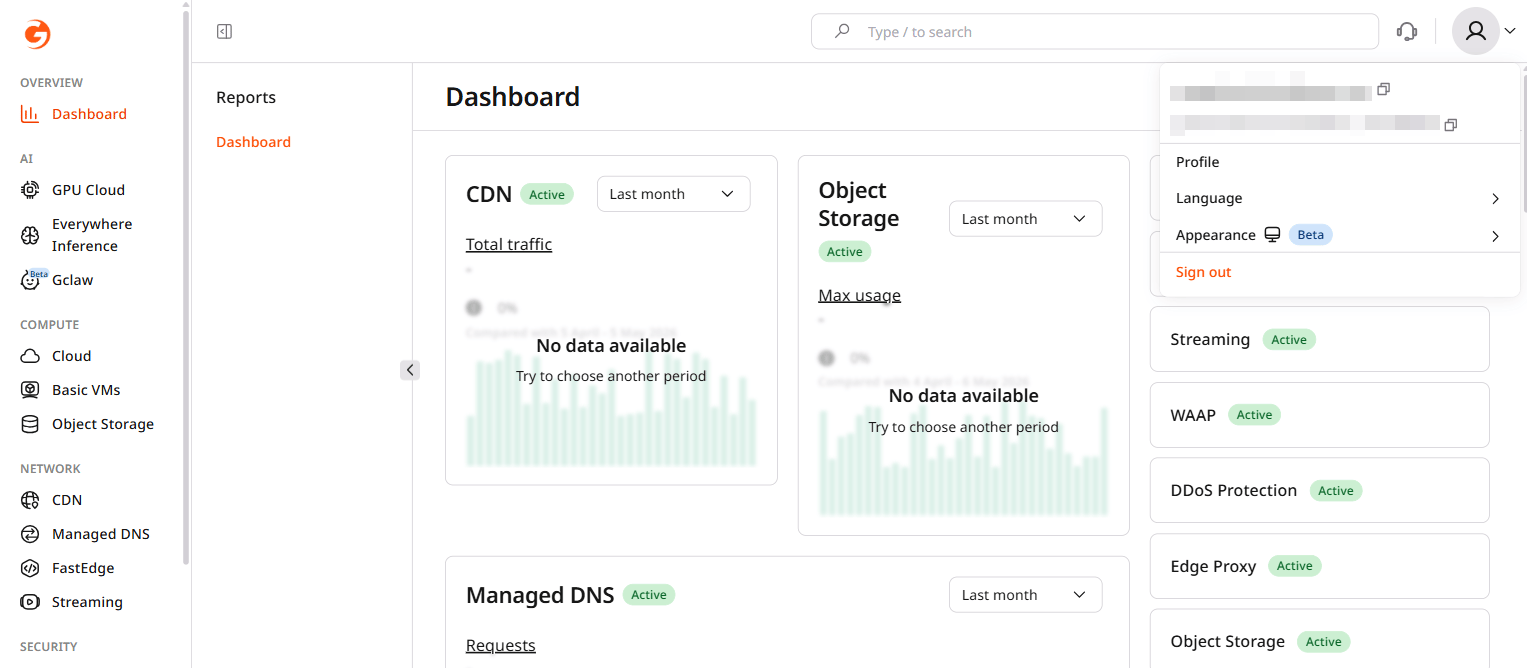
1. In the Customer Portal, click the avatar in the top-right corner and select **Profile**.
<Frame>
  <img src="https://mintcdn.com/gcore/NPKykSJZBiVQO8bH/images/docs/account-settings/my-profile/change-password/avatar-menu-profile-option.png?fit=max&auto=format&n=NPKykSJZBiVQO8bH&q=85&s=e11b2244d74ac46b87690de247cce2b8" alt="Avatar dropdown menu with Profile option" width="1527" height="668" data-path="images/docs/account-settings/my-profile/change-password/avatar-menu-profile-option.png" />
</Frame>

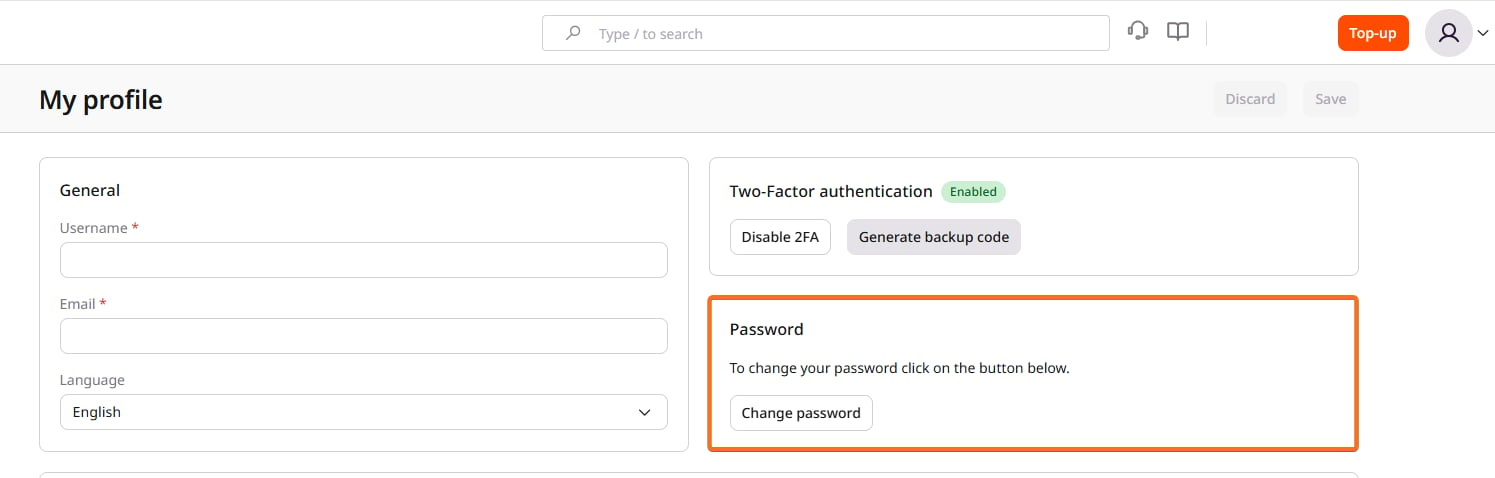
2. In the **Password** section, click **Change password**.
<Frame>
  <img src="https://mintcdn.com/gcore/wP-r0NuNC6BTASBf/images/docs/account-settings/my-profile/change-password/change-password-page.png?fit=max&auto=format&n=wP-r0NuNC6BTASBf&q=85&s=e3fc97ac048b5fe14f500ad56b6ca75a" alt="My profile page with the Password section highlighted" width="1495" height="478" data-path="images/docs/account-settings/my-profile/change-password/change-password-page.png" />
</Frame>

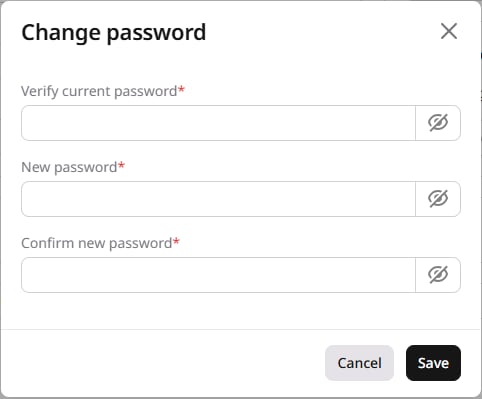
3. Enter the current password in **Verify current password**, then enter the new password in **New password** and **Confirm new password**.
<Frame>
  <img src="https://mintcdn.com/gcore/wP-r0NuNC6BTASBf/images/docs/account-settings/my-profile/change-password/change-password-dialog.png?fit=max&auto=format&n=wP-r0NuNC6BTASBf&q=85&s=d04dbecb966b6a1985e6dd2436b57418" alt="Change password dialog with current and new password fields" width="482" height="399" data-path="images/docs/account-settings/my-profile/change-password/change-password-dialog.png" />
</Frame>

4. Click **Save**.

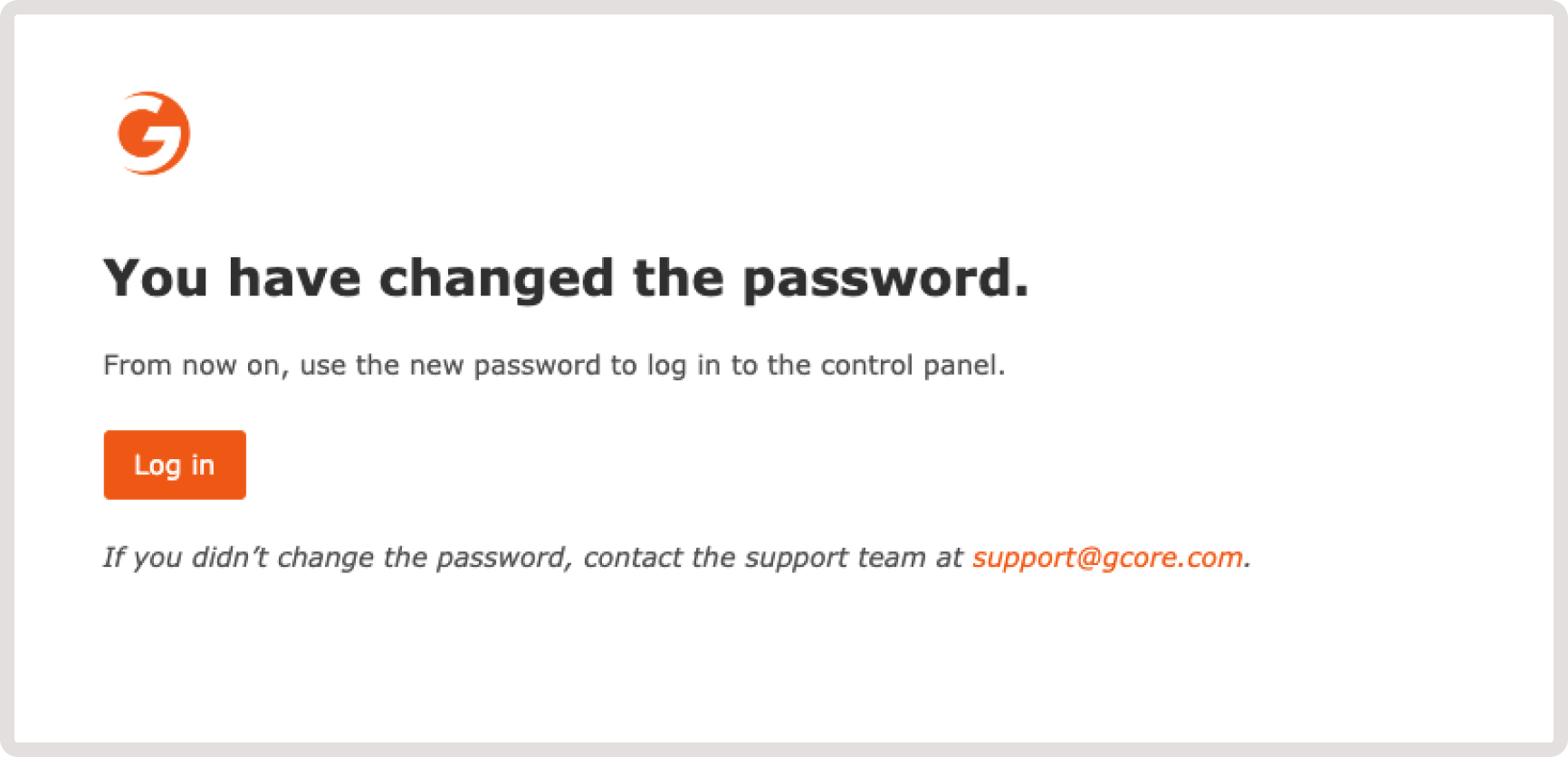
An email notification confirming the password change will be sent to the account's email address.
<Frame>
  <img src="https://mintcdn.com/gcore/wP-r0NuNC6BTASBf/images/docs/account-settings/my-profile/change-password/password-change-confirmation.png?fit=max&auto=format&n=wP-r0NuNC6BTASBf&q=85&s=71bd80432cc89d166b1226f2bb192214" alt="Email confirmation of a password change" width="1732" height="836" data-path="images/docs/account-settings/my-profile/change-password/password-change-confirmation.png" />
</Frame>

## Reset a password

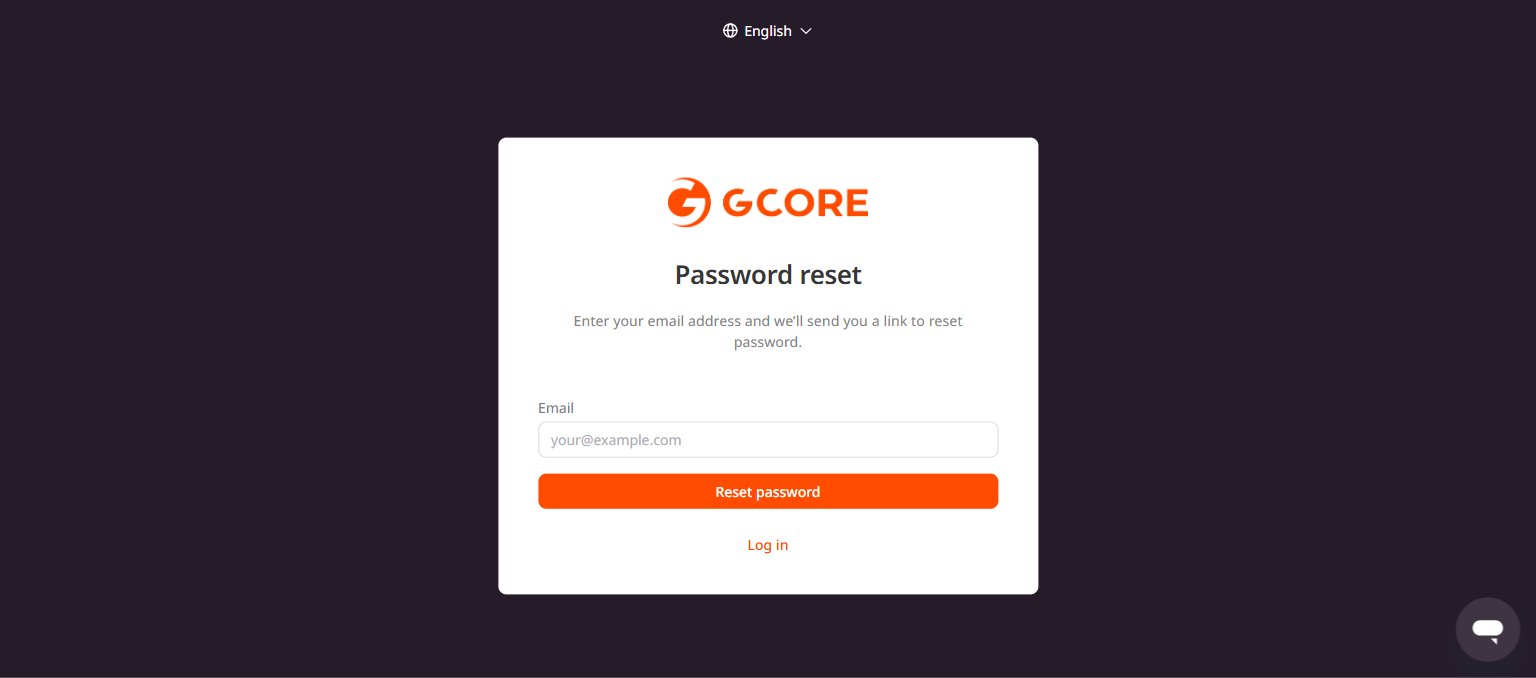
To reset a forgotten password, go to the [reset password page](https://auth.gcore.com/login/forgot-password), enter an email address, and click **Reset password**. A link to create a new password will be sent to that address.
<Frame>
  <img src="https://mintcdn.com/gcore/NPKykSJZBiVQO8bH/images/docs/account-settings/my-profile/change-password/password-reset-form.png?fit=max&auto=format&n=NPKykSJZBiVQO8bH&q=85&s=69870bd5e532ff1809e114370986b92f" alt="Password reset page with email field and Reset password button" width="1536" height="678" data-path="images/docs/account-settings/my-profile/change-password/password-reset-form.png" />
</Frame>
