> ## Documentation Index
> Fetch the complete documentation index at: https://docs.gcore.com/llms.txt
> Use this file to discover all available pages before exploring further.
# Manage notification settings
Notification settings control which email alerts each user in a Gcore account receives for product events, billing changes, and promotional offers. Important notifications are configured individually per user, while general notifications and product-specific alerts are shared across all users of the account.
## Manage notifications
To view and configure notification settings:
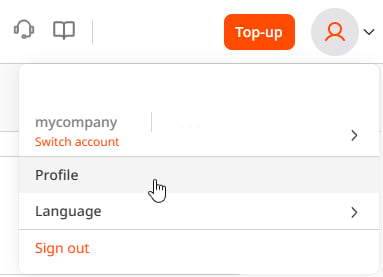
1. In the [Gcore Customer Portal](https://portal.gcore.com), click the account icon in the top-right corner, then click **Profile**.
 2. Open the **Notifications** page.
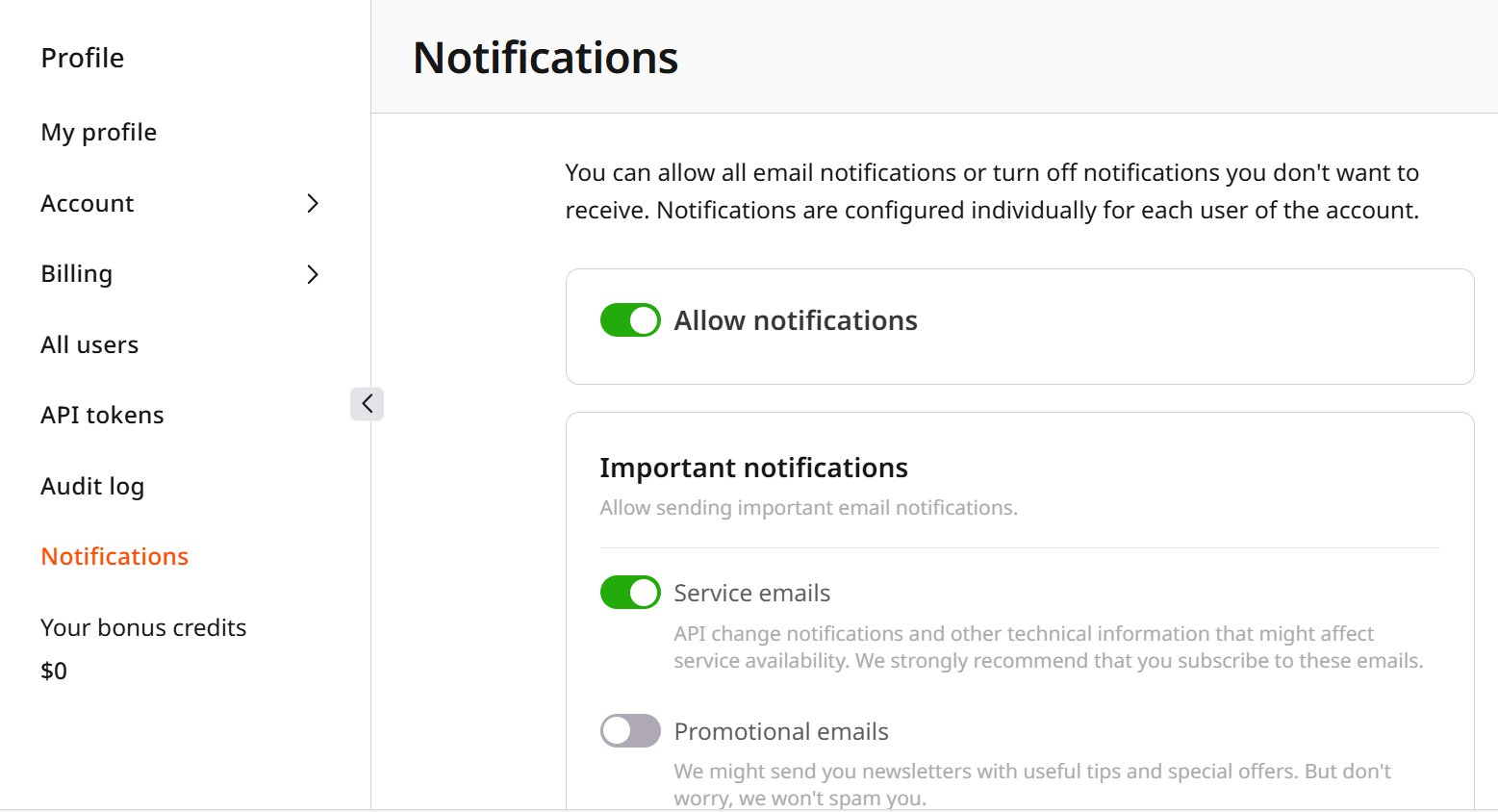 3. Use the **Allow notifications** toggle to enable or disable all email notifications at once, or configure individual notifications and groups below it.
## Important and general notifications
Two groups apply regardless of which products are active on the account.
### Important notifications
The **Important notifications** group covers service emails about API changes and other technical information that might affect service availability, and promotional emails with product tips and special offers. Each account user configures this group individually.
3. Use the **Allow notifications** toggle to enable or disable all email notifications at once, or configure individual notifications and groups below it.
## Important and general notifications
Two groups apply regardless of which products are active on the account.
### Important notifications
The **Important notifications** group covers service emails about API changes and other technical information that might affect service availability, and promotional emails with product tips and special offers. Each account user configures this group individually.
 Keep the **Service emails** toggle enabled to stay updated on changes that could affect the performance of the account's products.
### General notifications
The **General notifications** group is shared across all account users and covers technical support requests, product activation and trial status, payments, API token expiration, addendum inactivity, and Protected Network alerts for DDoS-protected networks.
Keep the **Service emails** toggle enabled to stay updated on changes that could affect the performance of the account's products.
### General notifications
The **General notifications** group is shared across all account users and covers technical support requests, product activation and trial status, payments, API token expiration, addendum inactivity, and Protected Network alerts for DDoS-protected networks.
 ## Product notifications
Each active product adds its own notifications card below the account-wide groups, covering events specific to that product. CDN and Object Storage additionally support a configurable usage limit: once enabled, usage counters reset on the first day of each month, and the usage volume is checked hourly, at the top of the hour with a variance of up to 3 minutes.
### CDN notifications
The **CDN notifications** card sends alerts when Gcore cannot issue a Let's Encrypt certificate for a CDN resource, when an existing SSL certificate is about to expire, and when a CDN resource is suspended after 90 days without traffic. It also includes a configurable traffic consumption limit. To set the limit:
1. In the **Traffic consumption level** field, specify the traffic limit in GB.
2. Click **Save** to apply the settings.
## Product notifications
Each active product adds its own notifications card below the account-wide groups, covering events specific to that product. CDN and Object Storage additionally support a configurable usage limit: once enabled, usage counters reset on the first day of each month, and the usage volume is checked hourly, at the top of the hour with a variance of up to 3 minutes.
### CDN notifications
The **CDN notifications** card sends alerts when Gcore cannot issue a Let's Encrypt certificate for a CDN resource, when an existing SSL certificate is about to expire, and when a CDN resource is suspended after 90 days without traffic. It also includes a configurable traffic consumption limit. To set the limit:
1. In the **Traffic consumption level** field, specify the traffic limit in GB.
2. Click **Save** to apply the settings.
 The traffic consumption level is not configured individually. It is the same for all account users who use this notification.
Setting a level below the traffic already used in the current month sends a notification to all account users at the next check. Suppose three users share an account: User A, User B, and User C. User A is the first to enable this notification and sets the limit to 100 GB, so User B and User C see the same 100 GB limit already applied. User B leaves the limit unchanged, while User C changes it to 70 GB. After the change, all three users receive a notification once traffic reaches 70 GB.
### Cloud notifications
The **Cloud notifications** card covers DDoS attacks against a server under Basic Free or Advanced Secure DDoS protection, certificate renewal for managed Kubernetes clusters (sent 2 weeks before and after the certificate updates), scheduled cleanup of Cloud resources after the account is paused, limit change requests, resource reservation requests, and AI cluster creation.
The traffic consumption level is not configured individually. It is the same for all account users who use this notification.
Setting a level below the traffic already used in the current month sends a notification to all account users at the next check. Suppose three users share an account: User A, User B, and User C. User A is the first to enable this notification and sets the limit to 100 GB, so User B and User C see the same 100 GB limit already applied. User B leaves the limit unchanged, while User C changes it to 70 GB. After the change, all three users receive a notification once traffic reaches 70 GB.
### Cloud notifications
The **Cloud notifications** card covers DDoS attacks against a server under Basic Free or Advanced Secure DDoS protection, certificate renewal for managed Kubernetes clusters (sent 2 weeks before and after the certificate updates), scheduled cleanup of Cloud resources after the account is paused, limit change requests, resource reservation requests, and AI cluster creation.
 ### Streaming and Colocation notifications
The **Streaming notifications** card sends a notification when a live stream turns on or off. The **Colocation email notifications** card sends alerts about scheduled maintenance for colocation services.
### Streaming and Colocation notifications
The **Streaming notifications** card sends a notification when a live stream turns on or off. The **Colocation email notifications** card sends alerts about scheduled maintenance for colocation services.

 ### Object Storage notifications
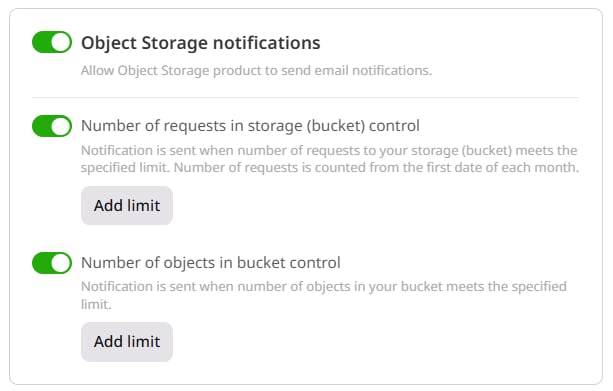
The **Object Storage notifications** card sends alerts about the number of requests to a bucket and the number of objects it contains. To configure a limit:
1. On the Notifications page, open the **Object Storage notifications** section.
2. Click **Add limit** next to the number of requests or number of objects setting.
3. Enter the required limit.
4. Click **Save** to apply the changes.
### Object Storage notifications
The **Object Storage notifications** card sends alerts about the number of requests to a bucket and the number of objects it contains. To configure a limit:
1. On the Notifications page, open the **Object Storage notifications** section.
2. Click **Add limit** next to the number of requests or number of objects setting.
3. Enter the required limit.
4. Click **Save** to apply the changes.