> ## Documentation Index
> Fetch the complete documentation index at: https://docs.gcore.com/llms.txt
> Use this file to discover all available pages before exploring further.
# Create a CDN resource for video streaming
## Overview
Use Gcore Video CDN to deliver live streams and video-on-demand content globally without transcoding. This guide walks you through creating a CDN resource optimized for video delivery.
## When to use Video CDN
**You should use video CDN when:**
* You already have HLS, DASH, or FLV streams ready
* You handle transcoding on your own servers
* You need global delivery at scale (thousands to millions of viewers)
* You want advanced CDN features:
* Geo-blocking by country
* Secure token authentication
* Custom domains
* Origin shielding
* You want to reduce origin bandwidth costs
**Supported formats:**
* **HLS** (`.m3u8` playlists, `.ts` or `.m4s` segments)
* **MPEG-DASH** (`.mpd` manifests)
* **HTTP-FLV** (`.flv` streams)
* **MP4** (progressive download, VOD only)
**Example scenarios:**
* You run a media server (Wowza, Nginx-RTMP, SRS) producing HLS
* You're migrating from another CDN (Cloudflare, AWS, etc.)
* You need geo-restrictions for broadcasting rights
* You want to offload bandwidth from your origin
**You should use Video Streaming Platform instead when:**
* You need transcoding (raw RTMP/SRT input)
* You want automatic quality ladder generation (ABR)
* You're streaming from encoders (OBS, vMix, hardware encoders)
* You need DVR (pause/rewind) or recording features
* You want an all-in-one hosted solution
**Learn more:** [Video Streaming Platform](/streaming)
***
## Quick setup (4 steps)
### Step 1: Request streaming activation
Required first step: video delivery via CDN requires legal approval from Gcore Support.
Contact [Gcore Support](mailto:support@gcore.com) or use the chat in the bottom-right corner and ask to enable video delivery for your CDN account. This is CDN-side approval for prepared HLS and DASH delivery.
Provide:
* **Your Client ID** (found on the main page of Gcore Customer Portal)
* **Domain name** and company name
* **Content type**: Sports, education, entertainment, news, etc.
* **Sample stream URL**: Example of your typical stream format
* **Viewer geography**: Where your audience is located
* **Broadcasting license** or content compliance policy
* **Abuse or copyright contact email**
For sports, TV channels, events, or other third-party protected content, Support may request proof that you or your clients have rights to distribute the content. Requests without the necessary licensing details, company identity, or abuse handling information may be declined or closed.
Processing time: Usually 1-2 business days
 ***
### Step 2: Activate paid CDN plan
Video streaming requires a paid CDN subscription:
1. Navigate to [CDN](https://portal.gcore.com/cdn/resources/list) in the Customer Portal
2. If you're on the free plan, upgrade to:
* **Start** (1.5 TB included traffic)
* **Pro** (5 TB included traffic)
Pricing: Pay for bandwidth delivered to viewers. [View pricing details](/cdn/how-the-cdn-service-and-its-additional-options-are-billed)
***
### Step 3: Create CDN resource
Once streaming is activated by support, create your CDN resource:
1. Go to **CDN** > [CDN Resources](https://portal.gcore.com/cdn/resources/list)
2. Click **Create CDN Resource**
3. Configure the resource (for static assets):
Origin settings:
* **Origin type**: Your server
* **Origin address**: Your media server domain or IP
* Example: `live.example.com` or `192.0.2.1`
* **Origin protocol**: HTTP or HTTPS (match your origin)
* **Origin type**: Storage
* **Storage**: Select your Gcore Storage bucket
* **Path** (optional): `/videos` if VOD files are in a subfolder
CDN resource name:
* Choose a custom domain: `video.yourdomain.com`
* Or use auto-generated: `123456.gcdn.co`
4. Click **Create CDN Resource**
Detailed guide: [Create a CDN resource for static assets](/cdn/getting-started/create-a-cdn-resource/create-a-cdn-resource) (same process for video)
***
### Step 4: Configure caching rules
Optimize caching for video delivery:
Basic cache configuration for live streams:
### Step 1: Enable "Always online" (Recommended)
1. Go to **CDN Resource** > **Cache**
2. Enable **"Always online"** with these settings:
* Check **error** (serve stale cache if origin returns errors)
* Check **timeout** (serve stale cache if origin times out)
* **Uncheck "updating"**
Why enable Always online?
* Protects viewers from origin failures
* If origin goes down, CDN serves cached content instead of error pages
* Improves reliability and uptime
Important: Uncheck the "updating" option for optimal live streaming performance. When excluded, the CDN can deliver video chunks more efficiently, reducing buffering and ensuring smoother playback. Only enable "error" and "timeout".
### Step 2: Set resource-level cache (for segments)
1. Still in **CDN Resource** > **Cache**
2. Set **CDN cache expiry time**: **60 seconds**
* This caches all content (except manifests, see below) for 60 seconds
* If you use DVR, increase this to match your DVR window (e.g., 30 minutes)
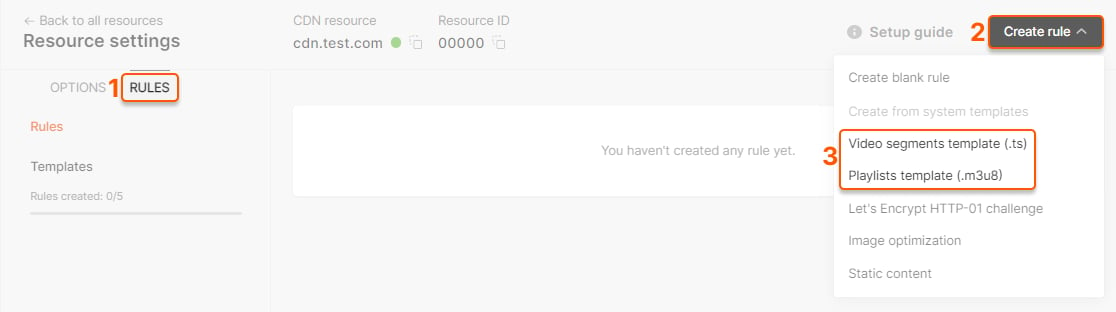
### Step 3: Create manifest caching rule
1. Go to **CDN Resource** > **Rules**
2. Click **Create Rule** > Enter manually:
* **Rule name**: `manifests`
* **Pattern**: `^/.+\.(m3u8|mpd|ism)$` (regex for manifest files)
* **Cache time**: **2 seconds**
* **Browser cache**: **0 seconds** (no browser caching for manifests)
3. Click **Create rule**
**Why these values?**
* **Segments (60s)**: Balances freshness with cache efficiency. Longer than segment duration for slow connections.
* **Manifests (2s)**: Very short to ensure viewers get latest segment list
* **DVR adjustment**: If DVR enabled, segment cache should match DVR window
### Optional: LL-HLS (Low-Latency) configuration
If using LL-HLS (Low-Latency HLS):
1. Go to **CDN Resource** > **Cache**
2. Enable **Query parameters whitelist**
3. Add these parameters: `_HLS_msn`, `_HLS_part`, `_HLS_skip`
* These are required for LL-HLS to work correctly
* All other query parameters will be ignored
***
### Step 2: Activate paid CDN plan
Video streaming requires a paid CDN subscription:
1. Navigate to [CDN](https://portal.gcore.com/cdn/resources/list) in the Customer Portal
2. If you're on the free plan, upgrade to:
* **Start** (1.5 TB included traffic)
* **Pro** (5 TB included traffic)
Pricing: Pay for bandwidth delivered to viewers. [View pricing details](/cdn/how-the-cdn-service-and-its-additional-options-are-billed)
***
### Step 3: Create CDN resource
Once streaming is activated by support, create your CDN resource:
1. Go to **CDN** > [CDN Resources](https://portal.gcore.com/cdn/resources/list)
2. Click **Create CDN Resource**
3. Configure the resource (for static assets):
Origin settings:
* **Origin type**: Your server
* **Origin address**: Your media server domain or IP
* Example: `live.example.com` or `192.0.2.1`
* **Origin protocol**: HTTP or HTTPS (match your origin)
* **Origin type**: Storage
* **Storage**: Select your Gcore Storage bucket
* **Path** (optional): `/videos` if VOD files are in a subfolder
CDN resource name:
* Choose a custom domain: `video.yourdomain.com`
* Or use auto-generated: `123456.gcdn.co`
4. Click **Create CDN Resource**
Detailed guide: [Create a CDN resource for static assets](/cdn/getting-started/create-a-cdn-resource/create-a-cdn-resource) (same process for video)
***
### Step 4: Configure caching rules
Optimize caching for video delivery:
Basic cache configuration for live streams:
### Step 1: Enable "Always online" (Recommended)
1. Go to **CDN Resource** > **Cache**
2. Enable **"Always online"** with these settings:
* Check **error** (serve stale cache if origin returns errors)
* Check **timeout** (serve stale cache if origin times out)
* **Uncheck "updating"**
Why enable Always online?
* Protects viewers from origin failures
* If origin goes down, CDN serves cached content instead of error pages
* Improves reliability and uptime
Important: Uncheck the "updating" option for optimal live streaming performance. When excluded, the CDN can deliver video chunks more efficiently, reducing buffering and ensuring smoother playback. Only enable "error" and "timeout".
### Step 2: Set resource-level cache (for segments)
1. Still in **CDN Resource** > **Cache**
2. Set **CDN cache expiry time**: **60 seconds**
* This caches all content (except manifests, see below) for 60 seconds
* If you use DVR, increase this to match your DVR window (e.g., 30 minutes)
### Step 3: Create manifest caching rule
1. Go to **CDN Resource** > **Rules**
2. Click **Create Rule** > Enter manually:
* **Rule name**: `manifests`
* **Pattern**: `^/.+\.(m3u8|mpd|ism)$` (regex for manifest files)
* **Cache time**: **2 seconds**
* **Browser cache**: **0 seconds** (no browser caching for manifests)
3. Click **Create rule**
**Why these values?**
* **Segments (60s)**: Balances freshness with cache efficiency. Longer than segment duration for slow connections.
* **Manifests (2s)**: Very short to ensure viewers get latest segment list
* **DVR adjustment**: If DVR enabled, segment cache should match DVR window
### Optional: LL-HLS (Low-Latency) configuration
If using LL-HLS (Low-Latency HLS):
1. Go to **CDN Resource** > **Cache**
2. Enable **Query parameters whitelist**
3. Add these parameters: `_HLS_msn`, `_HLS_part`, `_HLS_skip`
* These are required for LL-HLS to work correctly
* All other query parameters will be ignored
 **Optimized cache configuration for VOD:**
### Step 1: Enable "Always online" (Recommended)
1. Go to **CDN Resource** > **Cache**
2. Enable **"Always online"** with these settings:
* Check **error** (serve stale cache if origin returns errors)
* Check **timeout** (serve stale cache if origin times out)
* **Uncheck "updating"**
**Why enable Always online?**
* If origin goes down, viewers can still watch cached videos
* Prevents "origin unavailable" errors from affecting users
* Especially important for high-traffic VOD platforms
Important: Uncheck the "updating" option for optimal live streaming performance. When excluded, the CDN can deliver video chunks more efficiently, reducing buffering and ensuring smoother playback. Only enable "error" and "timeout".
### Step 2: Set long-term cache for all content
1. Still in **CDN Resource** > **Cache**
2. Set **CDN cache expiry time**: 1 year (31536000 seconds)
* This caches all successful responses (2xx, 3xx) for 1 year
* VOD content doesn't change, so aggressive caching is safe
3. Set **Custom cache time for 404 errors**: 1 second
* Protects origin from repeated requests for non-existent files
Why 1 year?
* VOD files never change once uploaded
* Maximum cache efficiency = minimum origin load
* Can be purged manually if needed
### Step 3 (Optional): Large file optimization (for MP4)
If delivering MP4 files for progressive download:
1. Go to **CDN Resource** > **Content**
2. Enable **Large files delivery optimization**
* Enables HTTP range requests for seeking
* Important: Your origin must support Range requests
* Note: Enabling this will invalidate existing cache
Requirements:
* Origin server supports HTTP Range Request (Content-Range headers)
* If using origin group, files must have identical Content-Length and ETag across all origins
* Do not enable GZIP compression when using large file optimization
### Step 4 (Optional): Query string handling
1. Go to **CDN Resource** > **Cache**
2. Enable **Ignore query string** if:
* Your VOD URLs don't use query parameters for logic
* You want to cache `video.mp4?ref=email` and `video.mp4?ref=social` as the same file
3. Ask customer first - they may have analytics or tracking in query params
Common file extensions:
* **Manifests**: `.m3u8`, `.mpd`
* **Segments**: `.ts`, `.m4s`, `.m4v`, `.m4a`, `.m4i`
* **Progressive**: `.mp4`, `.webm`
* **Subtitles**: `.vtt`, `.webvtt`, `.ttml`
Critical for Low-Latency: If you're using MPEG-DASH with an external transcoder (not Gcore Video Streaming), you must enable the **Chunked-Proxy module** for low-latency delivery. Contact [Gcore Support](mailto:support@gcore.com) or your account manager to activate this feature.
Without Chunked-Proxy, your CDN will use standard "store and forward" delivery, resulting in 10-15 second latency instead of the 2-4 second low-latency performance.
### What is Chunked-Proxy?
Standard CDNs wait for files to completely download from origin before sending to viewers ("Store and Forward"). Gcore's **Chunked-Proxy module** streams data immediately:
* Immediate distribution: CDN edge sends bytes to viewers *while* receiving from origin
* Protocol optimization: Uses Chunked Transfer Encoding (HTTP/1.1) and Framing (HTTP/2/3)
* 2-4 second latency: Achieves true low-latency for LL-DASH streams
Learn more: [How Low-Latency Streaming Works](/streaming/live-streaming/how-low-latency-streaming-works)
***
### Request Chunked-Proxy activation
1. Contact [Gcore Support](mailto:support@gcore.com) or your account manager
2. Request **Chunked-Proxy module activation** for your CDN resource
3. Provide:
* Your CDN resource ID or domain
* Confirmation that you're using LL-DASH with CMAF segments
* Your origin transcoder details (Wowza, Nginx-RTMP, etc.)
After activation:
* Your LL-DASH streams will achieve 2-4 second latency
* CDN will stream chunks immediately as they're received from origin
Note: If you're using **Gcore Video Streaming** (our transcoding service), Chunked-Proxy is already enabled by default. You only need to request activation if using an external transcoder.
***
### Cache configuration
After Chunked-Proxy activation by the support team, follow the cache configuration instructions from the **"For Live HLS Streaming"** tab above.
Only difference: When creating the manifest caching rule (Step 3), use:
* **Pattern**: `^/.+\.mpd$` (for DASH manifest files instead of `.m3u8`)
Common DASH/CMAF file extensions:
* **Manifests**: `.mpd`
* **Segments**: `.m4s`, `.m4v`, `.m4a`, `.cmfv`, `.cmfa`
* **Initialization**: `.mp4` (init segments)
FLV streams use a single continuous connection:
1. Fully custom cache settings, contact the support team for more information
Learn more: [FLV Streaming Guide](/cdn/video-cdn/flv-streaming)
Need advanced performance optimization? For high-traffic streaming or specific performance requirements, contact [Gcore Support](mailto:support@gcore.com) to configure:
* **Cache sharding**: Distribute cache across multiple servers
* **Cache lock timing**: Optimize concurrent request handling
* **Custom TTL strategies**: Fine-tune cache behavior per file type
* **Origin connection limits**: Protect origin from traffic spikes
***
### Step 5 (Live only): Enable LIVE STREAMING preset
For live streams only - Skip this step if you're delivering VOD.
The LIVE STREAMING preset enables RAM-based caching for reduced latency:
1. Go to [CDN Resources](https://portal.gcore.com/cdn/resources/list)
2. Click the **three dots** next to your video CDN resource
3. Select **Turn on LIVE STREAMING preset**
**Optimized cache configuration for VOD:**
### Step 1: Enable "Always online" (Recommended)
1. Go to **CDN Resource** > **Cache**
2. Enable **"Always online"** with these settings:
* Check **error** (serve stale cache if origin returns errors)
* Check **timeout** (serve stale cache if origin times out)
* **Uncheck "updating"**
**Why enable Always online?**
* If origin goes down, viewers can still watch cached videos
* Prevents "origin unavailable" errors from affecting users
* Especially important for high-traffic VOD platforms
Important: Uncheck the "updating" option for optimal live streaming performance. When excluded, the CDN can deliver video chunks more efficiently, reducing buffering and ensuring smoother playback. Only enable "error" and "timeout".
### Step 2: Set long-term cache for all content
1. Still in **CDN Resource** > **Cache**
2. Set **CDN cache expiry time**: 1 year (31536000 seconds)
* This caches all successful responses (2xx, 3xx) for 1 year
* VOD content doesn't change, so aggressive caching is safe
3. Set **Custom cache time for 404 errors**: 1 second
* Protects origin from repeated requests for non-existent files
Why 1 year?
* VOD files never change once uploaded
* Maximum cache efficiency = minimum origin load
* Can be purged manually if needed
### Step 3 (Optional): Large file optimization (for MP4)
If delivering MP4 files for progressive download:
1. Go to **CDN Resource** > **Content**
2. Enable **Large files delivery optimization**
* Enables HTTP range requests for seeking
* Important: Your origin must support Range requests
* Note: Enabling this will invalidate existing cache
Requirements:
* Origin server supports HTTP Range Request (Content-Range headers)
* If using origin group, files must have identical Content-Length and ETag across all origins
* Do not enable GZIP compression when using large file optimization
### Step 4 (Optional): Query string handling
1. Go to **CDN Resource** > **Cache**
2. Enable **Ignore query string** if:
* Your VOD URLs don't use query parameters for logic
* You want to cache `video.mp4?ref=email` and `video.mp4?ref=social` as the same file
3. Ask customer first - they may have analytics or tracking in query params
Common file extensions:
* **Manifests**: `.m3u8`, `.mpd`
* **Segments**: `.ts`, `.m4s`, `.m4v`, `.m4a`, `.m4i`
* **Progressive**: `.mp4`, `.webm`
* **Subtitles**: `.vtt`, `.webvtt`, `.ttml`
Critical for Low-Latency: If you're using MPEG-DASH with an external transcoder (not Gcore Video Streaming), you must enable the **Chunked-Proxy module** for low-latency delivery. Contact [Gcore Support](mailto:support@gcore.com) or your account manager to activate this feature.
Without Chunked-Proxy, your CDN will use standard "store and forward" delivery, resulting in 10-15 second latency instead of the 2-4 second low-latency performance.
### What is Chunked-Proxy?
Standard CDNs wait for files to completely download from origin before sending to viewers ("Store and Forward"). Gcore's **Chunked-Proxy module** streams data immediately:
* Immediate distribution: CDN edge sends bytes to viewers *while* receiving from origin
* Protocol optimization: Uses Chunked Transfer Encoding (HTTP/1.1) and Framing (HTTP/2/3)
* 2-4 second latency: Achieves true low-latency for LL-DASH streams
Learn more: [How Low-Latency Streaming Works](/streaming/live-streaming/how-low-latency-streaming-works)
***
### Request Chunked-Proxy activation
1. Contact [Gcore Support](mailto:support@gcore.com) or your account manager
2. Request **Chunked-Proxy module activation** for your CDN resource
3. Provide:
* Your CDN resource ID or domain
* Confirmation that you're using LL-DASH with CMAF segments
* Your origin transcoder details (Wowza, Nginx-RTMP, etc.)
After activation:
* Your LL-DASH streams will achieve 2-4 second latency
* CDN will stream chunks immediately as they're received from origin
Note: If you're using **Gcore Video Streaming** (our transcoding service), Chunked-Proxy is already enabled by default. You only need to request activation if using an external transcoder.
***
### Cache configuration
After Chunked-Proxy activation by the support team, follow the cache configuration instructions from the **"For Live HLS Streaming"** tab above.
Only difference: When creating the manifest caching rule (Step 3), use:
* **Pattern**: `^/.+\.mpd$` (for DASH manifest files instead of `.m3u8`)
Common DASH/CMAF file extensions:
* **Manifests**: `.mpd`
* **Segments**: `.m4s`, `.m4v`, `.m4a`, `.cmfv`, `.cmfa`
* **Initialization**: `.mp4` (init segments)
FLV streams use a single continuous connection:
1. Fully custom cache settings, contact the support team for more information
Learn more: [FLV Streaming Guide](/cdn/video-cdn/flv-streaming)
Need advanced performance optimization? For high-traffic streaming or specific performance requirements, contact [Gcore Support](mailto:support@gcore.com) to configure:
* **Cache sharding**: Distribute cache across multiple servers
* **Cache lock timing**: Optimize concurrent request handling
* **Custom TTL strategies**: Fine-tune cache behavior per file type
* **Origin connection limits**: Protect origin from traffic spikes
***
### Step 5 (Live only): Enable LIVE STREAMING preset
For live streams only - Skip this step if you're delivering VOD.
The LIVE STREAMING preset enables RAM-based caching for reduced latency:
1. Go to [CDN Resources](https://portal.gcore.com/cdn/resources/list)
2. Click the **three dots** next to your video CDN resource
3. Select **Turn on LIVE STREAMING preset**
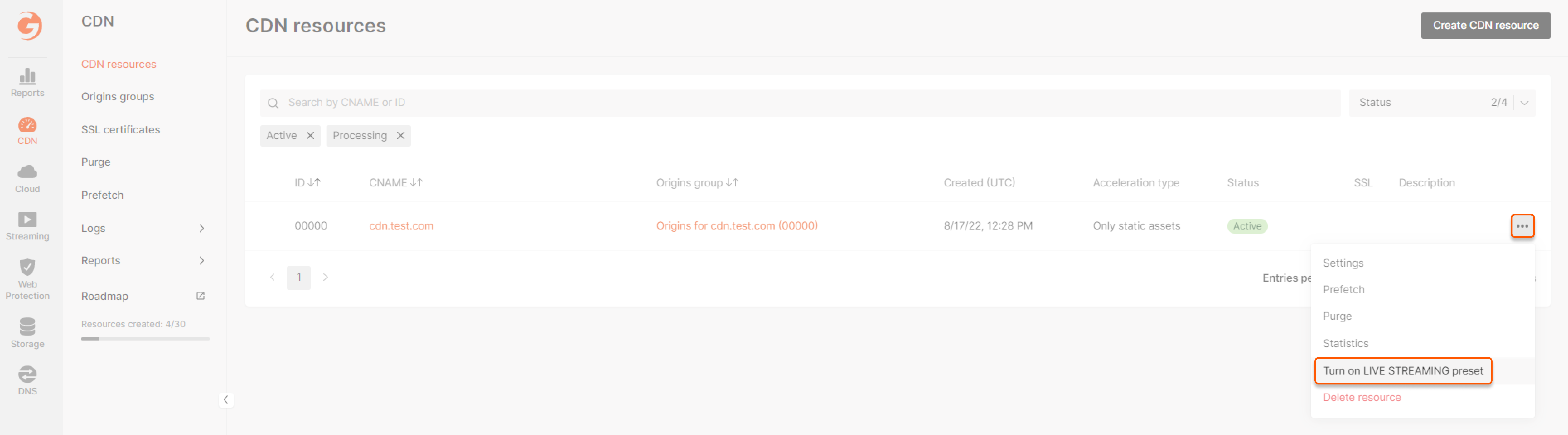 What it does: Caches video segments in RAM instead of disk for faster delivery and lower latency.
***
## Test your stream
### Get your CDN URL
Update your stream URLs from origin to CDN:
Before (origin):
```
http://live.example.com/playlist.m3u8
```
After (CDN):
```
http://video.yourdomain.com/playlist.m3u8
```
Or with auto-generated domain:
```
http://123456.gcdn.co/playlist.m3u8
```
### Test playback
Test your stream in a player that supports HLS:
* Browser: [VLC Media Player](https://videolan.org)
* Online: [HLS.js demo player](https://hls-js.netlify.app/demo/)
* Mobile: Native Safari (iOS) or Chrome (Android)
Paste your CDN URL and verify playback works correctly.
***
## Optional: Advanced configuration
### Enable origin shielding
For high-traffic streams (100+ concurrent viewers), enable origin shielding:
1. Go to **CDN Resource** > **General** > **Origin shielding**
2. Toggle **Enable origin shielding**
3. Select shield location closest to your origin
Benefit: Reduces origin requests by 80-95%, protecting your origin from traffic spikes.
Learn more: [Origin Shielding](/cdn/cdn-resource-options/general/enable-and-configure-origin-shielding)
### Add geo-restrictions
Restrict content by country (e.g., for broadcasting rights):
1. Go to **CDN Resource** > **Security** > **Country access policy**
2. Choose:
* **Allow only**: Content available only in selected countries
* **Block**: Content blocked in selected countries
3. Select countries
4. Save changes
Example: "Allow only in Dominican Republic" for regional sports rights.
Learn more: [Geo-restrictions](/cdn/cdn-resource-options/security/control-access-to-the-content-with-country-referrer-ip-and-user-agents-policies#country-access-policy)
### Add secure tokens
Protect content with time-limited authenticated URLs:
1. Go to **CDN Resource** > **Security** > **Secure Token**
2. Enable and configure token settings
3. Generate tokens on your backend for each user
Use cases: Paid content, private videos, time-limited previews.
Learn more: [Secure Tokens](/cdn/cdn-resource-options/security/use-a-secure-token/about-secure-token)
***
## Next steps
Detailed HLS configuration and optimization
Ultra-low latency streaming with HTTP-FLV
Learn about all Video CDN features
Monitor your video delivery performance
***
## Troubleshooting
### Stream not playing
1. Check origin is accessible: Test origin URL directly in browser
2. Verify DNS: Ensure CNAME points to CDN (if using custom domain)
3. Check cache rules: Verify `.m3u8` and `.ts` rules are configured
4. Review CDN logs: Check for 4xx/5xx errors in CDN statistics
### High latency
1. Enable LIVE STREAMING preset: For live streams (see Step 5)
2. Reduce playlist cache: Set `.m3u8` cache to 1-2 seconds
3. Enable origin shielding: Reduces routing hops
4. Contact support: For advanced latency optimization
### Need help?
Contact [Gcore Support](mailto:support@gcore.com) or use the chat in the bottom-right corner.
What it does: Caches video segments in RAM instead of disk for faster delivery and lower latency.
***
## Test your stream
### Get your CDN URL
Update your stream URLs from origin to CDN:
Before (origin):
```
http://live.example.com/playlist.m3u8
```
After (CDN):
```
http://video.yourdomain.com/playlist.m3u8
```
Or with auto-generated domain:
```
http://123456.gcdn.co/playlist.m3u8
```
### Test playback
Test your stream in a player that supports HLS:
* Browser: [VLC Media Player](https://videolan.org)
* Online: [HLS.js demo player](https://hls-js.netlify.app/demo/)
* Mobile: Native Safari (iOS) or Chrome (Android)
Paste your CDN URL and verify playback works correctly.
***
## Optional: Advanced configuration
### Enable origin shielding
For high-traffic streams (100+ concurrent viewers), enable origin shielding:
1. Go to **CDN Resource** > **General** > **Origin shielding**
2. Toggle **Enable origin shielding**
3. Select shield location closest to your origin
Benefit: Reduces origin requests by 80-95%, protecting your origin from traffic spikes.
Learn more: [Origin Shielding](/cdn/cdn-resource-options/general/enable-and-configure-origin-shielding)
### Add geo-restrictions
Restrict content by country (e.g., for broadcasting rights):
1. Go to **CDN Resource** > **Security** > **Country access policy**
2. Choose:
* **Allow only**: Content available only in selected countries
* **Block**: Content blocked in selected countries
3. Select countries
4. Save changes
Example: "Allow only in Dominican Republic" for regional sports rights.
Learn more: [Geo-restrictions](/cdn/cdn-resource-options/security/control-access-to-the-content-with-country-referrer-ip-and-user-agents-policies#country-access-policy)
### Add secure tokens
Protect content with time-limited authenticated URLs:
1. Go to **CDN Resource** > **Security** > **Secure Token**
2. Enable and configure token settings
3. Generate tokens on your backend for each user
Use cases: Paid content, private videos, time-limited previews.
Learn more: [Secure Tokens](/cdn/cdn-resource-options/security/use-a-secure-token/about-secure-token)
***
## Next steps
Detailed HLS configuration and optimization
Ultra-low latency streaming with HTTP-FLV
Learn about all Video CDN features
Monitor your video delivery performance
***
## Troubleshooting
### Stream not playing
1. Check origin is accessible: Test origin URL directly in browser
2. Verify DNS: Ensure CNAME points to CDN (if using custom domain)
3. Check cache rules: Verify `.m3u8` and `.ts` rules are configured
4. Review CDN logs: Check for 4xx/5xx errors in CDN statistics
### High latency
1. Enable LIVE STREAMING preset: For live streams (see Step 5)
2. Reduce playlist cache: Set `.m3u8` cache to 1-2 seconds
3. Enable origin shielding: Reduces routing hops
4. Contact support: For advanced latency optimization
### Need help?
Contact [Gcore Support](mailto:support@gcore.com) or use the chat in the bottom-right corner.