> ## Documentation Index
> Fetch the complete documentation index at: https://gcore.com/docs/llms.txt
> Use this file to discover all available pages before exploring further.

# Integrate CDN resource with WordPress (W3 Total Cache plugin)

Before you take any steps please back up your files and database. The plugin works only with default CMS pattern. If you manually changed CMS patterns plugin might not help you.

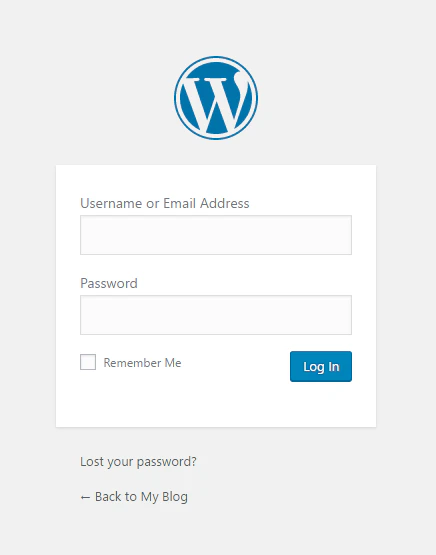
Login to your Wordpress blog at  *yoursite.com/wp-admin* and click **Enter**.
<Frame>
  <img src="https://mintcdn.com/gcore/lJxwP5ZCdc6UHqN3/images/docs/cdn/getting-started/integrate-cdn-with-cms/wordpress/integrate-cdn-resource-with-wordpress-w3-total-cache-plugin/01.PNG?fit=max&auto=format&n=lJxwP5ZCdc6UHqN3&q=85&s=ea71a016363b93aefe3604b8f1094e90" alt="Login to your Wordpress blog" width="436" height="555" data-path="images/docs/cdn/getting-started/integrate-cdn-with-cms/wordpress/integrate-cdn-resource-with-wordpress-w3-total-cache-plugin/01.PNG" />
</Frame>

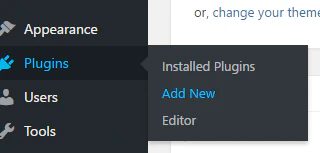
Add new plugin in the "Plugins" section.
<Frame>
  <img src="https://mintcdn.com/gcore/lJxwP5ZCdc6UHqN3/images/docs/cdn/getting-started/integrate-cdn-with-cms/wordpress/integrate-cdn-resource-with-wordpress-w3-total-cache-plugin/02.PNG?fit=max&auto=format&n=lJxwP5ZCdc6UHqN3&q=85&s=20571d330bf88a17ae0fe986b55f8e1c" alt="Plugins" width="320" height="153" data-path="images/docs/cdn/getting-started/integrate-cdn-with-cms/wordpress/integrate-cdn-resource-with-wordpress-w3-total-cache-plugin/02.PNG" />
</Frame>

Find the W3 Total Cache plugin using the search field of the Plugins section.

<Frame>
  <img src="https://mintcdn.com/gcore/lJxwP5ZCdc6UHqN3/images/docs/cdn/getting-started/integrate-cdn-with-cms/wordpress/integrate-cdn-resource-with-wordpress-w3-total-cache-plugin/03.PNG?fit=max&auto=format&n=lJxwP5ZCdc6UHqN3&q=85&s=f92c4535ce89101de0fdb7e7fc0bcfcd" alt="W3 Total Cache plugin" width="426" height="85" data-path="images/docs/cdn/getting-started/integrate-cdn-with-cms/wordpress/integrate-cdn-resource-with-wordpress-w3-total-cache-plugin/03.PNG" />
</Frame>

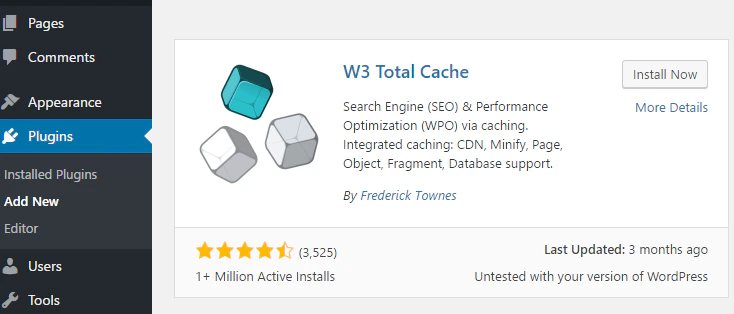
Install the W3 Total Cache plugin.

<Frame>
  <img src="https://mintcdn.com/gcore/lJxwP5ZCdc6UHqN3/images/docs/cdn/getting-started/integrate-cdn-with-cms/wordpress/integrate-cdn-resource-with-wordpress-w3-total-cache-plugin/04.PNG?fit=max&auto=format&n=lJxwP5ZCdc6UHqN3&q=85&s=1814d20c0a1a9bb6ee3bdcd056e0af69" alt="Install the W3 Total Cache plugi" width="734" height="314" data-path="images/docs/cdn/getting-started/integrate-cdn-with-cms/wordpress/integrate-cdn-resource-with-wordpress-w3-total-cache-plugin/04.PNG" />
</Frame>

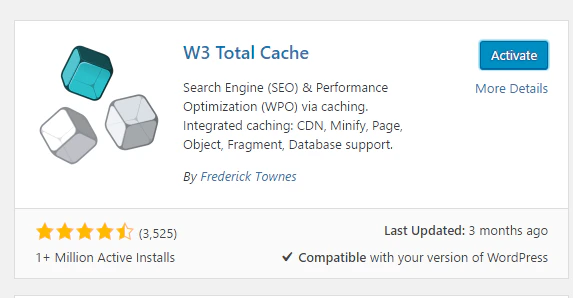
Enable the installed plugin by clicking Activate Plugin.
<Frame>
  <img src="https://mintcdn.com/gcore/lJxwP5ZCdc6UHqN3/images/docs/cdn/getting-started/integrate-cdn-with-cms/wordpress/integrate-cdn-resource-with-wordpress-w3-total-cache-plugin/05.PNG?fit=max&auto=format&n=lJxwP5ZCdc6UHqN3&q=85&s=1cef5c5b06e8ea955994eccf1652652d" alt="Enable the installed plugin" width="573" height="298" data-path="images/docs/cdn/getting-started/integrate-cdn-with-cms/wordpress/integrate-cdn-resource-with-wordpress-w3-total-cache-plugin/05.PNG" />
</Frame>

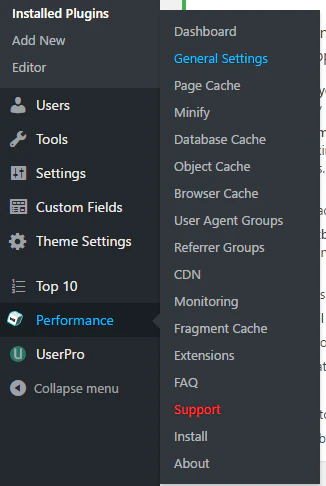
In the Performance section choose "General Settings".
<Frame>
  <img src="https://mintcdn.com/gcore/lJxwP5ZCdc6UHqN3/images/docs/cdn/getting-started/integrate-cdn-with-cms/wordpress/integrate-cdn-resource-with-wordpress-w3-total-cache-plugin/06.PNG?fit=max&auto=format&n=lJxwP5ZCdc6UHqN3&q=85&s=4364f11c190f9fd6d53623d24921a1fe" alt="Performance section " width="326" height="486" data-path="images/docs/cdn/getting-started/integrate-cdn-with-cms/wordpress/integrate-cdn-resource-with-wordpress-w3-total-cache-plugin/06.PNG" />
</Frame>

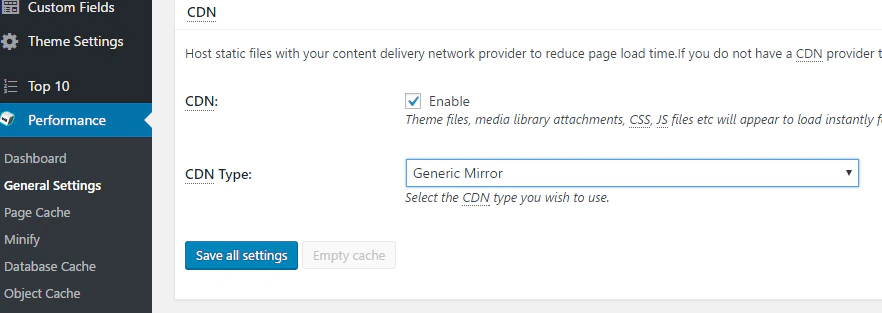
In the "General Settings" section scroll down to the CDN section. Tick "Enable" field. In CDN Type choose Generic Mirror. Then click **Save all** settings.
<Frame>
  <img src="https://mintcdn.com/gcore/lJxwP5ZCdc6UHqN3/images/docs/cdn/getting-started/integrate-cdn-with-cms/wordpress/integrate-cdn-resource-with-wordpress-w3-total-cache-plugin/07.PNG?fit=max&auto=format&n=lJxwP5ZCdc6UHqN3&q=85&s=35f422a44e108d3accbe4bbac628accd" alt="General Settings" width="882" height="313" data-path="images/docs/cdn/getting-started/integrate-cdn-with-cms/wordpress/integrate-cdn-resource-with-wordpress-w3-total-cache-plugin/07.PNG" />
</Frame>

After having settings accepted, a warning of incorrect CDN settings will appear at the top of the General Settings section. Click Specify It Here in this warning message.

<Frame>
  <img src="https://mintcdn.com/gcore/lJxwP5ZCdc6UHqN3/images/docs/cdn/getting-started/integrate-cdn-with-cms/wordpress/integrate-cdn-resource-with-wordpress-w3-total-cache-plugin/10.PNG?fit=max&auto=format&n=lJxwP5ZCdc6UHqN3&q=85&s=d0b3cb2632d177ba003b3b93fdb3179a" alt=" warning message" width="861" height="52" data-path="images/docs/cdn/getting-started/integrate-cdn-with-cms/wordpress/integrate-cdn-resource-with-wordpress-w3-total-cache-plugin/10.PNG" />
</Frame>

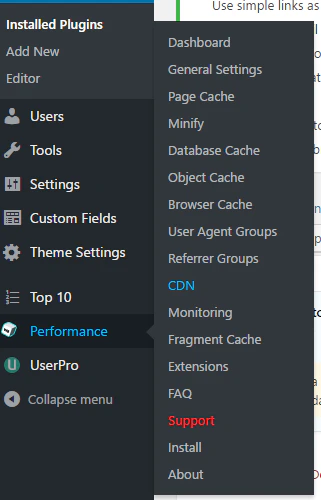
Or go to the CDN section of the Performance menu.
<Frame>
  <img src="https://mintcdn.com/gcore/lJxwP5ZCdc6UHqN3/images/docs/cdn/getting-started/integrate-cdn-with-cms/wordpress/integrate-cdn-resource-with-wordpress-w3-total-cache-plugin/08.PNG?fit=max&auto=format&n=lJxwP5ZCdc6UHqN3&q=85&s=3e711eb23d091217b88864f43ba1f524" alt="CDN section " width="321" height="500" data-path="images/docs/cdn/getting-started/integrate-cdn-with-cms/wordpress/integrate-cdn-resource-with-wordpress-w3-total-cache-plugin/08.PNG" />
</Frame>

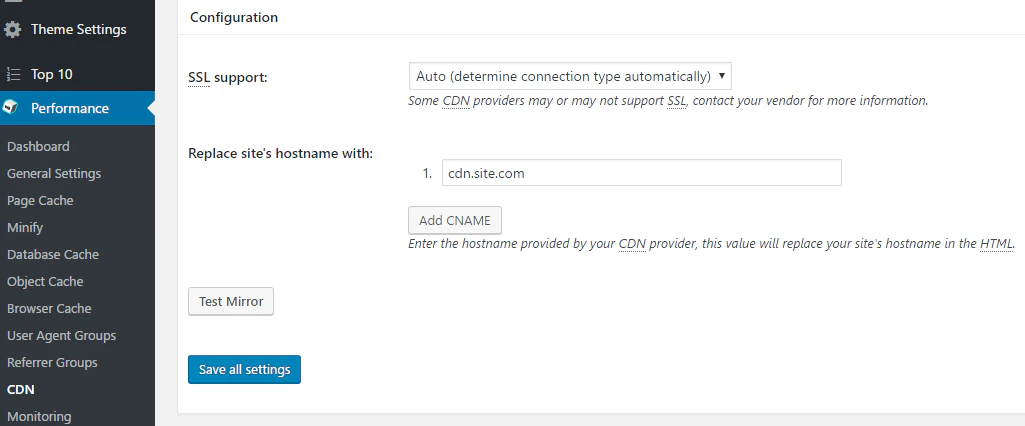
Enter your CNAME (you can find it in your Gcore [Customer Portal](https://portal.gcore.com/cdn/resources/list)) in Replace Site's Hostname With. Then click **Save All Settings**. Ensure that [CNAME record has been configured](/cdn/cdn-resource-options/general/create-and-set-a-custom-domain-for-the-content-delivery-via-cdn) in a proper way before using it for integration.
<Frame>
  <img src="https://mintcdn.com/gcore/lJxwP5ZCdc6UHqN3/images/docs/cdn/getting-started/integrate-cdn-with-cms/wordpress/integrate-cdn-resource-with-wordpress-w3-total-cache-plugin/09.PNG?fit=max&auto=format&n=lJxwP5ZCdc6UHqN3&q=85&s=a00609d66ae94f5bed7f0bbe18192424" alt="Configurations" width="1025" height="426" data-path="images/docs/cdn/getting-started/integrate-cdn-with-cms/wordpress/integrate-cdn-resource-with-wordpress-w3-total-cache-plugin/09.PNG" />
</Frame>

Integration has been completed! We highly recommend you to check the HTML code of your webpage to ensure that URLs have been rewritten properly from your original ones to CNAME from the Customer Portal.

To do that press **F12** or open Developers Tools in your browser, choose the Network tab and refresh the page. All static files should have your CNAME in URLs.