> ## Documentation Index
> Fetch the complete documentation index at: https://gcore.com/docs/llms.txt
> Use this file to discover all available pages before exploring further.
# Resolve errors by status code for GCore CDN
This article reviews errors caused by misconfigurations in Gcore services or option settings, their corresponding status codes, and solutions for each case.
## How to check status codes
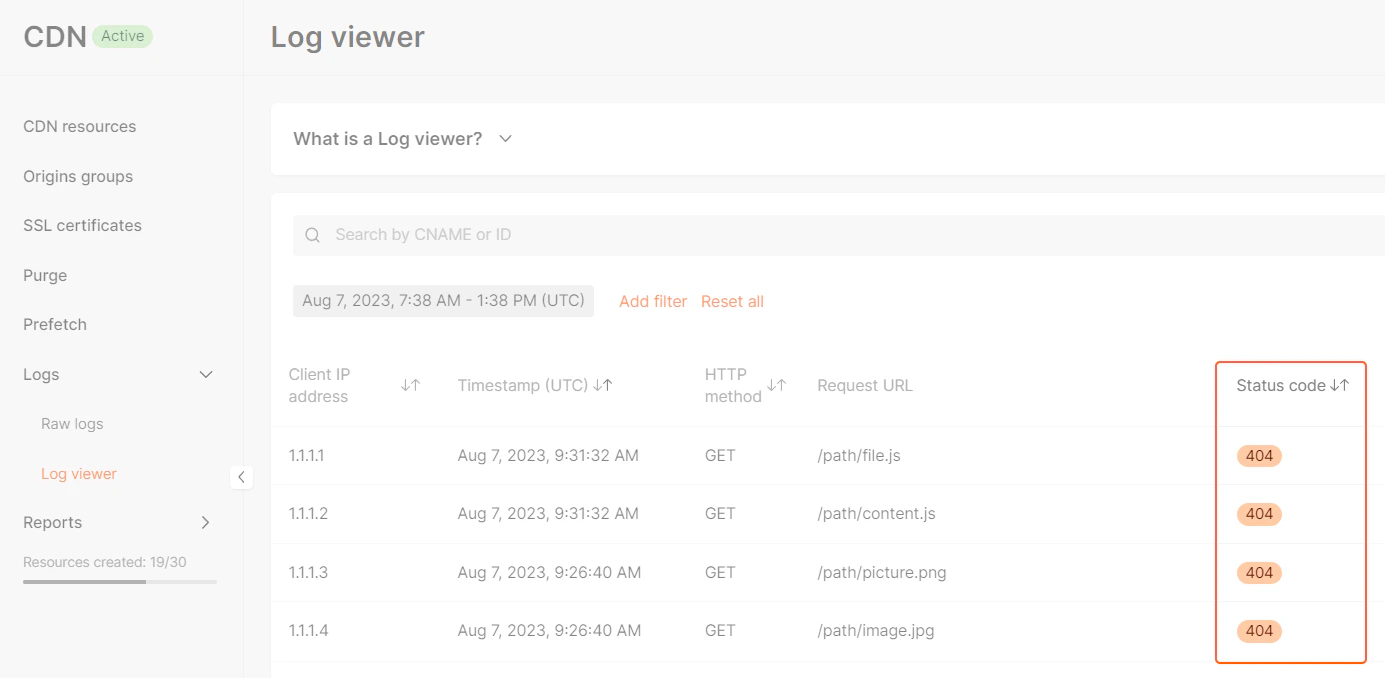
Use the [Log viewer](https://portal.gcore.com/cdn/logs/log-viewer) to check the delivery status codes of your content. Refer to the [article about our Log viewer](/cdn/logs/log-viewer-view-and-download-cdn-resource-logs) for the information on configuring time and filters.
 ## Error status codes
Status codes 403 and 404 have multiple meanings. Explanations of each scenario that can lead to these status codes are presented in the table.
### 403 errors
| **Cause** | **Details** | **Solution** |
| --------------------------------------------------------------- | ---------------------------------------------------------------------------------------------------------------------------------- | ------------------------------------------------------------------------------------------------------------------------------------------------------------------------------------------------------------------------------------------------------------------------------------------------------------------------------------------------------------------------------------------------------------------------------------ |
| The CDN resource is currently disabled. | CDN resources have two states: “Enabled” and “Disabled.”
## Error status codes
Status codes 403 and 404 have multiple meanings. Explanations of each scenario that can lead to these status codes are presented in the table.
### 403 errors
| **Cause** | **Details** | **Solution** |
| --------------------------------------------------------------- | ---------------------------------------------------------------------------------------------------------------------------------- | ------------------------------------------------------------------------------------------------------------------------------------------------------------------------------------------------------------------------------------------------------------------------------------------------------------------------------------------------------------------------------------------------------------------------------------ |
| The CDN resource is currently disabled. | CDN resources have two states: “Enabled” and “Disabled.”
Disabled resources are inactive from your end and will not function. | Navigate to the CDN resource settings and [turn on the resource](/cdn/cdn-resource-options/general/suspend-a-cdn-resource-automatically-or-manually). |
| The current resource security settings limit access for a user. | You may have restricted access to content delivered via CDN to some users. | Determine which parameter (Referrer, Country, IP, User agent) is causing the user receiving error 403 to be blocked, and disable it according to the [guide](/cdn/cdn-resource-options/security/control-access-to-the-content-with-country-referrer-ip-and-user-agents-policies).
**Example**: If you set the Country restriction to Angola and the user with error 403 is located there, you should remove this setting. |
### 404 errors
| **Cause** | **Details** | **Solution** |
| ---------------------------------------------------- | ------------------------------------------------------------------------------------------------------------------------------------------------------------------------------------------------------------------------------------------------------------------------------------------------------------------------------------------------------------------------------------------------------ | ----------------------------------------------------------------------------------------------------------------------------------------------------------------------------------------------------------------------------------------------------------------------------------------------------------------------------------------------------------------------------------------------------------------------------------------------------------------------------------------------------------- |
| You provided a link to a missing file on the origin. | In your web page’s HTML file, you provide links to a content item on your origin via the CDN.
The link causing this error leads to a content item that does not exist on the origin.
**Example**: If the link is *website.example.cdn/files/image.png*, then the file *image.png* is not found in the **files** directory. | You need to place the content item on your origin.
The name and path to the item must match the link in your webpage HTML file.
If necessary, you can edit the link in the HTML file to specify a different content item name or path.
Alternatively, if you don’t want to deliver this content item via the CDN, remove the link to this content from the HTML file of the webpage. |
| WebP compression and WebSockets options conflict. | Due to internal limitations, the [WebP compression](/cdn/cdn-resource-options/image-optimization-paid/image-stack-tools/configure-image-compression-to-webp-and-avif) and [WebSockets](/cdn/cdn-resource-options/websockets-allow-permanent-connections-with-the-origin) options cannot be enabled simultaneously. | Disable one of the options. |
| The “Host header” is incorrect. | The “Host header” option informs the CDN where to address to receive the content.
**Example**: You specified *website.com* as the origin, but the content is hosted on another server *mycontent.com*.
By default, the CDN uses the origin domain name as the value for the “Host header” and will contact the *mycontent.com* server with an incorrect Host header, causing an error. | Use the [Host header option](/cdn/cdn-resource-options/http-headers/configure-and-check-the-host-header) in the CDN settings to provide the accurate Host header.
You can verify the validity of the new Host header using [this instruction](/cdn/troubleshooting/content-is-unavailable-after-a-cdn-resource-creation-how-to-solve-the-issue#2-check-the-host-header-option). |
| Access to an origin is restricted for the CDN. | The CDN can’t reach the origin if the access is restricted, and can’t deliver content to users.
**Note**: This case may also result in the 504 status code. | Allowlist the IP addresses of Gcore servers using [this guide](/cdn/getting-started/configure-an-origin/add-cdn-servers-to-the-origin-acl-whitelist).
If the IP addresses are already allowlisted, Gcore subnets may be excluded from the ACL.
In such a case, configure the ACL using an HTTP header instead of an IP list using the [Request headers option](/cdn/cdn-resource-options/http-headers/specify-http-headers-that-cdn-adds-to-requests-to-the-origin) in the CDN resource settings. |
### Other errors (402, 504, 508, 556, 557)
| **Status code** | **Cause** | **Details** | **Solution** |
| --------------- | ---------------------------------------------------------------------------------------------------- | ----------------------------------------------------------------------------------------------------------------------------------------------------------------------------------------------------------------------------------------------------------------------------------------------------------------------------------------------------------------------------------------- | --------------------------------------------------------------------------------------------------------------------------------------------------------------------------------------------------------------------------------------------------------------------------------------------------------------------------------------------------------------------------------------------------------------------------------------------------------------------------------------------------------------------------------------- |
| 402 | You are trying to deliver streaming content before video delivery is enabled for the CDN account. | HLS and DASH file types such as `.m3u8`, `.mpd`, `.ts`, `.m4s`, `.m4v`, and `.m4a` can return `402` until Gcore Support enables video delivery for your CDN account. | Request video delivery enablement by following [Step 1: Request streaming activation](/cdn/getting-started/create-a-cdn-resource/create-a-cdn-resource-for-video-streaming#step-1-request-streaming-activation). |
| 504 | Access to an origin is restricted for the CDN. | The CDN can’t reach the origin if the access is restricted, and can’t deliver content to users.
**Note**: This case may also result in the 404 status code. | Allowlist the IP addresses of Gcore servers using [this guide](/cdn/getting-started/configure-an-origin/add-cdn-servers-to-the-origin-acl-whitelist).
If the IP addresses are already allowlisted, Gcore subnets may be excluded from the ACL.
In such a case, configure the ACL using an HTTP header instead of an IP list using the [Request headers option](/cdn/cdn-resource-options/http-headers/specify-http-headers-that-cdn-adds-to-requests-to-the-origin) in the CDN resource settings. |
| 508 | The domain of the CDN resource (CNAME) and the origin are messed up. | Your origin and the domain name of your CDN resource lead to requests being directed back to each other, resulting in a loop.
**Example**: You've set up a CNAME record using your origin domain name value instead of the custom value specified in your account and mentioned in the [setup instructions](/cdn/getting-started/create-a-cdn-resource/create-a-cdn-resource). | [Adjust the settings](/cdn/troubleshooting/content-is-unavailable-after-a-cdn-resource-creation-how-to-solve-the-issue#1-check-the-configuration-of-the-personal-domain) by configuring the path to files on your origin to go through the CDN resource domain name.
Ensure that the CDN resource domain name is correctly directed to the subdomain displayed in your personal account within the DNS settings, as described in the [setup instructions](/cdn/getting-started/create-a-cdn-resource/create-a-cdn-resource). |
| 556 | The number of connections to an origin has been exceeded. | This occurs when requests to an origin time out, increasing the number of connections. | Ensure that your origin’s response time is within 5 seconds. |
| 557 | The number of connections to the resource has exceeded the limit of 10,000 simultaneous connections. | If you have only one resource in a specific location and there has been a high volume of connection attempts in that location, the resource will reject any connection attempts with a 557 response code once the limit of 10,000 simultaneous connections is reached. | [Add more origins](/cdn/add-an-origin-group) from the relevant location to the origins group. |
#### 402 for HLS, DASH
If video delivery is not enabled yet, requests for HLS or DASH manifests and segments can return `402` even when the files exist on your origin. This commonly affects `.m3u8`, `.mpd`, `.ts`, `.m4s`, `.m4v`, and `.m4a` files.
#### 402 for TypeScript .ts files
The `.ts` extension is also used for TypeScript source files. If you need to deliver TypeScript files through CDN and they return `402`, rename or build them to JavaScript files (`.js`) before delivery, or contact [Gcore Support](mailto:support@gcore.com) to review the CDN resource configuration.