> ## Documentation Index
> Fetch the complete documentation index at: https://gcore.com/docs/llms.txt
> Use this file to discover all available pages before exploring further.

# Create a Bare Metal server

export const MethodSection = ({children}) => children ?? null;

export const MethodSwitch = ({children}) => {
  const tabs = React.Children.toArray(children).map(c => {
    if (!c || !c.props) return null;
    if (c.props.id) return c;
    const inner = c.props.children;
    if (inner && inner.props && inner.props.id) return inner;
    return null;
  }).filter(Boolean);
  const firstId = tabs.length > 0 ? tabs[0].props.id : "";
  const [active, setActive] = React.useState(firstId);
  React.useEffect(() => {
    try {
      const saved = localStorage.getItem("gcore_docs_method");
      if (saved && tabs.find(t => t.props.id === saved)) {
        setActive(saved);
      }
    } catch (_) {}
  }, []);
  React.useEffect(() => {
    try {
      document.querySelectorAll("h2[id], h3[id]").forEach(heading => {
        const visible = heading.offsetParent !== null;
        document.querySelectorAll(`a[href="#${heading.id}"]`).forEach(link => {
          if (link.closest("h1,h2,h3,h4,h5,h6")) return;
          const li = link.closest("li");
          if (li) li.style.display = visible ? "" : "none";
        });
      });
    } catch (_) {}
    window.dispatchEvent(new Event("scroll"));
  }, [active]);
  const handleClick = id => {
    setActive(id);
    try {
      localStorage.setItem("gcore_docs_method", id);
    } catch (_) {}
  };
  return <div>
      <div className="not-prose flex gap-0 border-b border-zinc-200 dark:border-zinc-800 mb-8 mt-2" role="tablist">
        {tabs.map(tab => {
    const isActive = active === tab.props.id;
    return <button key={tab.props.id} role="tab" aria-selected={isActive} onClick={() => handleClick(tab.props.id)} className={["px-4 py-2 text-sm font-medium border-b-2 -mb-px transition-colors cursor-pointer", isActive ? "border-primary text-primary" : "border-transparent text-zinc-500 hover:text-zinc-800 dark:hover:text-zinc-200"].join(" ")}>
              {tab.props.label}
            </button>;
  })}
      </div>

      {tabs.map(tab => <div key={tab.props.id} style={{
    display: active === tab.props.id ? "" : "none"
  }}>
          {tab.props.children}
        </div>)}
    </div>;
};

<MethodSwitch>
  <MethodSection id="portal" label="Customer Portal">
    <p>A Bare Metal server is a physical machine allocated entirely to a single tenant, with no hypervisor layer. All CPU, RAM, and storage resources are dedicated — not shared with other users.</p>

    <Info>
      Bare Metal servers require a quota increase before creation. Select a region and server type in the creation form, then click **Send quota request** in the **Quota Increase Required** block. Requests are reviewed by the operations team.
    </Info>

    ## Step 1. Open the creation page

    In the [Gcore Customer Portal](https://portal.gcore.com/accounts/reports/dashboard), navigate to **Cloud** > **Bare Metal** and click **Create Bare Metal**.

    <Frame>
      <img src="https://mintcdn.com/gcore/oxS_nLcLtEBfgfBM/images/docs/cloud/bare-metal-servers/create-a-bare-metal-server/bare-metal-page-2.png?fit=max&auto=format&n=oxS_nLcLtEBfgfBM&q=85&s=7111da500db79f322dc8264fd3909dfe" alt="Bare metal page in Gcore Customer Portal" width="1271" height="309" data-path="images/docs/cloud/bare-metal-servers/create-a-bare-metal-server/bare-metal-page-2.png" />
    </Frame>

    ## Step 2. Select a region

    <p>Select the deployment region.</p>

    ## Step 3. Select an image

    <p>Select the architecture — **x86-64** or **ARM** — then choose an OS image from one of three tabs:</p>

    * **Distributions** - prepared OS templates (Ubuntu, CentOS, Debian, Windows, and others).
    * **Marketplace** - pre-configured application images.
    * **Custom Images** - images previously uploaded to the account. Only images built for Bare Metal servers are compatible; standard VM images do not work. Build requirements are covered in [image upload](/cloud/images/upload-an-image-to-the-storage).

    <Frame>
      <img src="https://mintcdn.com/gcore/oxS_nLcLtEBfgfBM/images/docs/cloud/bare-metal-servers/create-a-bare-metal-server/select-image-2.png?fit=max&auto=format&n=oxS_nLcLtEBfgfBM&q=85&s=7e4ff34675c6109064d631324a9cc4d3" alt="A menu with available OS images" width="654" height="318" data-path="images/docs/cloud/bare-metal-servers/create-a-bare-metal-server/select-image-2.png" />
    </Frame>

    ## Step 4. Select a server type

    <p>Server types are grouped into three categories:</p>

    * **High frequency** - high clock-speed CPUs for latency-sensitive workloads.
    * **Infrastructure** - high core count and NVMe storage for compute-intensive tasks.
    * **Storage** - large-capacity drives for data-heavy workloads.

    <Frame>
      <img src="https://mintcdn.com/gcore/oxS_nLcLtEBfgfBM/images/docs/cloud/bare-metal-servers/create-a-bare-metal-server/server-type-2.png?fit=max&auto=format&n=oxS_nLcLtEBfgfBM&q=85&s=587a87efcc96c9e7727cf80febf3e751" alt="A menu with available server types" width="650" height="295" data-path="images/docs/cloud/bare-metal-servers/create-a-bare-metal-server/server-type-2.png" />
    </Frame>

    ## Step 5. Configure network interfaces

    <p>Configure all required network interfaces before provisioning. Up to six interfaces can be attached. Public interfaces cannot be added after the server is created.</p>

    <Tabs>
      <Tab title="Public">
        1. Select **Public** as the **Network type**.

        <Frame>
          <img src="https://mintcdn.com/gcore/oxS_nLcLtEBfgfBM/images/docs/cloud/bare-metal-servers/create-a-bare-metal-server/bm-network-type-3.png?fit=max&auto=format&n=oxS_nLcLtEBfgfBM&q=85&s=103720cc41fcf3d52ccf4353c57a4235" alt="Network interfaces configuration showing Network type, IP Family, and DDoS Protection options" width="954" height="649" data-path="images/docs/cloud/bare-metal-servers/create-a-bare-metal-server/bm-network-type-3.png" />
        </Frame>

        2. In the **IP Family** section, select the IP version: **IPv4**, **IPv6**, or **Dual (IPv4 + IPv6)**. IPv6 availability depends on the selected region.

        3. (Optional) Enable **Use reserved IP** to assign a [reserved IP](/cloud/networking/ip-address/create-and-configure-a-reserved-ip-address) to the server.

        4. (Optional) Enable **Advanced DDoS Protection** for enhanced security.

        <Frame>
          <img src="https://mintcdn.com/gcore/oxS_nLcLtEBfgfBM/images/docs/cloud/bare-metal-servers/create-a-bare-metal-server/bm-network-section-2.png?fit=max&auto=format&n=oxS_nLcLtEBfgfBM&q=85&s=5a1f5dedb3769d9e7b368b9afe001a1f" alt="Network interfaces configuration" width="909" height="578" data-path="images/docs/cloud/bare-metal-servers/create-a-bare-metal-server/bm-network-section-2.png" />
        </Frame>
      </Tab>

      <Tab title="Private">
        <Warning>
          With both a public and a private interface, disable the default gateway on the private subnetwork. Assign a floating IP to the private interface to avoid routing conflicts.
        </Warning>

        <p>**Network**: Select an existing network from the **Network** dropdown, or click **Add a new network** to create one:</p>

        1. Enter the network name.

        2. Confirm that the **Bare Metal Network** checkbox is enabled — this is required to connect Bare Metal servers to the network.

        3. (Optional) Disable **Create router** if an existing router should be used instead of creating a new one.

        4. (Optional) Enable **Add tags** to attach metadata to the network.

        5. Click **Create & Proceed**.

        <Frame>
          <img src="https://mintcdn.com/gcore/oxS_nLcLtEBfgfBM/images/docs/cloud/bare-metal-servers/create-a-bare-metal-server/create-network-dialog-2.png?fit=max&auto=format&n=oxS_nLcLtEBfgfBM&q=85&s=995d152a45f89728e8a2a6ef98a6fbf8" alt="Network creation dialog showing network name, Bare Metal Network and Create router options" width="624" height="432" data-path="images/docs/cloud/bare-metal-servers/create-a-bare-metal-server/create-network-dialog-2.png" />
        </Frame>

        <p>**Subnetwork**: Select an existing subnetwork from the **Subnet** dropdown. Choosing **Automatic** assigns the subnetwork with the most available resources.</p>

        <p>To create a new subnetwork, click **Add a new subnetwork** and follow the [subnetwork guide](/cloud/networking/create-and-manage-a-subnetwork#create-a-subnetwork).</p>

        <Info>
          With multiple subnetworks, set only one as [routable](/cloud/networking/create-and-manage-a-subnetwork#set-up-the-default-gateway). Multiple routable subnetworks cause default gateway conflicts that prevent connecting to the server.
        </Info>

        <p>(Optional) Enable **Use floating IP** to assign a floating IP to the private interface.</p>
      </Tab>

      <Tab title="Dedicated public">
        <p>A dedicated public network provides an individual address pool, allowing multiple public IPs on a single network port — useful for high-traffic applications, load distribution, or virtualization scenarios where each workload needs a distinct public IP.</p>
      </Tab>
    </Tabs>

    ### Interface order

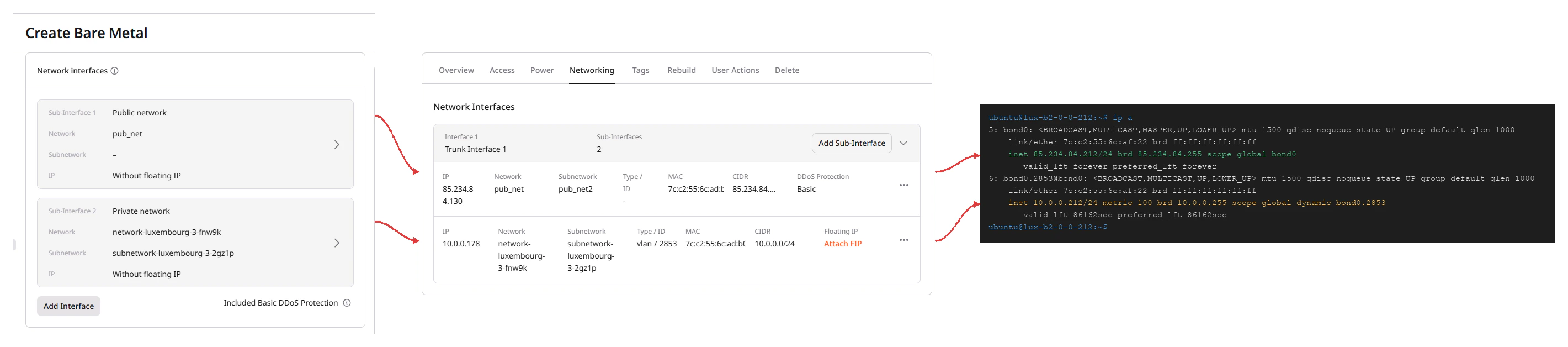
    <p>Bare Metal servers use LACP bonding: all physical ports are aggregated into a single bond (`bond0`). Each sub-interface added in the creation form becomes a logical port on top of that bond. The sub-interface order is fixed at creation and determines routing priority — the first sub-interface has higher priority for outbound traffic.</p>

    * **Sub-Interface 1** (public) maps to `bond0`.
    * **Sub-Interface 2** (private) maps to a VLAN sub-interface named `bond0.<vlan_id>` (for example, `bond0.2853`).

    <p>After the server is created, the **Networking** tab shows the sub-interfaces in the same order as they were added during setup. Running `ip a` in the OS confirms the mapping:</p>

    <Frame>
      <img src="https://mintcdn.com/gcore/QIEAnezmG8Bl8nMk/images/docs/cloud/bare-metal-servers/create-a-bare-metal-server/bm-network-interface-order-diagram.png?fit=max&auto=format&n=QIEAnezmG8Bl8nMk&q=85&s=1574ea7d11a193d735dae302e9eb7d36" alt="Diagram showing how Sub-Interface 1 and Sub-Interface 2 in the creation form map to the Networking tab entries and to bond0 and bond0.2853 in the OS" width="2841" height="628" data-path="images/docs/cloud/bare-metal-servers/create-a-bare-metal-server/bm-network-interface-order-diagram.png" />
    </Frame>

    ```bash theme={null}
    $ ip a
    1: lo: <LOOPBACK,UP,LOWER_UP> mtu 65536 ...
    2: enp1s0f0: <BROADCAST,MULTICAST,SLAVE,UP,LOWER_UP> mtu 1500 ... master bond0
    4: enp1s0f1: <BROADCAST,MULTICAST,SLAVE,UP,LOWER_UP> mtu 1500 ... master bond0
    5: bond0: <BROADCAST,MULTICAST,MASTER,UP,LOWER_UP> mtu 1500 qdisc noqueue state UP
        link/ether 7c:c2:55:6c:ad:b0 brd ff:ff:ff:ff:ff:ff
        inet 85.234.84.162/24 brd 85.234.84.255 scope global bond0
    6: bond0.2853@bond0: <BROADCAST,MULTICAST,UP,LOWER_UP> mtu 1500 qdisc noqueue state UP
        link/ether 7c:c2:55:6c:ad:b0 brd ff:ff:ff:ff:ff:ff
        inet 10.0.0.125/24 brd 10.0.0.255 scope global dynamic bond0.2853
    ```

    <p>Sub-Interface 1 (`bond0`) is the public interface; Sub-Interface 2 (`bond0.2853`) is the private interface.</p>

    ## Step 6. Configure access

    <p>Select an existing [SSH key](/cloud/bare-metal-servers/connect-to-your-bare-metal-server-via-ssh) for Linux servers, or set a password for Windows servers.</p>

    <Frame>
      <img src="https://mintcdn.com/gcore/oxS_nLcLtEBfgfBM/images/docs/cloud/bare-metal-servers/create-a-bare-metal-server/ssh-keys-2.png?fit=max&auto=format&n=oxS_nLcLtEBfgfBM&q=85&s=0e2f215045dc1253c8fd58a406fe3ef2" alt="A menu with SSH key settings" width="651" height="147" data-path="images/docs/cloud/bare-metal-servers/create-a-bare-metal-server/ssh-keys-2.png" />
    </Frame>

    <p>For Windows servers, the password must be 8–16 characters and may contain Latin letters (`a-zA-Z`), digits (`0-9`), and special characters (`!#$%&'()*+,-./:;<=>?@[]^_{|}~`). Connect via [portal console](/cloud/virtual-instances/connect/connect-to-your-instance-via-control-panel) or RDP.</p>

    <Frame>
      <img src="https://mintcdn.com/gcore/QIEAnezmG8Bl8nMk/images/docs/cloud/bare-metal-servers/create-a-bare-metal-server/access.png?fit=max&auto=format&n=QIEAnezmG8Bl8nMk&q=85&s=e18d5ee72ab7ffc15a3127c960e2586b" alt="A menu with access settings" width="3148" height="624" data-path="images/docs/cloud/bare-metal-servers/create-a-bare-metal-server/access.png" />
    </Frame>

    ## Step 7. Configure additional options

    <p>In the **Additional options** section, optionally provide a `cloud-init` script in the **User data** field to automate initial configuration — install packages, create users, or run commands on first boot.</p>

    <Frame>
      <img src="https://mintcdn.com/gcore/oxS_nLcLtEBfgfBM/images/docs/cloud/bare-metal-servers/create-a-bare-metal-server/user-data-2.png?fit=max&auto=format&n=oxS_nLcLtEBfgfBM&q=85&s=a2c3c9abdc96912c43aa25d7f5f686a4" alt="A menu with user data settings" width="955" height="515" data-path="images/docs/cloud/bare-metal-servers/create-a-bare-metal-server/user-data-2.png" />
    </Frame>

    ## Step 8. Set quantity and name

    <p>Specify the number of servers (up to 10, subject to quota) and the name template. Click **Create Server** — the server provisions in the cloud.</p>

    <Frame>
      <img src="https://mintcdn.com/gcore/oxS_nLcLtEBfgfBM/images/docs/cloud/bare-metal-servers/create-a-bare-metal-server/servers-number-2.png?fit=max&auto=format&n=oxS_nLcLtEBfgfBM&q=85&s=136184466bc5b360e3930c09c1e114c7" alt="A menu with an option to choose a number of servers" width="657" height="285" data-path="images/docs/cloud/bare-metal-servers/create-a-bare-metal-server/servers-number-2.png" />
    </Frame>

    ## Multi-bond network configuration

    <p>Bare Metal servers support multiple network bonds, where each bond is a group of LACP-aggregated physical ports. With a multi-bond setup, traffic for different networks is isolated at the hardware level, which improves availability and throughput. Multi-bond configuration is available on request — contact [Gcore support](https://gcore.com/contact-us) to enable it.</p>

    <p>After the server is deployed, open the server details and go to the **Networking** tab. Each bond appears as a separate interface block labeled **Interface N (Trunk Interface N)**.</p>

    <Frame>
      <img src="https://mintcdn.com/gcore/oxS_nLcLtEBfgfBM/images/docs/cloud/bare-metal-servers/create-a-bare-metal-server/bm-multi-bond-networking-tab-2.png?fit=max&auto=format&n=oxS_nLcLtEBfgfBM&q=85&s=0903ab333201b01db9d4b22cfd7ba682" alt="Bare Metal server Networking tab showing Interface 1 (Trunk Interface 1) with the Add Sub-Interface button" width="1271" height="303" data-path="images/docs/cloud/bare-metal-servers/create-a-bare-metal-server/bm-multi-bond-networking-tab-2.png" />
    </Frame>

    <p>Each interface block shows the sub-interfaces assigned to that bond — a sub-interface is the logical port that carries traffic for a specific network. The table for each sub-interface includes the IP address, network, subnetwork, MAC address, CIDR, and floating IP assignment.</p>

    <p>To add a sub-interface to a bond, click **Add Sub-Interface** in the corresponding interface block and configure the network settings.</p>

    ## Limitations

    * External volumes cannot be attached to Bare Metal servers.
    * Volume configuration cannot be changed after provisioning.
    * No more than six networks can be attached.
    * After deployment, private network interfaces can only be attached or detached manually via the OS.
  </MethodSection>

  <MethodSection id="api" label="REST API">
    <p>A Bare Metal server is a physical machine allocated entirely to one tenant — no hypervisor, no shared resources. Provisioning takes 4–5 minutes.</p>

    <Info>
      An [API token](/developer-tools/rest-api/authentication) is required, along with a [project ID](/api-reference/cloud/projects/list-projects) and [region ID](/api-reference/cloud/regions/list-regions).
    </Info>

    <p>Open a bash terminal and set these as environment variables before running the examples:</p>

    ```bash theme={null}
    export GCORE_API_KEY="{YOUR_API_KEY}"
    export GCORE_CLOUD_PROJECT_ID="{YOUR_PROJECT_ID}"
    export GCORE_CLOUD_REGION_ID="{YOUR_REGION_ID}"
    ```

    <p>Bare Metal servers have per-region quotas. [Check your quota](/cloud/getting-started/request-a-quota-increase) before provisioning.</p>

    ## Quickstart

    <p>The scripts below list available flavors and images, provision a Bare Metal server with a public interface, and print its IP address. Replace `my-key` with an existing SSH key name from the project.</p>

    <p>The server is provisioned in about 4–5 minutes.</p>

    <Tabs>
      <Tab title="Python SDK">
        ```python theme={null}
        import os
        from gcore import Gcore

        client = Gcore()

        # Step 1. List BM flavors - pick one with capacity > 0.
        flavors = client.cloud.baremetal.flavors.list(disabled=False, include_capacity=True)
        flavor_id = next(f.flavor_id for f in flavors.results if f.capacity > 0)

        # Step 2. List BM images - pick ubuntu x64.
        images = client.cloud.baremetal.images.list()
        image_id = next(img.id for img in images.results if "ubuntu-24.04-x64-ironic" in img.name)

        # Step 3. Create the server and wait for ACTIVE status (4-5 min).
        server = client.cloud.baremetal.servers.create_and_poll(
            flavor=flavor_id,
            image_id=image_id,
            name="my-bm-server",
            interfaces=[{"type": "external"}],
            ssh_key_name="my-key",
        )

        # Step 4. Get full server details and print the public IP.
        details = client.cloud.baremetal.servers.get(server_id=server.id)
        for network, ifaces in details.addresses.items():
            for iface in ifaces:
                print(f"ssh ubuntu@{iface.addr}")
        ```
      </Tab>

      <Tab title="Go SDK">
        ```go theme={null}
        package main

        import (
            "context"
            "fmt"
            "os"

            gcore "github.com/G-Core/gcore-go"
            "github.com/G-Core/gcore-go/cloud"
            "github.com/G-Core/gcore-go/shared/constant"
        )

        func main() {
            client := gcore.NewClient()
            ctx := context.Background()

            // Step 1. List BM flavors - pick one with capacity > 0.
            flavors, _ := client.Cloud.Baremetal.Flavors.List(ctx, cloud.BaremetalFlavorListParams{
                Disabled:        gcore.Bool(false),
                IncludeCapacity: gcore.Bool(true),
            })
            var flavorID string
            for _, f := range flavors.Results {
                if f.Capacity > 0 {
                    flavorID = f.FlavorID
                    break
                }
            }

            // Step 2. List BM images - pick ubuntu x64.
            images, _ := client.Cloud.Baremetal.Images.List(ctx, cloud.BaremetalImageListParams{})
            var imageID string
            for _, img := range images.Results {
                if img.Name == "ubuntu-24.04-x64-ironic" {
                    imageID = img.ID
                    break
                }
            }

            // Step 3. Create the server and wait for ACTIVE status (4-5 min).
            server, _ := client.Cloud.Baremetal.Servers.NewAndPoll(ctx, cloud.BaremetalServerNewParams{
                Flavor:  flavorID,
                ImageID: gcore.String(imageID),
                Name:    gcore.String("my-bm-server"),
                Interfaces: []cloud.BaremetalServerNewParamsInterfaceUnion{{
                    OfExternal: &cloud.BaremetalServerNewParamsInterfaceExternal{
                        Type: constant.External("external"),
                    },
                }},
                SSHKeyName: gcore.String("my-key"),
            })

            // Step 4. Get full server details and print the public IP.
            details, _ := client.Cloud.Baremetal.Servers.Get(ctx, server.ID, cloud.BaremetalServerGetParams{})
            for network, ifaces := range details.Addresses {
                fmt.Printf("%s: ssh ubuntu@%s\n", network, ifaces[0].AsFixedIPAddress().Addr)
            }
        }
        ```
      </Tab>
    </Tabs>

    ## Step-by-step

    <p>Each step below explains what the call does, which parameters matter, and what the response looks like. Use this section to understand the flow or to debug a specific step.</p>

    <Accordion title="Show all steps">
      ### Step 1. List available flavors

      <p>BM [flavors](/api-reference/cloud/bare-metal-servers/list-baremetal-flavors) describe the physical hardware: CPU model, core count, RAM, local storage, and NIC speed. The `capacity` field shows how many machines of that type are physically available in the region.</p>

      <Tabs>
        <Tab title="Python SDK">
          ```python theme={null}
          flavors = client.cloud.baremetal.flavors.list(disabled=False, include_capacity=True)
          for f in flavors.results:
              print(f.flavor_id, f.capacity, f.hardware_description)
          ```
        </Tab>

        <Tab title="Go SDK">
          ```go theme={null}
          flavors, err := client.Cloud.Baremetal.Flavors.List(ctx, cloud.BaremetalFlavorListParams{
              Disabled:        gcore.Bool(false),
              IncludeCapacity: gcore.Bool(true),
          })
          for _, f := range flavors.Results {
              fmt.Println(f.FlavorID, f.Capacity)
          }
          ```
        </Tab>

        <Tab title="curl">
          ```bash theme={null}
          curl "https://api.gcore.com/cloud/v1/bmflavors/$GCORE_CLOUD_PROJECT_ID/$GCORE_CLOUD_REGION_ID?disabled=false&include_capacity=true" \
            -H "Authorization: APIKey $GCORE_API_KEY"
          ```

          Response:

          ```json theme={null}
          {
            "results": [
              {
                "flavor_id": "bm1a-hf-1x7950x-128-2x960gb-2x10nic",
                "vcpus": 32,
                "ram": 131072,
                "hardware_description": {
                  "cpu": "1x AMD Ryzen 7950X 16C/32T 4.5 GHz",
                  "ram": "128 GB",
                  "disk": "2x 960GB NVMe",
                  "network": "2x 10GbE"
                },
                "capacity": 5
              }
            ]
          }
          ```
        </Tab>
      </Tabs>

      <p>`capacity: 0` means the flavor is temporarily unavailable in the region. Flavor IDs are region-specific — run this call to see what is available in the target region. Save the chosen flavor ID for the next step:</p>

      ```bash theme={null}
      export FLAVOR_ID="{YOUR_FLAVOR_ID}"
      ```

      <Info>
        Replace `{YOUR_FLAVOR_ID}` with a `flavor_id` value from the response above. Flavor IDs are region-specific — use a value returned for your target region.
      </Info>

      ### Step 2. List bare metal images

      <p>BM images use a dedicated [endpoint](/api-reference/cloud/bare-metal-servers/list-baremetal-images) — standard VM images from <code>GET /cloud/v1/images</code> are not compatible. Each BM image name ends with `-ironic` and contains `"is_baremetal": true` in the response.</p>

      <Tabs>
        <Tab title="Python SDK">
          ```python theme={null}
          images = client.cloud.baremetal.images.list()
          for img in images.results:
              print(img.id, img.name)
          ```
        </Tab>

        <Tab title="Go SDK">
          ```go theme={null}
          images, err := client.Cloud.Baremetal.Images.List(ctx, cloud.BaremetalImageListParams{})
          for _, img := range images.Results {
              fmt.Println(img.ID, img.Name)
          }
          ```
        </Tab>

        <Tab title="curl">
          ```bash theme={null}
          curl "https://api.gcore.com/cloud/v1/bmimages/$GCORE_CLOUD_PROJECT_ID/$GCORE_CLOUD_REGION_ID" \
            -H "Authorization: APIKey $GCORE_API_KEY"
          ```

          Response:

          ```json theme={null}
          {
            "count": 16,
            "results": [
              {
                "id": "6918eaaa-05b8-4aaf-a6de-15edc94c1a25",
                "name": "ubuntu-24.04-x64-ironic",
                "is_baremetal": true,
                "visibility": "public",
                "os_distro": "ubuntu",
                "os_version": "24.04"
              }
            ]
          }
          ```
        </Tab>
      </Tabs>

      <p>Pick an image that matches the server architecture (x86-64 or ARM) and the target OS, then save its ID for the next step:</p>

      ```bash theme={null}
      export IMAGE_ID="{YOUR_IMAGE_ID}"
      ```

      <Info>
        Replace `{YOUR_IMAGE_ID}` with the `id` of the chosen image from the response above. BM image IDs are region-specific and differ from standard VM images.
      </Info>

      ### Step 3. Create the server

      <p>The [create](/api-reference/cloud/bare-metal-servers/create-baremetal-server) call submits a provisioning request and returns a task ID. The Python and Go SDKs block until the task completes (4–5 minutes), then return the server object. With curl, poll the task manually.</p>

      <Info>
        An SSH key must already exist in the project. Add one following the [SSH guide](/cloud/virtual-instances/connect/connect-via-ssh).
      </Info>

      | Parameter           | Required | Description                                                                                                                                          |
      | ------------------- | -------- | ---------------------------------------------------------------------------------------------------------------------------------------------------- |
      | `flavor`            | Yes      | Flavor ID from Step 1.                                                                                                                               |
      | `image_id`          | Yes      | BM image ID from Step 2. Standard VM images are not compatible.                                                                                      |
      | `name`              | Yes      | Server name. On reseller accounts, use `name_templates` with a region-specific pattern — the error message lists the allowed values for that region. |
      | `ssh_key_name`      | Yes      | Name of an existing SSH key in the project. Required for Linux images.                                                                               |
      | `interfaces[].type` | Yes      | `"external"` assigns a public IP. `"subnet"` attaches a private network.                                                                             |
      | `password`          | No       | For Windows images: sets the Admin user password. For Linux: sets the default user password when no SSH key is used.                                 |
      | `user_data`         | No       | Base64-encoded [cloud-init](https://cloudinit.readthedocs.io/en/latest/) script applied on first boot. Ignored when `password` is set.               |

      <Tabs>
        <Tab title="Python SDK">
          ```python theme={null}
          server = client.cloud.baremetal.servers.create_and_poll(
              flavor=os.environ["FLAVOR_ID"],
              image_id=os.environ["IMAGE_ID"],
              name="my-bm-server",
              interfaces=[{"type": "external"}],
              ssh_key_name="my-key",
          )
          server_id = server.id
          ```
        </Tab>

        <Tab title="Go SDK">
          ```go theme={null}
          server, err := client.Cloud.Baremetal.Servers.NewAndPoll(ctx, cloud.BaremetalServerNewParams{
              Flavor:  os.Getenv("FLAVOR_ID"),
              ImageID: gcore.String(os.Getenv("IMAGE_ID")),
              Name:    gcore.String("my-bm-server"),
              Interfaces: []cloud.BaremetalServerNewParamsInterfaceUnion{{
                  OfExternal: &cloud.BaremetalServerNewParamsInterfaceExternal{
                      Type: constant.External("external"),
                  },
              }},
              SSHKeyName: gcore.String("my-key"),
          })
          serverID := server.ID
          ```
        </Tab>

        <Tab title="curl">
          ```bash theme={null}
          curl -X POST "https://api.gcore.com/cloud/v1/bminstances/$GCORE_CLOUD_PROJECT_ID/$GCORE_CLOUD_REGION_ID" \
            -H "Authorization: APIKey $GCORE_API_KEY" \
            -H "Content-Type: application/json" \
            -d "{
              \"flavor\": \"$FLAVOR_ID\",
              \"image_id\": \"$IMAGE_ID\",
              \"name\": \"my-bm-server\",
              \"ssh_key_name\": \"my-key\",
              \"interfaces\": [{\"type\": \"external\"}]
            }"
          ```

          Response:

          ```json theme={null}
          {
            "tasks": ["d4a4b10e-5d22-4c23-8e09-f7a3e1c1a999"]
          }
          ```

          Poll `GET /cloud/v1/tasks/{task_id}` every 30 seconds until `state` is `FINISHED`:

          ```bash theme={null}
          curl "https://api.gcore.com/cloud/v1/tasks/$TASK_ID" \
            -H "Authorization: APIKey $GCORE_API_KEY"
          ```

          When complete:

          ```json theme={null}
          {
            "state": "FINISHED",
            "created_on": "2026-05-29T12:48:58",
            "finished_on": "2026-05-29T12:53:46",
            "created_resources": {
              "instances": ["90ba53c5-def5-4825-83fb-9adc78bd3266"]
            }
          }
          ```

          ```bash theme={null}
          export SERVER_ID="90ba53c5-def5-4825-83fb-9adc78bd3266"
          ```
        </Tab>
      </Tabs>

      ### Step 4. Get server details

      <p>Retrieve the server to confirm `status: ACTIVE` and find the assigned [IP address](/api-reference/cloud/bare-metal-servers/get-baremetal-server).</p>

      <Tabs>
        <Tab title="Python SDK">
          ```python theme={null}
          server = client.cloud.baremetal.servers.get(server_id=server_id)
          for network, ifaces in server.addresses.items():
              for iface in ifaces:
                  print(f"{network}: {iface.addr}")
          ```
        </Tab>

        <Tab title="Go SDK">
          ```go theme={null}
          details, err := client.Cloud.Baremetal.Servers.Get(ctx, serverID, cloud.BaremetalServerGetParams{})
          for network, ifaces := range details.Addresses {
              fmt.Printf("%s: %s\n", network, ifaces[0].AsFixedIPAddress().Addr)
          }
          ```
        </Tab>

        <Tab title="curl">
          ```bash theme={null}
          curl "https://api.gcore.com/cloud/v1/bminstances/$GCORE_CLOUD_PROJECT_ID/$GCORE_CLOUD_REGION_ID/$SERVER_ID" \
            -H "Authorization: APIKey $GCORE_API_KEY"
          ```

          Response:

          ```json theme={null}
          {
            "id": "90ba53c5-def5-4825-83fb-9adc78bd3266",
            "name": "my-bm-server",
            "status": "ACTIVE",
            "flavor": {
              "flavor_id": "bm1a-hf-1x7950x-128-2x960gb-2x10nic",
              "hardware_description": {
                "cpu": "1x AMD Ryzen 7950X 16C/32T 4.5 GHz",
                "disk": "2x 960GB NVMe"
              }
            },
            "addresses": {
              "pub_net": [
                {"addr": "85.234.84.18", "type": "fixed"}
              ]
            },
            "security_groups": [],
            "volumes": []
          }
          ```
        </Tab>
      </Tabs>

      <p>`security_groups: []` is expected — Bare Metal servers have no security groups, so all ports are accessible by default. Restrict traffic with `ufw` or `iptables` after connecting.</p>

      <p>Use the public IP from the response to connect. The default user for Ubuntu images is `ubuntu`:</p>

      ```bash theme={null}
      ssh -i ~/.ssh/my-key ubuntu@<public-ip>
      ```

      <p>Bare Metal servers use LACP bonding, so interfaces are named `bond0` rather than `eth0`. If a private network was attached at creation, it appears as `bond0.<vlan_id>`.</p>
    </Accordion>

    ## Check quota

    <p>Bare Metal servers have per-region quotas tracked separately for `baremetal_hf`, `baremetal_basic`, `baremetal_storage`, `baremetal_network`, and `baremetal_infrastructure` categories. Before creating a server, verify [quota usage](/cloud/getting-started/check-resource-quota) is below the limit.</p>

    ## Attach a private network interface

    <p>To connect a server to a private network, add an interface with `"type": "subnet"` and provide the `network_id` and `subnet_id`. The network must have Bare Metal support enabled — create one following the [network guide](/cloud/networking/create-and-manage-a-network) and check the **Bare Metal network** option. Both public and private interfaces can be added at creation time; the interface order determines routing priority.</p>

    <Tabs>
      <Tab title="Python SDK">
        ```python theme={null}
        server = client.cloud.baremetal.servers.create_and_poll(
            flavor=os.environ["FLAVOR_ID"],
            image_id=os.environ["IMAGE_ID"],
            name="my-bm-server",
            ssh_key_name="my-key",
            interfaces=[
                {"type": "external"},
                {
                    "type": "subnet",
                    "network_id": os.environ["NETWORK_ID"],
                    "subnet_id": os.environ["SUBNET_ID"],
                },
            ],
        )
        ```
      </Tab>

      <Tab title="Go SDK">
        ```go theme={null}
        server, err := client.Cloud.Baremetal.Servers.NewAndPoll(ctx, cloud.BaremetalServerNewParams{
            Flavor:     os.Getenv("FLAVOR_ID"),
            ImageID:    gcore.String(os.Getenv("IMAGE_ID")),
            Name:       gcore.String("my-bm-server"),
            SSHKeyName: gcore.String("my-key"),
            Interfaces: []cloud.BaremetalServerNewParamsInterfaceUnion{
                {
                    OfExternal: &cloud.BaremetalServerNewParamsInterfaceExternal{
                        Type: constant.External("external"),
                    },
                },
                {
                    OfSubnet: &cloud.BaremetalServerNewParamsInterfaceSubnet{
                        Type:      constant.Subnet("subnet"),
                        NetworkID: os.Getenv("NETWORK_ID"),
                        SubnetID:  os.Getenv("SUBNET_ID"),
                    },
                },
            },
        })
        ```
      </Tab>

      <Tab title="curl">
        ```bash theme={null}
        curl -X POST "https://api.gcore.com/cloud/v1/bminstances/$GCORE_CLOUD_PROJECT_ID/$GCORE_CLOUD_REGION_ID" \
          -H "Authorization: APIKey $GCORE_API_KEY" \
          -H "Content-Type: application/json" \
          -d "{
            \"flavor\": \"$FLAVOR_ID\",
            \"image_id\": \"$IMAGE_ID\",
            \"name\": \"my-bm-server\",
            \"ssh_key_name\": \"my-key\",
            \"interfaces\": [
              {\"type\": \"external\"},
              {
                \"type\": \"subnet\",
                \"network_id\": \"$NETWORK_ID\",
                \"subnet_id\": \"$SUBNET_ID\"
              }
            ]
          }"
        ```
      </Tab>
    </Tabs>

    <p>Inside the OS, the public interface maps to `bond0` and the private interface to `bond0.<vlan_id>`. With both interfaces present, disable the default gateway on the private subnet to avoid routing conflicts.</p>

    ## Multi-bond network configuration

    <p>Standard BM servers aggregate all physical ports into a single LACP bond (`bond0`). Multi-bond separates traffic across multiple independent bonds, isolating networks at the hardware level for higher availability and throughput. Multi-bond must be enabled for the server by [Gcore support](https://gcore.com/contact-us) before provisioning.</p>

    <p>Once enabled, control bond assignment with the `port_group` parameter on each interface. Interfaces sharing the same `port_group` value are placed on the same trunk port. Each distinct value creates a separate trunk.</p>

    <Tabs>
      <Tab title="Python SDK">
        ```python theme={null}
        server = client.cloud.baremetal.servers.create_and_poll(
            flavor=os.environ["FLAVOR_ID"],
            image_id=os.environ["IMAGE_ID"],
            name="my-bm-server",
            ssh_key_name="my-key",
            interfaces=[
                {"type": "external", "port_group": 1},
                {
                    "type": "subnet",
                    "network_id": os.environ["NETWORK_ID"],
                    "subnet_id": os.environ["SUBNET_ID"],
                    "port_group": 2,
                },
            ],
        )
        ```
      </Tab>

      <Tab title="Go SDK">
        ```go theme={null}
        server, err := client.Cloud.Baremetal.Servers.NewAndPoll(ctx, cloud.BaremetalServerNewParams{
            Flavor:     os.Getenv("FLAVOR_ID"),
            ImageID:    gcore.String(os.Getenv("IMAGE_ID")),
            Name:       gcore.String("my-bm-server"),
            SSHKeyName: gcore.String("my-key"),
            Interfaces: []cloud.BaremetalServerNewParamsInterfaceUnion{
                {
                    OfExternal: &cloud.BaremetalServerNewParamsInterfaceExternal{
                        Type:      constant.External("external"),
                        PortGroup: gcore.Int(1),
                    },
                },
                {
                    OfSubnet: &cloud.BaremetalServerNewParamsInterfaceSubnet{
                        Type:      constant.Subnet("subnet"),
                        NetworkID: os.Getenv("NETWORK_ID"),
                        SubnetID:  os.Getenv("SUBNET_ID"),
                        PortGroup: gcore.Int(2),
                    },
                },
            },
        })
        ```
      </Tab>

      <Tab title="curl">
        ```bash theme={null}
        curl -X POST "https://api.gcore.com/cloud/v1/bminstances/$GCORE_CLOUD_PROJECT_ID/$GCORE_CLOUD_REGION_ID" \
          -H "Authorization: APIKey $GCORE_API_KEY" \
          -H "Content-Type: application/json" \
          -d "{
            \"flavor\": \"$FLAVOR_ID\",
            \"image_id\": \"$IMAGE_ID\",
            \"name\": \"my-bm-server\",
            \"ssh_key_name\": \"my-key\",
            \"interfaces\": [
              {\"type\": \"external\", \"port_group\": 1},
              {
                \"type\": \"subnet\",
                \"network_id\": \"$NETWORK_ID\",
                \"subnet_id\": \"$SUBNET_ID\",
                \"port_group\": 2
              }
            ]
          }"
        ```
      </Tab>
    </Tabs>

    <p>After provisioning, retrieve the server details with `GET /cloud/v1/bminstances/{project_id}/{region_id}/{server_id}` — each trunk appears as a separate interface block in the `addresses` map.</p>

    ## Clean up

    <p>Bare Metal deletion is asynchronous and takes 3–5 minutes — the server must be fully deprovisioned before the hardware is released. Local NVMe storage is wiped during deprovisioning.</p>

    <Tabs>
      <Tab title="Python SDK">
        ```python theme={null}
        result = client.cloud.baremetal.servers.delete(server_id=server_id)
        client.cloud.tasks.poll(result.tasks[0])
        ```
      </Tab>

      <Tab title="Go SDK">
        ```go theme={null}
        taskList, err := client.Cloud.Baremetal.Servers.Delete(ctx, serverID, cloud.BaremetalServerDeleteParams{})
        client.Cloud.Tasks.Poll(ctx, taskList.Tasks[0])
        ```
      </Tab>

      <Tab title="curl">
        ```bash theme={null}
        curl -X DELETE \
          "https://api.gcore.com/cloud/v1/bminstances/$GCORE_CLOUD_PROJECT_ID/$GCORE_CLOUD_REGION_ID/$SERVER_ID" \
          -H "Authorization: APIKey $GCORE_API_KEY"
        ```

        Response:

        ```json theme={null}
        {
          "tasks": ["ee54040a-1671-414a-a3f2-c2c0d62a2325"]
        }
        ```

        Poll `GET /cloud/v1/tasks/{task_id}` every 30 seconds until `state` is `FINISHED`.
      </Tab>
    </Tabs>

    ## Limitations

    <p>These constraints apply to all Bare Metal servers regardless of the provisioning method.</p>

    * External block volumes cannot be attached. All storage is the local NVMe included with the server.
    * Local storage configuration (RAID, disk layout) cannot be changed after provisioning.
    * No more than six network interfaces can be attached at creation time.
    * Private network interfaces added after deployment must be configured manually inside the OS — they are not managed by the Gcore control plane.
    * The interface order set at creation determines routing priority and cannot be changed after provisioning.
  </MethodSection>

  <MethodSection id="terraform" label="Terraform">
    <p>Provision a dedicated Bare Metal server — physical hardware with no virtualization layer — using [`gcore_cloud_baremetal_server`](https://registry.terraform.io/providers/G-Core/gcore/latest/docs/resources/cloud_baremetal_server). Provisioning is asynchronous and may take several minutes to complete.</p>

    ## Create a Bare Metal server

    <p>Declares a server with a public IPv4 interface and an SSH key. Creation takes 4–5 minutes.</p>

    ```hcl theme={null}
    resource "gcore_cloud_baremetal_server" "example" {
      project_id   = var.project_id
      region_id    = var.region_id
      flavor       = var.flavor_id   # region-specific; find with the Customer Portal or flavors API
      name         = "my-bare-metal"
      image_id     = var.image_id    # region-specific; find with the Customer Portal or images API
      ssh_key_name = "my-keypair"

      interfaces = [{
        type      = "external"
        ip_family = "ipv4"
      }]

      # terraform import gcore_cloud_baremetal_server.example '<project_id>/<region_id>/<server_id>'
    }

    output "public_ip" {
      value = gcore_cloud_baremetal_server.example.addresses
    }
    ```

    <Info>
      Flavor IDs and image IDs are region-specific. Find available values in the Gcore Customer Portal under **Cloud** > **Bare Metal** > **Create server**, then pass them as `var.flavor_id` and `var.image_id` in `terraform.tfvars`. The Terraform provider does not include a data source for listing Bare Metal flavors or images.
    </Info>

    <p>After `terraform apply`, `status` is `ACTIVE` and `addresses` contains the assigned public IP. Use the IP to connect over SSH.</p>

    ## Attach a private network

    <p>Private networks for Bare Metal require `type = "vlan"` on the network resource — add both interfaces at creation, as interface order determines routing priority.</p>

    ```hcl theme={null}
    resource "gcore_cloud_network" "bm_net" {
      project_id = var.project_id
      region_id  = var.region_id
      name       = "my-bm-network"
      type       = "vlan"  # required for Bare Metal
    }

    resource "gcore_cloud_network_subnet" "bm_subnet" {
      project_id = var.project_id
      region_id  = var.region_id
      name       = "my-bm-subnet"
      network_id = gcore_cloud_network.bm_net.id
      cidr       = "192.168.10.0/24"
    }

    resource "gcore_cloud_baremetal_server" "example" {
      project_id   = var.project_id
      region_id    = var.region_id
      flavor       = var.flavor_id
      name         = "my-bare-metal"
      image_id     = var.image_id
      ssh_key_name = "my-keypair"

      interfaces = [
        {
          type      = "external"
          ip_family = "ipv4"
        },
        {
          type       = "subnet"
          network_id = gcore_cloud_network.bm_net.id
          subnet_id  = gcore_cloud_network_subnet.bm_subnet.id
        },
      ]
    }
    ```

    <Warning>
      The interface order is fixed at creation. With both a public and a private interface, disable the default gateway on the private subnet to avoid routing conflicts.
    </Warning>

    ## Start, stop, and reboot

    <p>The Terraform provider does not support power state operations (`start`, `stop`, `reboot`, `reboot_hard`) for Bare Metal servers. Use the Customer Portal or the REST API tab to perform these actions.</p>

    ## Delete a Bare Metal server

    <p>Remove the resource block — Terraform deletes the server on the next `terraform apply`. Deprovisioning takes 3-5 minutes and permanently wipes local NVMe storage.</p>

    ```hcl theme={null}
    # Remove or comment out this block:
    # resource "gcore_cloud_baremetal_server" "example" { ... }
    ```

    ```bash theme={null}
    terraform apply
    ```
  </MethodSection>
</MethodSwitch>