> ## Documentation Index
> Fetch the complete documentation index at: https://gcore.com/docs/llms.txt
> Use this file to discover all available pages before exploring further.
# Add a new user to your project
Only the user with the Administrator role can add new users to the project. To send an invitation:
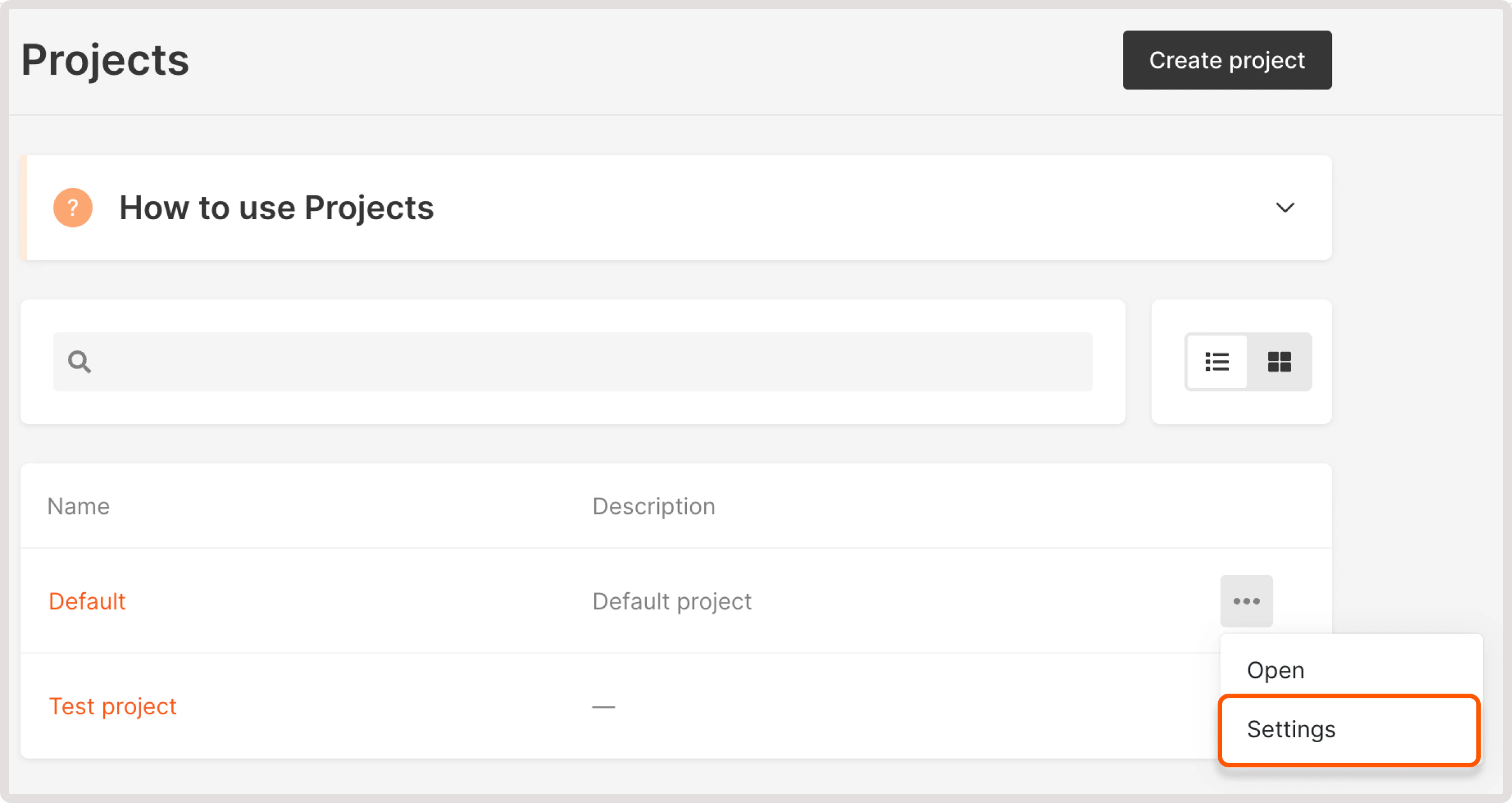
1\. In the Gcore Customer Portal, navigate to the [Projects](https://cloud.gcore.com/cloud/projects/list) section, click the three-dots menu next to the project, and select **Settings**.
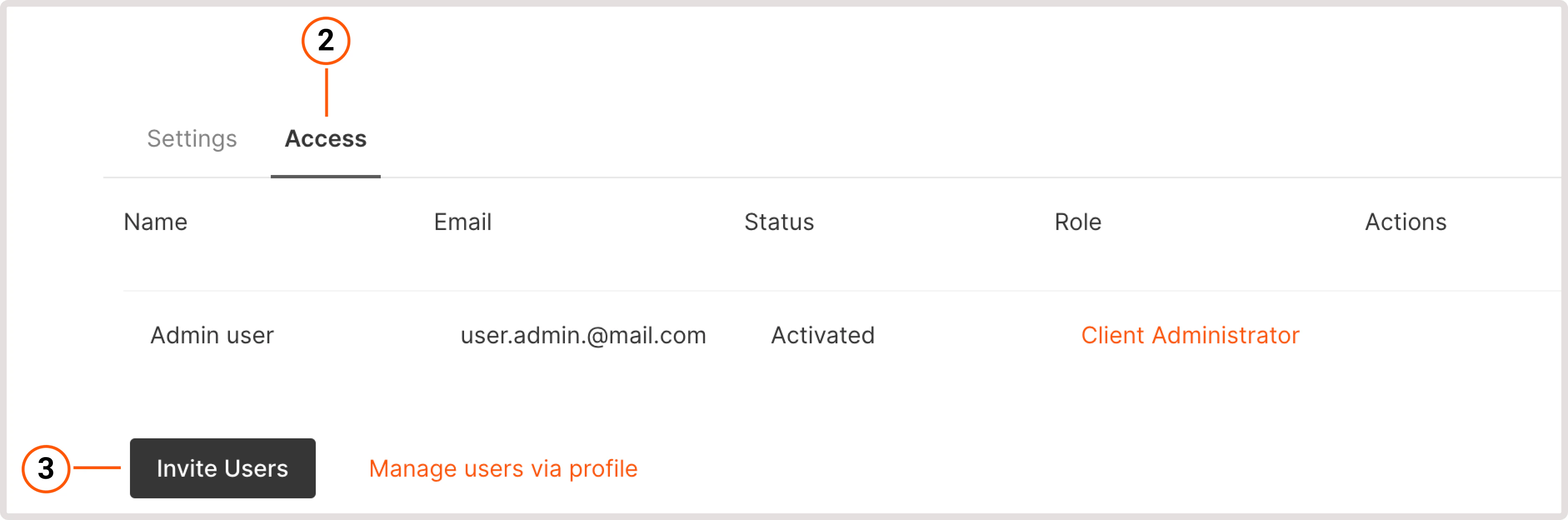
 2\. Open the **Access** tab.
3\. Click **Invite Users**.
2\. Open the **Access** tab.
3\. Click **Invite Users**.
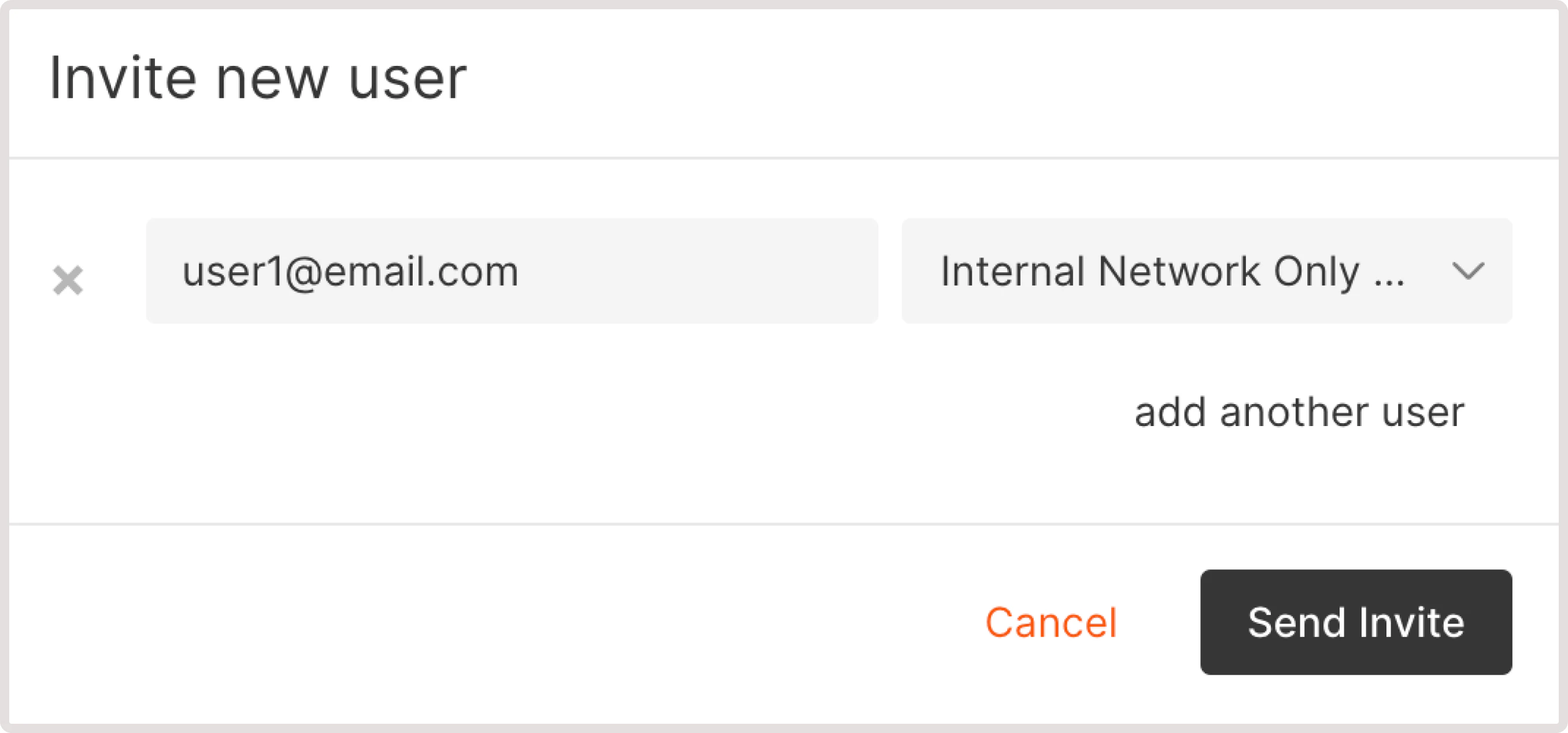
 4\. Enter the email of a new user, select the role and click **Send Invitation**. If you want to invite several users just click **add another user,** enter their email and select the roles. You can invite both existing and previously not registered users.
 * If a user is not previously registered in the system, an email will be sent to the email address specified in the invitation with a link to create a password. The invited user should accept an invitation. After a password has been created, the user can log in to the account.
* If a user already exists in the system, a notification about the provided access to the account will be sent to the specified email address. After accepting the invitation a user will be able to select the required account while authorization.
* If a user is not previously registered in the system, an email will be sent to the email address specified in the invitation with a link to create a password. The invited user should accept an invitation. After a password has been created, the user can log in to the account.
* If a user already exists in the system, a notification about the provided access to the account will be sent to the specified email address. After accepting the invitation a user will be able to select the required account while authorization.