> ## Documentation Index
> Fetch the complete documentation index at: https://gcore.com/docs/llms.txt
> Use this file to discover all available pages before exploring further.
# Secure Kubernetes cluster with OpenID Connect
Configure centralized and secure access management for your Kubernetes cluster by configuring [OpenID Connect (OIDC)](https://openid.net/developers/how-connect-works/) authentication.
Integrating Kubernetes with an OIDC provider is a quick way to set up a single sign-on (SSO) experience for your users. This way, they can access multiple Kubernetes clusters without re-entering their credentials.
OIDC relies on industry-standard security mechanisms, which also ensures enhanced security of your cluster and mitigates the risk of unauthorized access or data breaches.
## Enable OIDC authentication for Managed Kubernetes
You can enable authentication [during cluster creation](/cloud/kubernetes/clusters/create-a-kubernetes-cluster) or in the settings of an existing cluster. Regardless of where you start, the configuration process remains the same.
To enable OIDC authentication for your cluster:
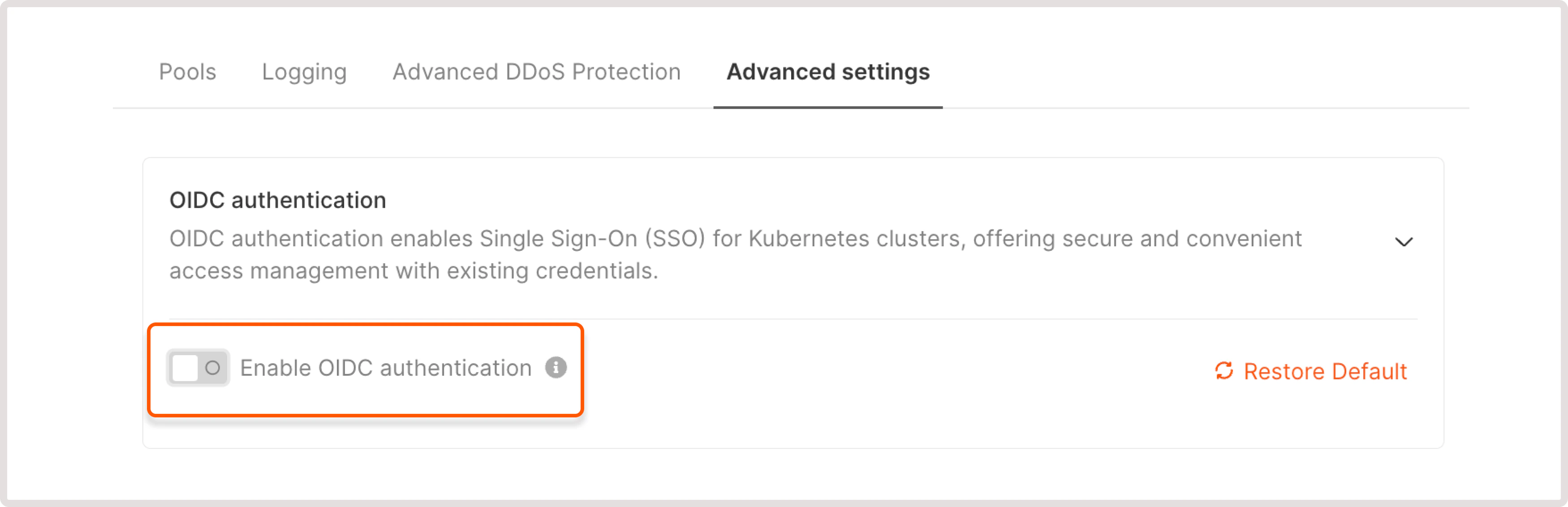
1\. If you're creating a new cluster, scroll down to the **OIDC authentication** section. If you want to enable authentication for an existing cluster, open the cluster overview and click the **Advanced settings** tab.
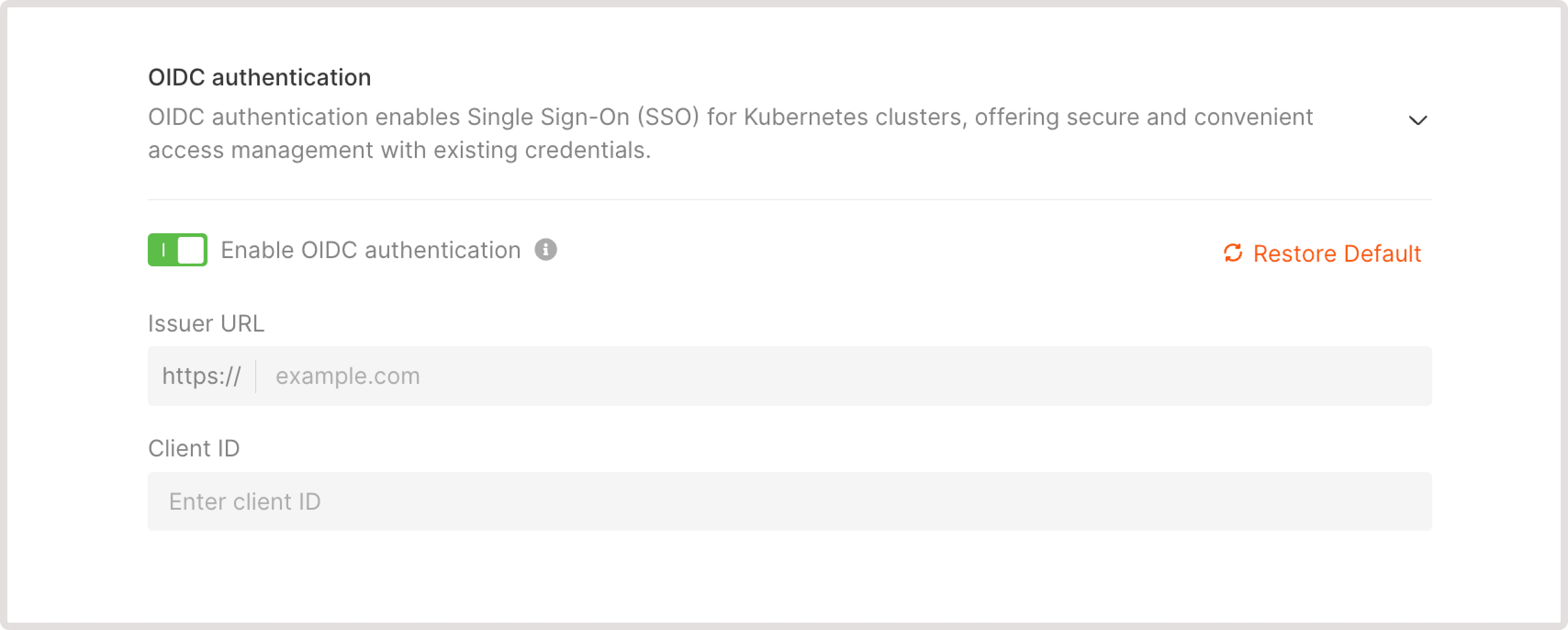
2\. Click **Enable OIDC authentication** toggle and configure the following settings:
* **Issuer URL** : Enter the URL of the OIDC provider. For example, [https://login.microsoftonline.com](https://login.microsoftonline.com).
* **Client ID** : Enter a unique identifier that will be assigned for the cluster.
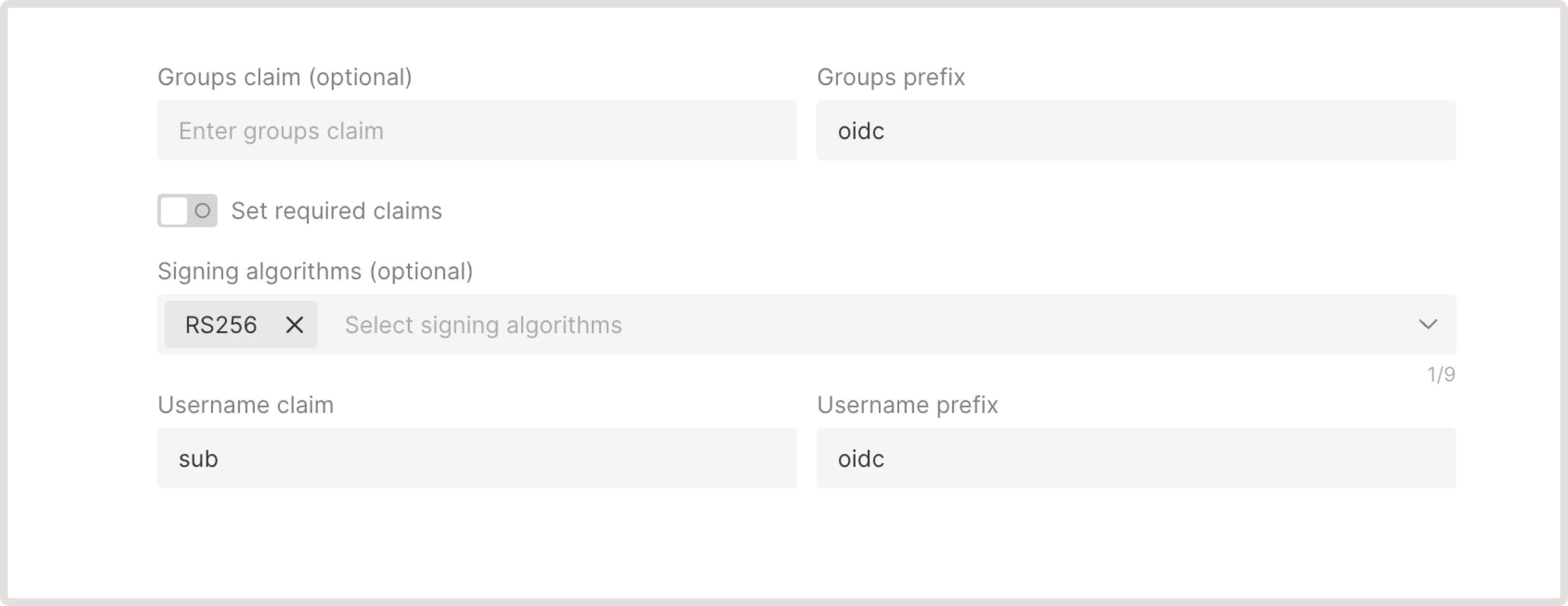
 * **Groups claim** (optional): Specify the name of the claim in ID token that stores a group name. If you don't add user groups, each user will be treated independently.
* **Set required claims** toggle: Enter any additional claims that must be present in the ID token. If a token is missing any of these claims, a user will not be authenticated.
* **Signing algorithms** : Choose which cryptographic algorithms the API server should accept when verifying ID tokens. By default, tokens are required to be signed using the RS256 algorithm.
* **Username claim** : Specify the name of the claim in ID token that contains a username.
* **Groups claim** (optional): Specify the name of the claim in ID token that stores a group name. If you don't add user groups, each user will be treated independently.
* **Set required claims** toggle: Enter any additional claims that must be present in the ID token. If a token is missing any of these claims, a user will not be authenticated.
* **Signing algorithms** : Choose which cryptographic algorithms the API server should accept when verifying ID tokens. By default, tokens are required to be signed using the RS256 algorithm.
* **Username claim** : Specify the name of the claim in ID token that contains a username.
 3\. Save the changes if necessary.
You've successfully set up the OIDC authentication for your cluster.
## Disable OIDC authentication for Kubernetes
**Warning**
Disabling OIDC authentication in your cluster settings will remove your current configuration. If you enable the authentication later, you'll need to configure all the settings again.
To disable OIDC authentication:
1\. In the Gcore Customer Portal, navigate to **Cloud** > **Managed Kubernetes**.
2\. Find the cluster for which you want to configure OIDC and click its name to open it.
3\. Open the **Advanced settings** tab.
4\. Click to expand the **OIDC authentication** section.
5\. Disable the toggle.
3\. Save the changes if necessary.
You've successfully set up the OIDC authentication for your cluster.
## Disable OIDC authentication for Kubernetes
**Warning**
Disabling OIDC authentication in your cluster settings will remove your current configuration. If you enable the authentication later, you'll need to configure all the settings again.
To disable OIDC authentication:
1\. In the Gcore Customer Portal, navigate to **Cloud** > **Managed Kubernetes**.
2\. Find the cluster for which you want to configure OIDC and click its name to open it.
3\. Open the **Advanced settings** tab.
4\. Click to expand the **OIDC authentication** section.
5\. Disable the toggle.
 6\. Click **Save changes**.
You no longer have the OIDC authentication configured for your Kubernetes cluster.
## Update OIDC authentication settings
**Info**
If you want to reset any previous configuration, click **Restore Default**. Be cautious when using this option because it will undo any OIDC configurations you've set up.
1\. In the Gcore Customer Portal, navigate to **Cloud** > **Managed Kubernetes**.
2\. Find the cluster for which you want to update OIDC and click its name to open it.
3\. Open the **Advanced settings** tab.
4\. Click to expand the **OIDC authentication** section.
5\. Adjust the settings as needed.
6\. Click **Save changes**.
You've successfully updated the OIDC settings.
6\. Click **Save changes**.
You no longer have the OIDC authentication configured for your Kubernetes cluster.
## Update OIDC authentication settings
**Info**
If you want to reset any previous configuration, click **Restore Default**. Be cautious when using this option because it will undo any OIDC configurations you've set up.
1\. In the Gcore Customer Portal, navigate to **Cloud** > **Managed Kubernetes**.
2\. Find the cluster for which you want to update OIDC and click its name to open it.
3\. Open the **Advanced settings** tab.
4\. Click to expand the **OIDC authentication** section.
5\. Adjust the settings as needed.
6\. Click **Save changes**.
You've successfully updated the OIDC settings.