> ## Documentation Index
> Fetch the complete documentation index at: https://gcore.com/docs/llms.txt
> Use this file to discover all available pages before exploring further.
# Configure and manage SSH keys
This guide provides instructions for configuring a pair of SSH keys, adding a public key to the Gcore Customer Portal, and managing the keys within the portal.
## Generate SSH keys
You can generate SSH keys in different ways:
* [In the Gcore Customer Portal](/cloud/virtual-instances/connect/connect-to-your-instance-via-ssh#generate-ssh-keys-in-the-customer-portal)
* [Via CLI tools and SSH clients](/cloud/virtual-instances/connect/connect-to-your-instance-via-ssh#generate-ssh-keys-via-cli-tools-or-ssh-clients)
**Warning**
Never share your private SSH key or password with third parties. Doing so may result in unauthorized access to your Virtual Machine (VM) and the compromise of any sensitive information stored there.
### Generate SSH keys in the customer portal
You can create SSH keys when creating a VM or generate them separately in the ["SSH Keys"](/cloud/virtual-instances/connect/connect-to-your-instance-via-ssh#generate-an-ssh-key-in-the-ssh-keys-section) section.
After you generate the keys, a public key will be added to the system and appear in the "SSH Keys" section, along with any other added or created keys. A private key will be downloaded to your local storage.
**Info**
When naming a public key, consider that the name can contain only Latin characters, underscores, spaces, and dots. Its length must be between 3 and 63 characters.
When [creating a Virtual Machine](/cloud/virtual-instances/create-an-instance), in Step 8, you'll be asked to choose one of the following options in the "SSH key" section:
* **Select SSH key** : Add a key that's already stored in the Gcore Customer Portal by selecting it from the dropdown list.
* **Add a new SSH key** : Add an existing key generated via CLI tools or SSH client.
* **Generate an SSH key** : Create a new key.
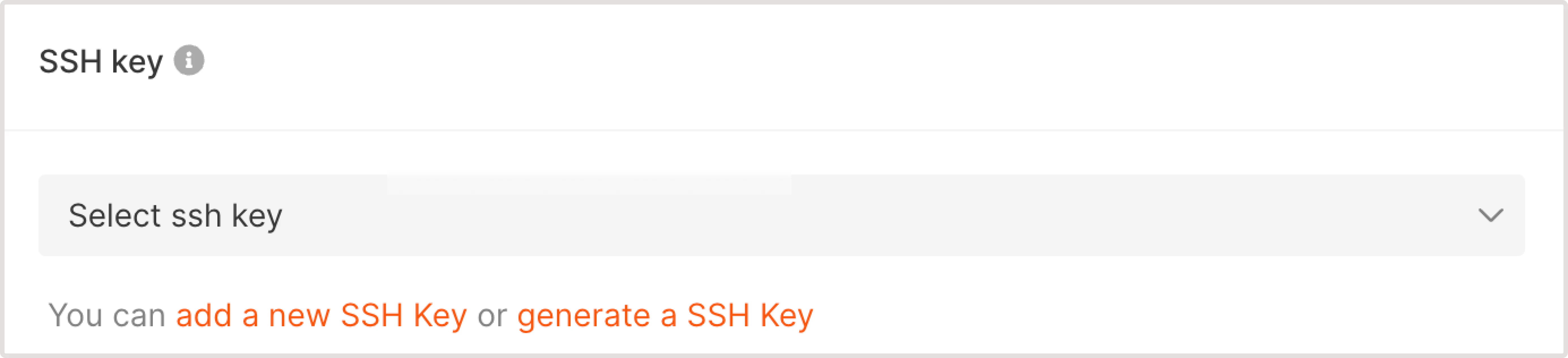 To generate a key
1. Select the **Generate SSH key** link.
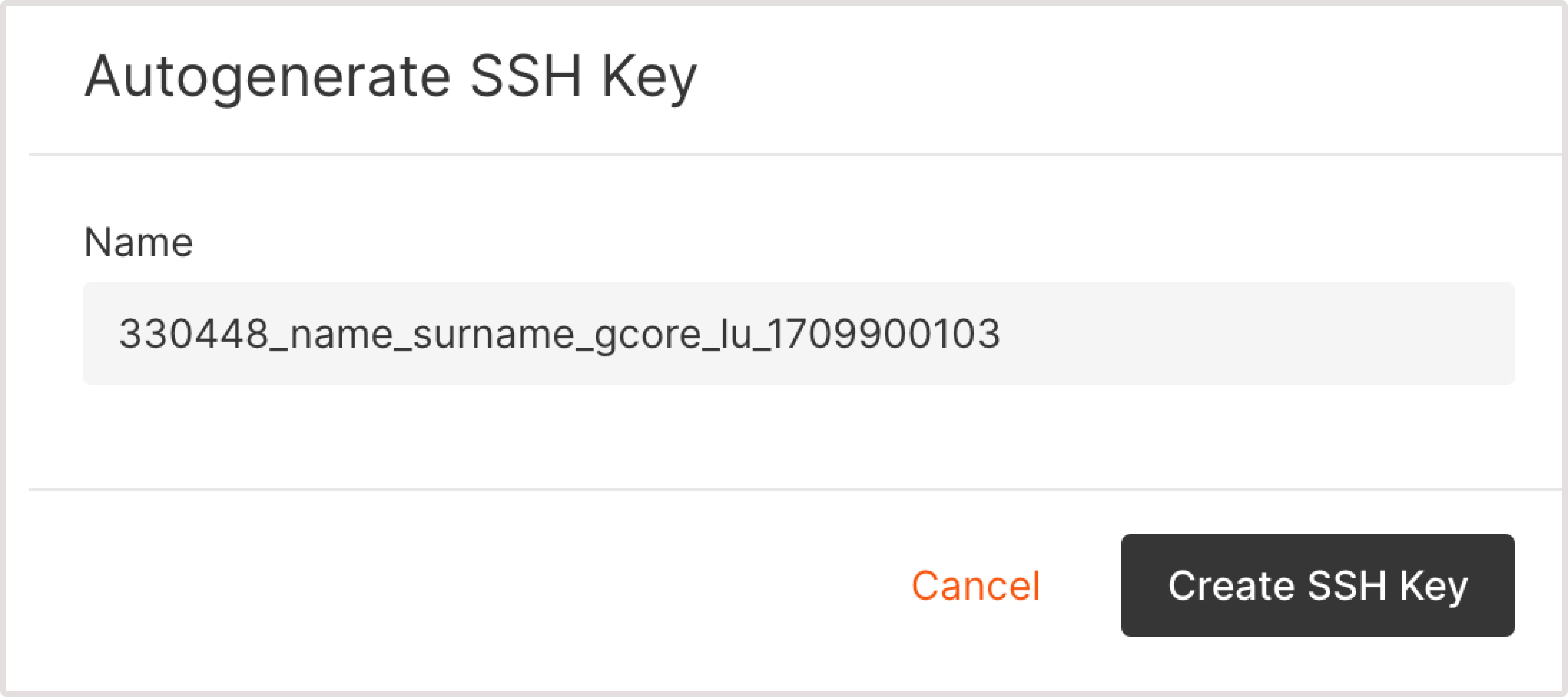
2. In a new dialog that opens, enter the key name to identify the key in the system.
3. Select **Create SSH key** and save the public key locally.
To generate a key
1. Select the **Generate SSH key** link.
2. In a new dialog that opens, enter the key name to identify the key in the system.
3. Select **Create SSH key** and save the public key locally.
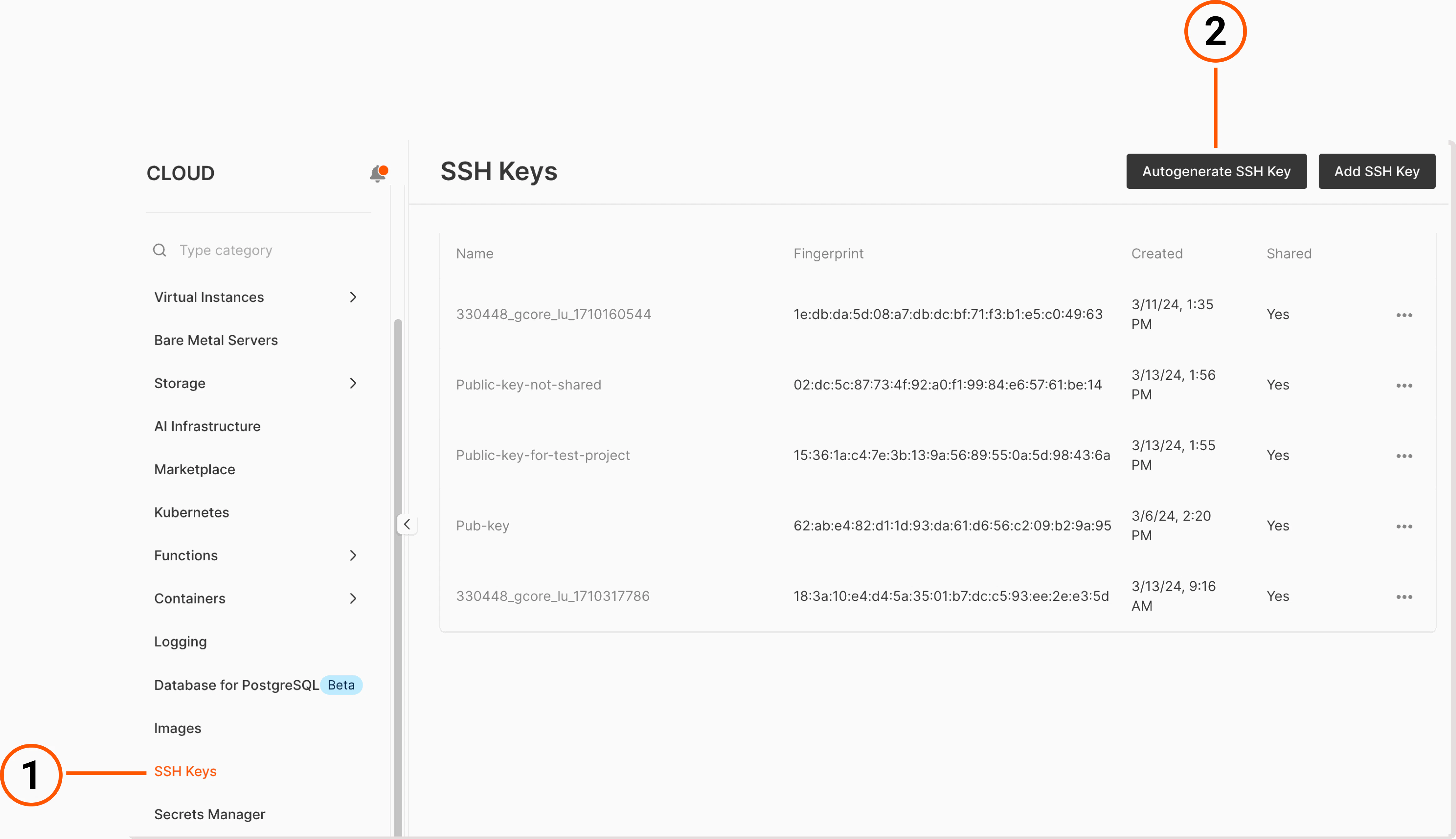
 You can generate a pair of SSH keys separately and then use a public key for authentication during the creation of your VM.
To generate the keys:
1. In the Gcore Customer Portal, go to **Cloud** > **SSH Keys**.
2. Click **Autogenerate SSH key**.
You can generate a pair of SSH keys separately and then use a public key for authentication during the creation of your VM.
To generate the keys:
1. In the Gcore Customer Portal, go to **Cloud** > **SSH Keys**.
2. Click **Autogenerate SSH key**.
 3. Enter the key name and select **Create SSH key**.
4. The public key will be added to a Virtual Machine and the private key will be saved to your local storage.
## Generate SSH keys via CLI tools or SSH clients
Follow these instructions to generate SSH keys on Linux, macOS, or Windows 10/11 devices:
1. Open Terminal (Linux, macOS) or Command Prompt (cmd.exe on Windows).
2. Run the following command to generate a key pair:
```sh theme={null}
ssh-keygen -t rsa -b 2048
```
3. You'll be asked to enter the file where the keys should be saved. You can specify a custom location (for example, `.ssh/`), or press **Enter** to save the keys to the default directory. The default directory is `~/.` for Linux/macOS and `C:\Users\\` for Windows.
4. Press **Enter**.
5. You'll be asked to enter a password for the key as an additional security step. You can either create a password and enter it every time you connect via SSH or leave the field empty and press **Enter** to create the key without a password.
6. Confirm the password by entering it again, or leave the field empty and press **Enter**. You can find your key in the default directory or in the custom location you've specified during the key creation.
7. The public key will be saved in the .pub file. You need to add this public key to a VM as described in the [Add a public SSH key to the Customer Portal](/cloud/virtual-instances/connect/connect-to-your-instance-via-ssh#add-a-public-ssh-key-to-the-customer-portal) section.
You can use different distributions of Linux on Windows 11 to generate SSH keys and connect to your VM. To do this, you need to have WSL installed on your device.
**Info**
To install WSL, follow the instructions from the official Microsoft guide: [How to install Linux on Windows with WSL](https://learn.microsoft.com/en-us/windows/wsl/install).
To generate SSH keys via WSL:
1. Open Windows Command Prompt or PowerShell.
2. Launch a default Linux distribution inside your current command line by running this command: wsl.exe. There are multiple ways to run a Linux distribution, you can read more about them in the following guide: [Ways to run multiple Linux distributions with WSL](https://learn.microsoft.com/en-us/windows/wsl/install#ways-to-run-multiple-linux-distributions-with-wsl).
3. Run the following command to generate a key pair:
```text theme={null}
ssh-keygen -t rsa -b 2048
```
4. You'll be asked to enter the file where the keys should be saved. You can specify a custom location (for example, `.ssh/`) or press **Enter** to save the keys to the default directory. The default directory is `C:\Users\\`.
5. Press **Enter**.
6. You'll be asked to enter a password for the key. You can either create a password or leave the field empty and press **Enter** to create the key without a password.
7. Confirm the password by entering it one more time or leave the field empty and press **Enter**. You can find your key in the default directory or in the custom location you've specified during the key creation.
8. The public key will be saved in the .pub file. You need to add this public key to a Virtual Machine as described in the [Add a public SSH key to the Customer Portal](/cloud/virtual-instances/connect/connect-to-your-instance-via-ssh#add-a-public-ssh-key-to-the-customer-portal) section.
Follow these instructions to generate SSH keys on Windows 10/11 devices:
1. Download and install the [PuTTY package](https://putty.org/).
2. Launch the PuTTYgen app.
3. Find the "Type of key to generate" parameter and select RSA.
4. In the "Number of bits in a generated key" field, set the value to `2048`.
3. Enter the key name and select **Create SSH key**.
4. The public key will be added to a Virtual Machine and the private key will be saved to your local storage.
## Generate SSH keys via CLI tools or SSH clients
Follow these instructions to generate SSH keys on Linux, macOS, or Windows 10/11 devices:
1. Open Terminal (Linux, macOS) or Command Prompt (cmd.exe on Windows).
2. Run the following command to generate a key pair:
```sh theme={null}
ssh-keygen -t rsa -b 2048
```
3. You'll be asked to enter the file where the keys should be saved. You can specify a custom location (for example, `.ssh/`), or press **Enter** to save the keys to the default directory. The default directory is `~/.` for Linux/macOS and `C:\Users\\` for Windows.
4. Press **Enter**.
5. You'll be asked to enter a password for the key as an additional security step. You can either create a password and enter it every time you connect via SSH or leave the field empty and press **Enter** to create the key without a password.
6. Confirm the password by entering it again, or leave the field empty and press **Enter**. You can find your key in the default directory or in the custom location you've specified during the key creation.
7. The public key will be saved in the .pub file. You need to add this public key to a VM as described in the [Add a public SSH key to the Customer Portal](/cloud/virtual-instances/connect/connect-to-your-instance-via-ssh#add-a-public-ssh-key-to-the-customer-portal) section.
You can use different distributions of Linux on Windows 11 to generate SSH keys and connect to your VM. To do this, you need to have WSL installed on your device.
**Info**
To install WSL, follow the instructions from the official Microsoft guide: [How to install Linux on Windows with WSL](https://learn.microsoft.com/en-us/windows/wsl/install).
To generate SSH keys via WSL:
1. Open Windows Command Prompt or PowerShell.
2. Launch a default Linux distribution inside your current command line by running this command: wsl.exe. There are multiple ways to run a Linux distribution, you can read more about them in the following guide: [Ways to run multiple Linux distributions with WSL](https://learn.microsoft.com/en-us/windows/wsl/install#ways-to-run-multiple-linux-distributions-with-wsl).
3. Run the following command to generate a key pair:
```text theme={null}
ssh-keygen -t rsa -b 2048
```
4. You'll be asked to enter the file where the keys should be saved. You can specify a custom location (for example, `.ssh/`) or press **Enter** to save the keys to the default directory. The default directory is `C:\Users\\`.
5. Press **Enter**.
6. You'll be asked to enter a password for the key. You can either create a password or leave the field empty and press **Enter** to create the key without a password.
7. Confirm the password by entering it one more time or leave the field empty and press **Enter**. You can find your key in the default directory or in the custom location you've specified during the key creation.
8. The public key will be saved in the .pub file. You need to add this public key to a Virtual Machine as described in the [Add a public SSH key to the Customer Portal](/cloud/virtual-instances/connect/connect-to-your-instance-via-ssh#add-a-public-ssh-key-to-the-customer-portal) section.
Follow these instructions to generate SSH keys on Windows 10/11 devices:
1. Download and install the [PuTTY package](https://putty.org/).
2. Launch the PuTTYgen app.
3. Find the "Type of key to generate" parameter and select RSA.
4. In the "Number of bits in a generated key" field, set the value to `2048`.
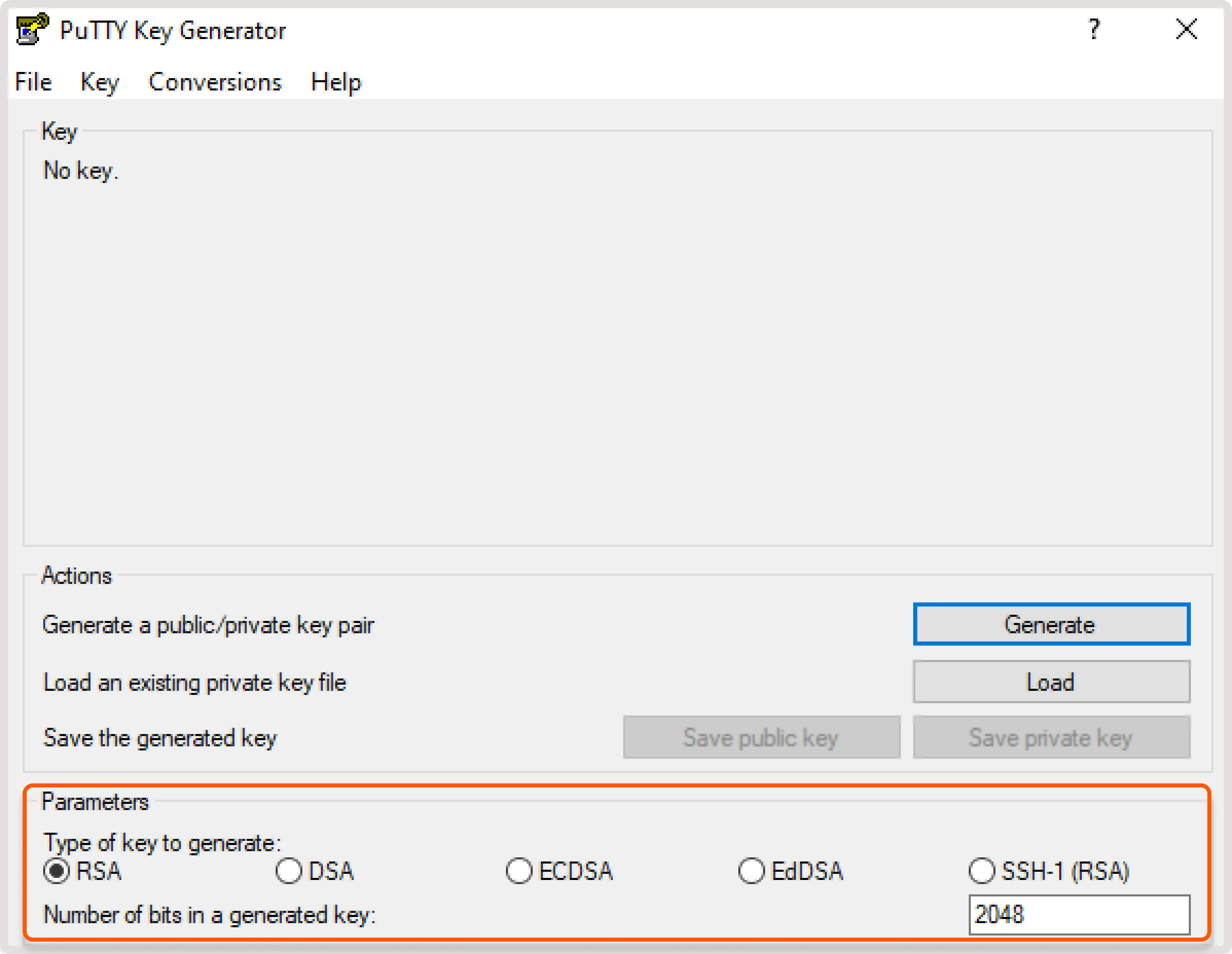 5. Click **Generate**. While the key is being generated, move the cursor in the "Key" field until the key appears in the field.
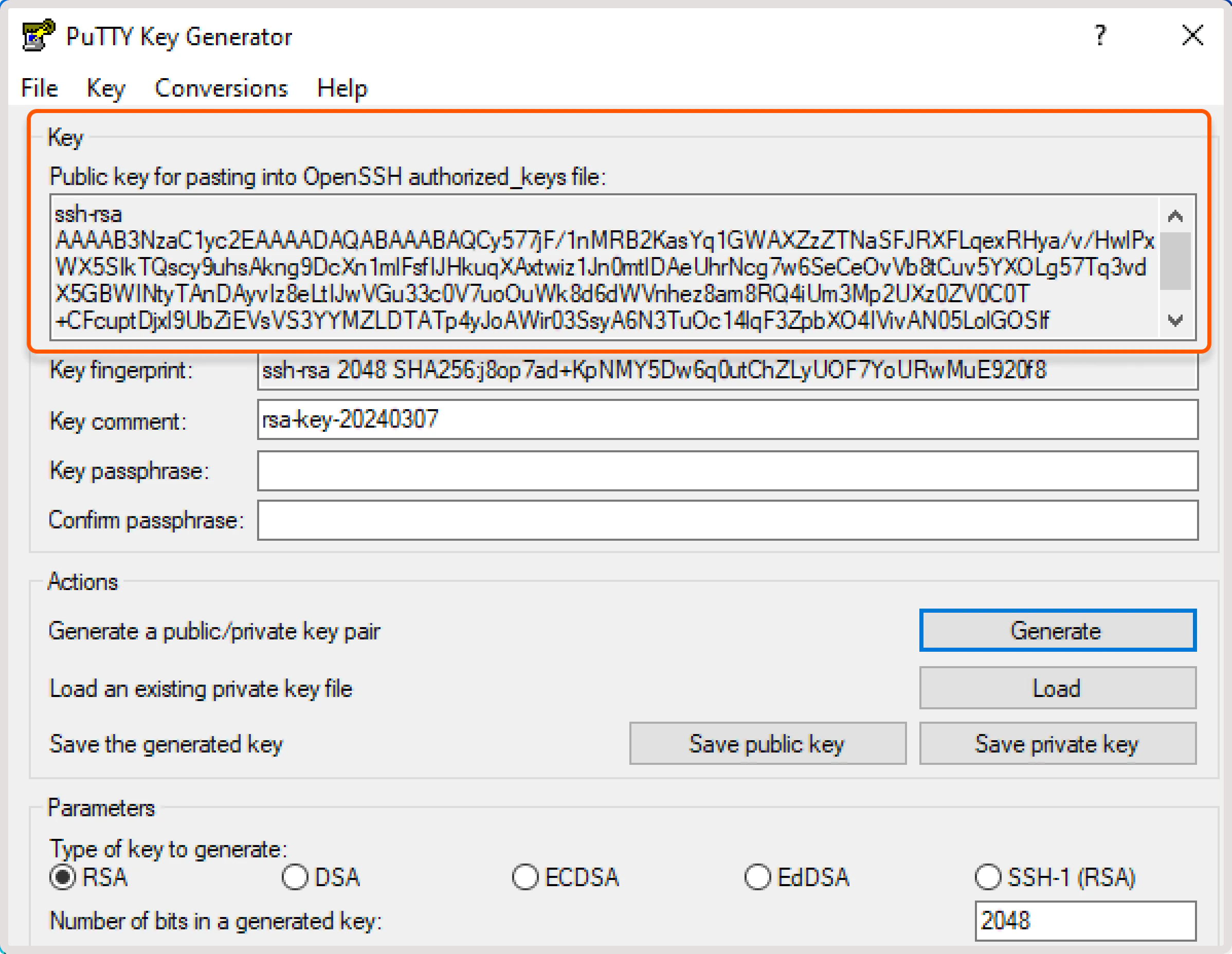 6. (Optional) You can enhance the security of your private key by setting up a passphrase, which will be required each time you connect via SSH. To set it up, enter a passphrase in the 'Key passphrase' field and retype it in the 'Confirm passphrase' field.
7. Select **Save private key** to download the key to your local storage.
**Info**
If you generated your SSH keys via PuTTYgen or in the Gcore Customer Portal and you want to connect to your Virtual Machine via PuTTY, you need to convert the keys to the .ppk format as described in this article: [ Convert an SSH key to a PPK format](/cloud/ssh-keys/convert-an-ssh-key-from-pem-to-ppk).
## Add a public SSH key to the customer portal
If you didn't generate your SSH key via the Gcore Customer Portal, you need to add your public key there. To add the key:
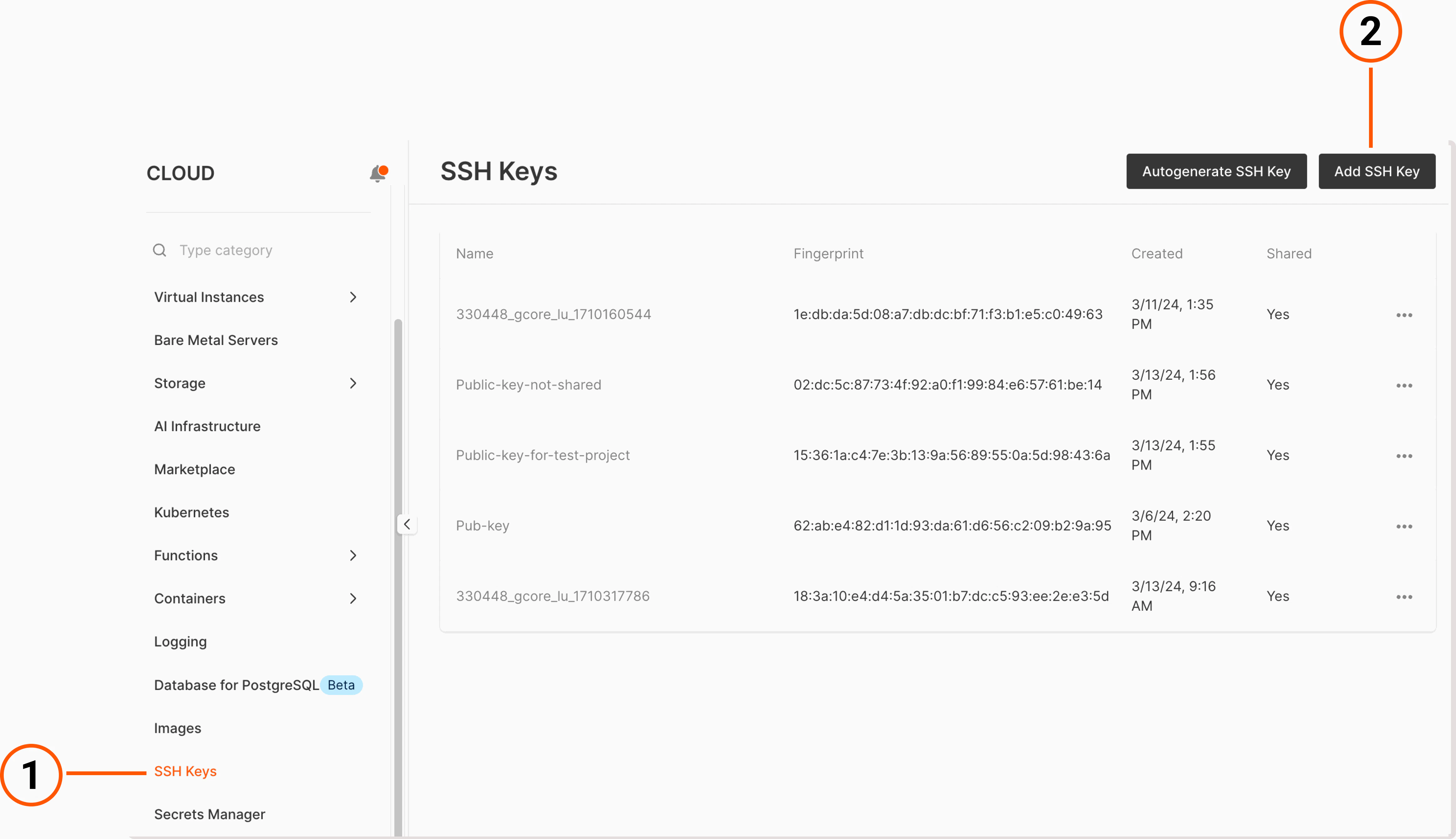
1. In the Gcore Customer Portal, go to **Cloud** > **SSH keys**.
2. Select **Add SSH key**.
6. (Optional) You can enhance the security of your private key by setting up a passphrase, which will be required each time you connect via SSH. To set it up, enter a passphrase in the 'Key passphrase' field and retype it in the 'Confirm passphrase' field.
7. Select **Save private key** to download the key to your local storage.
**Info**
If you generated your SSH keys via PuTTYgen or in the Gcore Customer Portal and you want to connect to your Virtual Machine via PuTTY, you need to convert the keys to the .ppk format as described in this article: [ Convert an SSH key to a PPK format](/cloud/ssh-keys/convert-an-ssh-key-from-pem-to-ppk).
## Add a public SSH key to the customer portal
If you didn't generate your SSH key via the Gcore Customer Portal, you need to add your public key there. To add the key:
1. In the Gcore Customer Portal, go to **Cloud** > **SSH keys**.
2. Select **Add SSH key**.
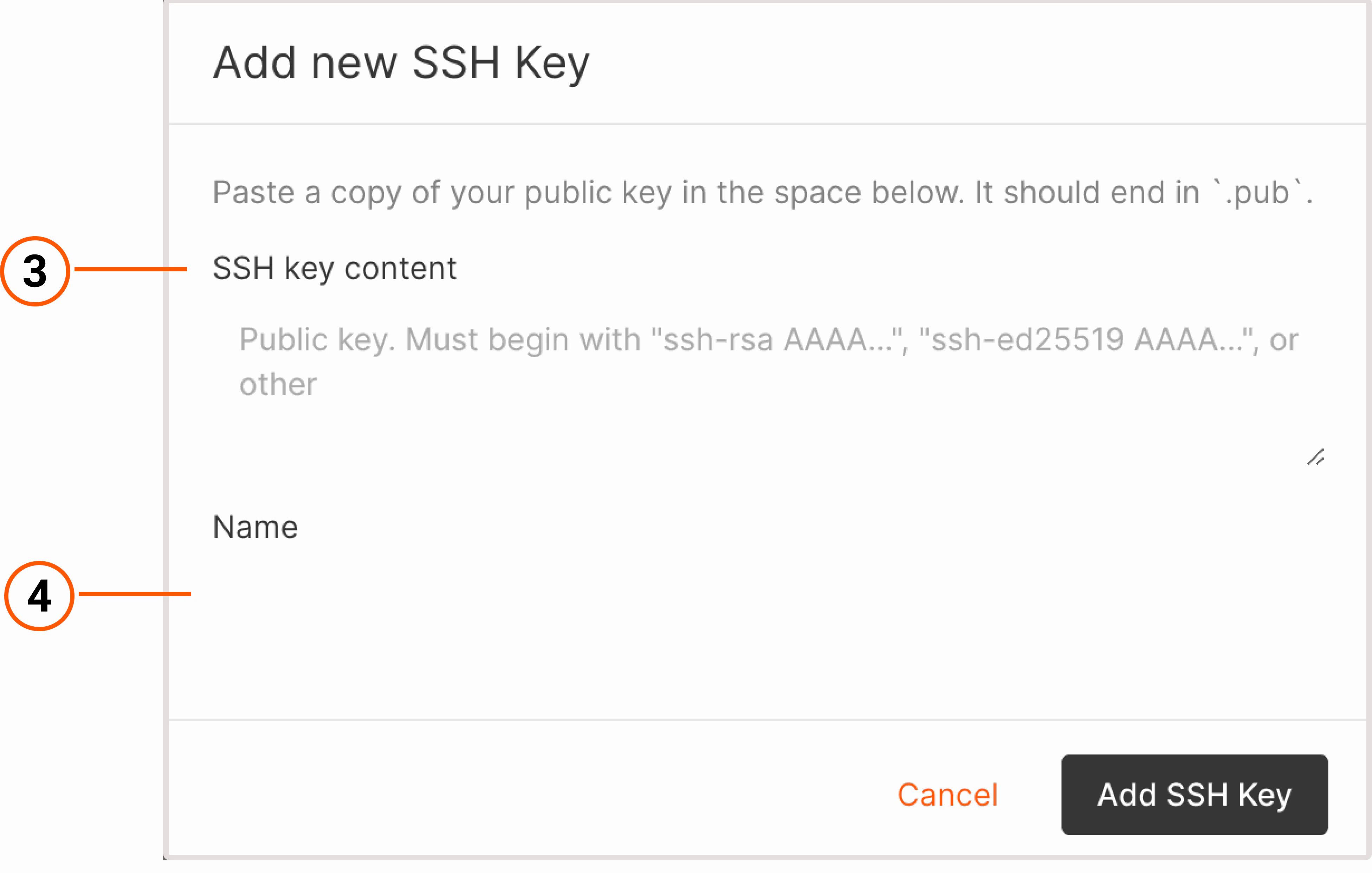
 3. In the "SSH key Content" field, paste the public key.
4. Add a key name and select **Add SSH key**.
3. In the "SSH key Content" field, paste the public key.
4. Add a key name and select **Add SSH key**.
 5. The key will appear in the list of SSH keys, and you can select this key as an authentication method when creating a new instance.
**Info**
After you add a public key, it'll be automatically shared with all users who belong to the same project. To change the key's visibility, follow the instructions from this section: [Stop sharing SSH keys](/cloud/virtual-instances/connect/connect-to-your-instance-via-ssh#stop-sharing-ssh-keys)
## Manage SSH keys in the customer portal
You can delete a public SSH key from the Gcore Customer Portal, share the key with other users in the same project, or make the key only visible to you.
### Delete SSH keys
Only the user who created an SSH key or added the public key to the Gcore Customer Portal can delete that key. To delete the key:
1. In the Gcore Customer Portal, go to **Cloud** > **SSH keys**.
5. The key will appear in the list of SSH keys, and you can select this key as an authentication method when creating a new instance.
**Info**
After you add a public key, it'll be automatically shared with all users who belong to the same project. To change the key's visibility, follow the instructions from this section: [Stop sharing SSH keys](/cloud/virtual-instances/connect/connect-to-your-instance-via-ssh#stop-sharing-ssh-keys)
## Manage SSH keys in the customer portal
You can delete a public SSH key from the Gcore Customer Portal, share the key with other users in the same project, or make the key only visible to you.
### Delete SSH keys
Only the user who created an SSH key or added the public key to the Gcore Customer Portal can delete that key. To delete the key:
1. In the Gcore Customer Portal, go to **Cloud** > **SSH keys**.
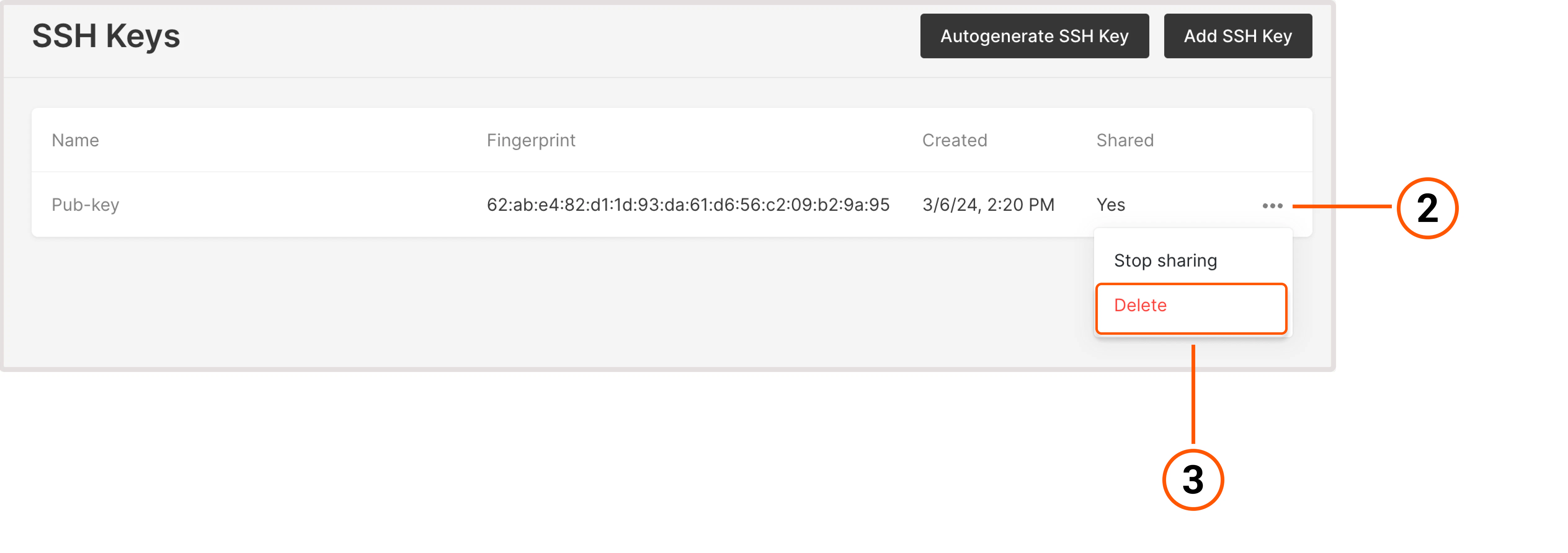
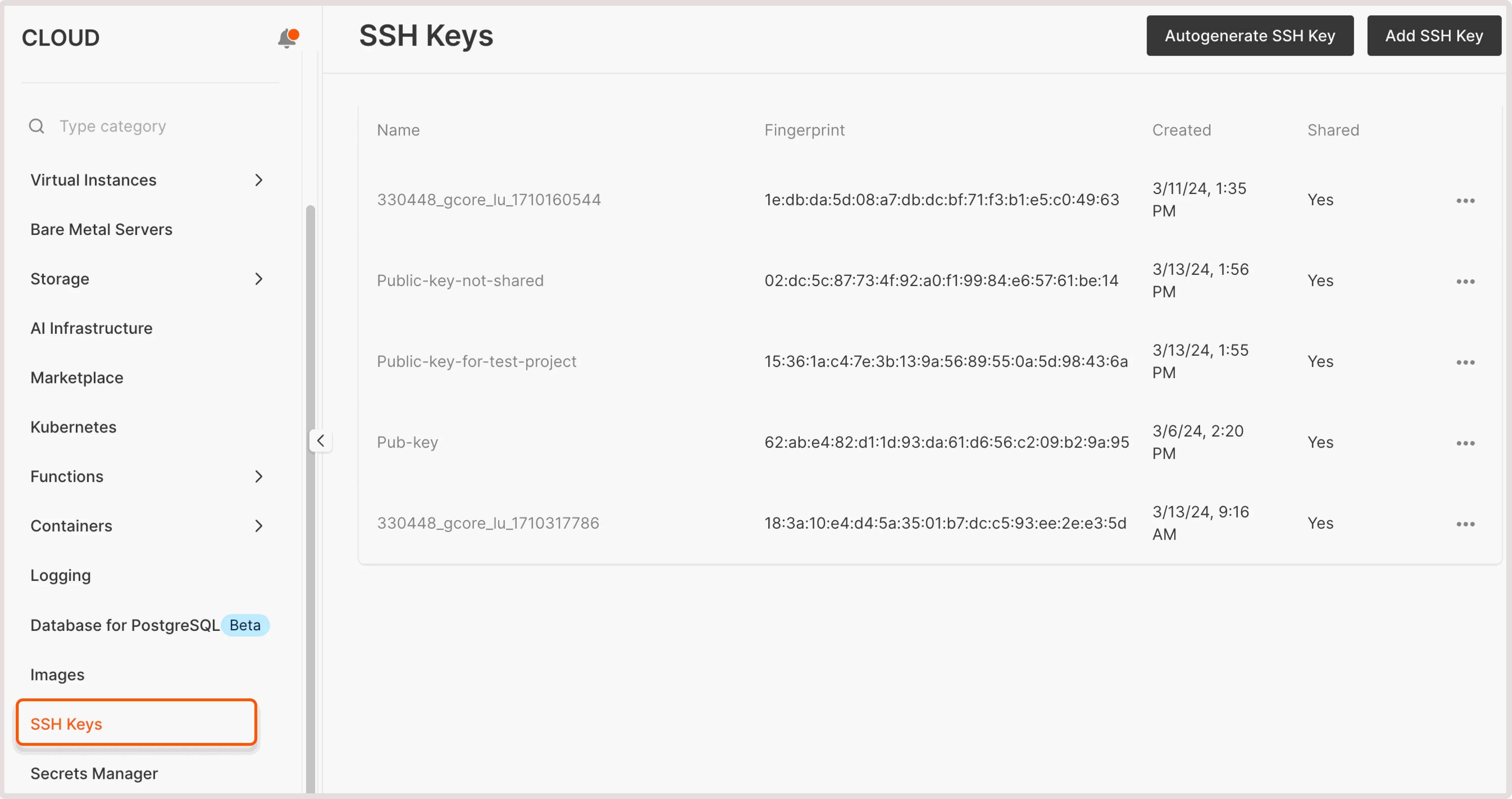 2. Find the SSH key you want to delete and click on the three-dot icon.
3. Select **Delete**.
2. Find the SSH key you want to delete and click on the three-dot icon.
3. Select **Delete**.
 ## Stop sharing SSH keys
After you add or generate an SSH key in the Customer Portal, the public key is automatically shared with all users in the same project.
To stop sharing the key and only make it visible to you:
1. In the Gcore Customer Portal, go to **Cloud** > **SSH keys**.
2. Find the SSH key you want to delete and click on the three-dot icon.
3. Click **Stop sharing**.
## Stop sharing SSH keys
After you add or generate an SSH key in the Customer Portal, the public key is automatically shared with all users in the same project.
To stop sharing the key and only make it visible to you:
1. In the Gcore Customer Portal, go to **Cloud** > **SSH keys**.
2. Find the SSH key you want to delete and click on the three-dot icon.
3. Click **Stop sharing**.
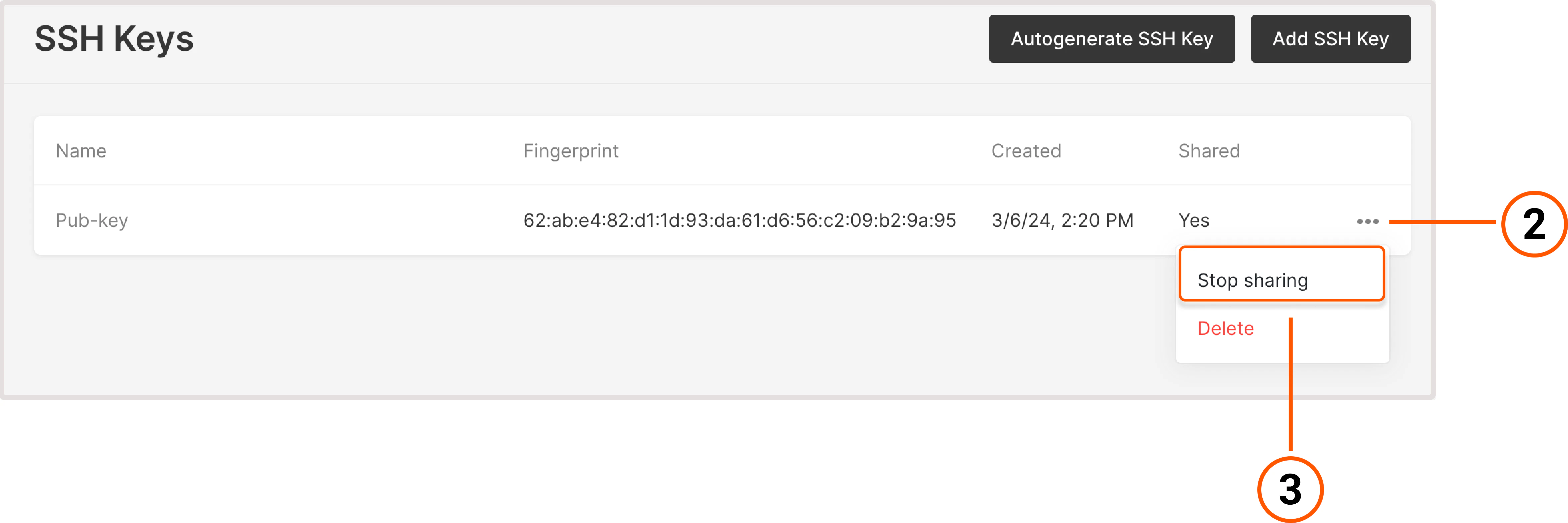 You can always start sharing the key again by following the same steps and selecting **Share** from the three-dot icon.