Create Linux or Windows Virtual Machines in Gcore Cloud.
When using [VAST file shares](/cloud/file-shares/configure-file-shares), it is best to create them **prior** to provisioning the corresponding compute resources.
## Step 1. Select a region
1. In the [Gcore Customer Portal](https://portal.gcore.com/accounts/reports/dashboard), open **Instances** tab and click **Create Instance**.
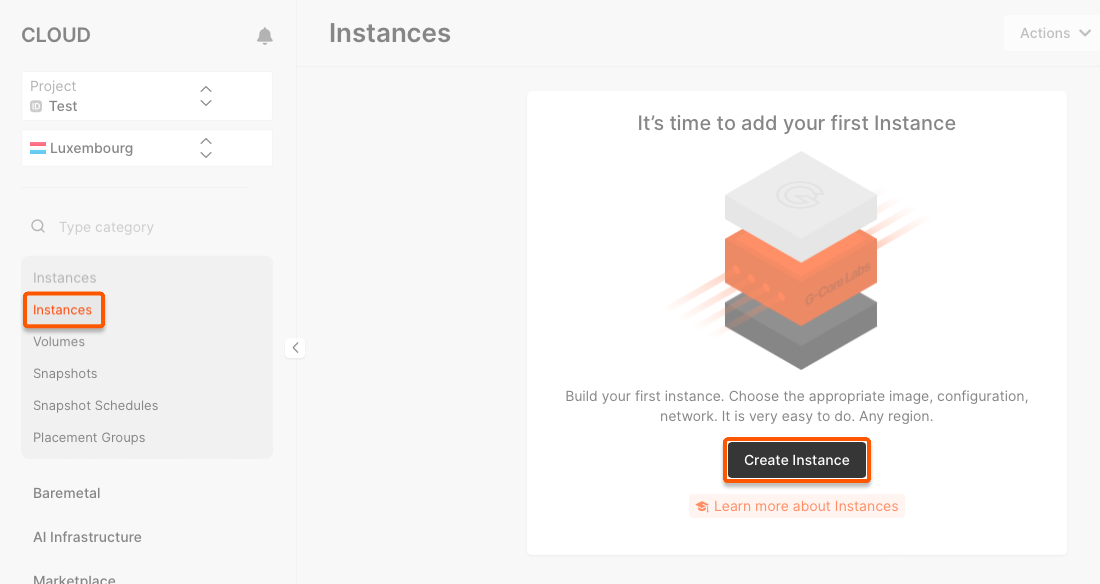 2. Choose the region where you want to deploy your Virtual Machine (VM).
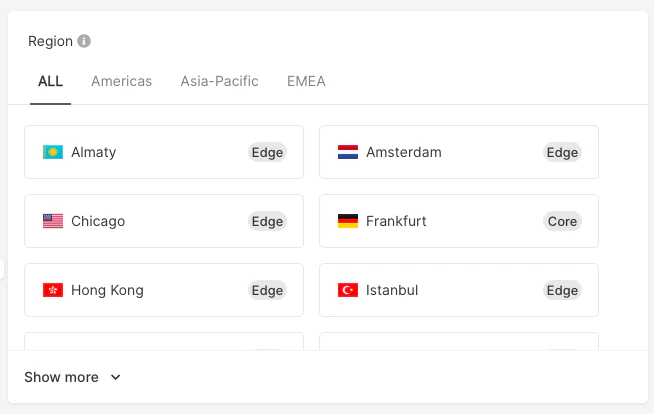
Notice that regions are labeled either Core or Edge. This represents the region's equipment specifications.
| | Core | Edge\* |
| ---------------------------------------- | --------------------------- | ------------------------------- |
| Equipment generation | The latest | Different |
| Designed for high scalability on the fly | Yes | Not |
| Available resources | 1000 cores and 30 TB of RAM | Up to 300 cores and 1 TB of RAM |
| Ports for user traffic and storage | Separate | Shared |
| Price | Higher | Lower |
* Edge regions can be transformed into Core regions. Just [send us a request](mailto:support@gcore.com).
## Step 2. Configure the image
Select the type of hardware architecture on which your VM will be running:
* **x86-64** : This architecture is known for its broad compatibility with Linux operating systems and Windows distributions. It is commonly used in general purpose computing applications.
* **ARM** : ARM architecture is designed for energy efficiency and low power consumption, which also supports strong performance, making it ideal for high-performance computing tasks. However, ARM Virtual Machines are compatible with fewer OS distributions.
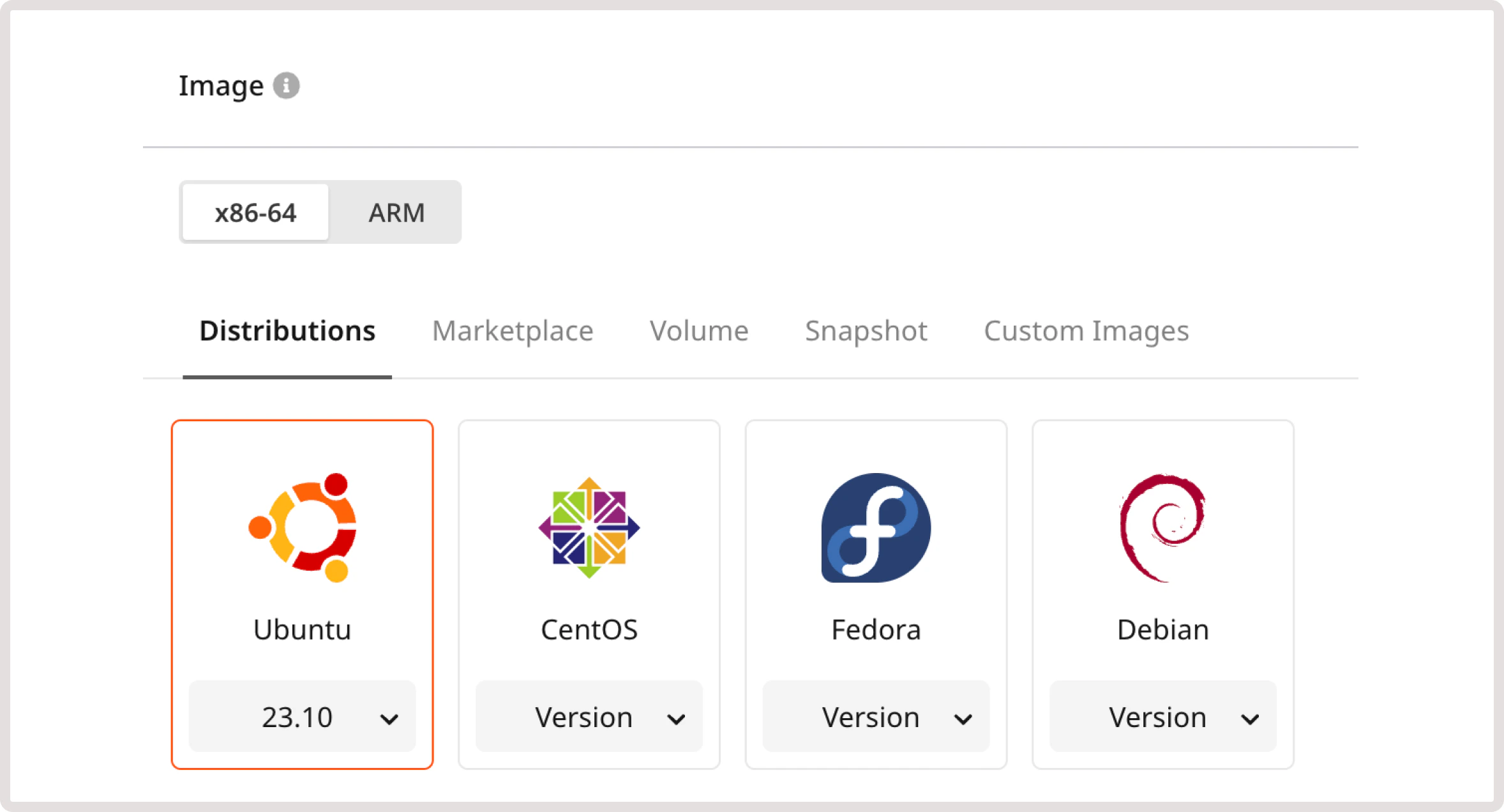
Your choice of hardware architecture will affect the available OS options and VM flavors. Choose an OS distribution, a volume, a snapshot, a custom image, or a template from the marketplace.
## Step 3. Choose the VM type
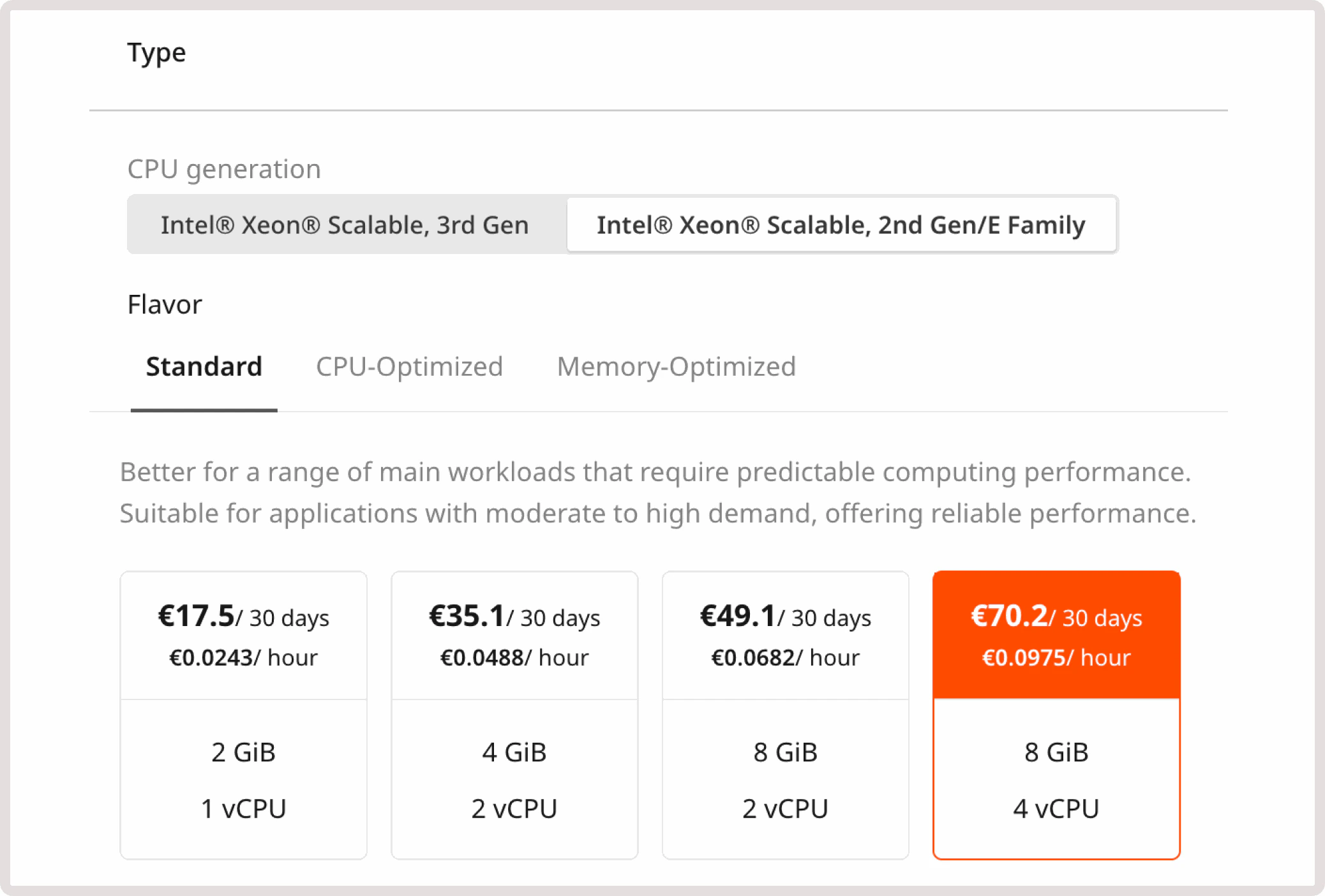
Select the appropriate CPU generation:
* **Intel® Xeon® Scalable, 3rd Gen or 2nd Gen** if you've selected x-86-64 architecture at the previous step.
* **ARM Ampere® Altra® Max Family** if you selected ARM architecture in the previous step.
Choose one of the available flavors.
 * **Shared**. VMs that share the core of a physical machine with other VMs. They are designed for workloads that don't require high performance. Availability: Luxembourg.
**Info**
The bandwidth limit for the **Shared** flavor is up to 100 Mbps. For other configurations it's up to 1 Gbps.
* **Standard**. VMs best suited for a wide range of workloads that require predictable computing performance. Availability: all regions.
* **vCPU**. CPU-optimized VMs. Ideal for CPU-intensive tasks that require predictable computing performance, such as batch processing of large data sets and video encoding. Availability: all Core regions.
* **Memory**. Memory-optimized VMs. Suitable for memory-intensive tasks such as databases, SRM/ERP or data warehouses. Availability: all Core regions.
* **High Frequency**. VMs with a high CPU clock rate (3.7 GHz in the basic configuration). Ideal for applications requiring single-threaded performance, financial and probabilistic analytics, and automation of computational processes. Availability: Luxembourg, Manassas, Frankfurt.
* **GPU**. VMs with a graphics card. Suitable for working with graphic information, deep and machine learning applications, and high-performance computing. Availability: Luxembourg.
* **GPU-HF**. VMs with a high clock rate of the CPU and with a graphics card, suitable for complex calculations that require graphics accelerator resources, high performance, and speed. Availability: Luxembourg.
**Info**
InfiniBand networks can only be attached to VMs with flavors that support InfiniBand.
## Step 4. Set up volumes
* **Shared**. VMs that share the core of a physical machine with other VMs. They are designed for workloads that don't require high performance. Availability: Luxembourg.
**Info**
The bandwidth limit for the **Shared** flavor is up to 100 Mbps. For other configurations it's up to 1 Gbps.
* **Standard**. VMs best suited for a wide range of workloads that require predictable computing performance. Availability: all regions.
* **vCPU**. CPU-optimized VMs. Ideal for CPU-intensive tasks that require predictable computing performance, such as batch processing of large data sets and video encoding. Availability: all Core regions.
* **Memory**. Memory-optimized VMs. Suitable for memory-intensive tasks such as databases, SRM/ERP or data warehouses. Availability: all Core regions.
* **High Frequency**. VMs with a high CPU clock rate (3.7 GHz in the basic configuration). Ideal for applications requiring single-threaded performance, financial and probabilistic analytics, and automation of computational processes. Availability: Luxembourg, Manassas, Frankfurt.
* **GPU**. VMs with a graphics card. Suitable for working with graphic information, deep and machine learning applications, and high-performance computing. Availability: Luxembourg.
* **GPU-HF**. VMs with a high clock rate of the CPU and with a graphics card, suitable for complex calculations that require graphics accelerator resources, high performance, and speed. Availability: Luxembourg.
**Info**
InfiniBand networks can only be attached to VMs with flavors that support InfiniBand.
## Step 4. Set up volumes
Enter a volume name, choose its type, and set its size in GiB.
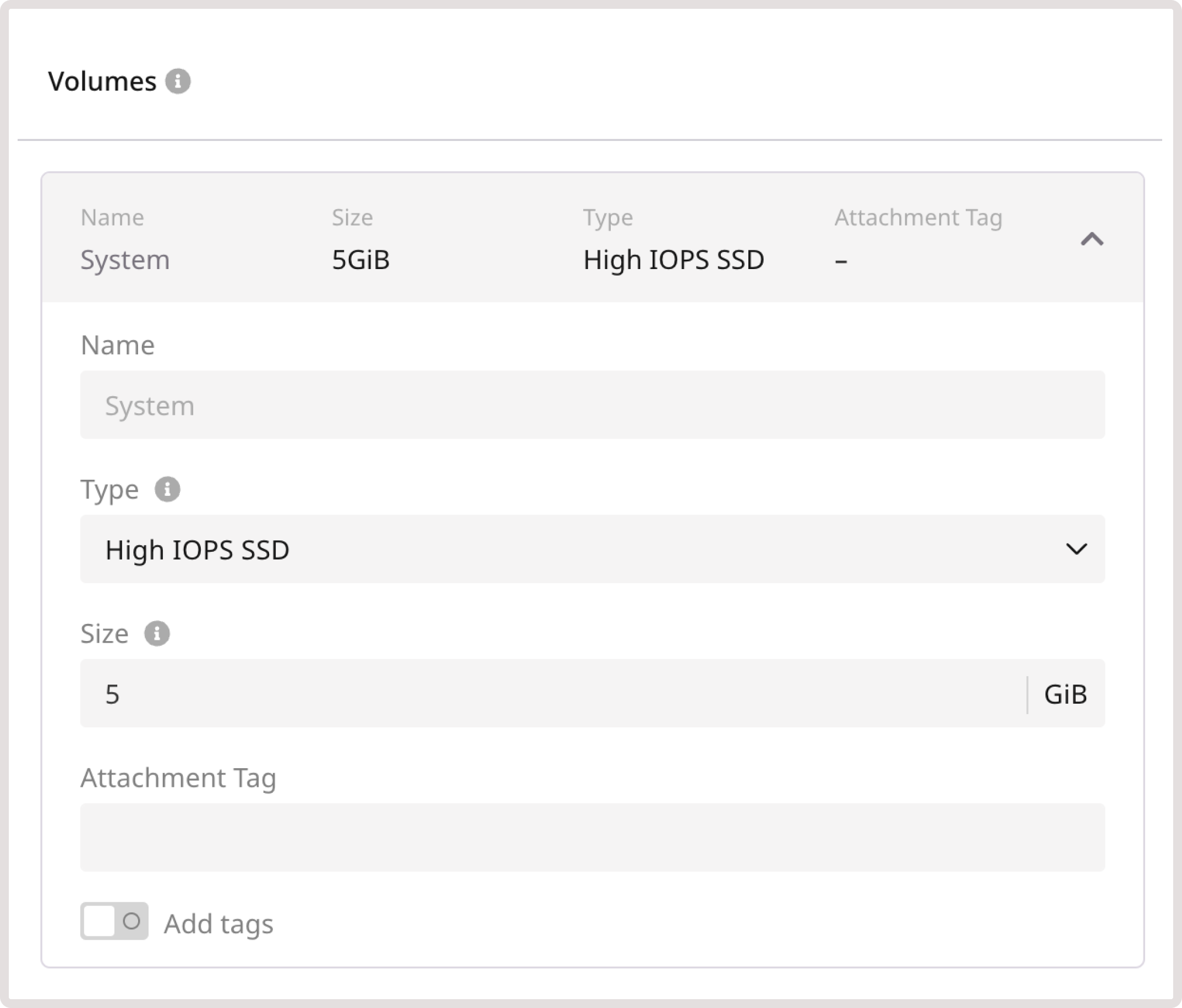 * **High IOPS SSD**. High-performance SSD block storage designed for latency-sensitive transactional workloads (60 IOPS per 1 GiB; 2.5 MB/s per 1 GiB). The IOPS performance limit is 9,000. The bandwidth limit is 500 MB/s.
Availability: Amsterdam, Frankfurt, London, Luxembourg, Luxembourg-2, Manassas, Paris-2, Singapore
* **Standard**. Network SSD disk, which provides stable and high random I/O performance, as well as high data reliability (6 IOPS per 1 GiB; 0.4 MB/s per 1 GiB). The IOPS performance limit is 4,500. The bandwidth limit is 300 MB/s.
Availability: all regions
* **Cold**. Network HDD disk, suitable for less frequently accessed workloads. The maximum number of IOPS is 1,000. The bandwidth limit is 100 MB/s.
Availability: Luxembourg
* **Ultra**. Network block storage option, recommended for non-critical data and workloads that are accessed less frequently. The maximum number of IOPS is 1,000. The bandwidth limit is 100 MB/s.
Availability: Luxembourg
* **SSD Low-Latency**. SSD block storage, designed for applications that require low-latency storage and real-time data processing. It can achieve IOPS performance of up to 5000, with an average latency of 300 µs.
Availability: Amsterdam-2, Frankfurt, Hong Kong, Luxembourg-2, Manassas, Tokyo
* **High IOPS SSD**. High-performance SSD block storage designed for latency-sensitive transactional workloads (60 IOPS per 1 GiB; 2.5 MB/s per 1 GiB). The IOPS performance limit is 9,000. The bandwidth limit is 500 MB/s.
Availability: Amsterdam, Frankfurt, London, Luxembourg, Luxembourg-2, Manassas, Paris-2, Singapore
* **Standard**. Network SSD disk, which provides stable and high random I/O performance, as well as high data reliability (6 IOPS per 1 GiB; 0.4 MB/s per 1 GiB). The IOPS performance limit is 4,500. The bandwidth limit is 300 MB/s.
Availability: all regions
* **Cold**. Network HDD disk, suitable for less frequently accessed workloads. The maximum number of IOPS is 1,000. The bandwidth limit is 100 MB/s.
Availability: Luxembourg
* **Ultra**. Network block storage option, recommended for non-critical data and workloads that are accessed less frequently. The maximum number of IOPS is 1,000. The bandwidth limit is 100 MB/s.
Availability: Luxembourg
* **SSD Low-Latency**. SSD block storage, designed for applications that require low-latency storage and real-time data processing. It can achieve IOPS performance of up to 5000, with an average latency of 300 µs.
Availability: Amsterdam-2, Frankfurt, Hong Kong, Luxembourg-2, Manassas, Tokyo
(Optional) Add an **Attachment Tag**.
## Step 5. Add network interfaces
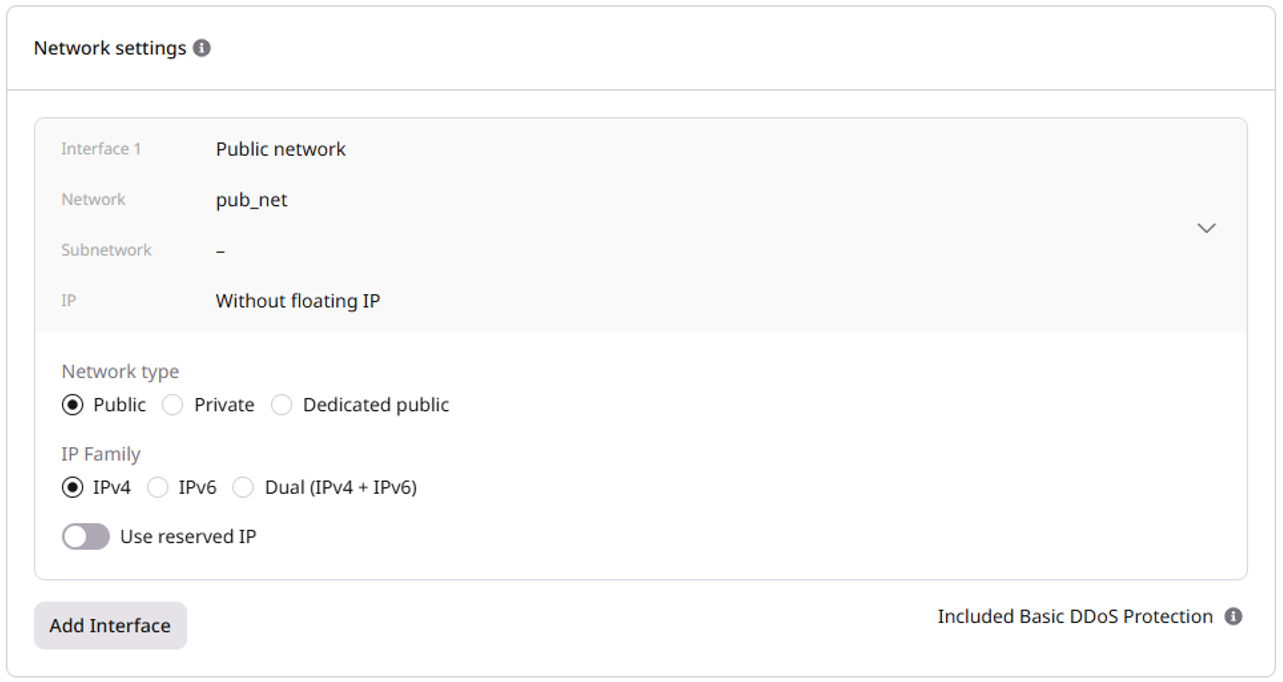
Configure the network interface:
1. Select the **Network type**: **Public**, **Private**, or **Dedicated public**.
2. In the **IP Family** section, select the IP version: **IPv4**, **IPv6**, or **Dual (IPv4 + IPv6)**.
3. (Optional) Enable **Use reserved IP** to assign a [reserved IP address](/cloud/networking/ip-address/create-and-configure-a-reserved-ip-address) to your VM.
For a **private** interface, configure a network and a subnetwork as described below.
**Info**
If you need both a public and private interface, disable the default gateway on the private network's subnetwork and assign a floating IP to the private interface.
Select an existing network from the dropdown list or create a new one by clicking **Add a new network**.
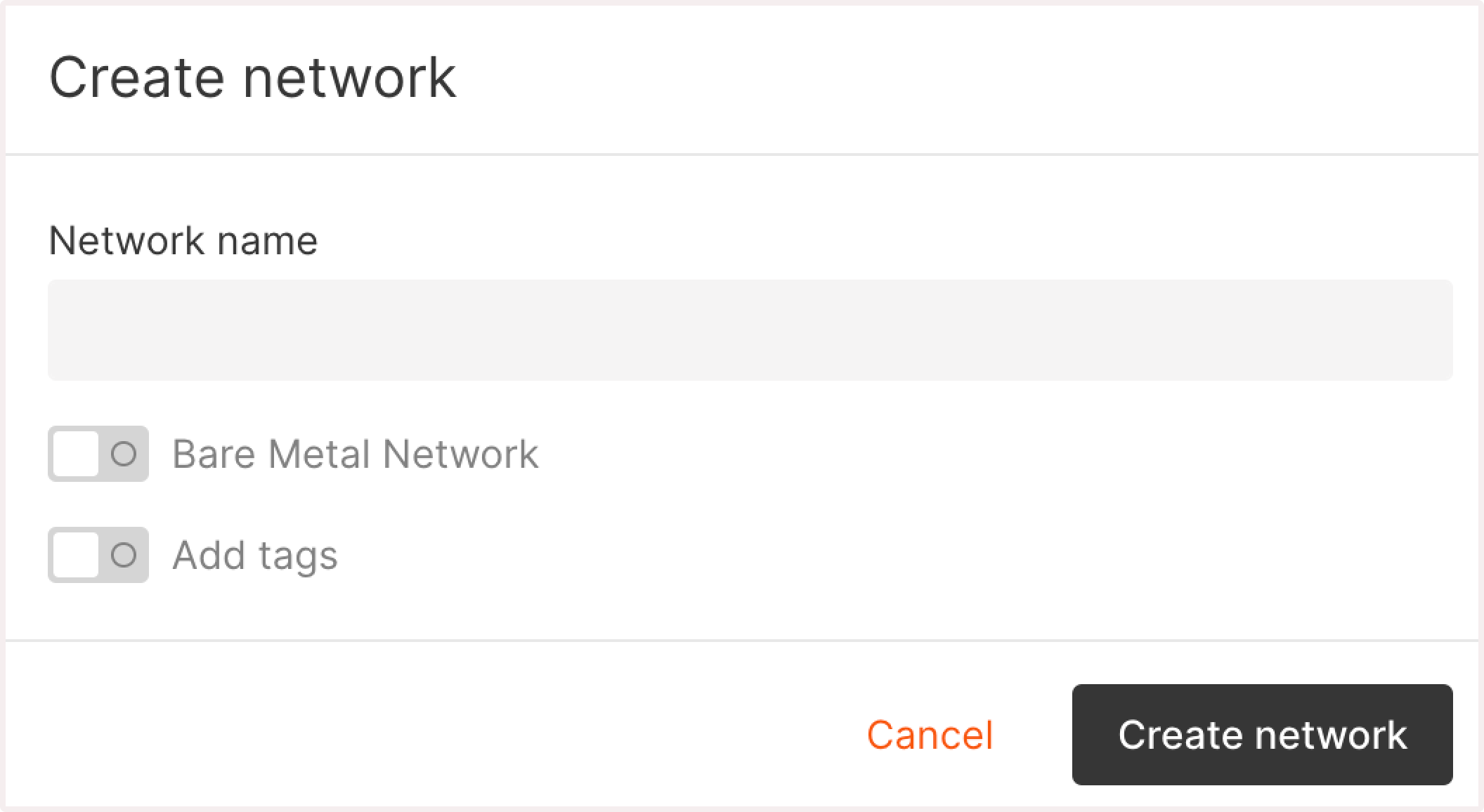
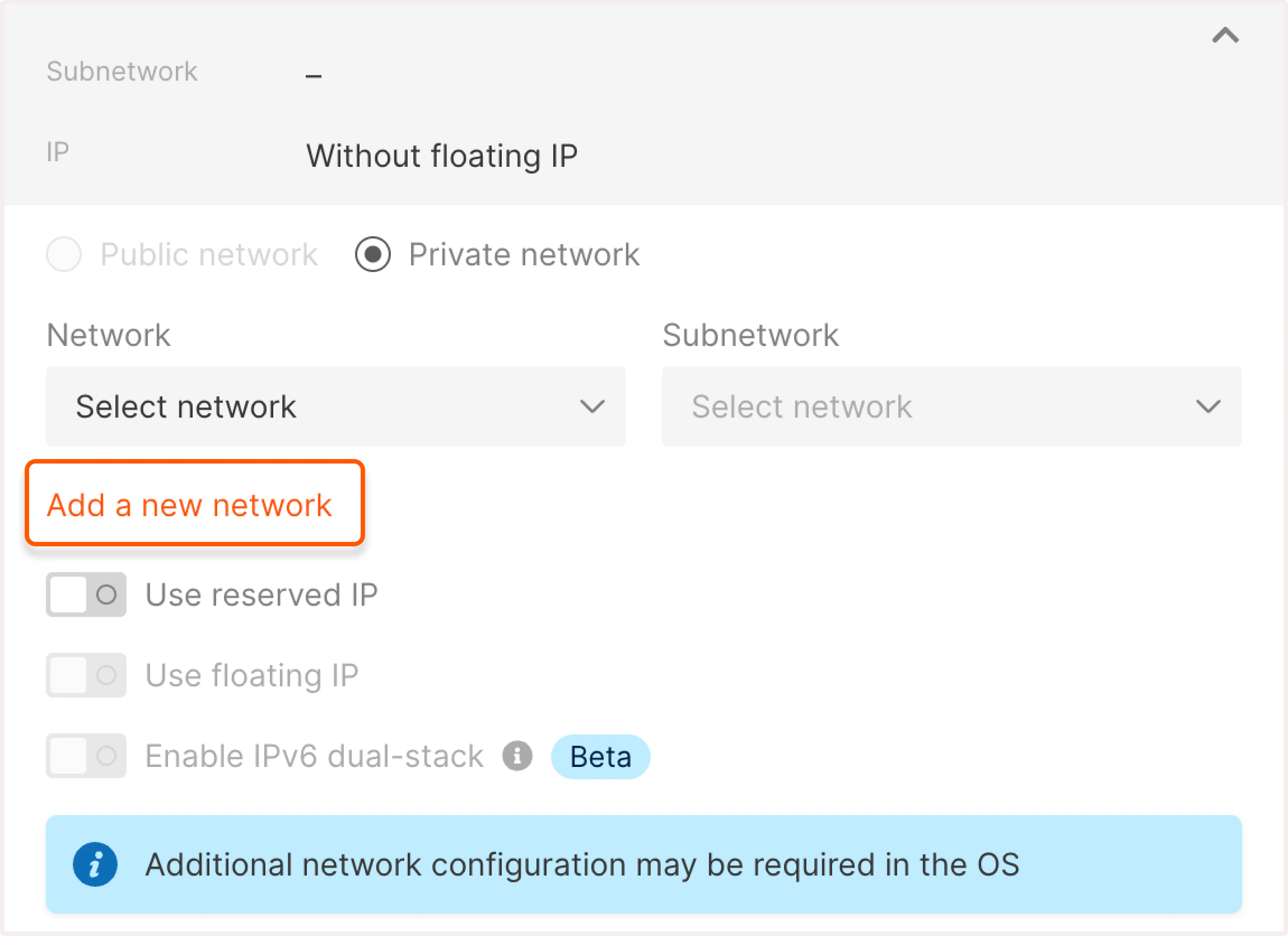 If you choose to add a new network, a new window will open where you'll configure the network settings:
1. Enter the network name.
2. (Optional) Turn on the **Use reserved IP** toggle if you want to assign a [reserved IP address](/cloud/networking/ip-address/create-and-configure-a-reserved-ip-address) to the Virtual Machine. Select the desired IP from the list.
3. (Optional) Turn on the **Use floating IP** toggle if you want to assign a [floating IP address](/cloud/networking/ip-address/create-and-configure-a-floating-ip-address) and receive incoming connections to the VM.
4. Click **Create network**.
If you choose to add a new network, a new window will open where you'll configure the network settings:
1. Enter the network name.
2. (Optional) Turn on the **Use reserved IP** toggle if you want to assign a [reserved IP address](/cloud/networking/ip-address/create-and-configure-a-reserved-ip-address) to the Virtual Machine. Select the desired IP from the list.
3. (Optional) Turn on the **Use floating IP** toggle if you want to assign a [floating IP address](/cloud/networking/ip-address/create-and-configure-a-floating-ip-address) and receive incoming connections to the VM.
4. Click **Create network**.
 **Info**
If your VM has several subnetworks, [ensure that only one subnetwork is routable](/cloud/networking/create-and-manage-a-subnetwork#set-up-the-default-gateway). Otherwise, there will be a conflict with the default gateway on the server, and you might not be able to connect to the VM.
Select an existing subnetwork from the dropdown list or create a new one by clicking **Add a new subnetwork**.
**Info**
If your VM has several subnetworks, [ensure that only one subnetwork is routable](/cloud/networking/create-and-manage-a-subnetwork#set-up-the-default-gateway). Otherwise, there will be a conflict with the default gateway on the server, and you might not be able to connect to the VM.
Select an existing subnetwork from the dropdown list or create a new one by clicking **Add a new subnetwork**.
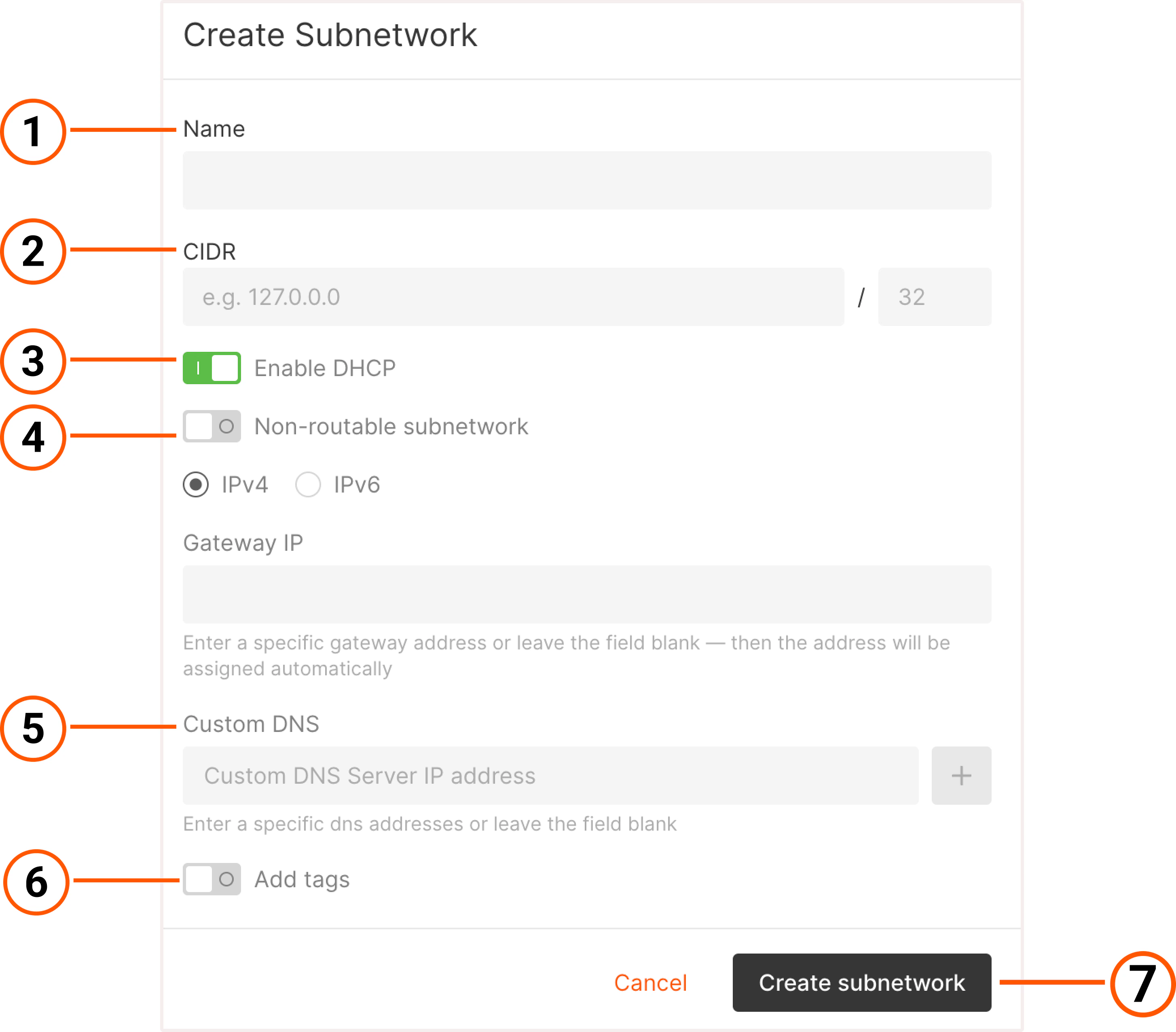
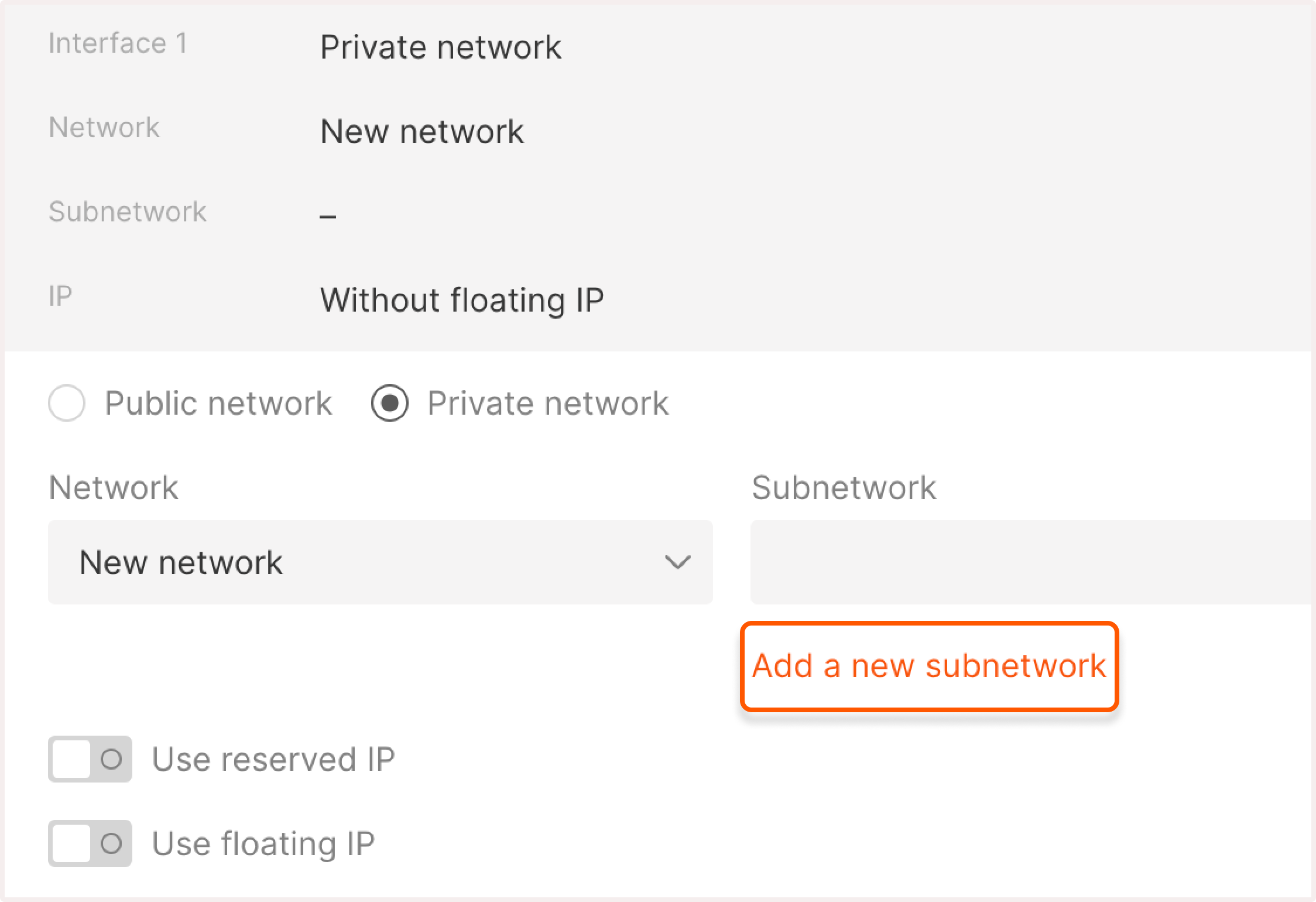 If you choose to add a new subnetwork, a new window will open where you'll configure the subnetwork settings:
1. Enter the subnetwork name.
2. Set CIDR between ranges: 10.0.0.0 - 10.255.255.255, 172.16.0.0-172.31.255.255, 192.168.0.0-192.168.255.255. Set the mask between 16 and 29.
3. (Optional) Turn on the **Enable DHCP** toggle to assign IP addresses to machines in the subnet automatically.
4. (Optional) Turn on the **Non-routable subnetwork** toggle to block access to the subnet from external networks and other subnets. If you keep the network routable, you can specify the **Gateway IP** address. Otherwise, a random IP address will be assigned.
5. (Optional) Enter **Custom DNS servers** to add specific DNS servers.
6. (Optional) Turn on **Add tags** to add metadata to the subnetwork.
7. Click **Create subnetwork**.
If you choose to add a new subnetwork, a new window will open where you'll configure the subnetwork settings:
1. Enter the subnetwork name.
2. Set CIDR between ranges: 10.0.0.0 - 10.255.255.255, 172.16.0.0-172.31.255.255, 192.168.0.0-192.168.255.255. Set the mask between 16 and 29.
3. (Optional) Turn on the **Enable DHCP** toggle to assign IP addresses to machines in the subnet automatically.
4. (Optional) Turn on the **Non-routable subnetwork** toggle to block access to the subnet from external networks and other subnets. If you keep the network routable, you can specify the **Gateway IP** address. Otherwise, a random IP address will be assigned.
5. (Optional) Enter **Custom DNS servers** to add specific DNS servers.
6. (Optional) Turn on **Add tags** to add metadata to the subnetwork.
7. Click **Create subnetwork**.
 **Tip**
Optionally, you can turn on the **Use Reserved IP** toggle to assign a [reserved IP address](/cloud/networking/ip-address/create-and-configure-a-reserved-ip-address) to your VM and turn on the **Use Floating IP** toggle to assign a [floating IP address](/cloud/networking/ip-address/create-and-configure-a-floating-ip-address).
### Interface order
**Tip**
Optionally, you can turn on the **Use Reserved IP** toggle to assign a [reserved IP address](/cloud/networking/ip-address/create-and-configure-a-reserved-ip-address) to your VM and turn on the **Use Floating IP** toggle to assign a [floating IP address](/cloud/networking/ip-address/create-and-configure-a-floating-ip-address).
### Interface order
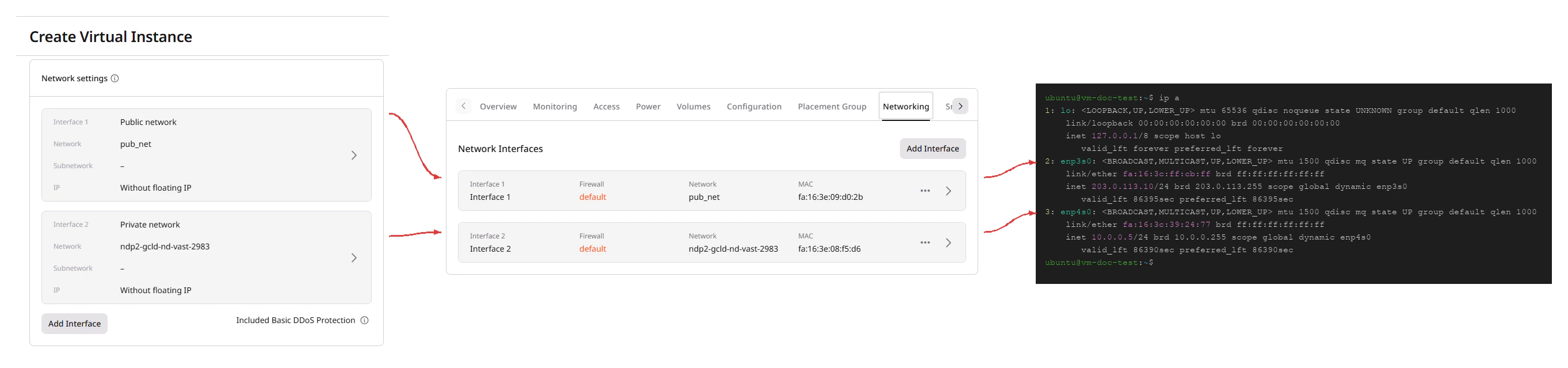
When adding multiple interfaces, the order in the creation form determines how the OS names them after the instance starts.
The diagram below shows how the selection order in the creation form carries through to the **Networking** tab and then to the OS interface names:
 ```bash theme={null}
$ ip addr show enp3s0
2: enp3s0: mtu 1500 ...
inet 85.234.84.186/24 metric 1000 brd 85.234.84.255 scope global dynamic enp3s0
$ ip addr show enp4s0
3: enp4s0: mtu 1500 ...
inet 10.0.0.132/24 metric 2000 brd 10.0.0.255 scope global dynamic enp4s0
```
```bash theme={null}
$ ip addr show enp3s0
2: enp3s0: mtu 1500 ...
inet 85.234.84.186/24 metric 1000 brd 85.234.84.255 scope global dynamic enp3s0
$ ip addr show enp4s0
3: enp4s0: mtu 1500 ...
inet 10.0.0.132/24 metric 2000 brd 10.0.0.255 scope global dynamic enp4s0
```
Interface 1 (`enp3s0`) is the public interface; Interface 2 (`enp4s0`) is the private interface. The order set at creation determines routing priority: the first interface has higher priority for outbound traffic than subsequent ones. The interface order cannot be changed after the instance is created.
## Step 6. Configure firewall settings
For **Firewall settings**, select the default firewall or create a new one by clicking **Add firewall**.
If you keep the default firewall, inbound traffic over ICMP, SSH (TCP/22), and RDP (TCP/3389 and UDP/3389) is allowed. Outbound traffic is unrestricted except SMTP (TCP/25 and UDP/25), which is blocked by default.
If you want to create a new firewall, refer to our article on [adding and configuring a firewall](/cloud/networking/add-and-configure-a-firewall).
## Step 7. Set up authentication
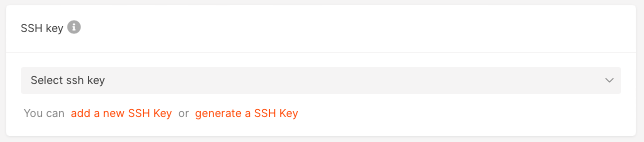
Configure an SSH key for a remote SSH connection. You can add an existing SSH key or generate a new one. For instructions on how to generate and configure the key, check out this guide: [Connect to a VM via SSH](/cloud/virtual-instances/connect/connect-via-ssh).
 In addition to SSH keys, you can also set up a password for your Virtual Machine, as described in step 9. Setting a password is necessary if you want to connect to a Linux VM [from the Customer Portal](/cloud/virtual-instances/connect/connect-to-your-instance-via-control-panel#connect-to-a-linux-instance).
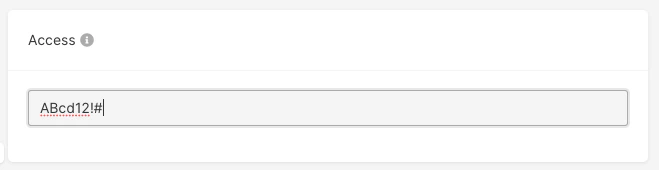
Configure **Access** by setting a password for the Admin user.
In addition to SSH keys, you can also set up a password for your Virtual Machine, as described in step 9. Setting a password is necessary if you want to connect to a Linux VM [from the Customer Portal](/cloud/virtual-instances/connect/connect-to-your-instance-via-control-panel#connect-to-a-linux-instance).
Configure **Access** by setting a password for the Admin user.
 **Info**
Your password must contain between 8 and 16 characters, including at least one lowercase letter (`a-z`), one uppercase letter (`A-Z`), one number (`0-9`), and one special character (`!#$%&'()*+,-./:;<=>?@[]^_{|}~`).
You can use the password to connect to a Windows VM from the [Gcore Customer Portal](/cloud/virtual-instances/connect/connect-to-your-instance-via-control-panel) or from your computer using RDP (Remote Desktop Protocol).
## Step 8 (Optional). Configure additional options
**Info**
Your password must contain between 8 and 16 characters, including at least one lowercase letter (`a-z`), one uppercase letter (`A-Z`), one number (`0-9`), and one special character (`!#$%&'()*+,-./:;<=>?@[]^_{|}~`).
You can use the password to connect to a Windows VM from the [Gcore Customer Portal](/cloud/virtual-instances/connect/connect-to-your-instance-via-control-panel) or from your computer using RDP (Remote Desktop Protocol).
## Step 8 (Optional). Configure additional options
Enable the **User data** toggle to customize your VM during the initial boot by a `cloud-init` agent.
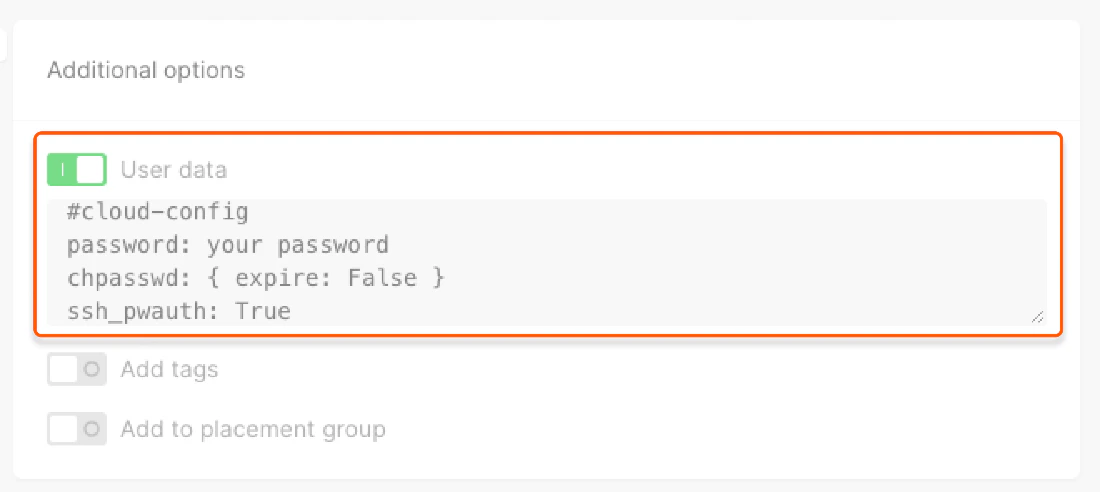
You can configure your password to connect to your Linux VM [from the Customer Portal](/cloud/virtual-instances/connect/connect-to-your-instance-via-control-panel) or [via SSH](/cloud/virtual-instances/connect/connect-via-ssh). To do so, insert the following code to the field, replacing `**your password**` with your chosen password:
```yaml theme={null}
#cloud-config
password: **your password**
chpasswd: { expire: False }
ssh_pwauth: True
```
**Info**
On Cloud VMs with Windows OS, you can't use the `password` parameter both in the "Access" and "User data" fields. Since the "Access" field is required, configuring user data on Windows Virtual Machines is not possible. Read more about the allowed VM parameters in our [API docs](/api-reference/cloud/instances/create-instance).
You can configure the password hash, a machine-readable set of symbols. It'll protect your real password from being compromised. To generate a hash, use the Python script:
```
#!/usr/bin/env python3
\# based on [https://stackoverflow.com/a/17992126/117471](https://stackoverflow.com/a/17992126/117471)\# pip3 install passlib
import sys
from getpass import getpass
from passlib.hash import sha512_crypt
passwd = input() if not sys.stdin.isatty() else getpass()
print(sha512_crypt.hash(passwd, rounds = 5000 ))
```
**Warning**
If a VM is only in a private subnet, DHCP must be enabled in the settings of this subnet, so you can log in with a password.
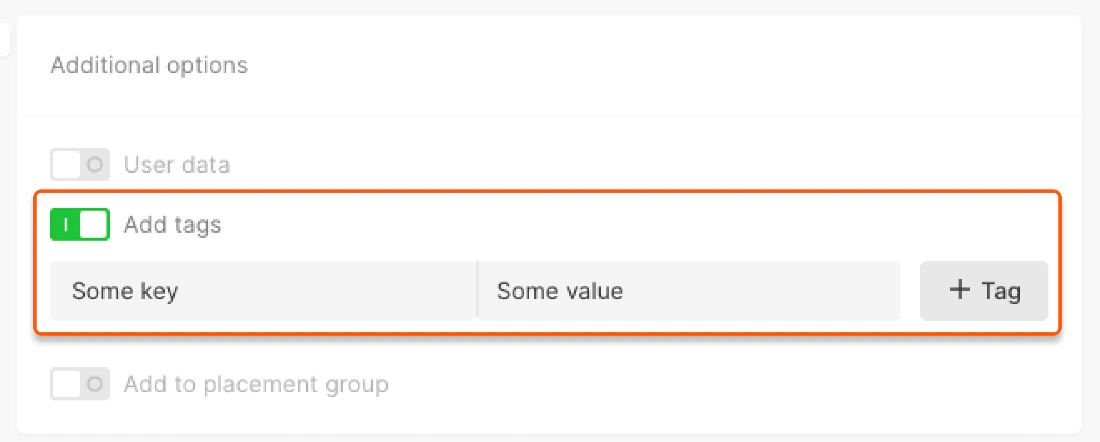
* Turn on **Add tags** to add a key-value pair that forms the metadata of the Virtual Machine description.
 * Turn on **Add to placement group** to determine how to place multiple VMs.
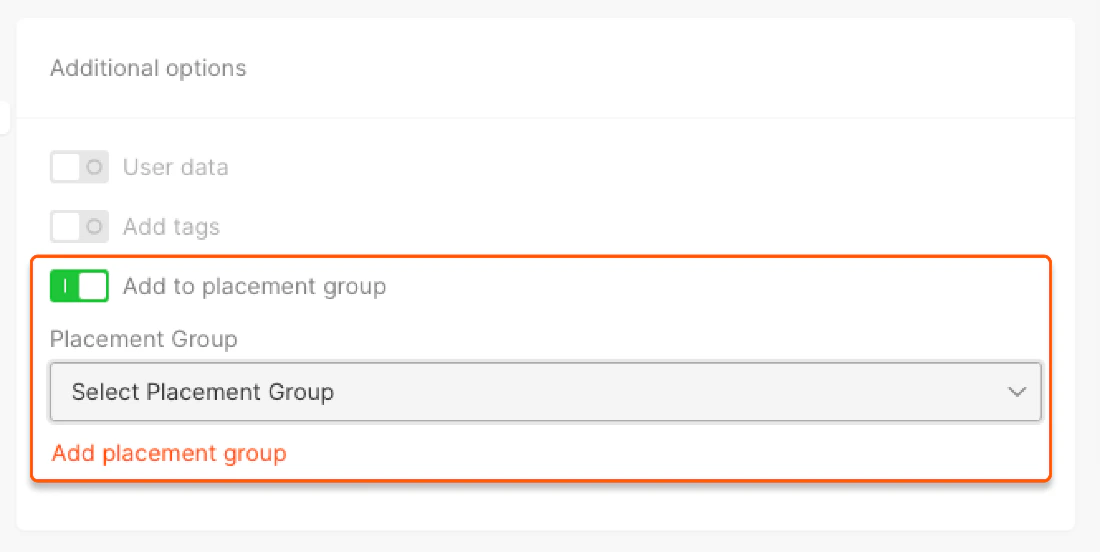 You can place your VM in one of three types of groups:
* **Affinity** groups assemble virtual machines on the same hardware. Machines launched in one affinity group will exchange data faster because they are located on the same server.
* **Anti-affinity** groups work the opposite way: all Virtual Machines in this group will be separated across different physical hardware. This increases fault tolerance of a cluster: Even if something goes wrong with one server, machines on the other servers will remain available.
* **Soft anti-affinity** groups encourage, but don't strictly enforce, the separation of Virtual Machines. Unlike a strict anti-affinity policy, where machines may never be placed together, soft anti-affinity allows placement on the same hardware when it is necessary due to factors like resource constraints or high demand. It is suitable for users who want to use the anti-affinity policy by default while also avoiding machine creation failures if an unused host is not found.
You can place your VM in one of three types of groups:
* **Affinity** groups assemble virtual machines on the same hardware. Machines launched in one affinity group will exchange data faster because they are located on the same server.
* **Anti-affinity** groups work the opposite way: all Virtual Machines in this group will be separated across different physical hardware. This increases fault tolerance of a cluster: Even if something goes wrong with one server, machines on the other servers will remain available.
* **Soft anti-affinity** groups encourage, but don't strictly enforce, the separation of Virtual Machines. Unlike a strict anti-affinity policy, where machines may never be placed together, soft anti-affinity allows placement on the same hardware when it is necessary due to factors like resource constraints or high demand. It is suitable for users who want to use the anti-affinity policy by default while also avoiding machine creation failures if an unused host is not found.
You can add the VM to an existing placement group or create a new one by clicking **Add placement group**.
## Step 9. Specify the number of VMs
Indicate how many machines with the same configuration you need and name the VMs.
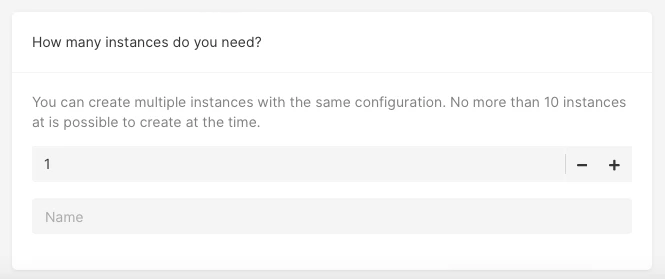
The maximum number is limited by your quotas.
For names, use Latin characters, underscores, spaces, and dots.
## Step 10. Create a VM
Click **Create virtual machine**.
Your server will be transitioned to the **Building** status. The system will allocate resources for your Virtual Machine.
After that, the server will be automatically moved to the **Power on** status. Your machine is ready to run!
Creating a Linux VM via the REST API consists of three API calls: list available images, list flavors, then submit the create request. The instance is reachable via SSH within about 30 seconds of the task finishing.
An [API token](/account-settings/api-tokens) is required, along with a [project ID](/api-reference/cloud/projects/list-projects) and [region ID](/api-reference/cloud/regions/list-regions).
Open a bash terminal and set these as environment variables before running the examples:
```bash theme={null}
export GCORE_API_KEY="{YOUR_API_KEY}"
export GCORE_CLOUD_PROJECT_ID="{YOUR_PROJECT_ID}"
export GCORE_CLOUD_REGION_ID="{YOUR_REGION_ID}"
```
## Add an SSH key
If the project does not yet have an SSH key, register one before creating the instance. The create call references the key by name, not by ID.
| Parameter | Required | Description |
| ------------ | -------- | --------------------------------------------------------------------- |
| `name` | Yes | Identifier used as `ssh_key_name` in the create call. |
| `public_key` | No | An RSA or Ed25519 public key string. Omit to generate a new key pair. |
```python theme={null}
ssh_key = client.cloud.ssh_keys.create(
name="my-key",
public_key="ssh-ed25519 AAAA... user@host",
)
```
```go theme={null}
sshKeyCreated, err := client.Cloud.SSHKeys.New(context.TODO(), cloud.SSHKeyNewParams{
Name: "my-ssh-key",
})
if err != nil {
panic(err.Error())
}
fmt.Printf("%+v\n", sshKeyCreated.ID)
```
```bash theme={null}
curl -X POST "https://api.gcore.com/cloud/v1/ssh_keys/$GCORE_CLOUD_PROJECT_ID" \
-H "Authorization: APIKey $GCORE_API_KEY" \
-H "Content-Type: application/json" \
-d '{
"name": "my-key",
"public_key": "ssh-ed25519 AAAA... user@host"
}'
```
Response:
```json theme={null}
{
"id": "36a7a97a-0672-4911-8f2b-92cd4e5b0d91",
"name": "my-key",
"state": "ACTIVE"
}
```
When `public_key` is omitted, the response includes a `private_key` field - save it immediately, as it is not shown again.
## Quickstart
Complete scripts for the full flow. See the step-by-step section below for details on each call.
```python theme={null}
import os
from gcore import Gcore
client = Gcore()
# Step 1. Find Ubuntu 22.04 image
images = client.cloud.instances.images.list()
image = next(img for img in images.results if "ubuntu-22.04" in img.name and "x64" in img.name)
print(f"Image: {image.name} ({image.id}), min_disk={image.min_disk} GiB")
# Step 2. Pick a flavor (IDs are region-specific; this selects 2 vCPU / 4 GB)
flavors = client.cloud.instances.flavors.list()
flavor = next(f for f in flavors.results if f.vcpus == 2 and f.ram == 4096)
print(f"Flavor: {flavor.flavor_id} ({flavor.vcpus} vCPU / {flavor.ram // 1024} GB RAM)")
# Step 3. Create instance and wait (create_and_poll polls automatically)
instance = client.cloud.instances.create_and_poll(
name="my-vm",
flavor=flavor.flavor_id,
ssh_key_name="my-key",
interfaces=[{"type": "external"}],
volumes=[{
"source": "image",
"image_id": image.id,
"size": max(20, image.min_disk),
"boot_index": 0,
}],
)
print(f"Instance ID: {instance.id}, Status: {instance.status}")
# Step 5. Get public IP
for ifaces in instance.addresses.values():
for iface in ifaces:
print(f"Public IP: {iface.addr}")
# Step 6. Connect via SSH
for ifaces in instance.addresses.values():
for iface in ifaces:
print(f"ssh ubuntu@{iface.addr}")
```
```go theme={null}
package main
import (
"context"
"fmt"
"os"
"strings"
gcore "github.com/G-Core/gcore-go"
"github.com/G-Core/gcore-go/cloud"
)
func main() {
client := gcore.NewClient()
// Step 1. Find Ubuntu 22.04 image
imageList, err := client.Cloud.Instances.Images.List(context.TODO(), cloud.InstanceImageListParams{})
if err != nil {
panic(err.Error())
}
var imageID string
for _, img := range imageList.Results {
if strings.Contains(img.Name, "ubuntu-22.04") && strings.Contains(img.Name, "x64") {
imageID = img.ID
fmt.Printf("Image: %s (%s)\n", img.Name, img.ID)
break
}
}
// Step 2. Pick a flavor (IDs are region-specific; this selects 2 vCPU / 4 GB)
flavorList, err := client.Cloud.Instances.Flavors.List(context.TODO(), cloud.InstanceFlavorListParams{})
if err != nil {
panic(err.Error())
}
var flavorID string
for _, f := range flavorList.Results {
if f.Vcpus == 2 && f.Ram == 4096 {
flavorID = f.FlavorID
fmt.Printf("Flavor: %s (%d vCPU / %d MB RAM)\n", f.FlavorID, f.Vcpus, f.Ram)
break
}
}
// Step 3. Create instance and wait (NewAndPoll polls automatically)
instance, err := client.Cloud.Instances.NewAndPoll(context.TODO(), cloud.InstanceNewParams{
Flavor: flavorID,
NameTemplate: gcore.String("my-vm-{ip_octets}"),
SSHKeyName: gcore.String("my-key"),
Interfaces: []cloud.InstanceNewParamsInterfaceUnion{{
OfExternal: &cloud.InstanceNewParamsInterfaceExternal{},
}},
Volumes: []cloud.InstanceNewParamsVolumeUnion{{
OfImage: &cloud.InstanceNewParamsVolumeImage{
ImageID: imageID,
Size: gcore.Int(20),
BootIndex: gcore.Int(0),
},
}},
})
if err != nil {
panic(err.Error())
}
fmt.Printf("Instance ID: %s, Status: %s\n", instance.ID, instance.Status)
// Step 5. Get public IP
// Step 6. Connect via SSH
for _, addrs := range instance.Addresses {
for _, addr := range addrs {
fmt.Printf("ssh ubuntu@%s\n", addr.Addr)
}
}
}
```
## Step-by-step
Each step below explains what the call does, which parameters matter, and what the response looks like. Use this section to understand the flow or to debug a specific step.
### Step 1. Choose an OS image
The image determines the operating system and sets the minimum boot volume size for Step 3.
```python theme={null}
import os
from gcore import Gcore
client = Gcore()
images = client.cloud.instances.images.list()
for img in images.results:
print(img.id, img.name)
```
```go theme={null}
package main
import (
"context"
"fmt"
gcore "github.com/G-Core/gcore-go"
"github.com/G-Core/gcore-go/cloud"
)
func main() {
client := gcore.NewClient()
imageList, err := client.Cloud.Instances.Images.List(context.TODO(), cloud.InstanceImageListParams{})
if err != nil {
panic(err.Error())
}
fmt.Printf("%+v\n", imageList.Count)
}
```
```bash theme={null}
curl "https://api.gcore.com/cloud/v1/images/$GCORE_CLOUD_PROJECT_ID/$GCORE_CLOUD_REGION_ID" \
-H "Authorization: APIKey $GCORE_API_KEY"
```
Response:
```json theme={null}
{
"results": [
{
"id": "e460e48c-6836-447e-bc9c-16fc4225d318", // save as IMAGE_ID
"name": "ubuntu-22.04-x64",
"os_distro": "ubuntu",
"os_version": "22.04",
"architecture": "x86_64",
"min_disk": 5
}
]
}
```
Save the `id` of the chosen image. The `min_disk` value is the minimum boot volume size in GiB.
```bash theme={null}
export IMAGE_ID="{IMAGE_ID}"
```
### Step 2. Choose a flavor
A [flavor](/api-reference/cloud/flavors/list-flavors) sets the vCPU count and RAM for the VM. IDs are region-specific - run this call to see what's available in your region.
```python theme={null}
flavors = client.cloud.instances.flavors.list()
for f in flavors.results:
print(f.flavor_id, f"{f.vcpus} vCPU / {f.ram // 1024} GB RAM")
```
```go theme={null}
instanceFlavorList, err := client.Cloud.Instances.Flavors.List(context.TODO(), cloud.InstanceFlavorListParams{})
if err != nil {
panic(err.Error())
}
fmt.Printf("%+v\n", instanceFlavorList.Count)
```
```bash theme={null}
curl "https://api.gcore.com/cloud/v1/flavors/$GCORE_CLOUD_PROJECT_ID/$GCORE_CLOUD_REGION_ID" \
-H "Authorization: APIKey $GCORE_API_KEY"
```
Response:
```json theme={null}
{
"results": [
{"flavor_id": "g2-standard-2-4", "vcpus": 2, "ram": 4096},
{"flavor_id": "g2-standard-4-8", "vcpus": 4, "ram": 8192}
]
}
```
```bash theme={null}
export FLAVOR_ID="{FLAVOR_ID}" # replace with a flavor_id from the response above
```
### Step 3. Create the instance
The instance is created with a public interface - `"type": "external"` assigns a public IPv4 address automatically, without a separate floating IP.
| Parameter | Required | Description |
| ---------------------- | -------- | --------------------------------------------------------------------- |
| `name` | Yes | Display name for the instance. |
| `flavor` | Yes | Flavor ID string from Step 2. |
| `ssh_key_name` | Yes | Name of an existing SSH key in the project. |
| `interfaces[].type` | Yes | `"external"` for a public IP. Use `"subnet"` for a private interface. |
| `volumes[].source` | Yes | `"image"` to boot from an image. |
| `volumes[].size` | Yes | Boot volume size in GiB. Must be at least `min_disk` from Step 1. |
| `volumes[].boot_index` | Yes | Set to `0` for the boot volume. |
```python theme={null}
instance = client.cloud.instances.create_and_poll(
name="my-vm",
flavor=os.environ["FLAVOR_ID"],
ssh_key_name="my-key",
interfaces=[{"type": "external"}],
volumes=[{
"source": "image",
"image_id": os.environ["IMAGE_ID"],
"size": 20,
"boot_index": 0,
}],
)
instance_id = instance.id
```
```go theme={null}
instance, err := client.Cloud.Instances.NewAndPoll(context.TODO(), cloud.InstanceNewParams{
Flavor: os.Getenv("FLAVOR_ID"),
NameTemplate: gcore.String("my-vm-{ip_octets}"),
SSHKeyName: gcore.String("my-key"),
Interfaces: []cloud.InstanceNewParamsInterfaceUnion{{
OfExternal: &cloud.InstanceNewParamsInterfaceExternal{},
}},
Volumes: []cloud.InstanceNewParamsVolumeUnion{{
OfImage: &cloud.InstanceNewParamsVolumeImage{
ImageID: os.Getenv("IMAGE_ID"),
Size: gcore.Int(20),
BootIndex: gcore.Int(0),
},
}},
})
if err != nil {
panic(err.Error())
}
// instance is ACTIVE when NewAndPoll returns
instanceID := instance.ID
```
```bash theme={null}
curl -X POST "https://api.gcore.com/cloud/v2/instances/$GCORE_CLOUD_PROJECT_ID/$GCORE_CLOUD_REGION_ID" \
-H "Authorization: APIKey $GCORE_API_KEY" \
-H "Content-Type: application/json" \
-d '{
"name": "my-vm",
"flavor": "'"$FLAVOR_ID"'",
"ssh_key_name": "my-key",
"interfaces": [{"type": "external"}],
"volumes": [
{
"source": "image",
"image_id": "'"$IMAGE_ID"'",
"size": 20,
"boot_index": 0
}
]
}'
```
Response:
```json theme={null}
{
"tasks": ["d4a4b10e-5d22-4c23-8e09-f7a3e1c1a999"] // save as TASK_ID
}
```
### Step 4. Wait for the instance to be ready
Instance creation is asynchronous. The Python SDK `create_and_poll()` and the Go SDK `NewAndPoll()` in Step 3 handle polling automatically and return only when the instance is ACTIVE. For curl, poll GET /cloud/v1/tasks/{task_id} every 5 seconds until `state` is `FINISHED`.
`create_and_poll()` in Step 3 polls automatically. `instance` is ACTIVE when Step 3 returns.
`NewAndPoll()` in Step 3 polls automatically. `instance` is ACTIVE when Step 3 returns.
```bash theme={null}
curl "https://api.gcore.com/cloud/v1/tasks/$TASK_ID" \
-H "Authorization: APIKey $GCORE_API_KEY"
```
While provisioning:
```json theme={null}
{"state": "RUNNING", "task_type": "create_vm"}
```
When complete:
```json theme={null}
{
"state": "FINISHED",
"created_resources": {
"instances": ["169942e0-9b53-42df-95ef-1a8b6525c2bd"], // save as INSTANCE_ID
"volumes": ["726ecfcc-7fd0-4e30-a86e-7892524aa483"]
}
}
```
```bash theme={null}
export INSTANCE_ID="{INSTANCE_ID}"
```
### Step 5. Get the public IP address
The `addresses` field on the instance object contains the public IP assigned at creation.
```python theme={null}
# instance.addresses is populated on the object returned by create_and_poll()
for ifaces in instance.addresses.values():
for iface in ifaces:
print(f"IP: {iface.addr}")
```
```go theme={null}
instance, err := client.Cloud.Instances.Get(
context.TODO(),
"instance_id",
cloud.InstanceGetParams{},
)
if err != nil {
panic(err.Error())
}
fmt.Printf("%+v\n", instance.ID)
```
```bash theme={null}
curl "https://api.gcore.com/cloud/v1/instances/$GCORE_CLOUD_PROJECT_ID/$GCORE_CLOUD_REGION_ID/$INSTANCE_ID" \
-H "Authorization: APIKey $GCORE_API_KEY"
```
Response:
```json theme={null}
{
"status": "ACTIVE",
"addresses": {
"pub_net": [
{"addr": "203.0.113.42", "type": "fixed"}
]
}
}
```
The keys in `addresses` are network names that vary by region (typically `"pub_net"` for public interfaces), so iterate over all keys when parsing programmatically.
### Step 6. Connect via SSH
Connect using the public IP from Step 5. Replace `ubuntu` with the default user for the chosen OS image.
```bash theme={null}
ssh -i ~/.ssh/my-key ubuntu@203.0.113.42
```
| OS | Default user |
| ----------- | ------------ |
| Ubuntu | `ubuntu` |
| Debian | `debian` |
| CentOS | `centos` |
| Rocky Linux | `rocky` |
| Fedora | `fedora` |
The default security group is applied automatically, allowing inbound SSH (port 22) and ICMP.
## Filter images by OS
To list only Gcore-managed public images, add the `visibility=public` parameter.
```python theme={null}
images = client.cloud.instances.images.list(visibility="public")
for img in images.results:
print(img.id, img.name, img.os_distro, img.os_version)
```
```go theme={null}
imageList, err := client.Cloud.Instances.Images.List(context.TODO(), cloud.InstanceImageListParams{
Visibility: cloud.InstanceImageListParamsVisibilityPublic,
})
if err != nil {
panic(err.Error())
}
for _, img := range imageList.Results {
fmt.Printf("%s %s\n", img.ID, img.Name)
}
```
```bash theme={null}
curl "https://api.gcore.com/cloud/v1/images/$GCORE_CLOUD_PROJECT_ID/$GCORE_CLOUD_REGION_ID?visibility=public" \
-H "Authorization: APIKey $GCORE_API_KEY"
```
## Clean up
To delete the instance and its boot volume in a single call, pass the volume ID in the `volumes` query parameter.
```python theme={null}
boot_volume_id = instance.volumes[0].id
client.cloud.instances.delete_and_poll(
instance_id=instance.id,
volumes=boot_volume_id,
)
```
```go theme={null}
taskIDList, err := client.Cloud.Instances.Delete(
context.TODO(),
"instance_id",
cloud.InstanceDeleteParams{},
)
if err != nil {
panic(err.Error())
}
fmt.Printf("%+v\n", taskIDList.Tasks)
```
```bash theme={null}
curl -X DELETE \
"https://api.gcore.com/cloud/v1/instances/$GCORE_CLOUD_PROJECT_ID/$GCORE_CLOUD_REGION_ID/$INSTANCE_ID?volumes=$BOOT_VOLUME_ID" \
-H "Authorization: APIKey $GCORE_API_KEY"
```
Response:
```json theme={null}
{"tasks": ["ef3b0d34-..."]}
```
Poll GET /cloud/v1/tasks/{task_id} every 5 seconds until `state` is `FINISHED`.
If a floating IP was assigned to the instance, add `delete_floatings=true` to the query string.
Declare a Virtual Machine and its boot volume together. The [Terraform provider](/developer-tools/terraform/overview) models these as two separate resources — [`gcore_cloud_volume`](https://registry.terraform.io/providers/G-Core/gcore/latest/docs/resources/cloud_volume) and [`gcore_cloud_instance`](https://registry.terraform.io/providers/G-Core/gcore/latest/docs/resources/cloud_instance) — provisioned in order.
## Create a VM
Declares a boot volume from an Ubuntu 22.04 image and a VM with a public IPv4 interface. `ssh_key_name` takes the name of an [SSH key](#add-an-ssh-key) registered in the project.
```hcl theme={null}
resource "gcore_cloud_volume" "boot" {
project_id = var.project_id
region_id = var.region_id
name = "my-boot-volume"
source = "image"
image_id = var.image_id
size = 20
type_name = "ssd_hiiops"
}
resource "gcore_cloud_instance" "example" {
project_id = var.project_id
region_id = var.region_id
flavor = "g2-standard-2-4"
name = "my-vm"
ssh_key_name = "my-keypair"
volumes = [{ volume_id = gcore_cloud_volume.boot.id }]
interfaces = [{
type = "external"
ip_family = "ipv4"
}]
}
output "instance_id" {
value = gcore_cloud_instance.example.id
}
output "public_ip" {
value = gcore_cloud_instance.example.addresses
}
```
To find the image ID for the region, query the [Images API](/api-reference/cloud/images/list-images):
```bash theme={null}
curl "https://api.gcore.com/cloud/v1/images/{project_id}/{region_id}?visibility=public&os_distro=ubuntu" \
-H "Authorization: APIKey $GCORE_API_KEY" | jq '.results[] | select(.name | contains("22.04")) | {id, name}'
```
`gcore_cloud_volume` is an independent resource. Removing `gcore_cloud_instance.example` from the configuration does not delete its boot volume. To deprovision both, remove `gcore_cloud_volume.boot` from the configuration as well, then run `terraform apply`.
## Add an SSH key
If the project does not yet have an SSH key, declare it as a Terraform resource. SSH keys are project-wide and do not require `region_id`.
```hcl theme={null}
resource "gcore_cloud_ssh_key" "my_key" {
project_id = var.project_id
name = "my-keypair"
public_key = "ssh-ed25519 AAAA... user@example.com"
}
resource "gcore_cloud_instance" "example" {
# ...
ssh_key_name = gcore_cloud_ssh_key.my_key.name
}
```
When `public_key` is omitted, Gcore generates a key pair. The private key is returned once in the response and is not stored — save it before applying.
## Optional fields
| Field | Description |
| -------------------------- | ------------------------------------------------------------------------------------------------------------------------------ |
| `user_data` | Base64-encoded cloud-init script that runs at first boot. |
| `security_groups` | List of firewall group IDs. If omitted, the default security group is applied. |
| `username` / `password_wo` | Creates a Linux user or sets the Windows Admin password at boot. |
| `vm_state` | `"active"` (default) to start immediately; `"stopped"` to keep the VM off. |
| `tags` | Map of key-value labels attached to the instance. |
| `name_template` | Auto-generates the name from the public IP, e.g. `"my-vm-{ip_octets}"`. Use instead of `name` when dynamic naming is required. |
Example with `user_data` and `tags`:
```hcl theme={null}
resource "gcore_cloud_instance" "example" {
# ... required fields ...
user_data = base64encode(<<-EOF
#cloud-config
password: your-password
chpasswd: { expire: false }
ssh_pwauth: true
EOF
)
tags = {
env = "production"
team = "backend"
}
}
```
## Delete a VM
Remove both `gcore_cloud_instance.example` and `gcore_cloud_volume.boot` from the configuration, then run `terraform apply` — Terraform deletes the instance first, then the volume.
```hcl theme={null}
# Remove or comment out both blocks:
# resource "gcore_cloud_instance" "example" {
# name = "my-vm"
# flavor = "g2-standard-2-4"
# ...
# }
# resource "gcore_cloud_volume" "boot" {
# name = "my-boot-volume"
# source = "image"
# ...
# }
```
```bash theme={null}
terraform apply
```
## Import a VM
Import the instance and its boot volume separately to bring existing infrastructure under configuration management:
```bash theme={null}
terraform import gcore_cloud_instance.example '//'
terraform import gcore_cloud_volume.boot '//'
```
To find the boot volume ID, look for `"is_root_volume": true` in the instance details:
```bash theme={null}
curl "https://api.gcore.com/cloud/v1/instances/$GCORE_CLOUD_PROJECT_ID/$GCORE_CLOUD_REGION_ID/$INSTANCE_ID" \
-H "Authorization: APIKey $GCORE_API_KEY" | jq '.volumes[] | select(.is_root_volume == true) | .id'
```