> ## Documentation Index
> Fetch the complete documentation index at: https://gcore.com/docs/llms.txt
> Use this file to discover all available pages before exploring further.

# Customize the initial setup for your Virtual Machine

export const MethodSection = ({children}) => children ?? null;

export const MethodSwitch = ({children}) => {
  const tabs = React.Children.toArray(children).map(c => {
    if (!c || !c.props) return null;
    if (c.props.id) return c;
    const inner = c.props.children;
    if (inner && inner.props && inner.props.id) return inner;
    return null;
  }).filter(Boolean);
  const firstId = tabs.length > 0 ? tabs[0].props.id : "";
  const [active, setActive] = React.useState(firstId);
  React.useEffect(() => {
    try {
      const saved = localStorage.getItem("gcore_docs_method");
      if (saved && tabs.find(t => t.props.id === saved)) {
        setActive(saved);
      }
    } catch (_) {}
  }, []);
  React.useEffect(() => {
    try {
      document.querySelectorAll("h2[id], h3[id]").forEach(heading => {
        const visible = heading.offsetParent !== null;
        document.querySelectorAll(`a[href="#${heading.id}"]`).forEach(link => {
          if (link.closest("h1,h2,h3,h4,h5,h6")) return;
          const li = link.closest("li");
          if (li) li.style.display = visible ? "" : "none";
        });
      });
    } catch (_) {}
    window.dispatchEvent(new Event("scroll"));
  }, [active]);
  const handleClick = id => {
    setActive(id);
    try {
      localStorage.setItem("gcore_docs_method", id);
    } catch (_) {}
  };
  return <div>
      <div className="not-prose flex gap-0 border-b border-zinc-200 dark:border-zinc-800 mb-8 mt-2" role="tablist">
        {tabs.map(tab => {
    const isActive = active === tab.props.id;
    return <button key={tab.props.id} role="tab" aria-selected={isActive} onClick={() => handleClick(tab.props.id)} className={["px-4 py-2 text-sm font-medium border-b-2 -mb-px transition-colors cursor-pointer", isActive ? "border-primary text-primary" : "border-transparent text-zinc-500 hover:text-zinc-800 dark:hover:text-zinc-200"].join(" ")}>
              {tab.props.label}
            </button>;
  })}
      </div>

      {tabs.map(tab => <div key={tab.props.id} style={{
    display: active === tab.props.id ? "" : "none"
  }}>
          {tab.props.children}
        </div>)}
    </div>;
};

<MethodSwitch>
  <MethodSection id="portal" label="Customer Portal">
    <p>The **User Data** field accepts a cloud-init YAML document that runs once on first boot. Use it to set passwords, create users, install packages, write files, and configure network interfaces.</p>

    <p>`Cloud-init` is an industry-standard tool for automating the initialization of cloud Virtual Machines. It supports all major Linux distributions including Ubuntu, Debian, CentOS, Rocky Linux, Fedora, and Alpine. Every document must begin with `#cloud-config` on the first line.</p>

    ## Enable User Data

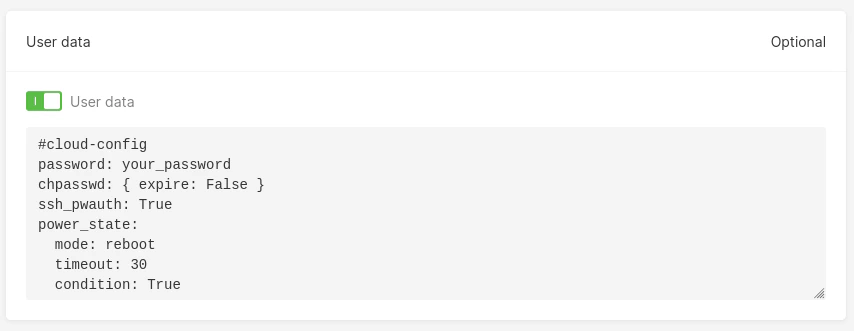
    <p>By default, the **User Data** field is disabled for new Virtual Machines. Enable it by switching on the toggle and pasting a cloud-init YAML document into the textbox.</p>

    <Frame>
      <img src="https://mintcdn.com/gcore/YEsPf7l6EvNuxMEL/images/docs/cloud/virtual-instances/customize-initial-setup-for-your-instance/user-data-from-ui.png?fit=max&auto=format&n=YEsPf7l6EvNuxMEL&q=85&s=cc7e9feb8b9a5e4b40130070b321e6a0" alt="User Data content field with toggle enabled" width="854" height="331" data-path="images/docs/cloud/virtual-instances/customize-initial-setup-for-your-instance/user-data-from-ui.png" />
    </Frame>

    <p>Every cloud-init document must begin with `#cloud-config` on the first line. The [Cloud-init directives](#cloud-init-directives) section below covers all available options.</p>
  </MethodSection>

  <MethodSection id="api" label="REST API">
    <p>`Cloud-init` is an industry-standard tool for automating Virtual Machine initialization on first boot. It accepts a YAML document that can set passwords, create users, install packages, write files, and configure network interfaces.</p>

    <p>The `user_data` field in the [instance creation](/api-reference/cloud/instances/create-instance) request accepts a base64-encoded cloud-init YAML string. The encoding step is required — the API rejects plain-text YAML.</p>

    <Info>
      An [API token](/account-settings/api-tokens) is required, along with a [project ID](/api-reference/cloud/projects/list-projects) and [region ID](/api-reference/cloud/regions/list-regions).
    </Info>

    <p>Open a terminal and set these as environment variables before running the examples:</p>

    ```bash theme={null}
    export GCORE_API_KEY="{YOUR_API_KEY}"
    export GCORE_CLOUD_PROJECT_ID="{YOUR_PROJECT_ID}"
    export GCORE_CLOUD_REGION_ID="{YOUR_REGION_ID}"
    export IMAGE_ID="{YOUR_IMAGE_ID}"
    export FLAVOR_ID="{YOUR_FLAVOR_ID}"
    ```

    <Info>
      To find the values for each variable:

      * **IMAGE\_ID**: the UUID of a public or private image. Use `GET /cloud/v1/images/{project_id}/{region_id}` to list available images, or see [Upload an image](/cloud/images/upload-an-image-to-the-storage).
      * **FLAVOR\_ID**: the flavor identifier for the VM size. Use `GET /cloud/v1/flavors/{project_id}/{region_id}` to list flavors available in the region.
    </Info>

    ## Quickstart

    <p>The scripts below base64-encode a cloud-init YAML document that writes a sentinel file to `/tmp`, create a VM with that script, and print the instance ID.</p>

    <Tabs>
      <Tab title="Python SDK">
        ```python theme={null}
        import base64
        import os
        from gcore import Gcore

        client = Gcore()

        cloud_init_yaml = """\
        #cloud-config
        write_files:
        - path: /tmp/cloud-init-ok.txt
        content: |
          cloud-init ran successfully
        permissions: '0644'
        """

        user_data_b64 = base64.b64encode(cloud_init_yaml.encode()).decode()

        instance = client.cloud.instances.create_and_poll(
            name="my-vm",
            flavor=os.environ["FLAVOR_ID"],
            user_data=user_data_b64,
            interfaces=[{"type": "external"}],
            volumes=[{
                "source": "image",
                "image_id": os.environ["IMAGE_ID"],
                "size": 20,
                "boot_index": 0,
            }],
        )
        print(f"Instance: {instance.id}  status: {instance.status}")
        ```
      </Tab>

      <Tab title="Go SDK">
        ```go theme={null}
        package main

        import (
            "context"
            "encoding/base64"
            "fmt"
            "log"
            "os"

            gcore "github.com/G-Core/gcore-go"
            "github.com/G-Core/gcore-go/cloud"
        )

        func main() {
            client := gcore.NewClient()
            ctx := context.Background()

            cloudInitYAML := "#cloud-config\n" +
                "write_files:\n" +
                "  - path: /tmp/cloud-init-ok.txt\n" +
                "    content: |\n" +
                "      cloud-init ran successfully\n" +
                "    permissions: '0644'\n"

            userDataB64 := base64.StdEncoding.EncodeToString([]byte(cloudInitYAML))

            instance, err := client.Cloud.Instances.NewAndPoll(ctx, cloud.InstanceNewParams{
                Flavor:   os.Getenv("FLAVOR_ID"),
                Name:     gcore.String("my-vm"),
                UserData: gcore.String(userDataB64),
                Interfaces: []cloud.InstanceNewParamsInterfaceUnion{{
                    OfExternal: &cloud.InstanceNewParamsInterfaceExternal{},
                }},
                Volumes: []cloud.InstanceNewParamsVolumeUnion{{
                    OfImage: &cloud.InstanceNewParamsVolumeImage{
                        ImageID:   os.Getenv("IMAGE_ID"),
                        Size:      gcore.Int(20),
                        BootIndex: gcore.Int(0),
                    },
                }},
            })
            if err != nil {
                log.Fatalf("create instance: %v", err)
            }
            fmt.Printf("Instance: %s  status: %s\n", instance.ID, instance.Status)
        }
        ```
      </Tab>
    </Tabs>

    ## Step-by-step

    <p>Each step explains what the call does, which parameters matter, and what the response looks like.</p>

    <Accordion title="Show all steps">
      ### Step 1. Write the cloud-init YAML

      Every cloud-init document must begin with `#cloud-config` as its first line. The example below writes a file to `/tmp` to confirm initialization ran:

      ```yaml theme={null}
      #cloud-config
      write_files:
        - path: /tmp/cloud-init-ok.txt
          content: |
            cloud-init ran successfully
          permissions: '0644'
      ```

      Save this file as `user-data.yaml`. The [Cloud-init directives](#cloud-init-directives) section covers all available options.

      ### Step 2. Encode to base64

      The `user_data` field requires the YAML encoded as a single-line base64 string.

      <Tabs>
        <Tab title="Python SDK">
          ```python theme={null}
          import base64

          with open("user-data.yaml", "rb") as f:
              user_data_b64 = base64.b64encode(f.read()).decode()
          print(user_data_b64)
          ```
        </Tab>

        <Tab title="Go SDK">
          ```go theme={null}
          import (
              "encoding/base64"
              "fmt"
              "os"
          )

          data, _ := os.ReadFile("user-data.yaml")
          userDataB64 := base64.StdEncoding.EncodeToString(data)
          fmt.Println(userDataB64)
          ```
        </Tab>

        <Tab title="curl">
          ```bash theme={null}
          USER_DATA_B64=$(base64 -w 0 user-data.yaml)
          echo "$USER_DATA_B64"
          ```

          The `-w 0` flag disables line-wrapping. On macOS, use `base64 -i user-data.yaml` instead.
        </Tab>
      </Tabs>

      ### Step 3. Create the instance

      Pass the encoded string in the `user_data` field of the instance creation request.

      | Parameter    | Required | Description                                                                                 |
      | ------------ | -------- | ------------------------------------------------------------------------------------------- |
      | `user_data`  | No       | Base64-encoded cloud-init YAML; runs on first boot only.                                    |
      | `flavor`     | Yes      | [Flavor](/api-reference/cloud/instances/list-instance-flavors) ID; IDs are region-specific. |
      | `boot_index` | Yes      | Set to `0` for the primary boot volume.                                                     |

      <Tabs>
        <Tab title="Python SDK">
          ```python theme={null}
          import base64
          import os
          from gcore import Gcore

          client = Gcore()

          with open("user-data.yaml", "rb") as f:
              user_data_b64 = base64.b64encode(f.read()).decode()

          instance = client.cloud.instances.create_and_poll(
              name="my-vm",
              flavor=os.environ["FLAVOR_ID"],
              user_data=user_data_b64,
              interfaces=[{"type": "external"}],
              volumes=[{
                  "source": "image",
                  "image_id": os.environ["IMAGE_ID"],
                  "size": 20,
                  "boot_index": 0,
              }],
          )
          print(f"Instance: {instance.id}  status: {instance.status}")
          ```
        </Tab>

        <Tab title="Go SDK">
          ```go theme={null}
          package main

          import (
              "context"
              "encoding/base64"
              "fmt"
              "log"
              "os"

              gcore "github.com/G-Core/gcore-go"
              "github.com/G-Core/gcore-go/cloud"
          )

          func main() {
              client := gcore.NewClient()
              ctx := context.Background()

              data, _ := os.ReadFile("user-data.yaml")
              userDataB64 := base64.StdEncoding.EncodeToString(data)

              instance, err := client.Cloud.Instances.NewAndPoll(ctx, cloud.InstanceNewParams{
                  Flavor:   os.Getenv("FLAVOR_ID"),
                  Name:     gcore.String("my-vm"),
                  UserData: gcore.String(userDataB64),
                  Interfaces: []cloud.InstanceNewParamsInterfaceUnion{{
                      OfExternal: &cloud.InstanceNewParamsInterfaceExternal{},
                  }},
                  Volumes: []cloud.InstanceNewParamsVolumeUnion{{
                      OfImage: &cloud.InstanceNewParamsVolumeImage{
                          ImageID:   os.Getenv("IMAGE_ID"),
                          Size:      gcore.Int(20),
                          BootIndex: gcore.Int(0),
                      },
                  }},
              })
              if err != nil {
                  log.Fatalf("create instance: %v", err)
              }
              fmt.Printf("Instance: %s  status: %s\n", instance.ID, instance.Status)
          }
          ```
        </Tab>

        <Tab title="curl">
          ```bash theme={null}
          curl -X POST "https://api.gcore.com/cloud/v2/instances/$GCORE_CLOUD_PROJECT_ID/$GCORE_CLOUD_REGION_ID" \
            -H "Authorization: APIKey $GCORE_API_KEY" \
            -H "Content-Type: application/json" \
            -d '{
              "name": "my-vm",
              "flavor": "'"$FLAVOR_ID"'",
              "user_data": "'"$USER_DATA_B64"'",
              "interfaces": [{"type": "external"}],
              "volumes": [{
                "source": "image",
                "image_id": "'"$IMAGE_ID"'",
                "size": 20,
                "boot_index": 0
              }]
            }'
          ```

          The API returns:

          ```json theme={null}
          {
            "tasks": ["b63f0fff-5d22-4c23-8e09-f7a3e1c1a999"]
          }
          ```

          Poll <code>GET /cloud/v1/tasks/{task_id}</code> every 5 seconds until `state` is `FINISHED`, then read the instance ID from `created_resources.instances[0]`.
        </Tab>
      </Tabs>

      ### Step 4. Verify cloud-init ran

      After the instance is active, connect via SSH and check the sentinel file:

      ```bash theme={null}
      ssh ubuntu@{INSTANCE_IP} cat /tmp/cloud-init-ok.txt
      ```

      Expected output:

      ```text theme={null}
      cloud-init ran successfully
      ```

      If the file is absent, check `/var/log/cloud-init.log` and `/var/log/cloud-init-output.log` on the VM.
    </Accordion>
  </MethodSection>

  <MethodSection id="terraform" label="Terraform">
    <p>Automate Virtual Machine setup on first boot by passing a cloud-init YAML document through `user_data` on [`gcore_cloud_instance`](https://registry.terraform.io/providers/G-Core/gcore/latest/docs/resources/cloud_instance). No Terraform-specific syntax required — standard [cloud-init directives](https://cloudinit.readthedocs.io/en/latest/reference/modules.html) apply.</p>

    <Warning>
      `user_data` runs on first boot only — changes to an existing configuration take effect only when the instance is recreated.
    </Warning>

    ```hcl theme={null}
    resource "gcore_cloud_instance" "example" {
      project_id   = var.project_id
      region_id    = var.region_id
      flavor       = "g2-standard-2-4"
      name         = "my-vm"
      ssh_key_name = "my-keypair"

      volumes    = [{ volume_id = gcore_cloud_volume.boot.id }]
      interfaces = [{ type = "external", ip_family = "ipv4" }]

      user_data = base64encode(<<-EOF
        #cloud-config
        password: your-password
        chpasswd: { expire: false }
        ssh_pwauth: true
      EOF
      )
    }
    ```

    <p>The [Virtual Machine](/cloud/virtual-instances/create-an-instance) article covers the full configuration including boot volume and SSH key. The [Cloud-init directives](#cloud-init-directives) section below lists all available YAML options.</p>
  </MethodSection>
</MethodSwitch>

## Cloud-init directives

`Cloud-init` is an industry-standard tool for automating the initialization of cloud Virtual Machines. It runs on first boot, processes the YAML document in the User Data field, and supports all major Linux distributions. Every document must begin with `#cloud-config` on the first line.

### Set a password

By default, Gcore Virtual Machines do not allow SSH authentication with a username and password — only SSH key authentication is enabled. Set `ssh_pwauth: True` to allow password access.

```yaml theme={null}
#cloud-config
password: your_password
chpasswd: { expire: False }
ssh_pwauth: True
power_state:
  mode: reboot
  timeout: 30
  condition: True
```

* `password` — sets the password for the default OS user (e.g. `ubuntu` on Ubuntu images).
* `chpasswd: { expire: False }` — keeps the password active without requiring a change on first login.
* `ssh_pwauth: True` — enables password-based SSH authentication.
* `power_state` — reboots the VM after cloud-init finishes so the changes take effect.

After the VM is ready, connect with:

```bash theme={null}
ssh your_default_username@your_instance_ip_address
```

### Create a user

Add a `users` block to create a new OS user at boot. The example below creates a `guest` user with sudo access.

```yaml theme={null}
#cloud-config
users:
  - name:         guest
    sudo:         ALL=(ALL) NOPASSWD:ALL
    passwd:       SHA-512_encrypted_value_of_guest_password
    groups:       users,admin
    lock_passwd:  false
    shell:        /bin/bash
power_state:
  mode: reboot
  timeout: 30
  condition: True
```

* `sudo: ALL=(ALL) NOPASSWD:ALL` — grants the user passwordless sudo rights.
* `passwd` — SHA-512 encrypted password. Generate it with `mkpasswd -m sha512crypt guest`.
* `groups` — comma-separated list of groups. The groups must already exist on the system.
* `lock_passwd: false` — allows password-based login.
* `shell: /bin/bash` — sets the default shell.

<Info>
  Run `groups` after connecting to verify group membership.
</Info>

### Enable root user

```yaml theme={null}
#cloud-config
disable_root: false
```

### Configure user groups

Add the `groups` directive to create custom groups at boot.

```yaml theme={null}
#cloud-config
groups:
  - regular-users
power_state:
  mode: reboot
  timeout: 30
  condition: True
```

After the VM is ready, run `compgen -g` to verify the group appears.

### Add an SSH key

Add public SSH keys from other machines using `ssh_authorized_keys`.

```yaml theme={null}
#cloud-config
ssh_authorized_keys:
  - ssh-rsa AAAAB3NzaC1yc2EAAAADAQABAAABgQDLoSbgtCDju1vmEOws3cBpU5BDZJ3iwuHb0HnNaxJDDU72TYp4DZRxhkSy7KAGCnGl1x1et3i8TR9HeYLzF4B6+lBkHL3cfxuKqrTr7bYUNmmhxMj1THdH5lyS5ezYQGsd/QUryPNw9mbl1WrWu7sbyihF+B9+tHDoJ7owUehgHEG90XNJRFFe/ZHU+wHzJIRpQxFtdfZghwSBfRGJLTL6/nJtO39P7nAen48vH4iSzJYwsNtrWLG7Sr4kU6q8UJD+lCJ2IIumr6p66W9wh7IwgPED5ABQziSFCRXbeZIraaFvAhsV0r90u9t8cR8Yf2hU1rKcEaPRxYFC3IrrY94GnjTnzSE9p9a8DnF4G28/DHSMiTQd5yJKlED/n0piHMEMiJUpAruz3eHTqBz4T8taSZGuoqG4S6qrow6zigfesrWTmqegGUcQDdkTxj6DA5xtK2IIQSTsatQ9+7ggUIOFKGjoSKFxj2rJfxBjFS4pYFjOQBTdzz6ZCJjaMkhTXK8= account-name@hostname
```

After the VM starts, verify with `cat ~/.ssh/authorized_keys`.

### Add repositories and install packages

Install packages at first boot using the `packages` directive. Packages from external repositories require an `apt.sources` entry.

```yaml theme={null}
#cloud-config
apt:
  sources:
    docker.list:
      source: deb [arch=amd64] https://download.docker.com/linux/ubuntu $RELEASE stable
      keyid: 9DC858229FC7DD38854AE2D88D81803C0EBFCD88
package_update: true
package_upgrade: true
packages:
  - apt-transport-https
  - ca-certificates
  - gnupg-agent
  - software-properties-common
  - gnupg
  - docker-ce
  - docker-ce-cli
  - nmap
  - traceroute
power_state:
  mode: reboot
  timeout: 30
  condition: True
```

### Write files

Create files on the VM at boot using the `write_files` directive.

```yaml theme={null}
#cloud-config
write_files:
  - path: /root/useful-docker-script.sh
    permissions: '0644'
    content: |
      #!/bin/bash
      docker build -t dockerhub-username/docker-image-name .
      docker login
      docker push dockerhub-username/docker-image-name
```

### Configure network interfaces

Add a static IP address by writing a Netplan configuration file. Cloud-init merges it with the auto-generated `50-cloud-init.yaml` during boot.

```yaml theme={null}
#cloud-config
write_files:
  - content: |
      network:
          version: 2
          renderer: networkd
          ethernets:
            enp3s0:
              addresses:
              - 192.170.1.25/24
              - 2020:1::1/64
              nameservers:
                addresses:
                - 8.8.8.8
                - 8.8.4.4
    path: /etc/netplan/00-add-static-ip.yaml
    permissions: '0644'
power_state:
  mode: reboot
  timeout: 30
  condition: True
```

After the VM reboots, run `ip a` to verify the static addresses appear on the `enp3s0` interface.

## Check cloud-init logs

Two log files are available on the VM for diagnosing cloud-init issues.

**`/var/log/cloud-init.log`** — full process log with debug output:

```bash theme={null}
cat /var/log/cloud-init.log
```

**`/var/log/cloud-init-output.log`** — stdout/stderr from scripts cloud-init ran:

```bash theme={null}
cat /var/log/cloud-init-output.log
```