> ## Documentation Index
> Fetch the complete documentation index at: https://docs.gcore.com/llms.txt
> Use this file to discover all available pages before exploring further.
# Gcore MCP Server overview
Gcore MCP Server enables AI assistants to manage Gcore services through natural language commands. The server implements the Model Context Protocol (MCP), exposing Gcore API operations as callable tools used to provision infrastructure, query resources, and chain multi-step workflows.
## Supported products
| Product | Description |
| --------- | ---------------------------------------------------------- |
| CDN | Content Delivery Network resources, origins, caching rules |
| Cloud | Virtual machines, bare metal, GPU clusters, networking |
| DNS | DNS zones and records |
| FastEdge | Edge computing applications |
| IAM | Users, roles, permissions |
| Security | SSL certificates, secrets management |
| Storage | S3-compatible object storage |
| Streaming | Live and VOD video streaming |
| WAAP | Web application and API protection |
FastEdge also has a separate [AI-assisted development](/fastedge/local-development/ai-assisted-development) plugin and MCP server, dedicated to scaffolding, deploying, and testing edge applications from Claude Code, Codex, or Cursor.
## Supported AI clients
| Client | Compatibility | Notes |
| ------------- | ------------- | ----------------------------------------------- |
| Claude Code | Full | Recommended due to tool search capability |
| Cursor IDE | Limited | Maximum 40-50 tools before context issues |
| MCP Inspector | Full | Web-based interface for testing and exploration |
Claude Code handles large tool sets through deferred schema loading — tool schemas are fetched on demand when they match a query, preventing context window bloat. Other clients require [tool filtering](/developer-tools/mcp-server/filter-tools-with-gcore-tools) via the `GCORE_TOOLS` environment variable to reduce the number of exposed tools.
## Natural language requests
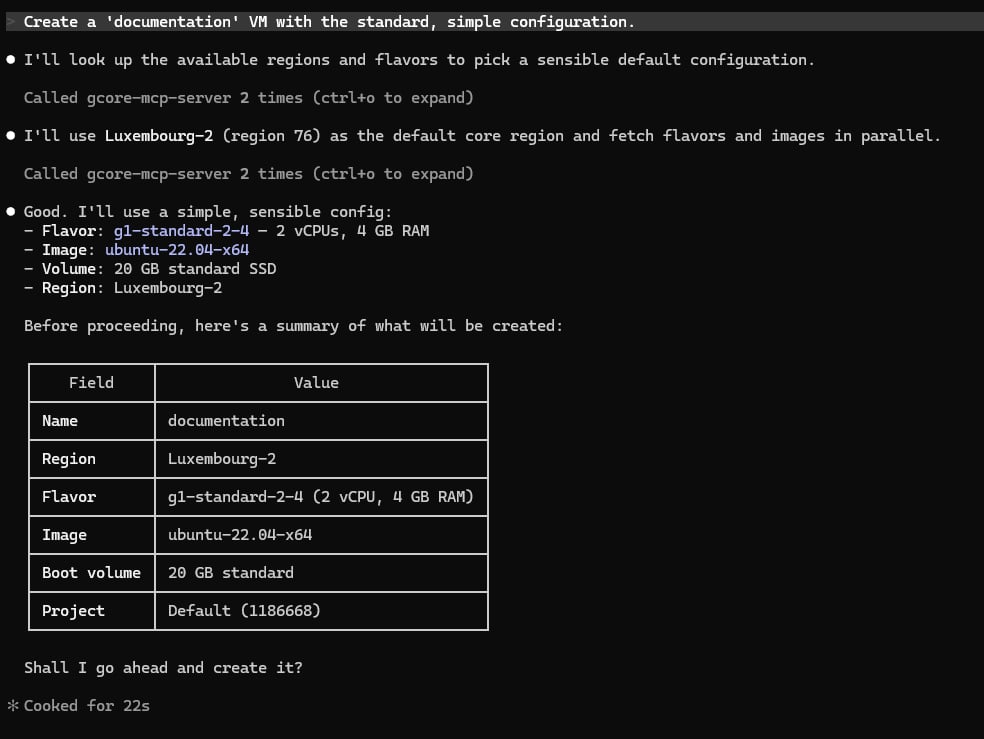
Requests are written in plain language — no fixed commands or syntax required. The AI client reads the available tool names and descriptions, matches them to the request, calls the appropriate tool, and returns the result in a readable format.
Requests can be written in any language. For multi-step operations, the server chains tool calls automatically. A request like "Create a VM with a standard configuration" triggers the server to look up available regions, flavors, and images, present a summary for confirmation, and then provision the instance.
 ## Set up Gcore MCP Server
Connect the server to Claude Code or Cursor IDE with [Server setup](/developer-tools/mcp-server/install-and-configure-gcore-mcp-server).
Explore exposed tools in a browser with [MCP Inspector](/developer-tools/mcp-server/test-tools-with-mcp-inspector).
Limit exposed tools for a specific workflow with [Tool filtering](/developer-tools/mcp-server/filter-tools-with-gcore-tools) and the `GCORE_TOOLS` environment variable.
An [API token](/account-settings/api-tokens) with permissions matching the tools used is required. The [token permissions](#api-token-permissions) table below lists the required role per category.
## API token permissions
The API token must have permissions matching the tools being used. Gcore uses role-based access control:
| Tool category | Required role |
| ------------- | -------------------------------------------- |
| `cdn.*` | CDN Viewer (read) or CDN Editor (read/write) |
| `cloud.*` | Cloud Viewer or Cloud Editor |
| `dns.*` | DNS Viewer or DNS Editor |
| `fastedge.*` | FastEdge Viewer or FastEdge Editor |
| `storage.*` | Storage Viewer or Storage Editor |
| `streaming.*` | Streaming Viewer or Streaming Editor |
| `waap.*` | WAAP Viewer or WAAP Editor |
| `iam.*` | Account Administrator |
For full access across all products, use an API token with the **Administrators** role. For restricted access, create tokens with only the roles needed for specific operations.
Viewer roles allow read-only operations (list, get). Editor roles are required for create, update, and delete operations.
## Set up Gcore MCP Server
Connect the server to Claude Code or Cursor IDE with [Server setup](/developer-tools/mcp-server/install-and-configure-gcore-mcp-server).
Explore exposed tools in a browser with [MCP Inspector](/developer-tools/mcp-server/test-tools-with-mcp-inspector).
Limit exposed tools for a specific workflow with [Tool filtering](/developer-tools/mcp-server/filter-tools-with-gcore-tools) and the `GCORE_TOOLS` environment variable.
An [API token](/account-settings/api-tokens) with permissions matching the tools used is required. The [token permissions](#api-token-permissions) table below lists the required role per category.
## API token permissions
The API token must have permissions matching the tools being used. Gcore uses role-based access control:
| Tool category | Required role |
| ------------- | -------------------------------------------- |
| `cdn.*` | CDN Viewer (read) or CDN Editor (read/write) |
| `cloud.*` | Cloud Viewer or Cloud Editor |
| `dns.*` | DNS Viewer or DNS Editor |
| `fastedge.*` | FastEdge Viewer or FastEdge Editor |
| `storage.*` | Storage Viewer or Storage Editor |
| `streaming.*` | Streaming Viewer or Streaming Editor |
| `waap.*` | WAAP Viewer or WAAP Editor |
| `iam.*` | Account Administrator |
For full access across all products, use an API token with the **Administrators** role. For restricted access, create tokens with only the roles needed for specific operations.
Viewer roles allow read-only operations (list, get). Editor roles are required for create, update, and delete operations.