> ## Documentation Index
> Fetch the complete documentation index at: https://docs.gcore.com/llms.txt
> Use this file to discover all available pages before exploring further.
# Manage DNS records (advanced interface mode with dynamic response)
Gcore [Managed DNS](https://gcore.com/dns) advanced interface mode allows creating DNS record sets (RRSets) with [dynamic response](/dns/dns-records/configure-weight-balancing-and-geobalancing) — routing DNS responses based on geography, weight, latency, or health checks.
## Create a DNS record
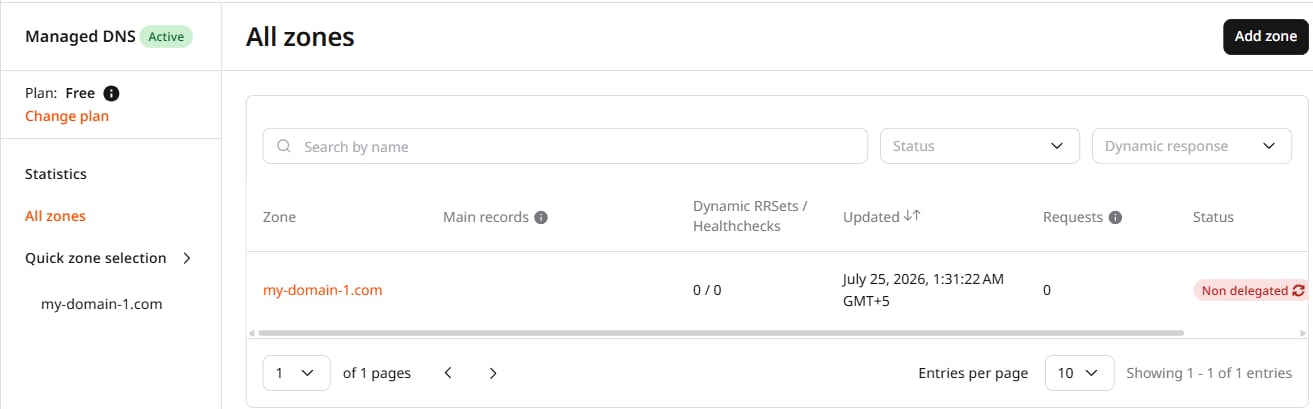
Navigate to [All zones](https://portal.gcore.com/dns/zones) and select the zone to which records should be added. Alternatively, click the three-dot icon on the right and select **Go to records**.
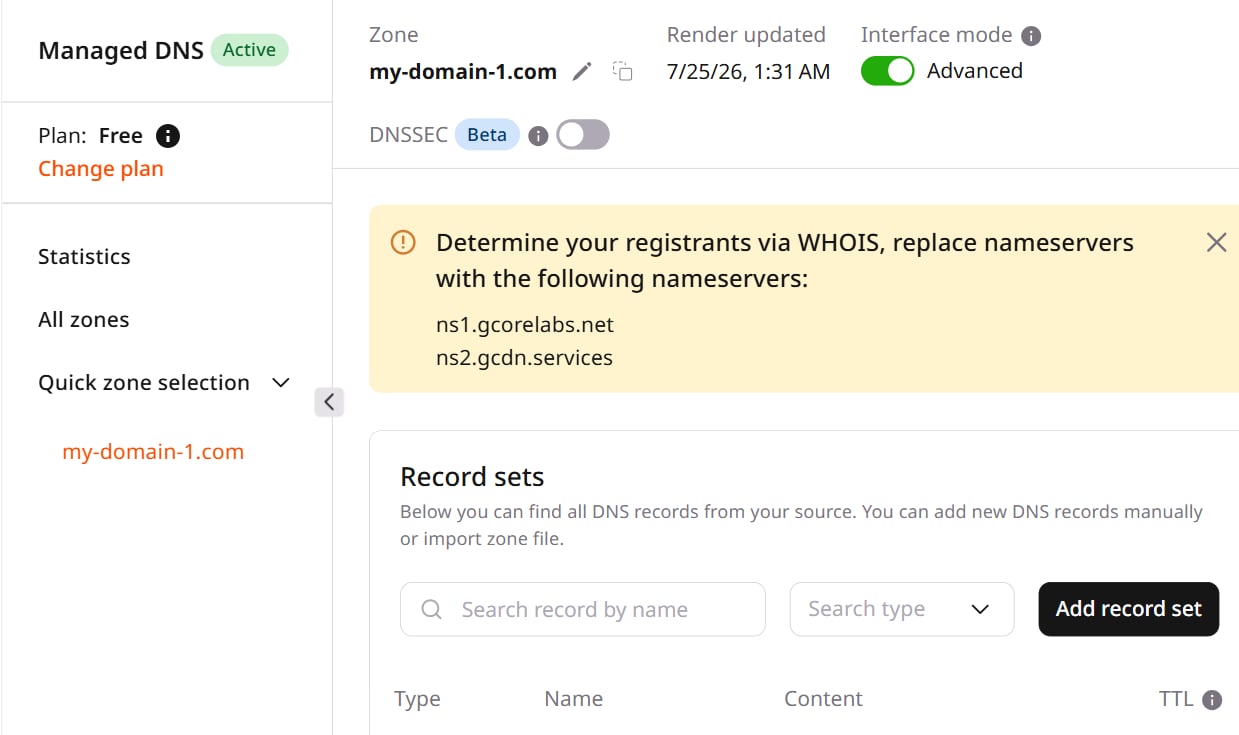
 Check that the **Advanced** toggle in the **Interface mode** section is enabled (green):
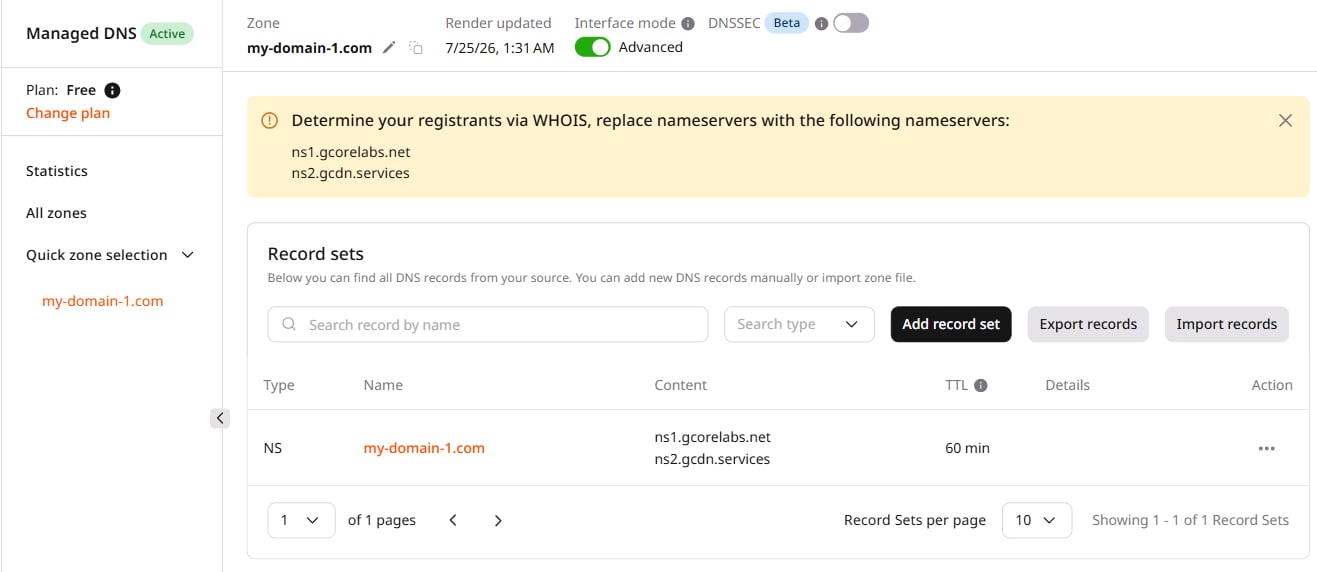
 Click **Add record set**.
 A new page opens with the record creation form.
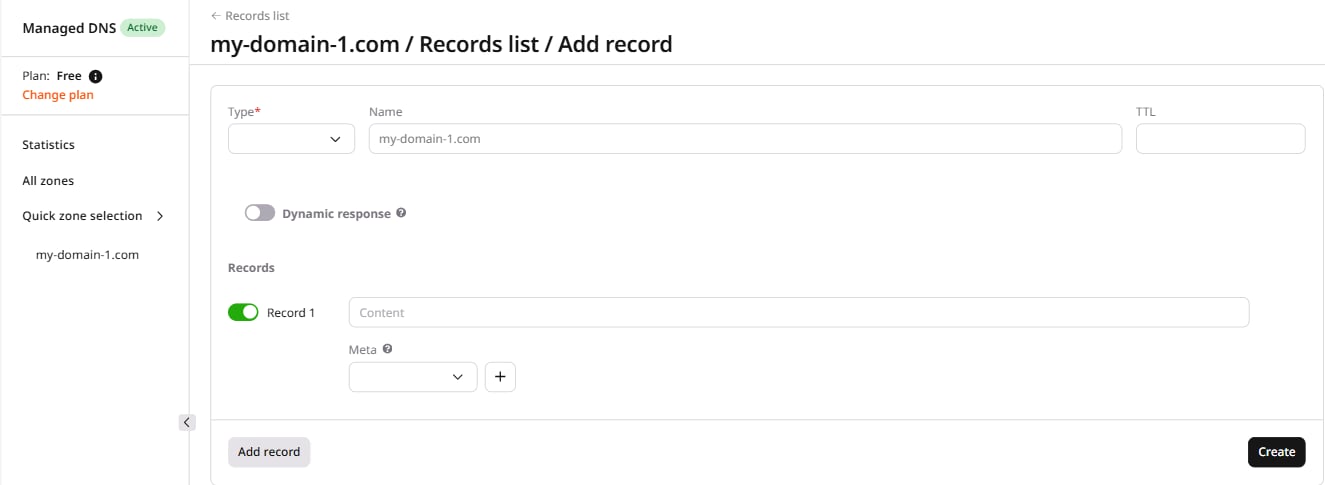 In the **Type** field, select the DNS record type: A, AAAA, NS, CNAME, MX, SRV, HTTPS, TXT, CAA, or SVCB. Each type is described in [DNS records](/dns/dns-records).
In the **Name** field, specify the subdomain the record belongs to. The options are:
* Leave the field blank to add a record for the apex domain (`sample-test.com`).
* Enter a subdomain name to add a record for that subdomain. Entering `one` creates a record for `one.sample-test.com`.
* Enter an asterisk (`*`) to add a wildcard record that applies to all subdomains.
In the **TTL** field, specify the TTL (time to live) in seconds.
Consider an A record with a TTL of 300 seconds, equal to 5 minutes. If the value changes from `10.0.0.1` to `10.0.0.0`, users requesting the domain will receive the server with IP `10.0.0.1` for up to 5 minutes (this value will be stored in the cache of recursive DNS servers). Within a maximum of 5 minutes, the DNS server will see the new value of the A record and refresh its cache, after which users will be directed to the server with IP `10.0.0.0`.
The point within the 300-second interval at which the record changes determines how long users wait to access the new record. If the change occurs 240 seconds into the TTL, users wait only one minute; if it occurs at 1 second, they wait 4 minutes and 59 seconds. Select a TTL duration according to the maximum wait-time tolerance.
The dynamic response feature is available on the Free plan, but creating more than one dynamic RRset requires a paid plan.
Gcore's DNS servers can return different DNS records to different users — users in Asia can be directed to an Asian server and users in Europe to a European one. This is called dynamic response. Full configuration instructions are in [dynamic response](/dns/dns-records/configure-weight-balancing-and-geobalancing).
To enable dynamic response, check the **Dynamic response** checkbox. Leave it unchecked to proceed without dynamic response.
Dynamic response can also be configured via API using dynamic RRsets. The [DNS API](/api-reference/dns/rrsets/create-rrset) reference covers picker and selector options.
Each record value is active by default. To save a value without activating it, uncheck the toggle next to that record.
In the **Content** field, enter a value for the record type.
Record type | Example value
\---|---
A | `128.128.128.128`
AAAA | `2001:0db8:85a3:0000:0000:8a2e:0370:7334`
NS | `ns1.smth.com`
CNAME | `uuuuu8.cdn.co`
MX | `ASPMX.L.GOOGLE.COM` (for multiple servers, fill in the **Priority** field; lower value = higher priority)
SRV | `_sip._tcp.example.com. 3600 IN SRV 10 50 5060 sipserver.example.com`
HTTPS | `example.com. 1800 IN HTTPS 1 . alpn=h3,h3-29,h2 ipv4hint=1.2.3.4,9.8.7.6`
TXT | `logmein-verification-code=976afe6f-8039-40e4-95a5-261b462`
CAA | `0 issue "comodo.com"` (format: `[flags] [tag] "[value]"`)
Specify associated metadata to be used for dynamic response configuration. The [metadata guide](/dns/dns-records/configure-weight-balancing-and-geobalancing) covers the full configuration.
Click **Add record** to specify additional values for the record set. A new record entry appears — enter the content and metadata as needed. To remove a record value, click the minus button next to it. To disable a value without removing it, uncheck its toggle.
Click **Create**.
The record set is created with the specified parameters. The [DNS Lookup](https://gcore.com/dev-tools/dns-lookup) tool verifies that the record is propagated correctly.
## Manage a DNS record
Navigate to [All zones](https://portal.gcore.com/dns/zones) and select the zone containing the records to edit or delete.
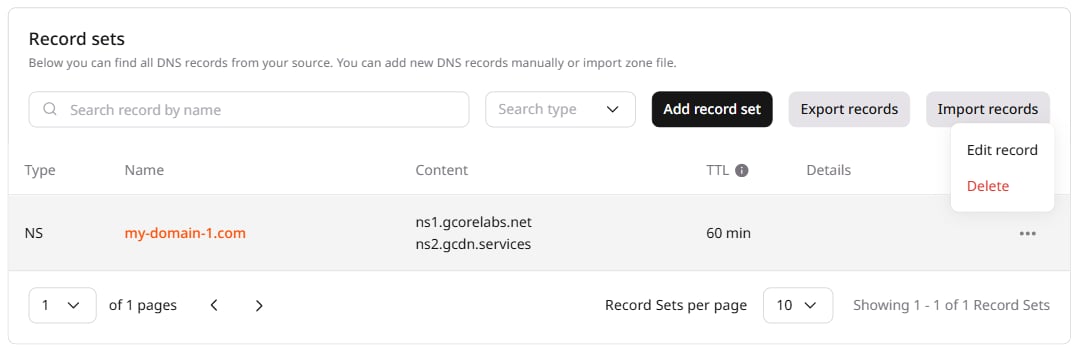
To edit a record, click its name or select **Edit record** from the three-dot menu — both open the same edit form. To delete a record, click the three-dot icon and select **Delete**.
In the **Type** field, select the DNS record type: A, AAAA, NS, CNAME, MX, SRV, HTTPS, TXT, CAA, or SVCB. Each type is described in [DNS records](/dns/dns-records).
In the **Name** field, specify the subdomain the record belongs to. The options are:
* Leave the field blank to add a record for the apex domain (`sample-test.com`).
* Enter a subdomain name to add a record for that subdomain. Entering `one` creates a record for `one.sample-test.com`.
* Enter an asterisk (`*`) to add a wildcard record that applies to all subdomains.
In the **TTL** field, specify the TTL (time to live) in seconds.
Consider an A record with a TTL of 300 seconds, equal to 5 minutes. If the value changes from `10.0.0.1` to `10.0.0.0`, users requesting the domain will receive the server with IP `10.0.0.1` for up to 5 minutes (this value will be stored in the cache of recursive DNS servers). Within a maximum of 5 minutes, the DNS server will see the new value of the A record and refresh its cache, after which users will be directed to the server with IP `10.0.0.0`.
The point within the 300-second interval at which the record changes determines how long users wait to access the new record. If the change occurs 240 seconds into the TTL, users wait only one minute; if it occurs at 1 second, they wait 4 minutes and 59 seconds. Select a TTL duration according to the maximum wait-time tolerance.
The dynamic response feature is available on the Free plan, but creating more than one dynamic RRset requires a paid plan.
Gcore's DNS servers can return different DNS records to different users — users in Asia can be directed to an Asian server and users in Europe to a European one. This is called dynamic response. Full configuration instructions are in [dynamic response](/dns/dns-records/configure-weight-balancing-and-geobalancing).
To enable dynamic response, check the **Dynamic response** checkbox. Leave it unchecked to proceed without dynamic response.
Dynamic response can also be configured via API using dynamic RRsets. The [DNS API](/api-reference/dns/rrsets/create-rrset) reference covers picker and selector options.
Each record value is active by default. To save a value without activating it, uncheck the toggle next to that record.
In the **Content** field, enter a value for the record type.
Record type | Example value
\---|---
A | `128.128.128.128`
AAAA | `2001:0db8:85a3:0000:0000:8a2e:0370:7334`
NS | `ns1.smth.com`
CNAME | `uuuuu8.cdn.co`
MX | `ASPMX.L.GOOGLE.COM` (for multiple servers, fill in the **Priority** field; lower value = higher priority)
SRV | `_sip._tcp.example.com. 3600 IN SRV 10 50 5060 sipserver.example.com`
HTTPS | `example.com. 1800 IN HTTPS 1 . alpn=h3,h3-29,h2 ipv4hint=1.2.3.4,9.8.7.6`
TXT | `logmein-verification-code=976afe6f-8039-40e4-95a5-261b462`
CAA | `0 issue "comodo.com"` (format: `[flags] [tag] "[value]"`)
Specify associated metadata to be used for dynamic response configuration. The [metadata guide](/dns/dns-records/configure-weight-balancing-and-geobalancing) covers the full configuration.
Click **Add record** to specify additional values for the record set. A new record entry appears — enter the content and metadata as needed. To remove a record value, click the minus button next to it. To disable a value without removing it, uncheck its toggle.
Click **Create**.
The record set is created with the specified parameters. The [DNS Lookup](https://gcore.com/dev-tools/dns-lookup) tool verifies that the record is propagated correctly.
## Manage a DNS record
Navigate to [All zones](https://portal.gcore.com/dns/zones) and select the zone containing the records to edit or delete.
To edit a record, click its name or select **Edit record** from the three-dot menu — both open the same edit form. To delete a record, click the three-dot icon and select **Delete**.