> ## Documentation Index
> Fetch the complete documentation index at: https://docs.gcore.com/llms.txt
> Use this file to discover all available pages before exploring further.
# Manage DNS records
Create and manage DNS records in the [Gcore Customer Portal](https://portal.gcore.com).
Non-advanced interface mode. Verify that the **Advanced** toggle is off before following these steps:
 Balancing and dynamic response are available in [advanced mode](/dns/dns-records/manage-dns-records-advanced-interface-mode-with-balancing).
## Create a DNS record
1\. Navigate to [All zones](https://portal.gcore.com/dns/zones) and select the domain zone to which records should be added. Or, click the three-dot icon on the right and then click **Go to records**.
Balancing and dynamic response are available in [advanced mode](/dns/dns-records/manage-dns-records-advanced-interface-mode-with-balancing).
## Create a DNS record
1\. Navigate to [All zones](https://portal.gcore.com/dns/zones) and select the domain zone to which records should be added. Or, click the three-dot icon on the right and then click **Go to records**.
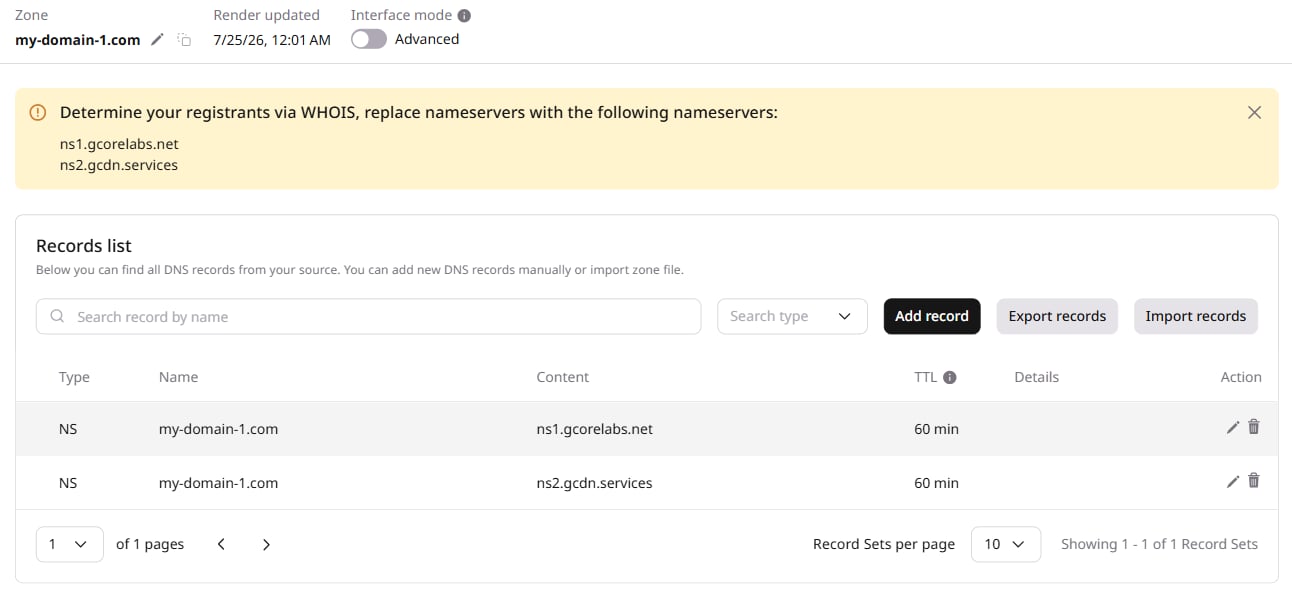 2\. Click **Add record**. The form opens in the records list.
 3\. In the **Type** field, select a [record type](/dns/dns-records) — A, AAAA, NS, CNAME, MX, SRV, HTTPS, TXT, CAA, or SVCB.
4\. In the **Name** field, specify the subdomain to which the record belongs. Select from the following options:
* Leave the field blank to add a record for the main domain (apex/naked domain).
* Enter the subdomain name for a specific subdomain — `one` creates a record for `one.example.com`.
* Enter an asterisk (`*`) to add a wildcard record for all subdomains at once.
5\. In the **TTL** field, specify the time to live in seconds. This determines how long recursive DNS servers cache the record. With a TTL of 300 seconds, a change to an A record value from `1.2.3.4` to `5.6.7.8` takes up to 5 minutes to propagate — resolvers return the old value until the cache expires.
6\. In the **Content** field, enter a value for the record type.
| **Record type** | **Value** |
| --------------- | ----------------------------------------------------------------------------------------------------------------------------------------------------------------------------------------------------------------------------------------------------------------------------------------------------- |
| **A** | IPv4 address of the server to which the domain resolves.
3\. In the **Type** field, select a [record type](/dns/dns-records) — A, AAAA, NS, CNAME, MX, SRV, HTTPS, TXT, CAA, or SVCB.
4\. In the **Name** field, specify the subdomain to which the record belongs. Select from the following options:
* Leave the field blank to add a record for the main domain (apex/naked domain).
* Enter the subdomain name for a specific subdomain — `one` creates a record for `one.example.com`.
* Enter an asterisk (`*`) to add a wildcard record for all subdomains at once.
5\. In the **TTL** field, specify the time to live in seconds. This determines how long recursive DNS servers cache the record. With a TTL of 300 seconds, a change to an A record value from `1.2.3.4` to `5.6.7.8` takes up to 5 minutes to propagate — resolvers return the old value until the cache expires.
6\. In the **Content** field, enter a value for the record type.
| **Record type** | **Value** |
| --------------- | ----------------------------------------------------------------------------------------------------------------------------------------------------------------------------------------------------------------------------------------------------------------------------------------------------- |
| **A** | IPv4 address of the server to which the domain resolves.
Example: *128.128.128.128* |
| **AAAA** | IPv6 address of the server to which the domain resolves.
Example: *2001:0db8:85a3:0000:0000:8a2e:0370:7334* |
| **NS** | Name of the zone to which the domain is delegated.
Example: *ns1.smth.com* |
| **CNAME** | Domain name or zone the domain redirects to.
Example: *uuuuu8.cdn.co* |
| **MX** | Name of the mail server that receives mail for the domain.
When using multiple mail servers, fill in the **Priority** field for each. The lower the value, the higher the priority.
Example: *ASPMX.L.GOOGLE.COM* |
| **SRV** | Canonical name of the machine providing the service.
Example: *sip.example.com* |
| **HTTPS** | Parameters for accessing a web service via HTTPS, including protocol version and IP hints.
Example:
*example.com. 1800 IN HTTPS 1 . alpn=h3,h3-29,h2*
*ipv4hint=1.2.3.4,9.8.7.6*
*ipv6hint=2001:db8:3333:4444:5555:6666:7777:8888,*
*2001:db8:3333:4444:CCCC:DDDD:EEEE:FFFF* |
| **TXT** | Arbitrary text associated with the domain.
Example: *logmein-verification-code=976afe6f-8039-40e4-95a5-261b462* |
| **CAA** | Certificate authorities permitted to issue SSL/TLS certificates for the domain.
Format: *CAA \[flags] \[tag] "\[value]"* — the value must be enclosed in double quotes.
Example: *0 issue "comodo.com"* |
| **SVCB** | Service binding record that specifies connection parameters for a service endpoint.
Example: *1 . alpn=h2* |
7\. Click **Add**.
The [Gcore DNS Lookup](https://gcore.com/dev-tools/dns-lookup) tool confirms the record was created correctly.
## Manage a DNS record
1\. Navigate to All zones and select the domain zone to manage. Or, click the three-dot icon on the right and click **Go to records**.
2\. Click the pencil icon next to the record to expand the edit panel.
3\. Change the TTL, value, or both.
4\. Click **Save** to apply the changes.
5\. To delete the record, click **Delete record** in the expanded panel, then click **Yes, delete** in the confirmation dialog.
