> ## Documentation Index
> Fetch the complete documentation index at: https://docs.gcore.com/llms.txt
> Use this file to discover all available pages before exploring further.
# Configure DNS records to send emails
After setting up a mail server, configuring the correct DNS settings is crucial for it to work properly. The server must be configured so that emails sent from it do not end up in spam and attackers cannot send phishing emails on its behalf.
Anti-spam and anti-spoofing measures to counter such threats are configured via DNS. This is because usually only the true owner of the mail server has control over the DNS domain zone and can prove the validity of the mail server configuration.
The domain must already be delegated to Gcore name servers — the [Getting started](/dns/manage-a-dns-zone) guide covers zone creation and delegation.
Add each record in the [Gcore Customer Portal](https://portal.gcore.com) using the [DNS records](/dns/dns-records/manage-dns-records-non-advanced-interface-mode) portal procedure.
## Step 1. Set up an A record
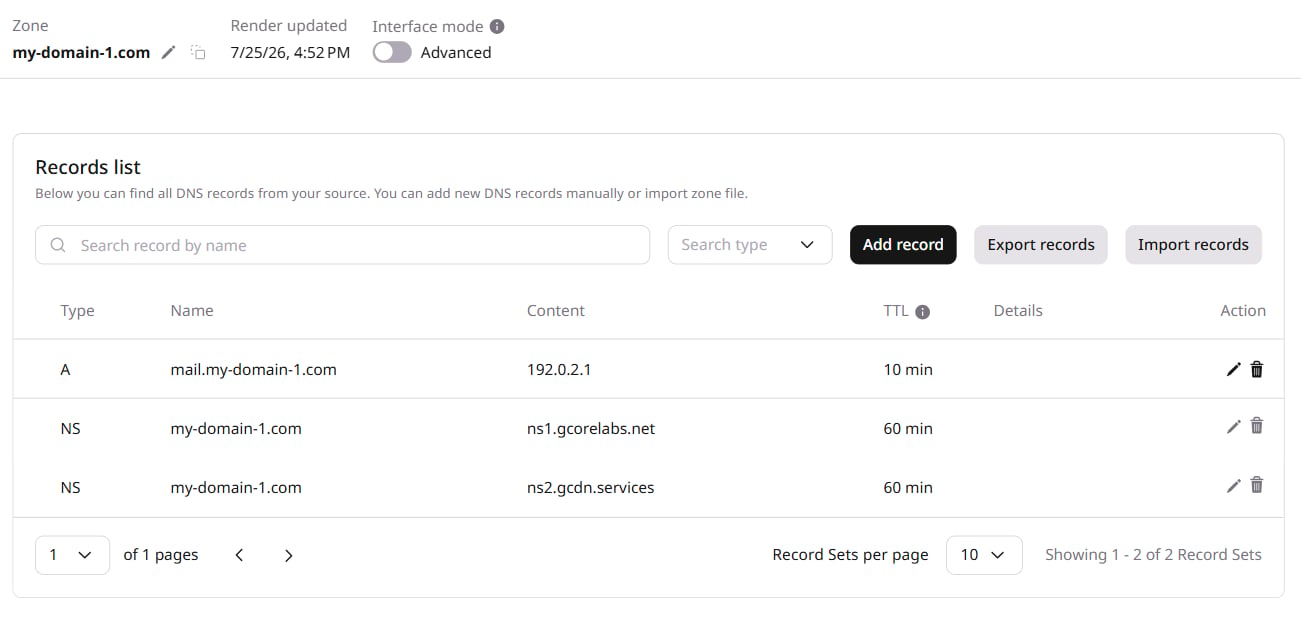
An A record maps a subdomain to an IP address — for a mail server at `192.0.2.1`, the record for `mail.sample-test.com` looks like this:
```sh theme={null}
mail.sample-test.com. IN A 192.0.2.1
```
 ## Step 2. Set up an MX record
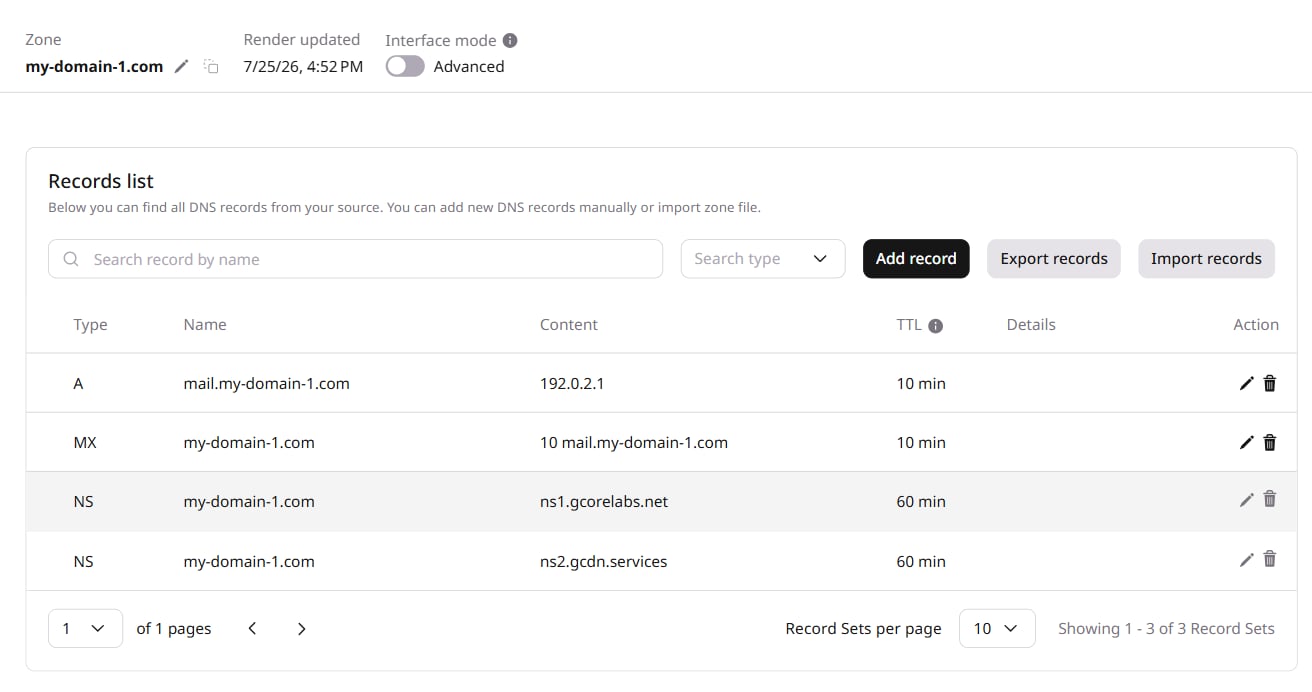
An [MX record](https://gcore.com/learning/dns-mx-record-explained) binds a domain to the mail server. Without an MX record, incoming mail will not work. It is recommended to have more than one mail server so that the second one acts as a backup if the first one fails. For a domain `sample-test.com` with a mail server at `mail.sample-test.com`, the record looks like this:
```sh theme={null}
sample-test.com. IN MX 10 mail.sample-test.com.
```
## Step 2. Set up an MX record
An [MX record](https://gcore.com/learning/dns-mx-record-explained) binds a domain to the mail server. Without an MX record, incoming mail will not work. It is recommended to have more than one mail server so that the second one acts as a backup if the first one fails. For a domain `sample-test.com` with a mail server at `mail.sample-test.com`, the record looks like this:
```sh theme={null}
sample-test.com. IN MX 10 mail.sample-test.com.
```
 ## Step 3. Set up a PTR record
A PTR record, or reverse DNS record, links an IP address to a domain name to help verify server authenticity. The [reverse DNS](/dns/dns-records/set-up-a-ptr-record-and-reverse-dns-zone) guide covers the full configuration.
PTR records are provisioned by the hosting provider that owns the IP address. Contact the provider to create a reverse DNS zone (RDNS).
For a mail server at `192.0.2.1`, the PTR record looks like this:
```sh theme={null}
1.2.0.192.in-addr.arpa IN PTR mail.sample-test.com.
```
## Step 4. Set up SPF (TXT)
An SPF (Sender Policy Framework) record defines which IP addresses are allowed to send mail from a domain. It is added as a TXT record in DNS and helps prevent spam from being sent. An example SPF record for `sample-test.com` is:
```sh theme={null}
sample-test.com. IN TXT "v=spf1 mx -all"
```
## Step 3. Set up a PTR record
A PTR record, or reverse DNS record, links an IP address to a domain name to help verify server authenticity. The [reverse DNS](/dns/dns-records/set-up-a-ptr-record-and-reverse-dns-zone) guide covers the full configuration.
PTR records are provisioned by the hosting provider that owns the IP address. Contact the provider to create a reverse DNS zone (RDNS).
For a mail server at `192.0.2.1`, the PTR record looks like this:
```sh theme={null}
1.2.0.192.in-addr.arpa IN PTR mail.sample-test.com.
```
## Step 4. Set up SPF (TXT)
An SPF (Sender Policy Framework) record defines which IP addresses are allowed to send mail from a domain. It is added as a TXT record in DNS and helps prevent spam from being sent. An example SPF record for `sample-test.com` is:
```sh theme={null}
sample-test.com. IN TXT "v=spf1 mx -all"
```
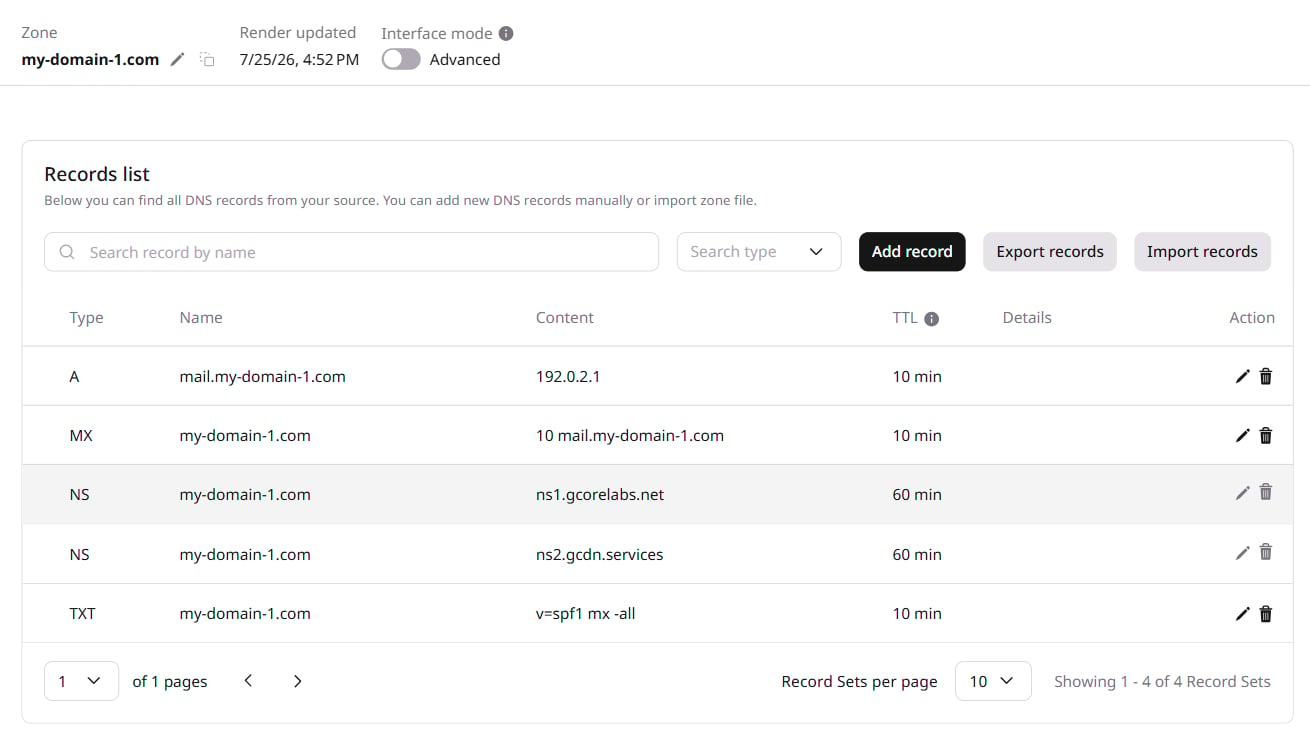 This means only the IP addresses for the MX records in `sample-test.com`, i.e. `mail.sample-test.com` (with the IP `192.0.2.1`,) are allowed to send mail on behalf of the domain. `-all` means all other traffic should be considered spam.
## Step 5. Set up a DKIM record
A [DKIM record](https://gcore.com/learning/what-is-a-dkim-record) (DomainKeys Identified Mail) adds a digital signature to outgoing messages, allowing recipients to verify that the mail came from the listed server.
A DKIM record requires adjustments to the mail server configuration, including generating a public/private key pair for signing and verification. The [EasyDMARC](https://easydmarc.com/tools/dkim-record-generator) and [DMARCLY](https://dmarcly.com/tools/dkim-record-generator) key generators automate this process.
Once the key pair is generated, the public key is published as a TXT record under a selector subdomain. For a selector named `selector1` on `sample-test.com`, the record looks like this:
```sh theme={null}
selector1._domainkey.sample-test.com. IN TXT "v=DKIM1; k=rsa; p=MIGfMA0GCSqGSIb3DQEBAQUAA4GNADCBiQKBgQC..."
```
The `p=` field contains the base64-encoded public key generated for the domain.
## Step 6. Set up a DMARC policy (TXT)
A DMARC (Domain-based Message Authentication, Reporting, and Conformance) record defines how to handle emails that fail SPF and DKIM checks. This helps minimize harm from spam and security vulnerabilities. When an email is received, the recipient's mail server checks the sending domain's SPF and DKIM records. If the records pass the checks, the email is considered legitimate. If either or both checks fail, the DMARC policy is examined.
The DMARC policy instructs the recipient's mail server on how to handle failed authentication emails. The policy can be set to none (no action taken), quarantine (mark as spam or place in a separate folder), or reject (block the email).
The following record sets the policy to `quarantine` and configures report recipients:
```sh theme={null}
_dmarc.sample-test.com. IN TXT "v=DMARC1; p=quarantine; rua=mailto:dmarc@sample-test.com; ruf=mailto:dmarc-forensics@sample-test.com;"
```
This means only the IP addresses for the MX records in `sample-test.com`, i.e. `mail.sample-test.com` (with the IP `192.0.2.1`,) are allowed to send mail on behalf of the domain. `-all` means all other traffic should be considered spam.
## Step 5. Set up a DKIM record
A [DKIM record](https://gcore.com/learning/what-is-a-dkim-record) (DomainKeys Identified Mail) adds a digital signature to outgoing messages, allowing recipients to verify that the mail came from the listed server.
A DKIM record requires adjustments to the mail server configuration, including generating a public/private key pair for signing and verification. The [EasyDMARC](https://easydmarc.com/tools/dkim-record-generator) and [DMARCLY](https://dmarcly.com/tools/dkim-record-generator) key generators automate this process.
Once the key pair is generated, the public key is published as a TXT record under a selector subdomain. For a selector named `selector1` on `sample-test.com`, the record looks like this:
```sh theme={null}
selector1._domainkey.sample-test.com. IN TXT "v=DKIM1; k=rsa; p=MIGfMA0GCSqGSIb3DQEBAQUAA4GNADCBiQKBgQC..."
```
The `p=` field contains the base64-encoded public key generated for the domain.
## Step 6. Set up a DMARC policy (TXT)
A DMARC (Domain-based Message Authentication, Reporting, and Conformance) record defines how to handle emails that fail SPF and DKIM checks. This helps minimize harm from spam and security vulnerabilities. When an email is received, the recipient's mail server checks the sending domain's SPF and DKIM records. If the records pass the checks, the email is considered legitimate. If either or both checks fail, the DMARC policy is examined.
The DMARC policy instructs the recipient's mail server on how to handle failed authentication emails. The policy can be set to none (no action taken), quarantine (mark as spam or place in a separate folder), or reject (block the email).
The following record sets the policy to `quarantine` and configures report recipients:
```sh theme={null}
_dmarc.sample-test.com. IN TXT "v=DMARC1; p=quarantine; rua=mailto:dmarc@sample-test.com; ruf=mailto:dmarc-forensics@sample-test.com;"
```
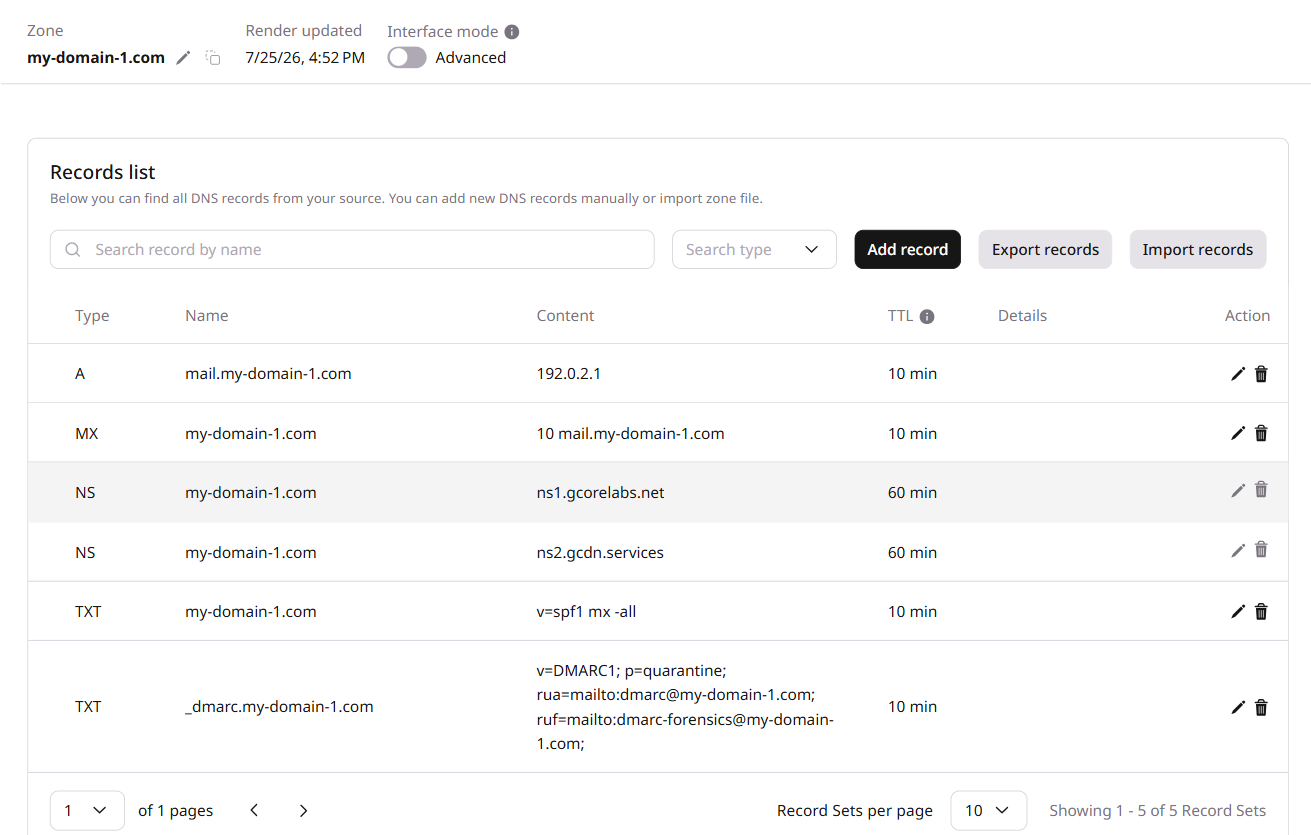 In this example, the domain owner has set a DMARC policy to `quarantine` any emails that fail authentication. The `rua` parameter specifies the email address where aggregate reports will be sent, while the `ruf` parameter specifies the email address where forensic (detailed) reports will be sent.