The creation form walks through region, version, node pools, networking, SSH key, logging, and advanced settings in sequence.
The cluster creation form requires a configured network, subnet, and SSH key before it can be submitted. Setting these up before opening the form avoids navigating away mid-creation. Networks and subnets can be prepared under **GPU Cloud** > **Networking** > **Networks**; SSH keys under **GPU Cloud** > **SSH Keys**.
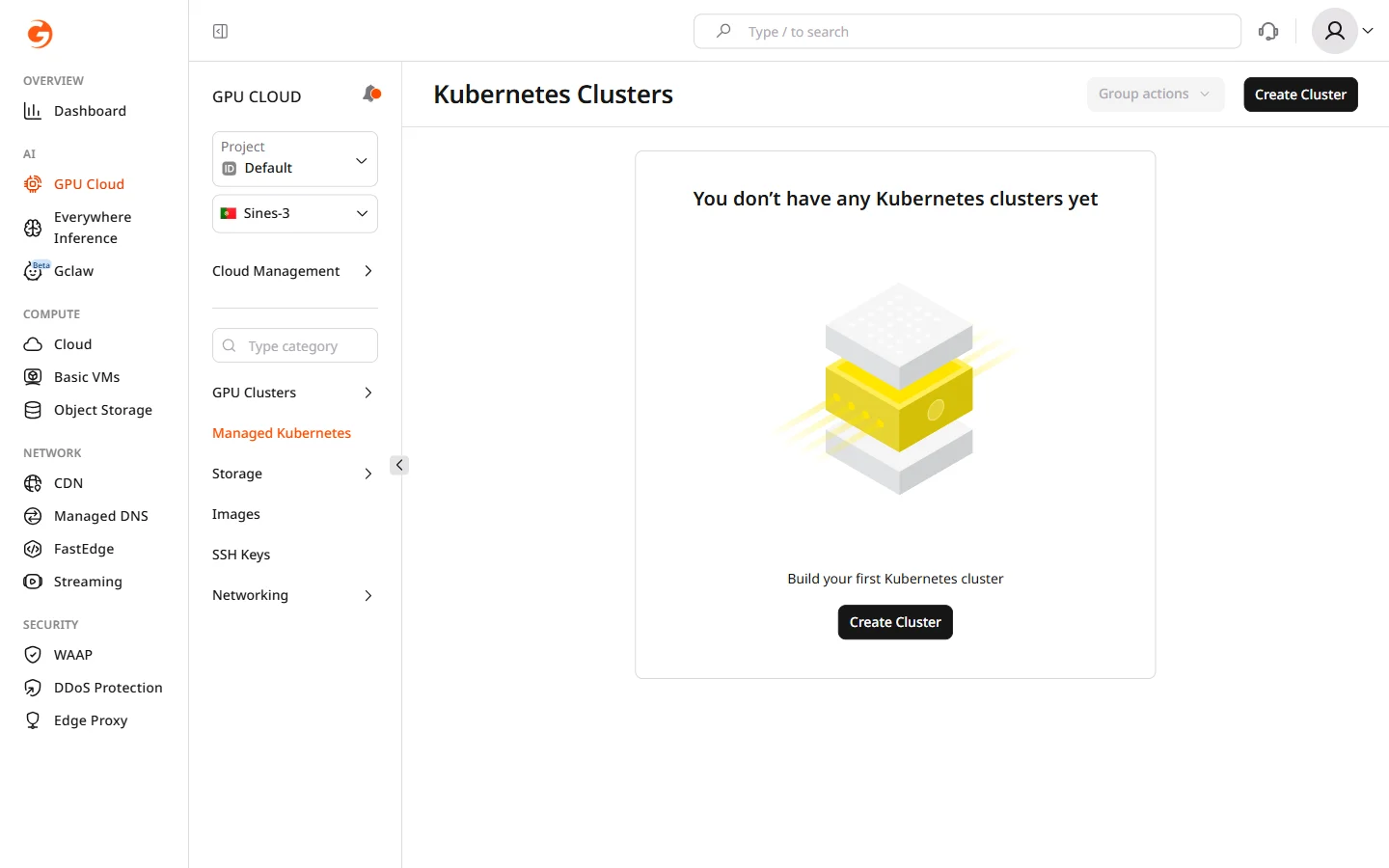
In the [Gcore Customer Portal](https://portal.gcore.com), navigate to **GPU Cloud**.
In the sidebar, select **Managed Kubernetes**.
Click **Create Cluster**.
 ### Step 1. Select region
In the **Region** section, select the data center location for the cluster. Region choice affects GPU model availability, VAST Storage support, and network latency for workloads.
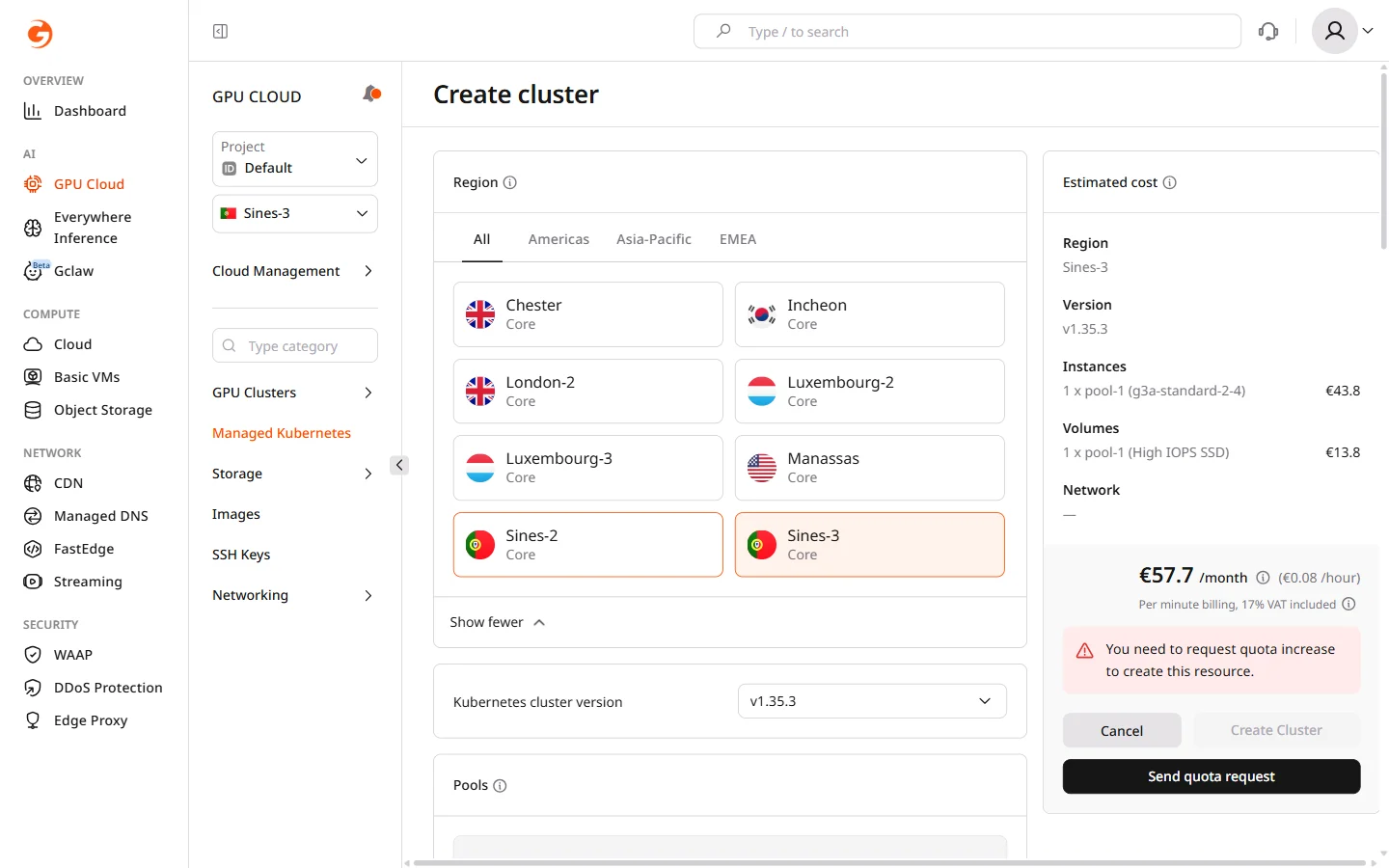
GPU bare metal nodes and VAST Storage integration are not available in all regions, so check regional availability before selecting if these are required.
Changing the region after configuring other settings resets all form values.
### Step 2. Select Kubernetes version
In the **Kubernetes cluster version** dropdown, select the version for the cluster. The latest stable version is selected by default and is recommended unless workloads require a specific version for compatibility. Kubernetes versions can be upgraded after cluster creation, but a downgrade is not supported.
### Step 3. Configure node pools
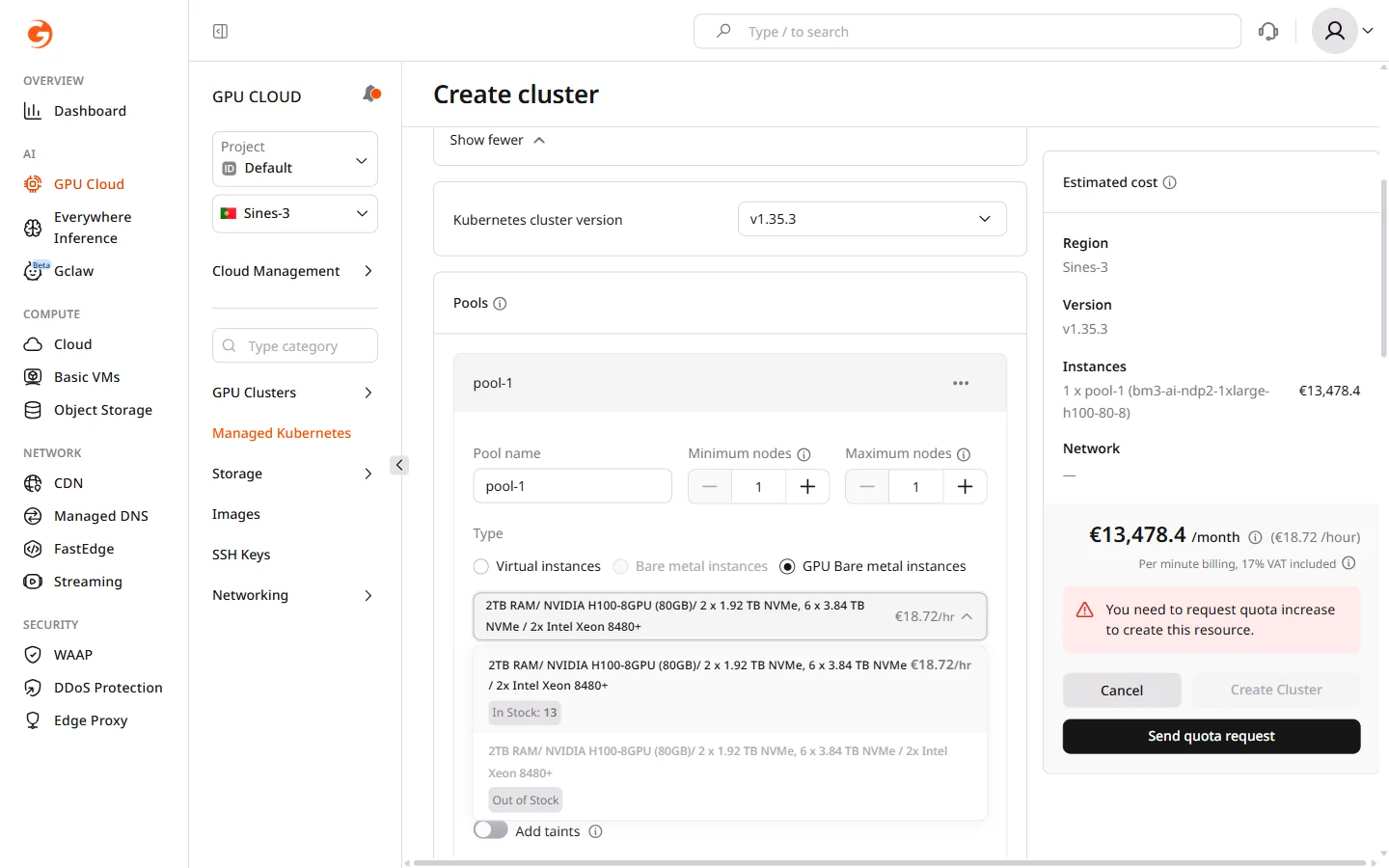
Node pools define the worker nodes where workloads run. Each pool has its own instance type, scaling limits, and volume configuration. A cluster can have multiple pools with different instance types, allowing GPU workloads and general services to run side by side.
In the **Pools** section, configure the default pool or click **Add pool** to add another.
Set **Minimum nodes** and **Maximum nodes**. Set the minimum above zero if the pool must always have running nodes — a minimum of zero allows the autoscaler to scale the pool down completely when idle.
Select the node **Type**:
| Type | Description | Use case |
| ------------------------ | --------------------------------------------- | --------------------------------------- |
| Virtual instances | Standard VMs | Development, testing, general workloads |
| Bare metal instances | Dedicated physical servers | High-performance CPU workloads |
| GPU Bare metal instances | NVIDIA GPU servers with built-in NVMe storage | Model training, inference at scale |
Bare metal instances are not available in all regions. If the option is unavailable, switch to a region that supports bare metal — Luxembourg is one example.
Each flavor card shows specifications, storage, and hourly pricing. GPU Bare metal instances include built-in NVMe storage — no separate volume configuration is required.
 For Virtual and Bare metal instance types, configure the boot volume: select a **Volume type** and set **Size** to a minimum of 50 GiB. High IOPS SSD reduces latency for I/O-intensive workloads.
Anti-affinity soft instructs the scheduler to place nodes on different physical hosts when possible, reducing the impact of a single host failure on pool availability. If the cluster does not have enough physical hosts to honor the policy, nodes are still scheduled.
* **Add labels** — Kubernetes labels attached to all nodes in the pool. Labels are used in pod specs to target specific pools with `nodeSelector` or node affinity rules.
* **Add taints** — taints prevent pods from being scheduled on pool nodes unless the pod explicitly tolerates the taint. Use taints to dedicate GPU pools exclusively to GPU workloads.
* **Autohealing nodes** — enabled by default; the cluster monitors node health using Kubernetes node conditions and automatically drains and replaces nodes that become unhealthy.
* **Public IPv4 address** — assigns a public IP to each node. When enabled, private network selection becomes optional and the cluster is created in the public network. IPv6 dual-stack is available for nodes in the public network.
To configure container runtime settings, environment variables, and resource limits, click the **...** menu in the pool header and select **Configure settings**.
Advanced pool settings cannot be changed after cluster creation. Store persistent data in external storage — Object Storage, NFS, or managed databases — GPU bare metal nodes may be replaced during scaling or maintenance.
### Step 4. Configure CNI provider
For Virtual and Bare metal instance types, configure the boot volume: select a **Volume type** and set **Size** to a minimum of 50 GiB. High IOPS SSD reduces latency for I/O-intensive workloads.
Anti-affinity soft instructs the scheduler to place nodes on different physical hosts when possible, reducing the impact of a single host failure on pool availability. If the cluster does not have enough physical hosts to honor the policy, nodes are still scheduled.
* **Add labels** — Kubernetes labels attached to all nodes in the pool. Labels are used in pod specs to target specific pools with `nodeSelector` or node affinity rules.
* **Add taints** — taints prevent pods from being scheduled on pool nodes unless the pod explicitly tolerates the taint. Use taints to dedicate GPU pools exclusively to GPU workloads.
* **Autohealing nodes** — enabled by default; the cluster monitors node health using Kubernetes node conditions and automatically drains and replaces nodes that become unhealthy.
* **Public IPv4 address** — assigns a public IP to each node. When enabled, private network selection becomes optional and the cluster is created in the public network. IPv6 dual-stack is available for nodes in the public network.
To configure container runtime settings, environment variables, and resource limits, click the **...** menu in the pool header and select **Configure settings**.
Advanced pool settings cannot be changed after cluster creation. Store persistent data in external storage — Object Storage, NFS, or managed databases — GPU bare metal nodes may be replaced during scaling or maintenance.
### Step 4. Configure CNI provider
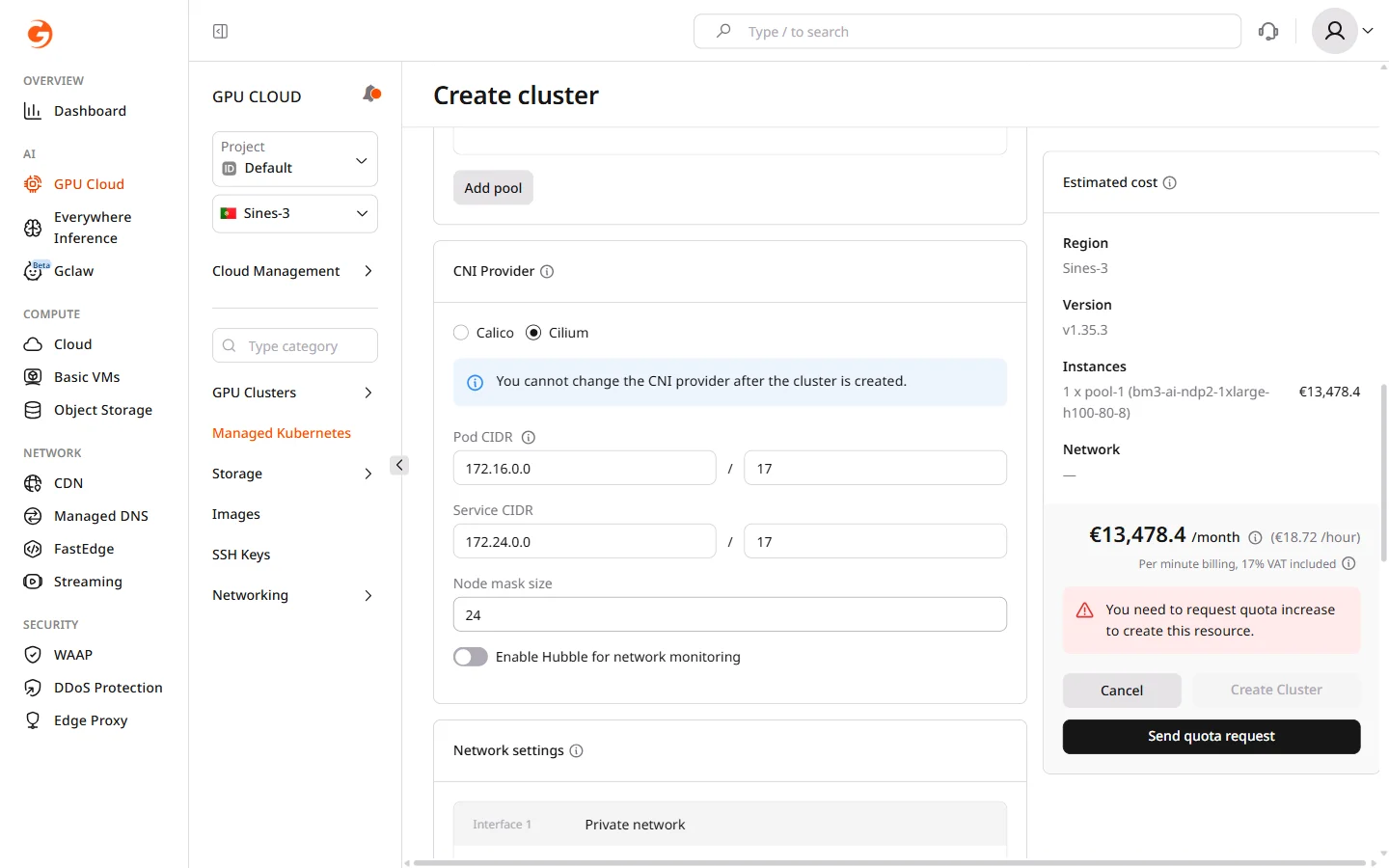
The Container Network Interface (CNI) provider manages pod-to-pod and pod-to-service networking within the cluster. The CNI choice affects network throughput, observability capabilities, and compatibility with network policies.
 | Provider | When to use |
| ---------------- | --------------------------------------------------------------------------------------- |
| Calico | Familiar iptables-based networking; broad compatibility with existing tooling |
| Cilium (default) | eBPF-based networking with higher throughput and built-in flow observability via Hubble |
The CNI provider cannot be changed after cluster creation.
Change the defaults only if they conflict with existing networks — a VPN or peered network with overlapping addresses is a common reason:
* **Pod CIDR**: IP range assigned to pods (default: `172.16.0.0/17`). Each node carves a subnet from this range based on the node mask size.
* **Service CIDR**: IP range assigned to Kubernetes services (default: `172.24.0.0/17`).
* **Node mask size**: subnet size allocated per node (default: `/24`, which allows up to 254 pods per node). A smaller mask allows more pods per node; a larger mask allows more nodes but fewer pods each.
Pod CIDR, Service CIDR, and node mask size cannot be changed after cluster creation. Verify that the ranges do not overlap with existing networks before proceeding.
If Cilium is selected, optionally enable **Hubble for network monitoring** to capture and visualize network flows between pods and services.
### Step 5. Configure network settings
| Provider | When to use |
| ---------------- | --------------------------------------------------------------------------------------- |
| Calico | Familiar iptables-based networking; broad compatibility with existing tooling |
| Cilium (default) | eBPF-based networking with higher throughput and built-in flow observability via Hubble |
The CNI provider cannot be changed after cluster creation.
Change the defaults only if they conflict with existing networks — a VPN or peered network with overlapping addresses is a common reason:
* **Pod CIDR**: IP range assigned to pods (default: `172.16.0.0/17`). Each node carves a subnet from this range based on the node mask size.
* **Service CIDR**: IP range assigned to Kubernetes services (default: `172.24.0.0/17`).
* **Node mask size**: subnet size allocated per node (default: `/24`, which allows up to 254 pods per node). A smaller mask allows more pods per node; a larger mask allows more nodes but fewer pods each.
Pod CIDR, Service CIDR, and node mask size cannot be changed after cluster creation. Verify that the ranges do not overlap with existing networks before proceeding.
If Cilium is selected, optionally enable **Hubble for network monitoring** to capture and visualize network flows between pods and services.
### Step 5. Configure network settings
In the **Network settings** section, assign the private network interface for cluster nodes. All nodes join this network and communicate with each other through it.
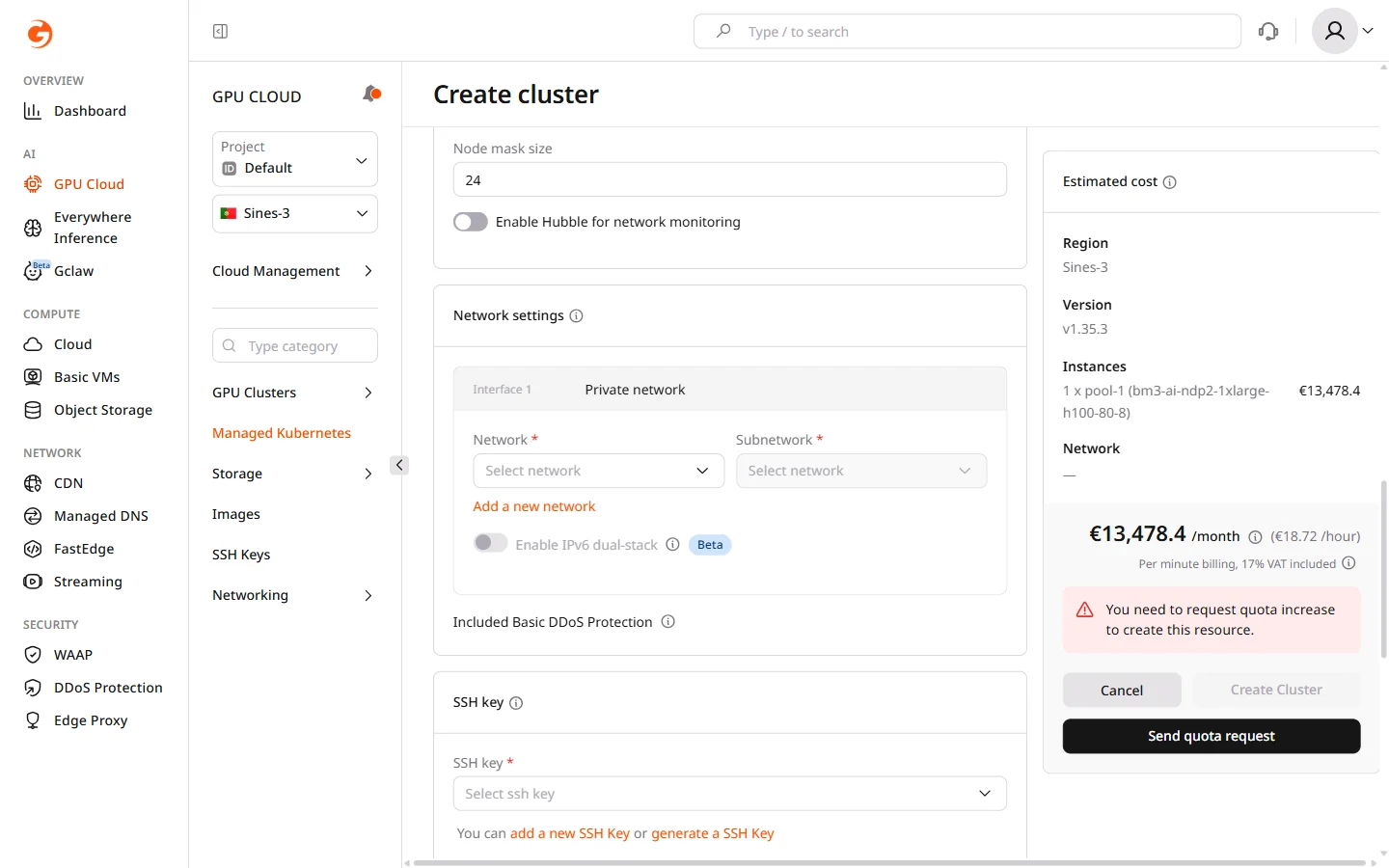 Select an existing **Network** or click **Add a new network** to create one.
The subnet must have enough available IP addresses for the maximum number of nodes across all pools — each node consumes at least one IP from the subnet. All cluster nodes receive Basic DDoS Protection at no additional cost.
### Step 6. Add an SSH key
In the **SSH key** section, select the SSH key to use for node access. The key is installed on all nodes in the cluster and is used for direct OS-level access — debugging node issues or inspecting container runtime logs are typical uses.
Select an existing key from the dropdown or click **Add a new SSH Key** to add one. Keys can also be managed under **GPU Cloud** > **SSH Keys**.
### Step 7. Name the cluster
In the **Cluster name** field, enter a name or use the auto-generated default. The name identifies the cluster in the portal, in kubeconfig files, and in audit logs.
### Step 8. Configure logging
The **Logging** section enables log collection from cluster nodes and workloads, storing them in OpenSearch Dashboards for analysis and debugging. Logging is a paid feature.

Toggle **Enable Logging** to enable it, then configure the log topic. Logging can also be enabled after creation from the **Logging** tab on the cluster overview page, but configuring it at creation reduces setup steps after provisioning.
### Step 9. Configure advanced settings
The **Advanced settings** section contains optional cluster-level configuration. These settings can be changed after cluster creation from the cluster overview page.
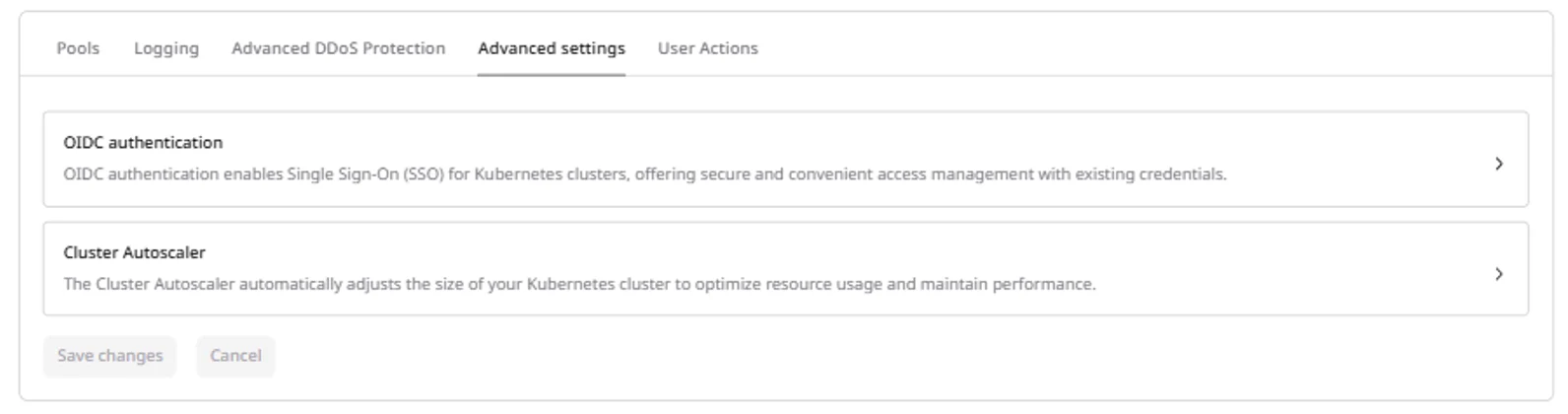 * **OIDC authentication** — configure Single Sign-On for Kubernetes API access using an external identity provider — Okta, Azure AD, or Keycloak. When configured, cluster users authenticate with their identity provider credentials rather than kubeconfig tokens. Set the issuer URL, client ID, and claim settings.
* **Cluster Autoscaler** — tune autoscaling behavior including how frequently the cluster checks for pending pods, how long a node must be underutilized before removal, and grace periods for pod termination.
### Step 10. Review cost and create
* **OIDC authentication** — configure Single Sign-On for Kubernetes API access using an external identity provider — Okta, Azure AD, or Keycloak. When configured, cluster users authenticate with their identity provider credentials rather than kubeconfig tokens. Set the issuer URL, client ID, and claim settings.
* **Cluster Autoscaler** — tune autoscaling behavior including how frequently the cluster checks for pending pods, how long a node must be underutilized before removal, and grace periods for pod termination.
### Step 10. Review cost and create
The **Estimated cost** panel on the right shows monthly and hourly pricing for all configured resources, broken down by instances, volumes, and network, including VAT.
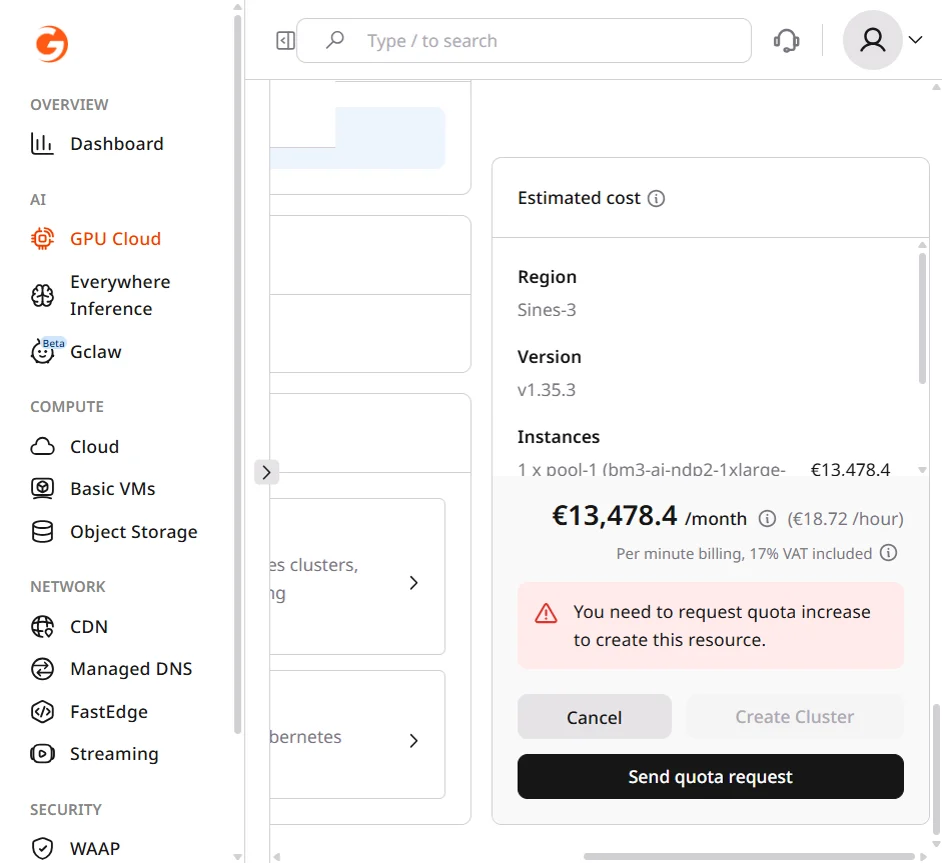
If the account lacks sufficient quota, the portal shows a quota warning and the **Create Cluster** button is disabled. Click **Send quota request** to request an increase, then return to create the cluster once approved.
Click **Create Cluster** to begin provisioning. Cluster provisioning time depends on the number and type of nodes. When complete, the cluster status changes from Creating to Provisioned.
## After cluster creation
When the cluster reaches Provisioned status, it appears in the Managed Kubernetes list with a green Provisioned badge.
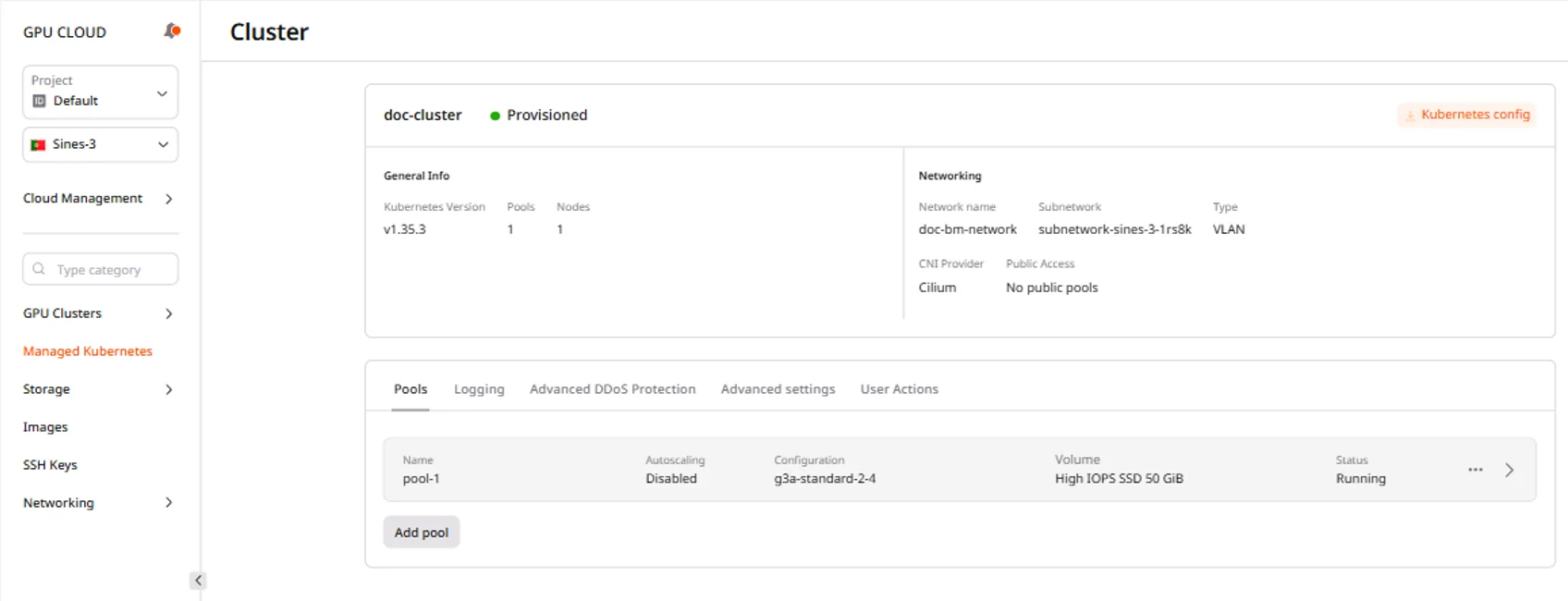
Click the cluster name to open the overview page. It shows the cluster status, Kubernetes version, networking configuration (network name, subnetwork, CNI provider), and management tabs for pools, logging, DDoS protection, advanced settings, and audit logs.
GPU bare metal nodes may take longer to provision than virtual instances, so monitor progress in the **Pools** tab — nodes transition from Not Ready to Ready as they complete initialization.
## Connect to the cluster
The kubeconfig file enables kubectl connections to the cluster. Download it after the cluster reaches Provisioned status:
Navigate to the cluster overview page.
Click **Kubernetes config**.
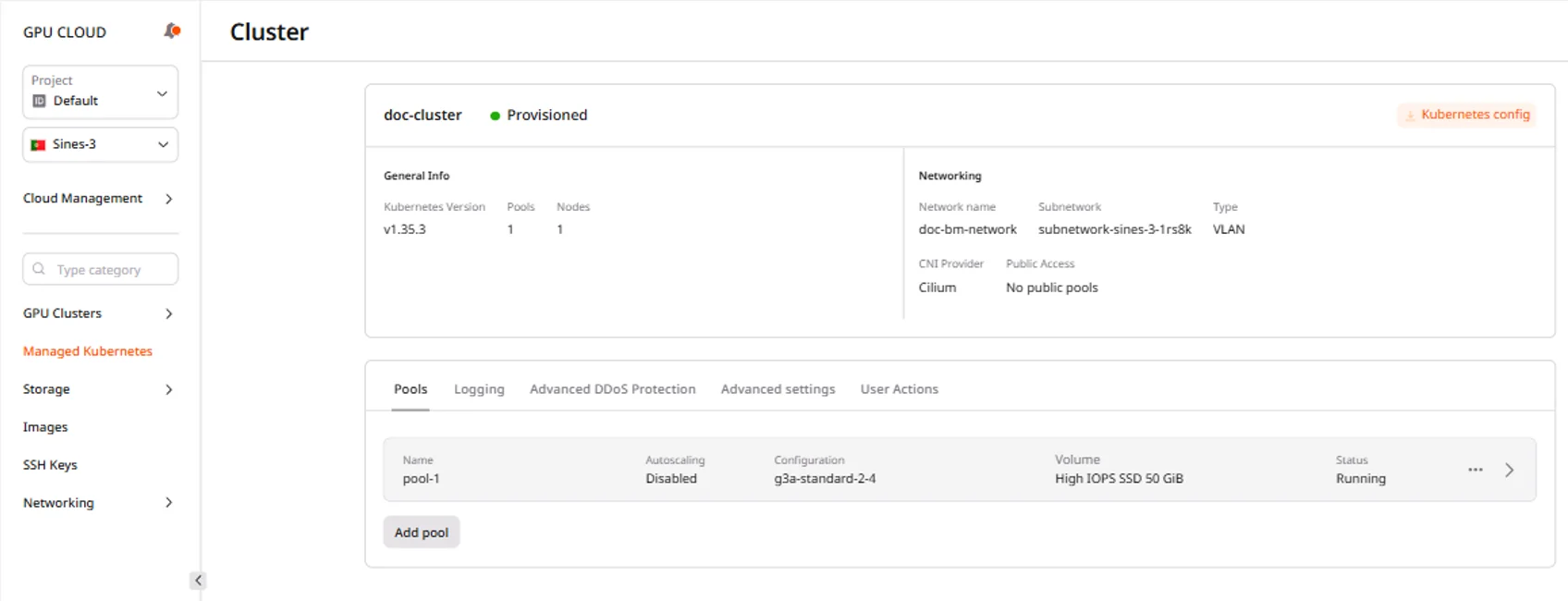 Save the downloaded `k8sConfig.yml` file.
Configure kubectl to use the downloaded configuration:
```bash theme={null}
export KUBECONFIG=/path/to/k8sConfig.yml
```
Verify the connection:
```bash theme={null}
kubectl cluster-info
```
Expected output:
```
Kubernetes control plane is running at https://:443
CoreDNS is running at https://:443/api/v1/namespaces/kube-system/services/kube-dns:dns/proxy
```
Check node status:
```bash theme={null}
kubectl get nodes
```
Expected output:
```
NAME STATUS ROLES AGE VERSION
ndp1-c3-168-10-78 Ready 12d v1.35.3
```
A node in Ready status is fully provisioned and available for workloads. Nodes that remain NotReady after several minutes may still be initializing — GPU bare metal nodes typically take longer than virtual instances.
Deploy a GPU Kubernetes cluster by calling the cluster creation endpoint with a version, GPU Bare Metal flavor, and network configuration. The API returns a task ID — poll it until the cluster is provisioned, then download the kubeconfig to connect with kubectl.
An [API token](/account-settings/api-tokens) is required, along with a
[project ID](/api-reference/cloud/projects/list-projects)
and a [region ID](/api-reference/cloud/regions/list-regions).
The cluster also requires an existing network with a subnet and an SSH key in the target region.
Open a terminal and set these environment variables before running the examples:
```bash theme={null}
export GCORE_API_KEY="{YOUR_API_KEY}"
export GCORE_CLOUD_PROJECT_ID="{YOUR_PROJECT_ID}"
export GCORE_CLOUD_REGION_ID="{YOUR_REGION_ID}"
export GCORE_SSH_KEY_NAME="{YOUR_SSH_KEY_NAME}"
```
## Quickstart
The scripts below perform the full flow: select the latest Kubernetes version and a GPU Bare Metal flavor, create the cluster, poll until provisioned, and save the kubeconfig.
```python theme={null}
import os
import time
from gcore import Gcore
client = Gcore()
SSH_KEY = os.environ["GCORE_SSH_KEY_NAME"]
# Step 1. Select the latest available Kubernetes version
versions = client.cloud.k8s.list_versions()
version = versions.results[-1].version # versions are sorted oldest to newest
# Step 2. Select a GPU Bare Metal flavor (non-spot)
# IDs are region-specific; selects the first non-spot GPU BM flavor
flavors = client.cloud.k8s.flavors.list()
flavor = next(
f for f in flavors.results
if "bm3-ai" in f.flavor_id and "spot" not in f.flavor_id
)
# Step 3. Select the first available network and subnet
networks = client.cloud.networks.list()
network = networks.results[0]
subnets = client.cloud.networks.subnets.list(network_id=network.id)
subnet = subnets.results[0]
# Step 4. Create the cluster
task_id_list = client.cloud.k8s.clusters.create(
name="my-gpu-k8s",
version=version,
keypair=SSH_KEY,
fixed_network=network.id,
fixed_subnet=subnet.id,
pools=[{
"name": "gpu-pool",
"flavor_id": flavor.flavor_id,
"min_node_count": 1,
"max_node_count": 3,
}],
)
task_id = task_id_list.tasks[0]
print(f"Task: {task_id}")
# Step 5. Poll until provisioned
while True:
task = client.cloud.tasks.get(task_id)
if task.state == "FINISHED":
cluster_id = task.created_resources.k8s_clusters[0]
print(f"Cluster provisioned: {cluster_id}")
break
print(f"State: {task.state} — waiting...")
time.sleep(15)
# Step 6. Download kubeconfig
kc = client.cloud.k8s.clusters.kubeconfig.get("my-gpu-k8s")
with open("k8sConfig.yml", "w") as f:
f.write(kc.config)
print("Kubeconfig saved to k8sConfig.yml")
```
```go theme={null}
package main
import (
"context"
"fmt"
"os"
"strconv"
"strings"
"time"
gcore "github.com/G-Core/gcore-go"
"github.com/G-Core/gcore-go/cloud"
)
func main() {
projectID, _ := strconv.ParseInt(os.Getenv("GCORE_CLOUD_PROJECT_ID"), 10, 64)
regionID, _ := strconv.ParseInt(os.Getenv("GCORE_CLOUD_REGION_ID"), 10, 64)
sshKeyName := os.Getenv("GCORE_SSH_KEY_NAME")
client := gcore.NewClient()
ctx := context.Background()
// Step 1. Select the latest available Kubernetes version
versions, err := client.Cloud.K8S.ListVersions(ctx, cloud.K8SListVersionsParams{
ProjectID: gcore.Int(projectID),
RegionID: gcore.Int(regionID),
})
if err != nil {
panic(err)
}
version := versions.Results[len(versions.Results)-1].Version
// Step 2. Select a GPU Bare Metal flavor (non-spot)
// IDs are region-specific; selects the first non-spot GPU BM flavor
flavors, err := client.Cloud.K8S.Flavors.List(ctx, cloud.K8SFlavorListParams{
ProjectID: gcore.Int(projectID),
RegionID: gcore.Int(regionID),
})
if err != nil {
panic(err)
}
var flavorID string
for _, f := range flavors.Results {
if strings.Contains(f.FlavorID, "bm3-ai") && !strings.Contains(f.FlavorID, "spot") {
flavorID = f.FlavorID
break
}
}
// Step 3. Select the first available network and subnet
networks, err := client.Cloud.Networks.List(ctx, cloud.NetworkListParams{
ProjectID: gcore.Int(projectID),
RegionID: gcore.Int(regionID),
})
if err != nil {
panic(err)
}
networkID := networks.Results[0].ID
subnets, err := client.Cloud.Networks.Subnets.List(ctx, cloud.NetworkSubnetListParams{
ProjectID: gcore.Int(projectID),
RegionID: gcore.Int(regionID),
})
if err != nil {
panic(err)
}
subnetID := subnets.Results[0].ID
// Step 4. Create the cluster
taskIDList, err := client.Cloud.K8S.Clusters.New(ctx, cloud.K8SClusterNewParams{
ProjectID: gcore.Int(projectID),
RegionID: gcore.Int(regionID),
Name: "my-gpu-k8s",
Version: version,
Keypair: sshKeyName,
FixedNetwork: gcore.String(networkID),
FixedSubnet: gcore.String(subnetID),
Pools: []cloud.K8SClusterNewParamsPool{{
Name: "gpu-pool",
FlavorID: flavorID,
MinNodeCount: 1,
MaxNodeCount: gcore.Int(3),
}},
})
if err != nil {
panic(err)
}
taskID := taskIDList.Tasks[0]
fmt.Printf("Task: %s\n", taskID)
// Step 5. Poll until provisioned
for {
task, err := client.Cloud.Tasks.Get(ctx, taskID)
if err != nil {
panic(err)
}
if task.State == "FINISHED" {
fmt.Printf("Cluster provisioned: %s\n", task.CreatedResources.K8SClusters[0])
break
}
fmt.Printf("State: %s — waiting...\n", task.State)
time.Sleep(15 * time.Second)
}
// Step 6. Download kubeconfig
kc, err := client.Cloud.K8S.Clusters.Kubeconfig.Get(ctx, "my-gpu-k8s",
cloud.K8SClusterKubeconfigGetParams{
ProjectID: gcore.Int(projectID),
RegionID: gcore.Int(regionID),
})
if err != nil {
panic(err)
}
if err := os.WriteFile("k8sConfig.yml", []byte(kc.Config), 0644); err != nil {
panic(err)
}
fmt.Println("Kubeconfig saved to k8sConfig.yml")
}
```
## Step-by-step
Each step explains what the call does, which parameters matter, and what the response looks like.
### Step 1. List available Kubernetes versions
Returns all Kubernetes versions available for cluster creation in the region. Pass the chosen version string — including the `v` prefix — to the cluster creation request.
```python theme={null}
from gcore import Gcore
client = Gcore()
versions = client.cloud.k8s.list_versions()
for v in versions.results:
print(v.version)
```
```go theme={null}
versions, err := client.Cloud.K8S.ListVersions(ctx, cloud.K8SListVersionsParams{
ProjectID: gcore.Int(projectID),
RegionID: gcore.Int(regionID),
})
if err != nil {
panic(err)
}
for _, v := range versions.Results {
fmt.Println(v.Version)
}
```
```bash theme={null}
curl "https://api.gcore.com/cloud/v2/k8s/${GCORE_CLOUD_PROJECT_ID}/${GCORE_CLOUD_REGION_ID}/create_versions" \
-H "Authorization: APIKey ${GCORE_API_KEY}"
```
The API returns:
```json theme={null}
{
"count": 4,
"results": [
{"version": "v1.33.10"},
{"version": "v1.34.6"},
{"version": "v1.35.3"},
{"version": "v1.36.1"}
]
}
```
### Step 2. List GPU Bare Metal flavors
Returns all flavors supported for Kubernetes node pools in the region. Filter by `bm3-ai` to get GPU Bare Metal options. GPU Bare Metal pools do not require a boot volume — NVMe storage is built in to the server.
| Field | Description |
| ----------- | ---------------------------------------------------------- |
| `flavor_id` | Flavor identifier to pass to the `pools[].flavor_id` field |
| `vcpus` | Total vCPU count per node |
| `ram` | RAM per node in MB |
```python theme={null}
flavors = client.cloud.k8s.flavors.list()
gpu_bm = [f for f in flavors.results if "bm3-ai" in f.flavor_id and "spot" not in f.flavor_id]
for f in gpu_bm:
print(f.flavor_id, f.vcpus, "vCPU", f.ram // 1024, "GB")
```
```go theme={null}
flavors, err := client.Cloud.K8S.Flavors.List(ctx, cloud.K8SFlavorListParams{
ProjectID: gcore.Int(projectID),
RegionID: gcore.Int(regionID),
})
if err != nil {
panic(err)
}
for _, f := range flavors.Results {
if strings.Contains(f.FlavorID, "bm3-ai") && !strings.Contains(f.FlavorID, "spot") {
fmt.Printf("%s %d vCPU %d GB\n", f.FlavorID, f.Vcpus, f.Ram/1024)
}
}
```
```bash theme={null}
curl "https://api.gcore.com/cloud/v1/k8s/${GCORE_CLOUD_PROJECT_ID}/${GCORE_CLOUD_REGION_ID}/flavors" \
-H "Authorization: APIKey ${GCORE_API_KEY}"
```
The API returns:
```json theme={null}
{
"count": 45,
"results": [
{
"flavor_id": "bm3-ai-ndp2-1xlarge-h100-80-8",
"vcpus": 224,
"ram": 253952
}
]
}
```
### Step 3. Create the cluster
Submits the cluster creation request. The API returns a task ID — use it in the next step to poll for the provisioned state.
| Parameter | Required | Description |
| ---------------------------- | -------- | ---------------------------------------------------------------------------------------------------------------- |
| `name` | Yes | Cluster name (one–20 chars, lowercase alphanumeric and hyphens, must start and end with a letter or digit) |
| `version` | Yes | Kubernetes version string including the `v` prefix, e.g. `v1.35.3` |
| `keypair` | Yes | Name of an existing SSH key in the project |
| `pools[].flavor_id` | Yes | Flavor ID from the flavor list — use a `bm3-ai` flavor for GPU Bare Metal nodes |
| `pools[].name` | Yes | Pool name (two–20 chars, lowercase alphanumeric and hyphens) |
| `pools[].min_node_count` | Yes | Minimum number of nodes (one–200) |
| `fixed_network` | No | Network UUID. Omit to use the default public network |
| `fixed_subnet` | No | Subnet UUID within the selected network |
| `pools[].servergroup_policy` | No | Required for Virtual instance pools — not needed for Bare Metal GPU pools. Use `soft-anti-affinity` for VM pools |
The `version` field must include the `v` prefix (e.g. `v1.35.3`). Omitting it returns a validation error even though the spec example shows the version without the prefix.
```python theme={null}
import os
import time
from gcore import Gcore
client = Gcore()
task_id_list = client.cloud.k8s.clusters.create(
name="my-gpu-k8s",
version="v1.35.3",
keypair=os.environ["GCORE_SSH_KEY_NAME"],
fixed_network="{NETWORK_ID}",
fixed_subnet="{SUBNET_ID}",
pools=[{
"name": "gpu-pool",
"flavor_id": "bm3-ai-ndp2-1xlarge-h100-80-8",
"min_node_count": 1,
"max_node_count": 3,
}],
)
print(task_id_list.tasks) # save as TASK_ID
```
```go theme={null}
taskIDList, err := client.Cloud.K8S.Clusters.New(ctx, cloud.K8SClusterNewParams{
ProjectID: gcore.Int(projectID),
RegionID: gcore.Int(regionID),
Name: "my-gpu-k8s",
Version: "v1.35.3",
Keypair: os.Getenv("GCORE_SSH_KEY_NAME"),
FixedNetwork: gcore.String("{NETWORK_ID}"),
FixedSubnet: gcore.String("{SUBNET_ID}"),
Pools: []cloud.K8SClusterNewParamsPool{{
Name: "gpu-pool",
FlavorID: "bm3-ai-ndp2-1xlarge-h100-80-8",
MinNodeCount: 1,
MaxNodeCount: gcore.Int(3),
}},
})
if err != nil {
panic(err)
}
fmt.Println(taskIDList.Tasks) // save as TASK_ID
```
```bash theme={null}
curl -X POST \
"https://api.gcore.com/cloud/v2/k8s/clusters/${GCORE_CLOUD_PROJECT_ID}/${GCORE_CLOUD_REGION_ID}" \
-H "Authorization: APIKey ${GCORE_API_KEY}" \
-H "Content-Type: application/json" \
-d '{
"name": "my-gpu-k8s",
"version": "v1.35.3",
"keypair": "{YOUR_SSH_KEY_NAME}",
"fixed_network": "{NETWORK_ID}",
"fixed_subnet": "{SUBNET_ID}",
"pools": [{
"name": "gpu-pool",
"flavor_id": "bm3-ai-ndp2-1xlarge-h100-80-8",
"min_node_count": 1,
"max_node_count": 3
}]
}'
```
The API returns:
```json theme={null}
{"tasks": ["c4617af3-3775-412a-ac52-8bf96a0d2ce4"]}
```
### Step 4. Wait for provisioning
The cluster creation task runs asynchronously. Poll GET /cloud/v1/tasks/{task_id} every 15 seconds until `state` is `FINISHED`, then read the cluster ID from `created_resources.k8s_clusters`.
GPU Bare Metal clusters provision slower than virtual instance clusters — provisioning can take 10–20 minutes depending on the number of nodes. The portal **Pools** tab shows per-node status during this time.
While provisioning:
```json theme={null}
{"state": "RUNNING", "created_resources": {"k8s_clusters": []}}
```
When complete:
```json theme={null}
{"state": "FINISHED", "created_resources": {"k8s_clusters": ["1935449d-e2b9-4360-aaeb-bf927187aef6"]}}
```
```python theme={null}
import time
while True:
task = client.cloud.tasks.get(task_id)
if task.state == "FINISHED":
cluster_id = task.created_resources.k8s_clusters[0]
print(f"Cluster ID: {cluster_id}")
break
print(f"State: {task.state} — waiting...")
time.sleep(15)
```
```go theme={null}
for {
task, err := client.Cloud.Tasks.Get(ctx, taskID)
if err != nil {
panic(err)
}
if task.State == "FINISHED" {
fmt.Printf("Cluster ID: %s\n", task.CreatedResources.K8SClusters[0])
break
}
fmt.Printf("State: %s — waiting...\n", task.State)
time.Sleep(15 * time.Second)
}
```
```bash theme={null}
curl "https://api.gcore.com/cloud/v1/tasks/${TASK_ID}" \
-H "Authorization: APIKey ${GCORE_API_KEY}"
```
### Step 5. Download kubeconfig
Downloads the kubeconfig for the provisioned cluster. The `config` field contains a YAML string — write it to a file and point kubectl to it.
```python theme={null}
kc = client.cloud.k8s.clusters.kubeconfig.get("my-gpu-k8s")
with open("k8sConfig.yml", "w") as f:
f.write(kc.config)
print("Kubeconfig saved to k8sConfig.yml")
```
```go theme={null}
kc, err := client.Cloud.K8S.Clusters.Kubeconfig.Get(ctx, "my-gpu-k8s",
cloud.K8SClusterKubeconfigGetParams{
ProjectID: gcore.Int(projectID),
RegionID: gcore.Int(regionID),
})
if err != nil {
panic(err)
}
if err := os.WriteFile("k8sConfig.yml", []byte(kc.Config), 0644); err != nil {
panic(err)
}
fmt.Println("Kubeconfig saved to k8sConfig.yml")
```
```bash theme={null}
curl "https://api.gcore.com/cloud/v2/k8s/clusters/${GCORE_CLOUD_PROJECT_ID}/${GCORE_CLOUD_REGION_ID}/my-gpu-k8s/config" \
-H "Authorization: APIKey ${GCORE_API_KEY}"
```
The API returns:
```json theme={null}
{
"config": "apiVersion: v1\nclusters:\n- cluster:\n certificate-authority-data: LS0tLS1CRU...",
"host": "https://:443",
"created_at": "2026-07-11T10:51:32Z",
"expires_at": "2027-07-11T10:51:32Z"
}
```
Connect kubectl using the saved file:
```bash theme={null}
export KUBECONFIG=./k8sConfig.yml
kubectl get nodes
```
## Clean up
To delete the cluster when it is no longer needed:
```bash theme={null}
curl -X DELETE \
"https://api.gcore.com/cloud/v2/k8s/clusters/${GCORE_CLOUD_PROJECT_ID}/${GCORE_CLOUD_REGION_ID}/my-gpu-k8s" \
-H "Authorization: APIKey ${GCORE_API_KEY}"
```