> ## Documentation Index
> Fetch the complete documentation index at: https://docs.gcore.com/llms.txt
> Use this file to discover all available pages before exploring further.
# Configure a 10 Gbps network card
Each Dedicated Server has multiple network cards connected to separate network switches, but the installed OS activates only the 1 Gbps card by default. A 10 Gbps network card must already be installed on the server — Gcore can add one as part of a [server upgrade](/hosting/dedicated-servers/upgrade-your-dedicated-server).
These steps require direct server access and manual network configuration. Consult a system administrator if difficulties arise.
Select the tab that matches the server OS.
Ubuntu and Debian use `netplan` for network configuration. On older systems without `netplan`, each step includes the equivalent command.
Install `ethtool`, `net-tools`, and [nano](https://help.ubuntu.com/community/Nano), or another text editor of choice.
```sh theme={null}
apt-get install ethtool net-tools nano
```
Run `ip` to list active network interfaces.
```sh theme={null}
ip
```
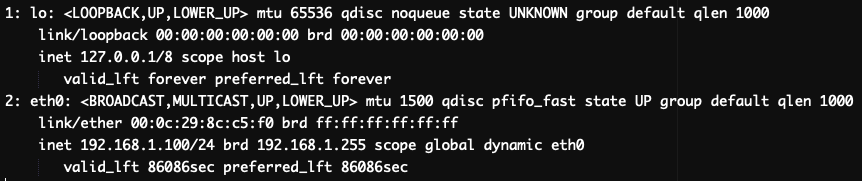
The output resembles the following, where `eth0` is the active 1 Gbps interface.
 On older Linux versions where `ip` is not available, use `ifconfig` instead.
Inspect the settings of the active interface to confirm its speed.
```sh theme={null}
ethtool eth0
```
The output resembles the following:
On older Linux versions where `ip` is not available, use `ifconfig` instead.
Inspect the settings of the active interface to confirm its speed.
```sh theme={null}
ethtool eth0
```
The output resembles the following:
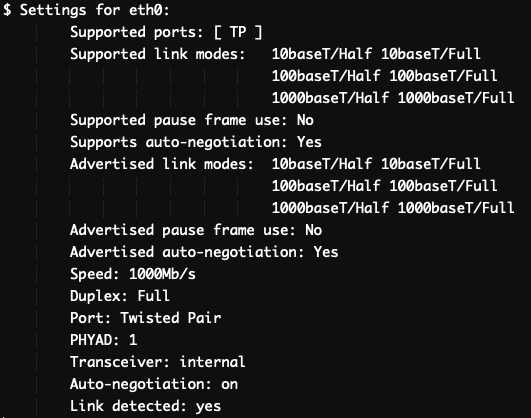 In **Supported link modes**, `1000baseT/Full` means the interface supports a maximum speed of 1 Gbps. Find an interface that lists `10000baseT/Full`, which indicates 10 Gbps support.
List all interfaces, including inactive ones, to find the 10 Gbps candidate.
```sh theme={null}
ip link show
```
The output lists each interface and its state (up or down).
In **Supported link modes**, `1000baseT/Full` means the interface supports a maximum speed of 1 Gbps. Find an interface that lists `10000baseT/Full`, which indicates 10 Gbps support.
List all interfaces, including inactive ones, to find the 10 Gbps candidate.
```sh theme={null}
ip link show
```
The output lists each interface and its state (up or down).
 On older Linux versions where `ip link show` is not available, use `ifconfig` instead.
Bring up each interface that is listed as down. Replace `eth1` and `eth2` with the interface names shown in the previous step.
```sh theme={null}
ip link set eth1 up
ip link set eth2 up
```
On older Linux versions, use `ifconfig eth1 up` instead of `ip link set`. To verify that an interface is active, run `ip` and check for `state UP` in the output (`state DOWN` means the interface is still inactive; use `ifconfig` on older systems).
Run `ethtool` on each inactive interface until finding the one that supports 10 Gbps.
```sh theme={null}
ethtool eth1
ethtool eth2
```
The output resembles the following:
On older Linux versions where `ip link show` is not available, use `ifconfig` instead.
Bring up each interface that is listed as down. Replace `eth1` and `eth2` with the interface names shown in the previous step.
```sh theme={null}
ip link set eth1 up
ip link set eth2 up
```
On older Linux versions, use `ifconfig eth1 up` instead of `ip link set`. To verify that an interface is active, run `ip` and check for `state UP` in the output (`state DOWN` means the interface is still inactive; use `ifconfig` on older systems).
Run `ethtool` on each inactive interface until finding the one that supports 10 Gbps.
```sh theme={null}
ethtool eth1
ethtool eth2
```
The output resembles the following:
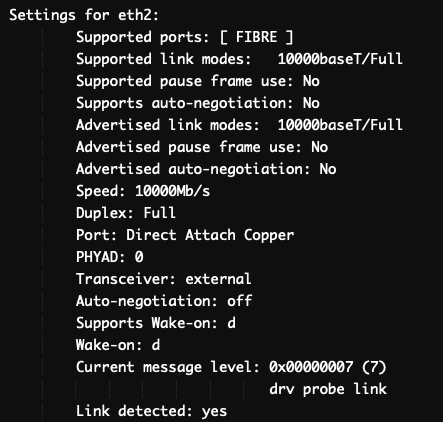 Confirm that **Link detected** is `yes` and **Speed** is `10000Mb/s` (10 Gbps). Note the interface name — the next step requires it.
Open the network configuration file in a text editor.
```sh theme={null}
nano /etc/netplan/*.yaml
```
On older Linux versions, use `nano /etc/network/interfaces` instead.
In the configuration file, find every line where the current 1 Gbps interface name (`eth0`) appears and replace it with the 10 Gbps interface name identified in the previous step. Leave the `lo` interface unchanged.
If the 10 Gbps interface is `eth2`, a section that reads:
```yaml theme={null}
ethernets:
eth0:
dhcp4: true
```
becomes:
```yaml theme={null}
ethernets:
eth2:
dhcp4: true
```
Save the file and exit the text editor, then apply the new configuration.
```sh theme={null}
netplan apply
```
On older Linux versions that do not use `netplan`, reboot the server instead.
If the server becomes unreachable after applying, reboot it to recover. If it still does not respond, use [IPMI](/hosting/dedicated-servers/manage/log-in-to-ipmi) to access it.
Run `ethtool` on the 10 Gbps interface name to confirm **Speed** shows `10000Mb/s`. The server now uses the 10 Gbps network interface.
If the interface is not active, reboot the server and check again. If the server does not respond, use [IPMI](/hosting/dedicated-servers/manage/log-in-to-ipmi) to access it, or [reinstall](/hosting/dedicated-servers/manage/operating-system/install-a-linux-os-from-a-template) the OS.
CentOS 7 reached end of life on June 30, 2024. For new servers, consider using AlmaLinux or Rocky Linux as actively maintained alternatives. The steps below apply to CentOS 7.
CentOS uses `/etc/sysconfig/network-scripts/` for network configuration. On older systems without the `ip` utility, each step includes the equivalent command.
Install `ethtool`, `net-tools`, and `nano`, or another text editor of choice.
```sh theme={null}
yum install ethtool net-tools nano
```
Run `ip` to list active network interfaces.
```sh theme={null}
ip
```
The output resembles the following, where `eno1` is the active 1 Gbps interface.
Confirm that **Link detected** is `yes` and **Speed** is `10000Mb/s` (10 Gbps). Note the interface name — the next step requires it.
Open the network configuration file in a text editor.
```sh theme={null}
nano /etc/netplan/*.yaml
```
On older Linux versions, use `nano /etc/network/interfaces` instead.
In the configuration file, find every line where the current 1 Gbps interface name (`eth0`) appears and replace it with the 10 Gbps interface name identified in the previous step. Leave the `lo` interface unchanged.
If the 10 Gbps interface is `eth2`, a section that reads:
```yaml theme={null}
ethernets:
eth0:
dhcp4: true
```
becomes:
```yaml theme={null}
ethernets:
eth2:
dhcp4: true
```
Save the file and exit the text editor, then apply the new configuration.
```sh theme={null}
netplan apply
```
On older Linux versions that do not use `netplan`, reboot the server instead.
If the server becomes unreachable after applying, reboot it to recover. If it still does not respond, use [IPMI](/hosting/dedicated-servers/manage/log-in-to-ipmi) to access it.
Run `ethtool` on the 10 Gbps interface name to confirm **Speed** shows `10000Mb/s`. The server now uses the 10 Gbps network interface.
If the interface is not active, reboot the server and check again. If the server does not respond, use [IPMI](/hosting/dedicated-servers/manage/log-in-to-ipmi) to access it, or [reinstall](/hosting/dedicated-servers/manage/operating-system/install-a-linux-os-from-a-template) the OS.
CentOS 7 reached end of life on June 30, 2024. For new servers, consider using AlmaLinux or Rocky Linux as actively maintained alternatives. The steps below apply to CentOS 7.
CentOS uses `/etc/sysconfig/network-scripts/` for network configuration. On older systems without the `ip` utility, each step includes the equivalent command.
Install `ethtool`, `net-tools`, and `nano`, or another text editor of choice.
```sh theme={null}
yum install ethtool net-tools nano
```
Run `ip` to list active network interfaces.
```sh theme={null}
ip
```
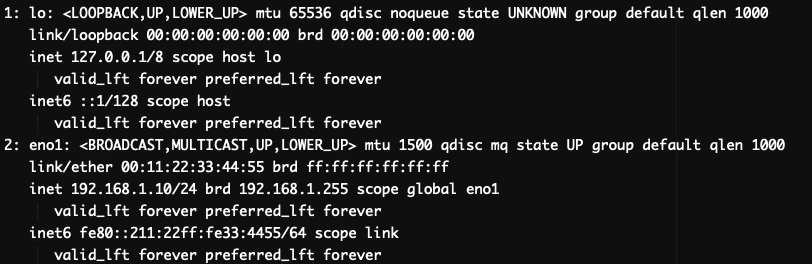
The output resembles the following, where `eno1` is the active 1 Gbps interface.
 On older Linux versions where `ip` is not available, use `ifconfig` instead.
Inspect the settings of the active interface to confirm its speed.
```sh theme={null}
ethtool eno1
```
The output resembles the following:
On older Linux versions where `ip` is not available, use `ifconfig` instead.
Inspect the settings of the active interface to confirm its speed.
```sh theme={null}
ethtool eno1
```
The output resembles the following:
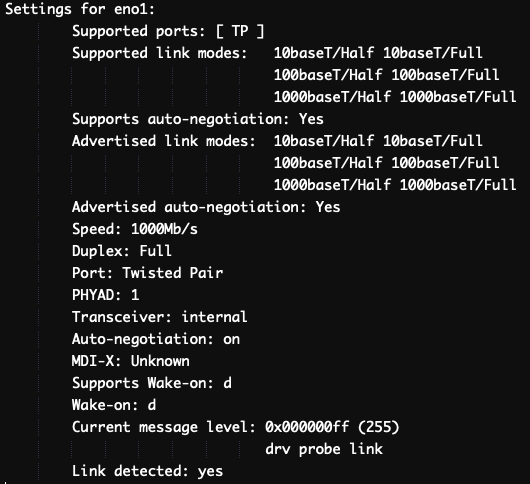 In **Supported link modes**, `1000baseT/Full` means the interface supports a maximum speed of 1 Gbps. Find an interface that lists `10000baseT/Full`, which indicates 10 Gbps support.
List all interfaces, including inactive ones, to find the 10 Gbps candidate.
```sh theme={null}
ip link show
```
The output lists each interface and its state (up or down).
In **Supported link modes**, `1000baseT/Full` means the interface supports a maximum speed of 1 Gbps. Find an interface that lists `10000baseT/Full`, which indicates 10 Gbps support.
List all interfaces, including inactive ones, to find the 10 Gbps candidate.
```sh theme={null}
ip link show
```
The output lists each interface and its state (up or down).
 On older Linux versions where `ip link show` is not available, use `ifconfig` instead.
Bring up the interface that is listed as down. Replace `eno2` with the interface name shown in the previous step.
```sh theme={null}
ip link set eno2 up
```
On older Linux versions, use `ifconfig eno2 up` instead of `ip link set`. To verify that the interface is active, run `ip` and check for `state UP` in the output (`state DOWN` means the interface is still inactive; use `ifconfig` on older systems).
Run `ethtool` on each inactive interface until finding the one that supports 10 Gbps.
```sh theme={null}
ethtool eno2
```
The output resembles the following:
On older Linux versions where `ip link show` is not available, use `ifconfig` instead.
Bring up the interface that is listed as down. Replace `eno2` with the interface name shown in the previous step.
```sh theme={null}
ip link set eno2 up
```
On older Linux versions, use `ifconfig eno2 up` instead of `ip link set`. To verify that the interface is active, run `ip` and check for `state UP` in the output (`state DOWN` means the interface is still inactive; use `ifconfig` on older systems).
Run `ethtool` on each inactive interface until finding the one that supports 10 Gbps.
```sh theme={null}
ethtool eno2
```
The output resembles the following:
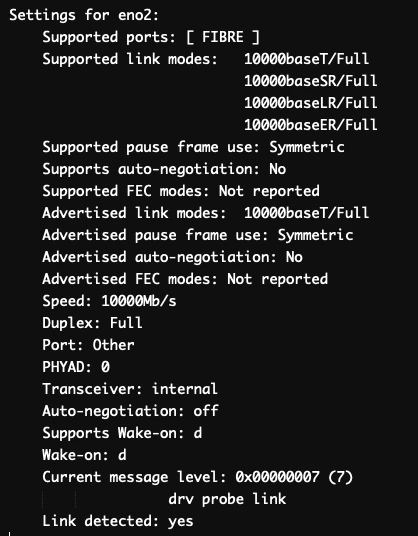 Confirm that **Link detected** is `yes` and **Speed** is `10000Mb/s` (10 Gbps). Note the interface name — the next step requires it.
Open the configuration file for the current 1 Gbps interface and disable it by setting `ONBOOT=no`.
```sh theme={null}
nano /etc/sysconfig/network-scripts/ifcfg-eno1
```
Then open the configuration file for the 10 Gbps interface. Replace `eno1` in the filename with the 10 Gbps interface name identified in the previous step.
```sh theme={null}
nano /etc/sysconfig/network-scripts/ifcfg-eno2
```
In `ifcfg-eno2`, copy the IP address, subnet mask, gateway, and DNS settings from `ifcfg-eno1`, then update `DEVICE` and `NAME` to the 10 Gbps interface name and set `ONBOOT=yes`.
Save the file and exit the text editor. Reboot the server for the changes to take effect.
After the reboot, run `ethtool` on the 10 Gbps interface name to confirm **Speed** shows `10000Mb/s`. The server now uses the 10 Gbps network interface.
If the server does not respond after reboot, use [IPMI](/hosting/dedicated-servers/manage/log-in-to-ipmi) to access it, or [reinstall](/hosting/dedicated-servers/manage/operating-system/install-a-linux-os-from-a-template) the OS.
Confirm that **Link detected** is `yes` and **Speed** is `10000Mb/s` (10 Gbps). Note the interface name — the next step requires it.
Open the configuration file for the current 1 Gbps interface and disable it by setting `ONBOOT=no`.
```sh theme={null}
nano /etc/sysconfig/network-scripts/ifcfg-eno1
```
Then open the configuration file for the 10 Gbps interface. Replace `eno1` in the filename with the 10 Gbps interface name identified in the previous step.
```sh theme={null}
nano /etc/sysconfig/network-scripts/ifcfg-eno2
```
In `ifcfg-eno2`, copy the IP address, subnet mask, gateway, and DNS settings from `ifcfg-eno1`, then update `DEVICE` and `NAME` to the 10 Gbps interface name and set `ONBOOT=yes`.
Save the file and exit the text editor. Reboot the server for the changes to take effect.
After the reboot, run `ethtool` on the 10 Gbps interface name to confirm **Speed** shows `10000Mb/s`. The server now uses the 10 Gbps network interface.
If the server does not respond after reboot, use [IPMI](/hosting/dedicated-servers/manage/log-in-to-ipmi) to access it, or [reinstall](/hosting/dedicated-servers/manage/operating-system/install-a-linux-os-from-a-template) the OS.