> ## Documentation Index
> Fetch the complete documentation index at: https://docs.gcore.com/llms.txt
> Use this file to discover all available pages before exploring further.
# Install a Linux OS from a template
A Linux OS can be installed on a dedicated server by selecting a template in DCImanager. Templates are maintained by Gcore and include the latest supported versions of each distribution.
Windows Server can only be added at the time of ordering a dedicated server and cannot be installed later using this method.
## Reinstall the OS
In the [Gcore Hosting Portal](https://hosting.gcore.com/billmgr), navigate to **Products/Services** → **Dedicated servers**, select the server, and click **To panel**. DCImanager opens in a new tab.
In the server list, click the **...** (three-dot) menu on the right side of the server row. A dropdown appears with available operations.
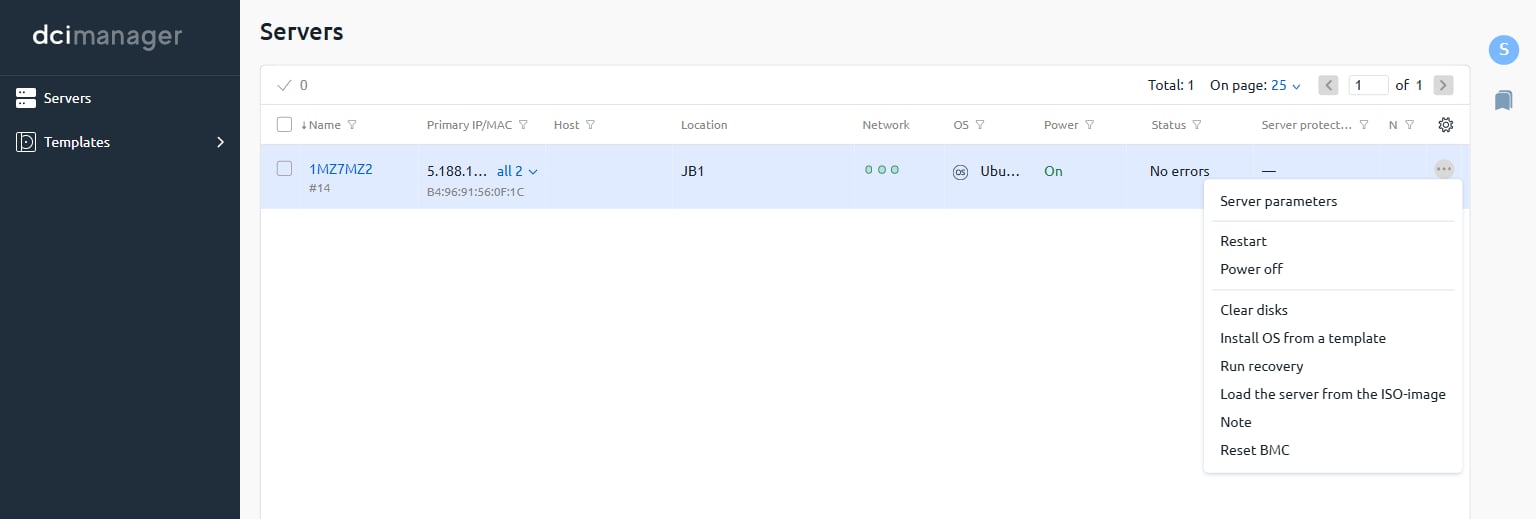 Click **Install OS from a template**. The installation wizard opens.
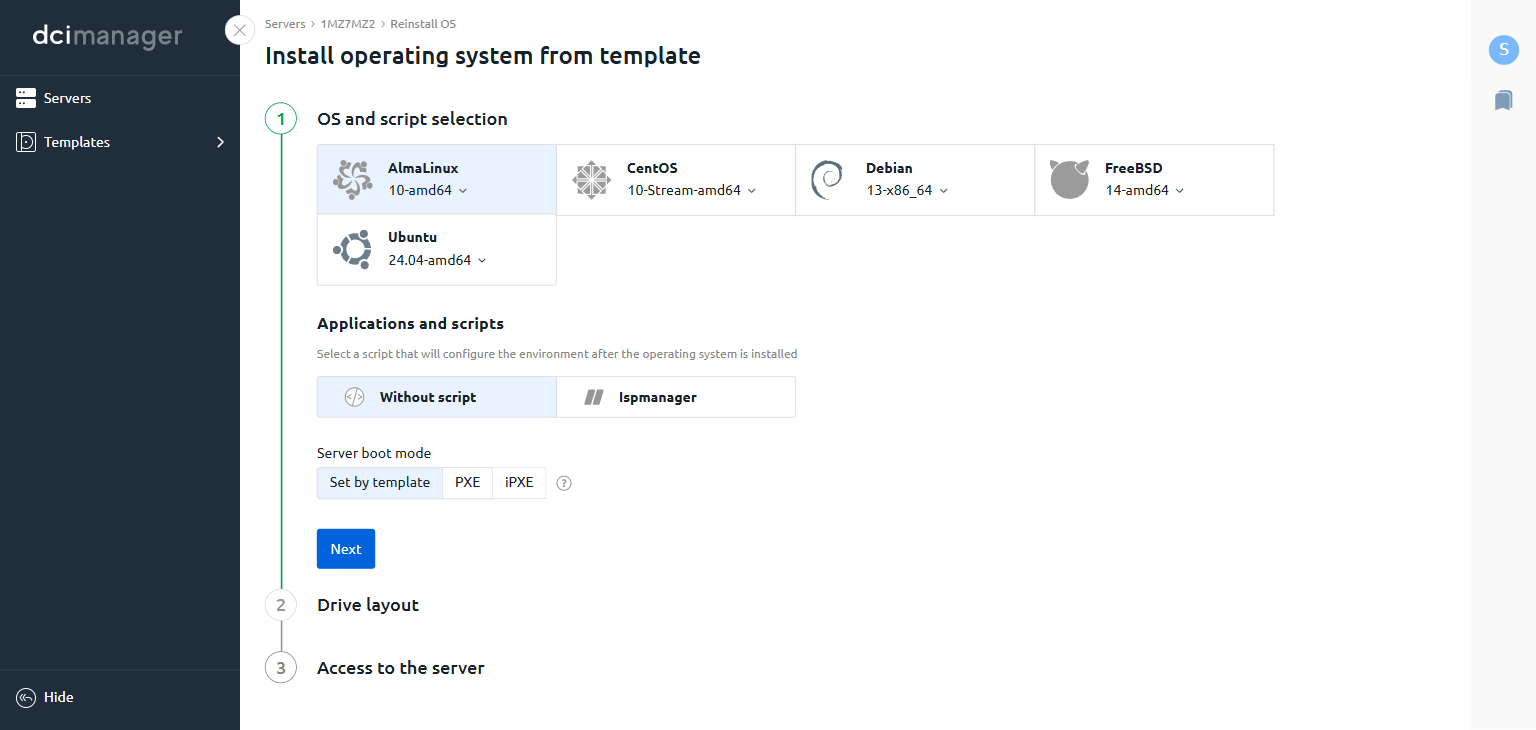
In the **OS and script selection** step, click the OS to install. Each OS shows the available versions in a dropdown — select the version needed.
Available distributions include AlmaLinux, CentOS, Debian, FreeBSD, and Ubuntu.
Optionally, select an **Applications and scripts** option to configure the environment after installation, and set the **Server boot mode** if required.
Click **Next**.
Click **Install OS from a template**. The installation wizard opens.
In the **OS and script selection** step, click the OS to install. Each OS shows the available versions in a dropdown — select the version needed.
Available distributions include AlmaLinux, CentOS, Debian, FreeBSD, and Ubuntu.
Optionally, select an **Applications and scripts** option to configure the environment after installation, and set the **Server boot mode** if required.
Click **Next**.
 In the **Access to the server** step, enter a **Server administrator password**. By default, `root` is used as the login.
Optionally, update the **Hostname** and add SSH keys.
Click **Install**. DCImanager begins the OS installation. The server will reboot and come back online with the new OS.
In the **Access to the server** step, enter a **Server administrator password**. By default, `root` is used as the login.
Optionally, update the **Hostname** and add SSH keys.
Click **Install**. DCImanager begins the OS installation. The server will reboot and come back online with the new OS.