> ## Documentation Index
> Fetch the complete documentation index at: https://docs.gcore.com/llms.txt
> Use this file to discover all available pages before exploring further.
# Install a Linux OS from your ISO image
A custom Linux OS can be installed on a dedicated server by uploading an ISO image to DCImanager and booting from it. Windows can only be ordered at server provisioning time and cannot be installed this way.
## Upload the ISO image to DCImanager
1. In the [Gcore Hosting Portal](https://hosting.gcore.com/billmgr), navigate to **Products/Services** → **Dedicated servers**.
2. Select the server and click **To panel**.
DCImanager opens in a new tab.
In the left sidebar, select **Templates**, then click the **ISO-images** tab.
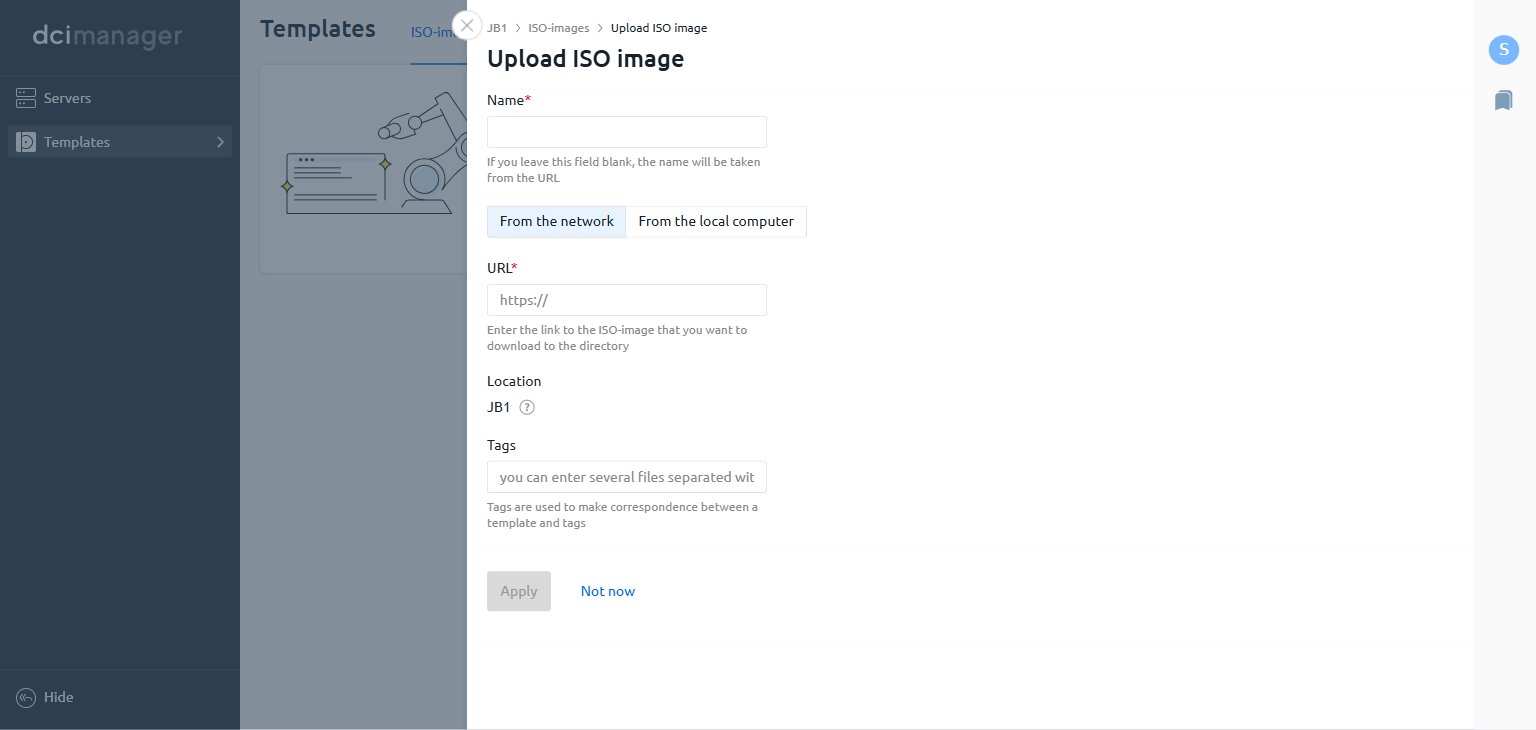 Click **Upload ISO-image** and fill in the form:
* **Name** — enter a name, or leave blank to use the filename from the URL.
* Select the source:
* **From the network** — paste the direct download URL of the ISO file.
* **From the local computer** — select a file from the local machine.
* **Location** — pre-filled based on the server's datacenter.
Click **Apply**. The ISO image appears in the list when the upload is complete.
## Boot the server from the ISO image
In DCImanager, go to **Servers**. Find the server in the list and click **⋮** at the end of its row, then select **Load the server from the ISO-image**.
Click **Upload ISO-image** and fill in the form:
* **Name** — enter a name, or leave blank to use the filename from the URL.
* Select the source:
* **From the network** — paste the direct download URL of the ISO file.
* **From the local computer** — select a file from the local machine.
* **Location** — pre-filled based on the server's datacenter.
Click **Apply**. The ISO image appears in the list when the upload is complete.
## Boot the server from the ISO image
In DCImanager, go to **Servers**. Find the server in the list and click **⋮** at the end of its row, then select **Load the server from the ISO-image**.
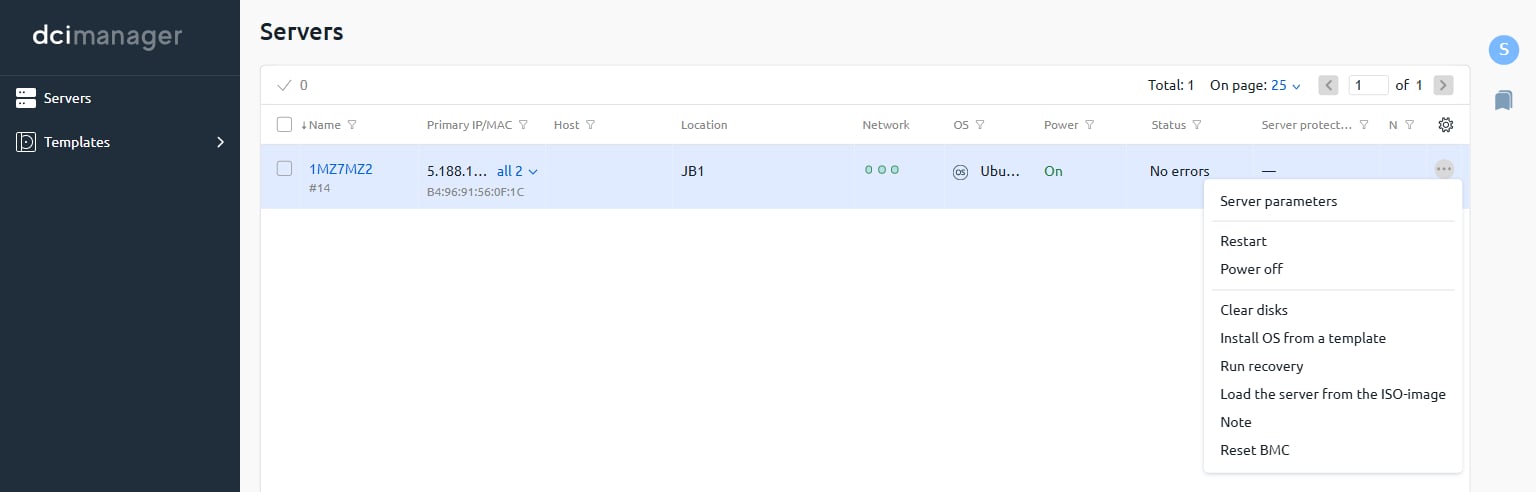 In the dialog that appears, select the ISO image uploaded in the previous section and confirm. DCImanager configures the IPMI boot device and restarts the server automatically.
1. In DCImanager, click the server name in the **Servers** list to expand its row.
2. Under **Connections**, click **Go to** next to **IPMI v2(lanplus)**. The iDRAC interface opens in a new tab.
3. Log in using the IPMI credentials provided with the server.
In iDRAC, open the remote console to access the server display. The OS installer appears once the server has booted from the ISO image. Follow the installer prompts to complete the installation, then restart the server.
In the dialog that appears, select the ISO image uploaded in the previous section and confirm. DCImanager configures the IPMI boot device and restarts the server automatically.
1. In DCImanager, click the server name in the **Servers** list to expand its row.
2. Under **Connections**, click **Go to** next to **IPMI v2(lanplus)**. The iDRAC interface opens in a new tab.
3. Log in using the IPMI credentials provided with the server.
In iDRAC, open the remote console to access the server display. The OS installer appears once the server has booted from the ISO image. Follow the installer prompts to complete the installation, then restart the server.