> ## Documentation Index
> Fetch the complete documentation index at: https://docs.gcore.com/llms.txt
> Use this file to discover all available pages before exploring further.
# Troubleshoot IPMI errors
IPMI is accessible from DCImanager under **Connections** in the server details. The following sections cover the most common connection errors and how to resolve them.
## Cannot log in to IPMI
DCImanager fills in the login and password automatically when the IPMI proxy window opens. Click the **Login** button in the top-left corner to fill in the username, then click **Password** to fill in the password.
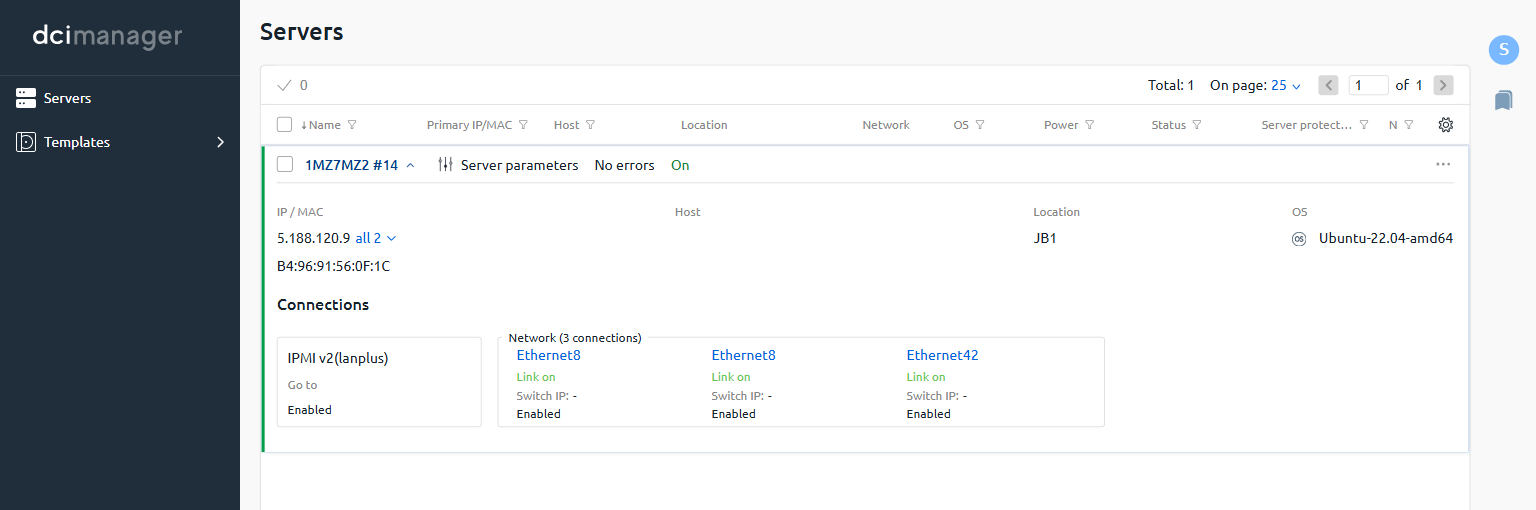
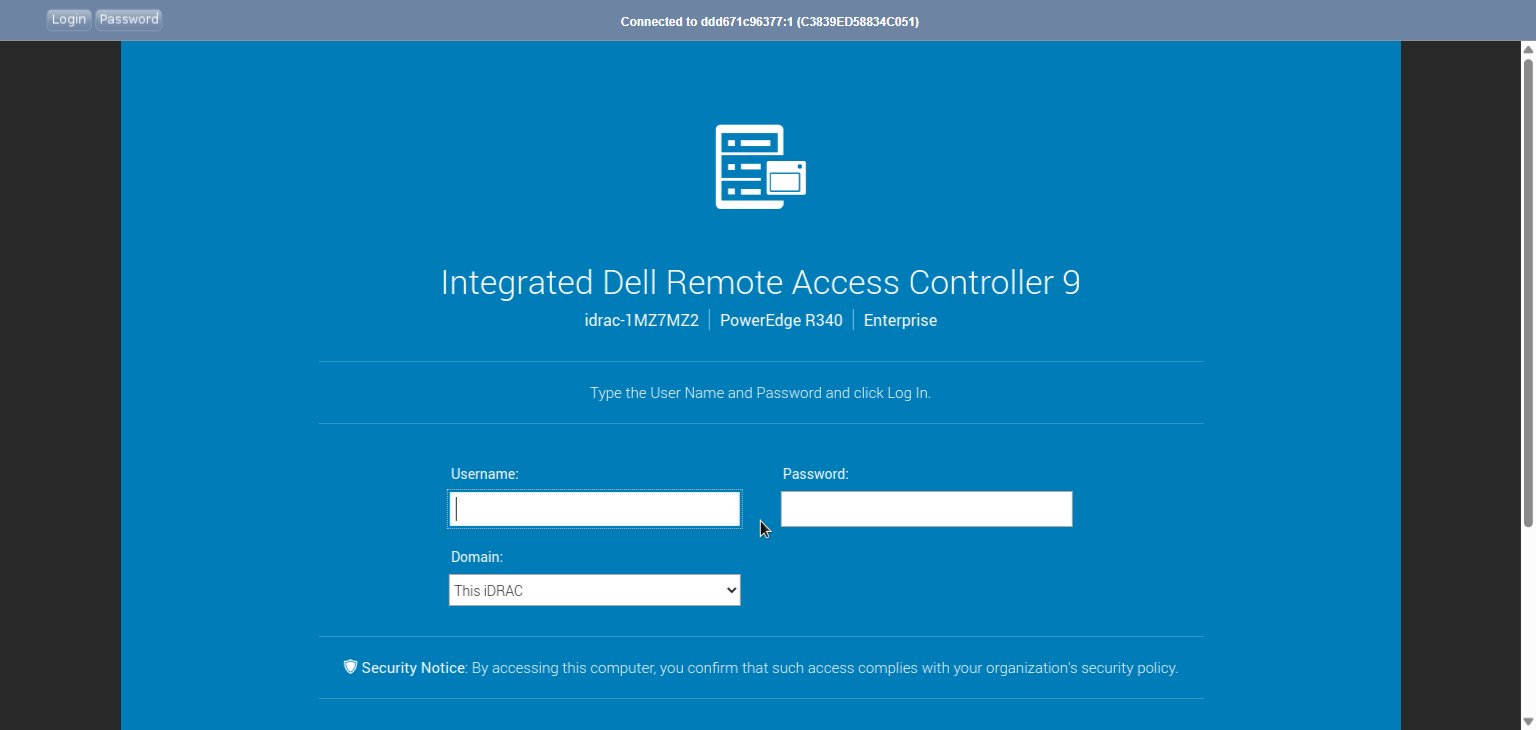 If autocomplete does not work, enter the credentials manually. The credentials can be found in [DCImanager](/hosting/dedicated-servers/manage/log-in-to-dcimanager): open the server details, locate the **Connections** section, and click **Go to** next to **IPMI v2(lanplus)** to open the proxy window.
 If login still fails after manual entry, [contact technical support](/hosting/contact-our-technical-support).
## Error "Server disconnected: (code: 1006)"
This error appears when two IPMI sessions are open at the same time — for example, from two devices or two browser tabs. IPMI supports only one active session at a time.
If login still fails after manual entry, [contact technical support](/hosting/contact-our-technical-support).
## Error "Server disconnected: (code: 1006)"
This error appears when two IPMI sessions are open at the same time — for example, from two devices or two browser tabs. IPMI supports only one active session at a time.
 Try the following steps in order:
1. Check for two open browser tabs with IPMI. Close the duplicate tab.
2. Close the current browser, open a different browser, and reconnect to IPMI.
3. Clear browser cookies and reconnect to IPMI.
4. Connect to IPMI from a different device.
If two concurrent sessions are required, use SSH instead of IPMI.
If none of these steps resolve the issue, [contact technical support](/hosting/contact-our-technical-support) and mention that all steps in this article have been completed.
## Error "IPMI URL ... of selected server is not available"
This error can occur when the server fails or when emergency or planned work is taking place in the data center.
Try the following steps in order:
1. Check for two open browser tabs with IPMI. Close the duplicate tab.
2. Close the current browser, open a different browser, and reconnect to IPMI.
3. Clear browser cookies and reconnect to IPMI.
4. Connect to IPMI from a different device.
If two concurrent sessions are required, use SSH instead of IPMI.
If none of these steps resolve the issue, [contact technical support](/hosting/contact-our-technical-support) and mention that all steps in this article have been completed.
## Error "IPMI URL ... of selected server is not available"
This error can occur when the server fails or when emergency or planned work is taking place in the data center.
 [Contact technical support](/hosting/contact-our-technical-support) and attach a screenshot of the error to the ticket.
## Remote console in IPMI does not open
[Contact technical support](/hosting/contact-our-technical-support) and attach a screenshot of the error to the ticket.
## Remote console in IPMI does not open
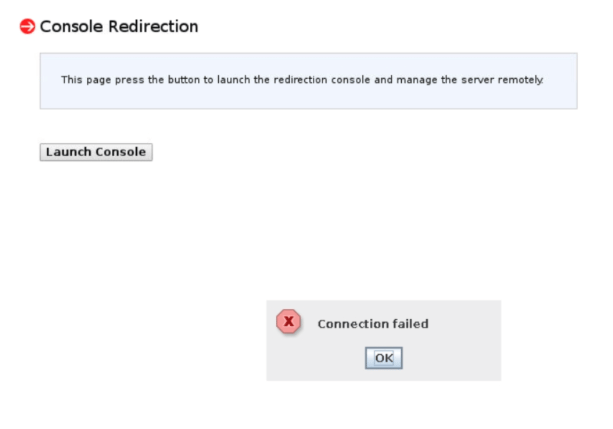 If the remote console fails to open, clear browser cookies, reload the IPMI page, and try opening the console again.
If the issue persists, [contact technical support](/hosting/contact-our-technical-support).
## Remote console behavior
**Full-screen mode**
Open IPMI and click **Options** > **Full-Screen Mode**. To exit full-screen mode, press F3.
**Switching between browser and console**
IPMI does not support switching between the browser and the remote console. The console closes when the browser window is clicked. Restart the console to reconnect.
If the remote console fails to open, clear browser cookies, reload the IPMI page, and try opening the console again.
If the issue persists, [contact technical support](/hosting/contact-our-technical-support).
## Remote console behavior
**Full-screen mode**
Open IPMI and click **Options** > **Full-Screen Mode**. To exit full-screen mode, press F3.
**Switching between browser and console**
IPMI does not support switching between the browser and the remote console. The console closes when the browser window is clicked. Restart the console to reconnect.