> ## Documentation Index
> Fetch the complete documentation index at: https://docs.gcore.com/llms.txt
> Use this file to discover all available pages before exploring further.
# Install an operating system from a template in VMmanager 6
[VMmanager 6](/hosting/virtual-servers/manage/main-features-and-functions-of-vmmanager-6) provides OS templates for reinstalling the operating system on a virtual server. Available distributions include CentOS, Debian, FreeBSD, and Ubuntu. The exact versions depend on the current template catalog.
Reinstalling the operating system permanently deletes all data on the system disk. Back up any important files before proceeding.
Log in to the [Hosting portal](https://hosting.gcore.com/billmgr), navigate to **Products/Services** → **Virtual private servers**, select the checkbox next to the server, and click **To panel**.
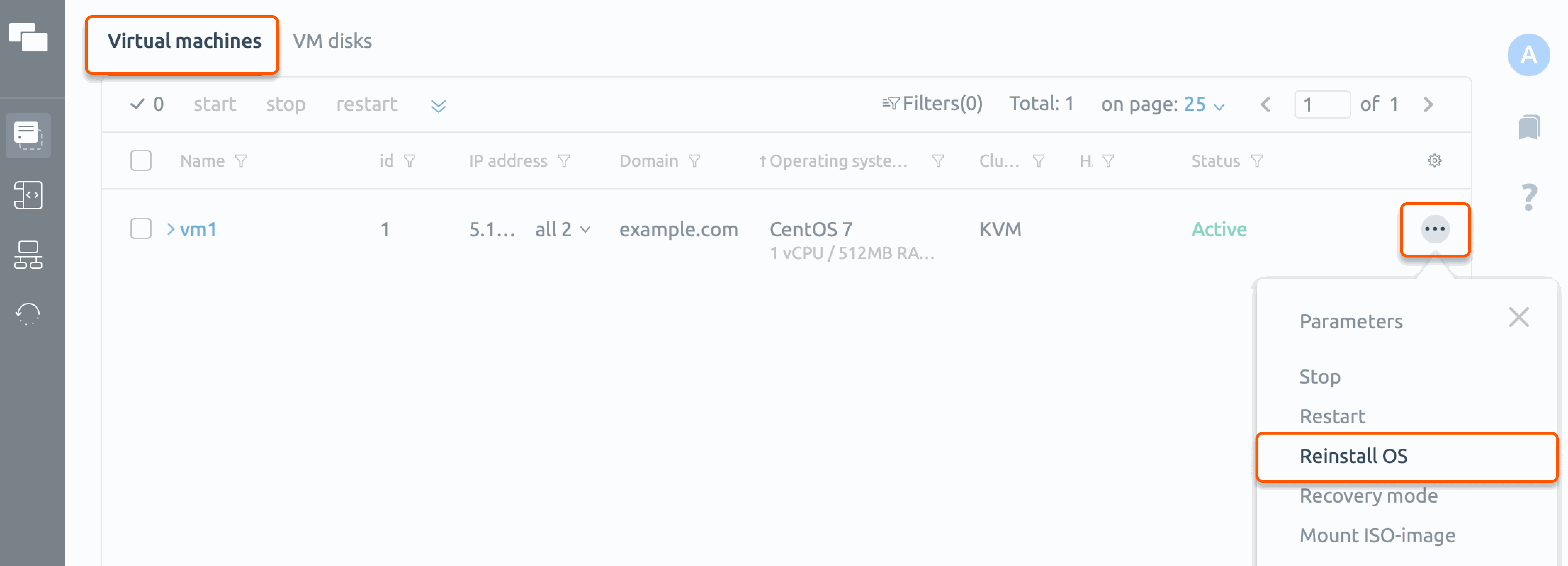
In VMmanager, open the three-dot menu next to the server and select **Reinstall OS**.
 Choose a distribution from the available templates and select the version from the dropdown.
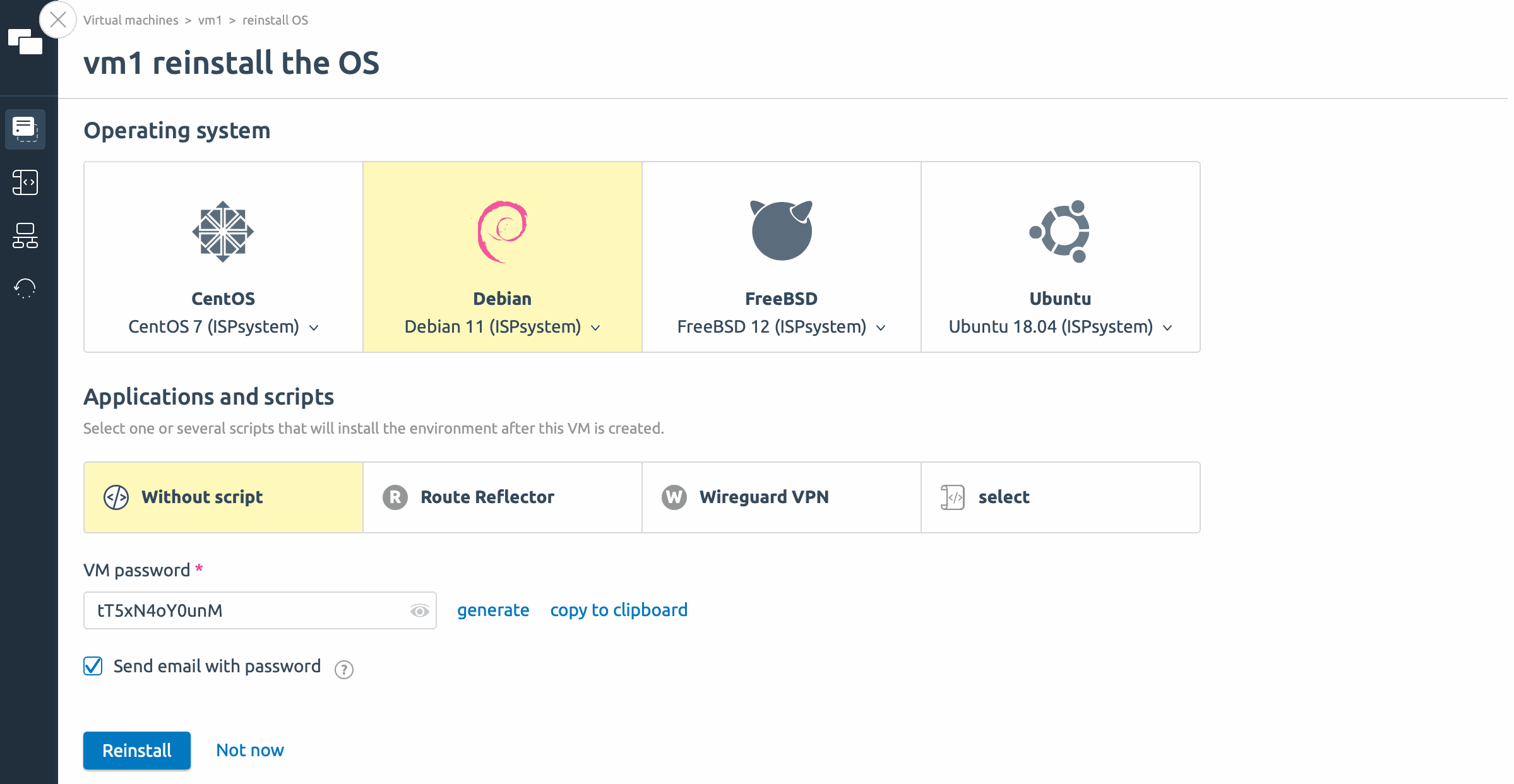 In **Applications and scripts**, select a script to run after OS installation. Scripts automate post-installation setup. Select **Without script** to skip this step.
Enter a new server password or click **Generate** to create one automatically.
The previous password becomes invalid after reinstallation. To keep the current password, enter it in the password field before clicking **Reinstall**.
Click **Reinstall**. The reinstallation may take several minutes. When the server status returns to **Active**, the new operating system is ready.
In **Applications and scripts**, select a script to run after OS installation. Scripts automate post-installation setup. Select **Without script** to skip this step.
Enter a new server password or click **Generate** to create one automatically.
The previous password becomes invalid after reinstallation. To keep the current password, enter it in the password field before clicking **Reinstall**.
Click **Reinstall**. The reinstallation may take several minutes. When the server status returns to **Active**, the new operating system is ready.