> ## Documentation Index
> Fetch the complete documentation index at: https://docs.gcore.com/llms.txt
> Use this file to discover all available pages before exploring further.
# Install an OS from an ISO image in VMmanager 6
[VMmanager 6](/hosting/virtual-servers/manage/main-features-and-functions-of-vmmanager-6) supports installing an operating system from a custom ISO image. Provide a public HTTP, HTTPS, or FTP URL to an ISO file (up to 8 GB). Only one ISO image can be mounted to a server at a time.
During ISO installation, the following operations are unavailable: root password editing, creating ISO images, and running automation scripts while the ISO is loading.
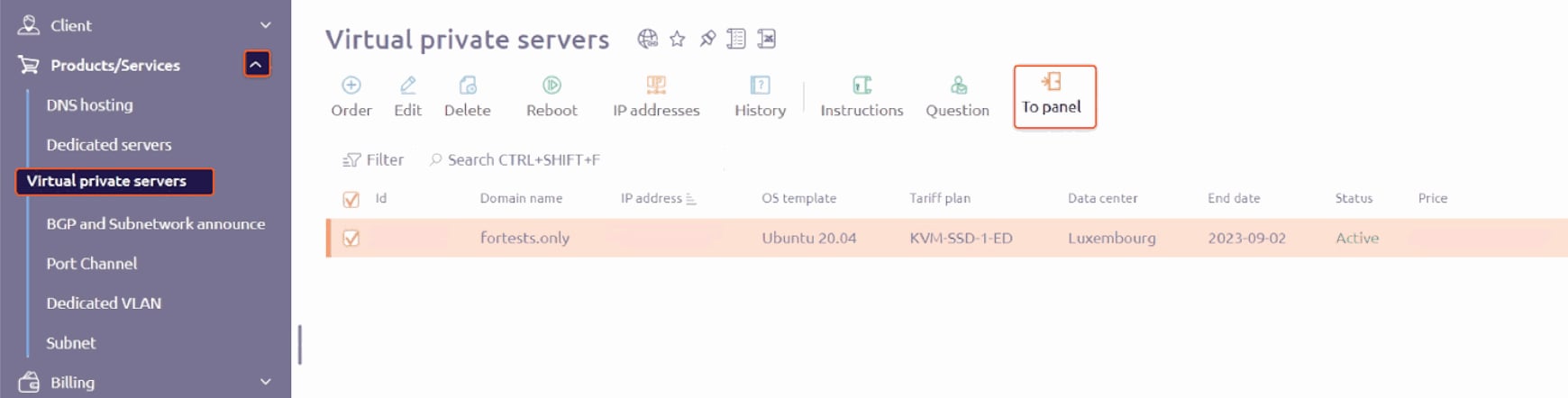
Log in to the [Hosting portal](https://hosting.gcore.com/billmgr), navigate to **Products/Services** → **Virtual private servers**, select the checkbox next to the server, and click **To panel**.
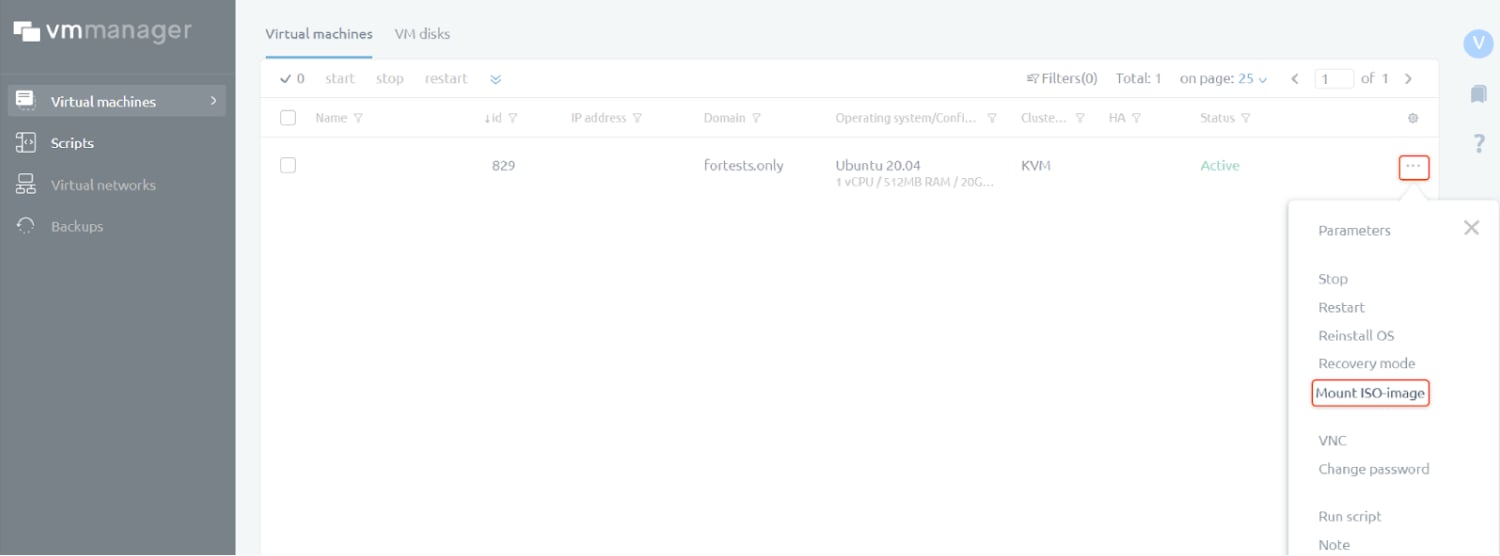
 In VMmanager, open the three-dot menu next to the server and select **Mount ISO-image**.
 Enter the URL where the ISO image is hosted. Optionally, add **Tags** to trigger VMmanager automation scripts that have matching tag values.
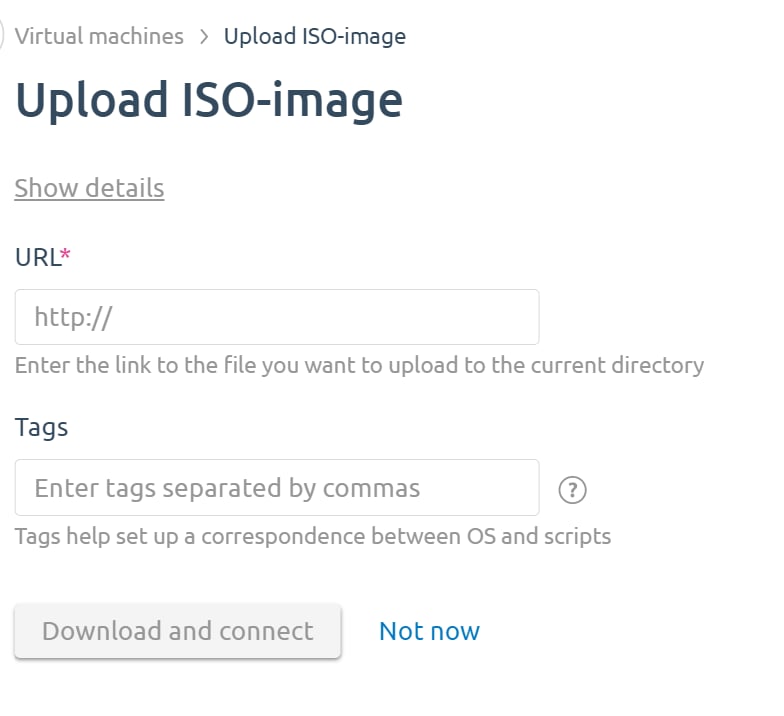 Click **Download and connect**. VMmanager downloads the ISO and restarts the server from it. Connect via [VNC](/hosting/virtual-servers/manage/connect/connect-to-a-virtual-server-via-vnc) and follow the installer prompts to complete the OS setup.
After the installation is complete, disconnect the ISO image to restore normal boot: open **Virtual disk** in the left sidebar, disconnect the mounted ISO image, and restart the server.
Click **Download and connect**. VMmanager downloads the ISO and restarts the server from it. Connect via [VNC](/hosting/virtual-servers/manage/connect/connect-to-a-virtual-server-via-vnc) and follow the installer prompts to complete the OS setup.
After the installation is complete, disconnect the ISO image to restore normal boot: open **Virtual disk** in the left sidebar, disconnect the mounted ISO image, and restart the server.