> ## Documentation Index
> Fetch the complete documentation index at: https://docs.gcore.com/llms.txt
> Use this file to discover all available pages before exploring further.
# Server suspended for non-payment
A virtual server is suspended when the account balance falls below the minimum required to cover the renewal. Billing continues to accrue during the suspension period.
## Signs of non-payment suspension
Two indicators appear when a server is suspended for non-payment:
* The server's **Service status** shows **Suspended** in the server list.
* On the dashboard, the **Minimum amount for service activation** value exceeds the current **Account balance**.
 ## Reactivate the server
There are two ways to reactivate a suspended server.
### Recharge the account balance
When funds are added to the account balance, the system automatically applies them to unpaid services and reactivates the server immediately.
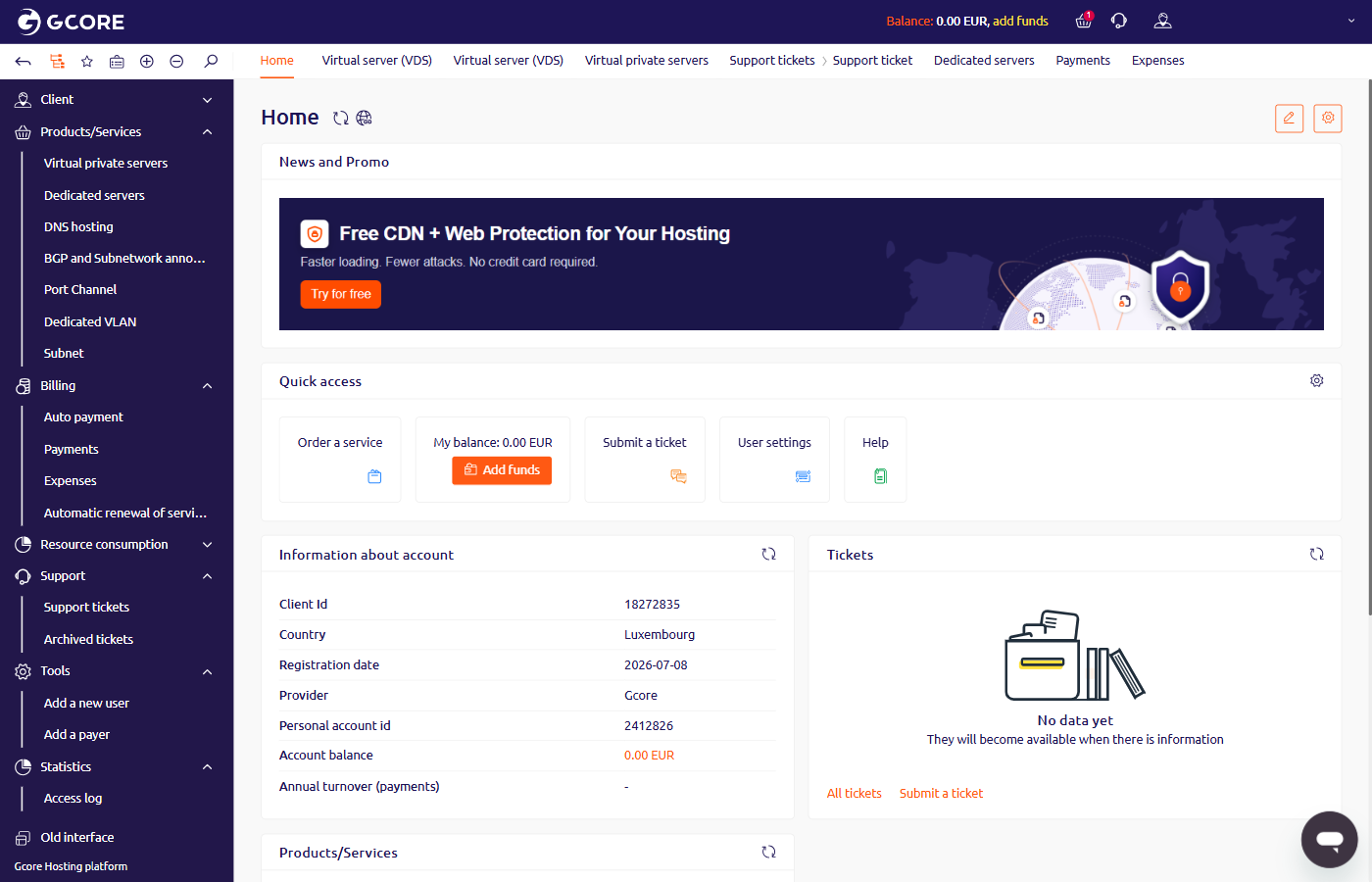
1. At the top of the page, click **Dashboard**. On the dashboard, click **Add funds** in the **Quick access** section.
## Reactivate the server
There are two ways to reactivate a suspended server.
### Recharge the account balance
When funds are added to the account balance, the system automatically applies them to unpaid services and reactivates the server immediately.
1. At the top of the page, click **Dashboard**. On the dashboard, click **Add funds** in the **Quick access** section.
 2. Select a [payment method](/hosting/payments/pay-for-gcore-services-payment-methods) and complete the payment.
### Reactivate through auto payment
When [auto payment](/hosting/payments/set-up-auto-payment) is enabled, the system first deducts from the account balance and — if the balance is empty — charges the linked card. If both are empty, services are suspended. The system retries the charge 10, 5, 4, 3, 2, 1, and 0 days before the services expire.
Add funds to the linked card — the next automatic retry will charge the card, credit the account balance, and reactivate the server.
## Payment timing
Crediting times depend on the payment method.
* **Card charge:** funds are credited to the balance within 15 minutes.
* **Bank transfer:** funds are credited within five business days.
The server is reactivated as soon as the payment covers the outstanding balance.
## Verify the payment
Track the payment status in the **Billing** section depending on the method used.
### Manual balance recharge
Track the payment in **Billing** > **Payments**. When a payment is initiated, the system creates a record with **New** status. Once the funds reach the account, the status changes to **Paid**.
2. Select a [payment method](/hosting/payments/pay-for-gcore-services-payment-methods) and complete the payment.
### Reactivate through auto payment
When [auto payment](/hosting/payments/set-up-auto-payment) is enabled, the system first deducts from the account balance and — if the balance is empty — charges the linked card. If both are empty, services are suspended. The system retries the charge 10, 5, 4, 3, 2, 1, and 0 days before the services expire.
Add funds to the linked card — the next automatic retry will charge the card, credit the account balance, and reactivate the server.
## Payment timing
Crediting times depend on the payment method.
* **Card charge:** funds are credited to the balance within 15 minutes.
* **Bank transfer:** funds are credited within five business days.
The server is reactivated as soon as the payment covers the outstanding balance.
## Verify the payment
Track the payment status in the **Billing** section depending on the method used.
### Manual balance recharge
Track the payment in **Billing** > **Payments**. When a payment is initiated, the system creates a record with **New** status. Once the funds reach the account, the status changes to **Paid**.
 ### Auto payment charge
Track the charge in **Billing** > **Expenses**. Each charge attempt creates a row. When the charge succeeds, the **Not paid** column shows zero and the **Payments** column shows the corresponding payment number.
### Auto payment charge
Track the charge in **Billing** > **Expenses**. Each charge attempt creates a row. When the charge succeeds, the **Not paid** column shows zero and the **Payments** column shows the corresponding payment number.
 If the funds do not appear on the balance within 15 minutes, contact [support](/hosting/contact-our-technical-support).
## Server deletion after non-payment
A suspended server that remains unpaid transitions to **Stopped** status after the suspension period. If the server remains in **Stopped** status for 14 days, it is automatically deleted and all data is permanently erased. KVM-SSD-1 servers are deleted five days after non-payment.
To delete a server manually, the initial monthly billing period must have expired. Because payment covers the full first month, manual deletion is not available during that period. After the first month, billing switches to daily charges and the server can be deleted at any time.
If the funds do not appear on the balance within 15 minutes, contact [support](/hosting/contact-our-technical-support).
## Server deletion after non-payment
A suspended server that remains unpaid transitions to **Stopped** status after the suspension period. If the server remains in **Stopped** status for 14 days, it is automatically deleted and all data is permanently erased. KVM-SSD-1 servers are deleted five days after non-payment.
To delete a server manually, the initial monthly billing period must have expired. Because payment covers the full first month, manual deletion is not available during that period. After the first month, billing switches to daily charges and the server can be deleted at any time.