> ## Documentation Index
> Fetch the complete documentation index at: https://gcore.com/docs/llms.txt
> Use this file to discover all available pages before exploring further.
# Pause and rewind the live streams
## What is the DVR feature?
DVR (Digital Video Recorder) is a feature that allows your viewers to pause and rewind the broadcast.
DVR is based on caching technology. When you enable the feature, we cache the last 1 hour of your live stream by default. If your stream runs longer than 1 hour, viewers can rewind only within that most recent hour.
Example of how the DVR window works for a live stream that has already been running for more than 1 hour:
```text theme={null}
Start Now
|----- outside DVR window ----|<--- DVR: last 1 hour --->| Live edge
| older part of the stream | viewers can rewind here |
```
## Use the DVR feature
1\. Create a new live stream according to the [Create a live stream](/streaming/live-streaming/create-a-live-stream) guide or open an existing live stream.
Complete the remaining steps on the Live stream settings page.
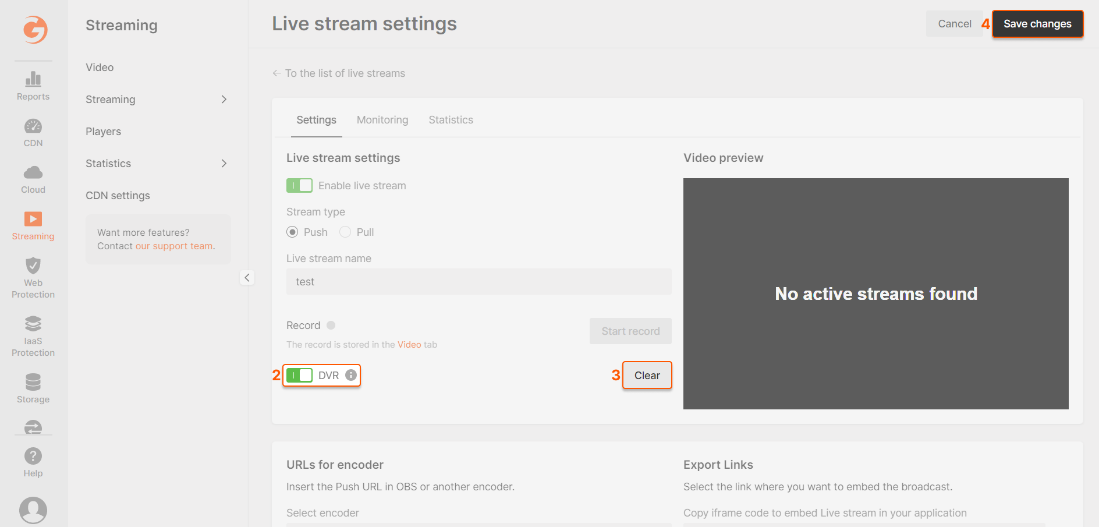 2\. Turn on the **DVR** toggle to activate the feature. After you start the broadcast with the DVR feature enabled, it takes about 10 minutes for the content to accumulate in the cache for rewinding. For the first 10 minutes, there won't be the ability to pause or rewind the broadcast.
3\. (optional) Opposite the toggle is the **Clear** button. It allows the DVR cache to be cleared. Press it every time you start a new broadcast in an existing live stream. Otherwise, your viewers may watch the end of the previous broadcast from the cache.
4\. Save changes, so that the scroll bar appears in the player for viewers and they can navigate your broadcast.
2\. Turn on the **DVR** toggle to activate the feature. After you start the broadcast with the DVR feature enabled, it takes about 10 minutes for the content to accumulate in the cache for rewinding. For the first 10 minutes, there won't be the ability to pause or rewind the broadcast.
3\. (optional) Opposite the toggle is the **Clear** button. It allows the DVR cache to be cleared. Press it every time you start a new broadcast in an existing live stream. Otherwise, your viewers may watch the end of the previous broadcast from the cache.
4\. Save changes, so that the scroll bar appears in the player for viewers and they can navigate your broadcast.
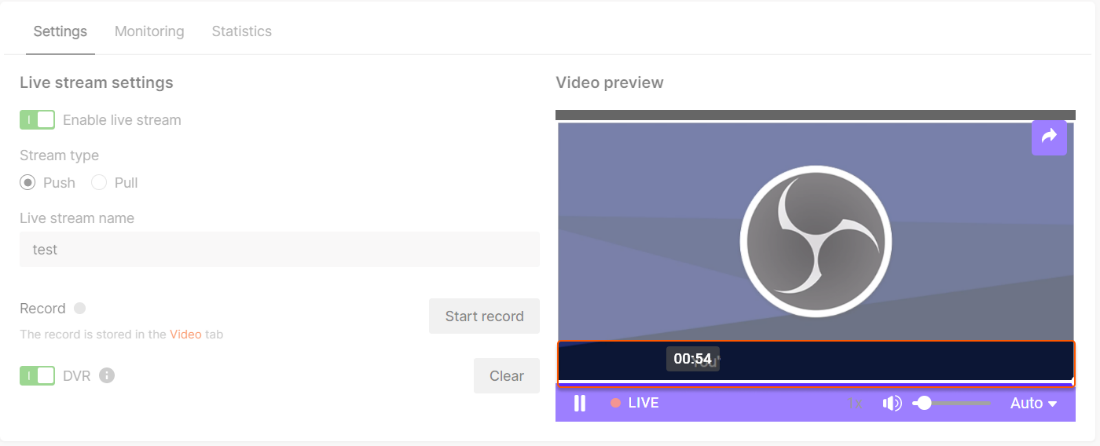 For Android smartphones, double-tapping the player screen in our player rewinds or skips forward by 10–15 seconds, depending on whether you press on the left or right, respectively.
## Change DVR window
By default, the DVR window is 1 hour. If your live stream runs longer than that, viewers can still rewind only within the most recent hour unless you increase the DVR duration.
The DVR window can be extended to up to 4 hours. To enable a longer DVR window for your account or stream, contact us.
After the longer DVR duration is enabled, video engineers can set the DVR window per stream through the API. This cannot be configured in the UI.
For more details, see the API documentation: [PATCH /streaming/streams/{id}](/api-reference/streaming/streams/change-live-stream#body-stream-dvr-duration)
For Enterprise customers, a DVR window of up to 24 hours is available as an optional configuration.
## DVR demo
See more demos on the demo page: [https://gcore.com/streaming-platform/features-demo/dvr](https://gcore.com/streaming-platform/features-demo/dvr)
For Android smartphones, double-tapping the player screen in our player rewinds or skips forward by 10–15 seconds, depending on whether you press on the left or right, respectively.
## Change DVR window
By default, the DVR window is 1 hour. If your live stream runs longer than that, viewers can still rewind only within the most recent hour unless you increase the DVR duration.
The DVR window can be extended to up to 4 hours. To enable a longer DVR window for your account or stream, contact us.
After the longer DVR duration is enabled, video engineers can set the DVR window per stream through the API. This cannot be configured in the UI.
For more details, see the API documentation: [PATCH /streaming/streams/{id}](/api-reference/streaming/streams/change-live-stream#body-stream-dvr-duration)
For Enterprise customers, a DVR window of up to 24 hours is available as an optional configuration.
## DVR demo
See more demos on the demo page: [https://gcore.com/streaming-platform/features-demo/dvr](https://gcore.com/streaming-platform/features-demo/dvr)