> ## Documentation Index
> Fetch the complete documentation index at: https://gcore.com/docs/llms.txt
> Use this file to discover all available pages before exploring further.
# Organize uploaded videos
There are two ways to organize videos in the Gcore Customer Portal:
* Use separate directories for videos
* Use tags—grouping keywords
Let's examine the difference between the two ways. Imagine you have 100 videos in the Streaming storage. They have been divided into two directories by date: 50 videos in the "10.31.2022" folder and another 50—in the "11.01.2022".
You need to group videos by other criteria: "teaser", "clip", and "short film" types. To do so, you don't need to create new directories and lose the date separation. You can add relevant tags to the appropriate videos. The tag list will appear in the Gcore Customer Portal, and you can filter videos by them. The videos will still be in two directories.
## How to use directories
### Create a directory and upload videos
1\. In the Gcore Customer Portal, navigate to **Streaming**.
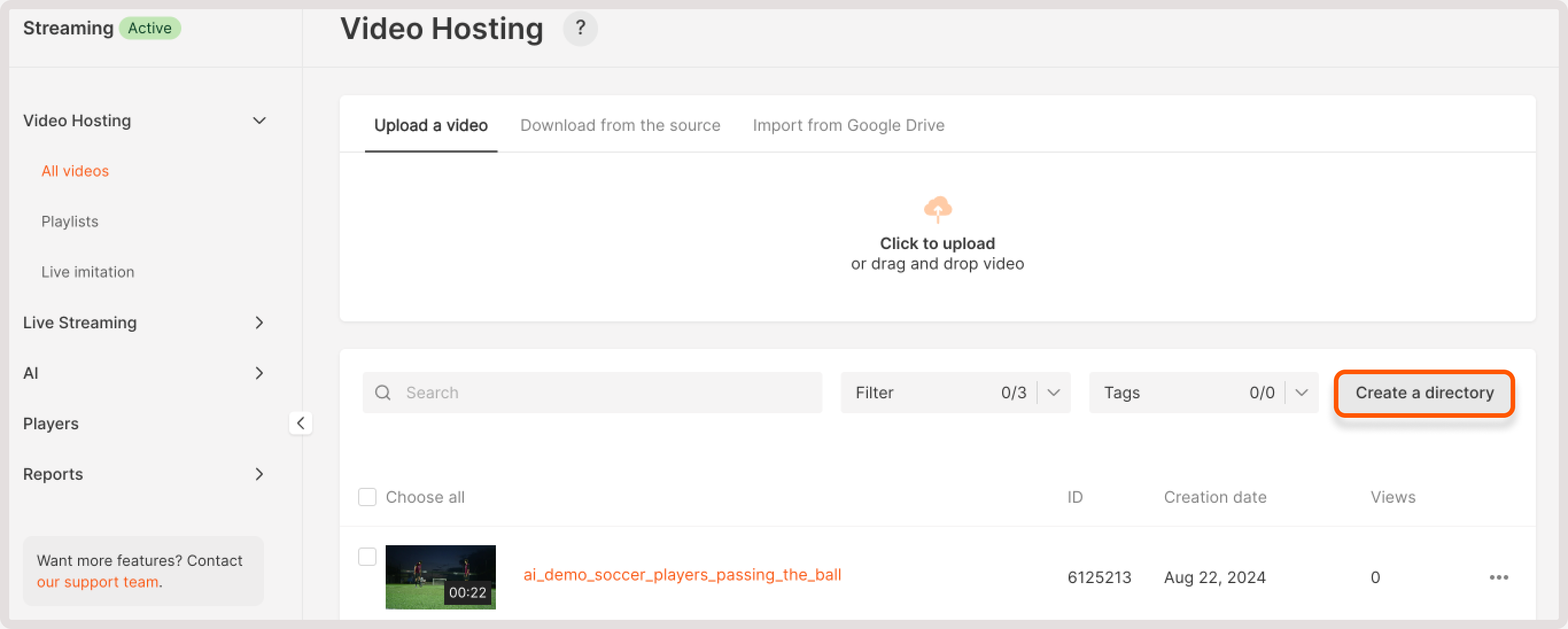
2\. On the **All videos** page, click **Create a directory**.
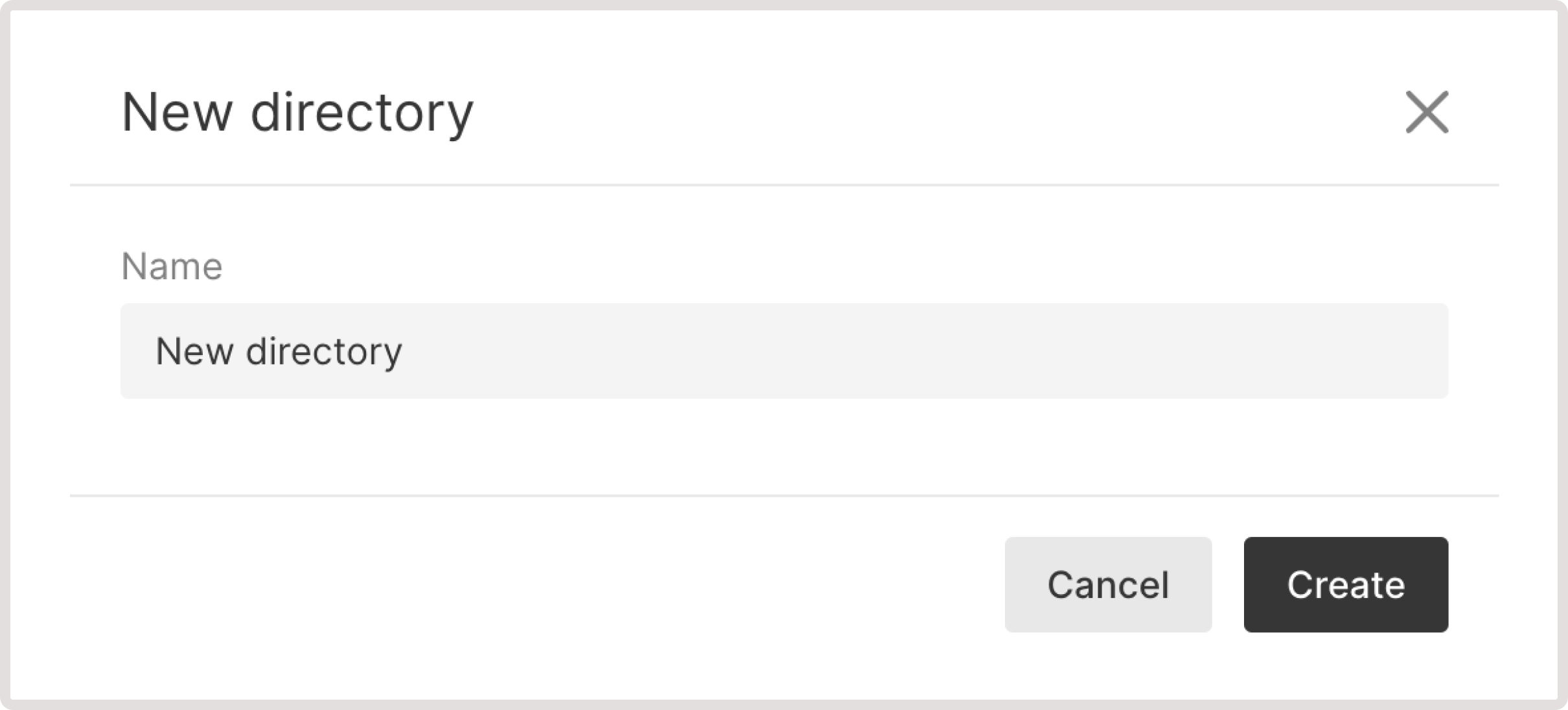
 2\. Enter a directory name and click **Create**.
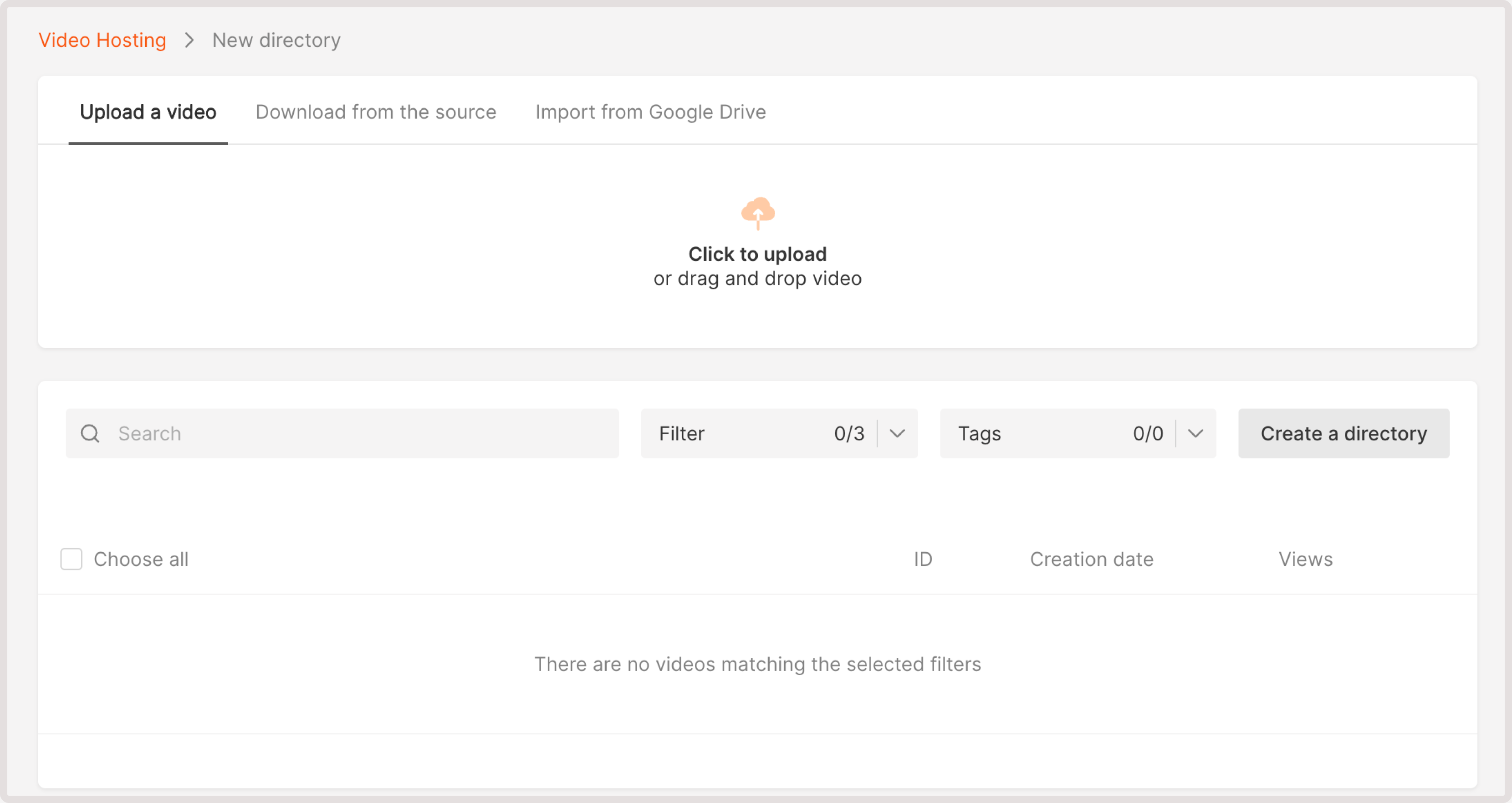
 3\. The created directory will open. To upload a video, use the **Click to upload** button and select one or more videos from your device.
 ### Move videos to a directory
1\. Open the **All videos** page and select checkboxes near the videos you want to move.
2\. Click **Move**.
### Move videos to a directory
1\. Open the **All videos** page and select checkboxes near the videos you want to move.
2\. Click **Move**.
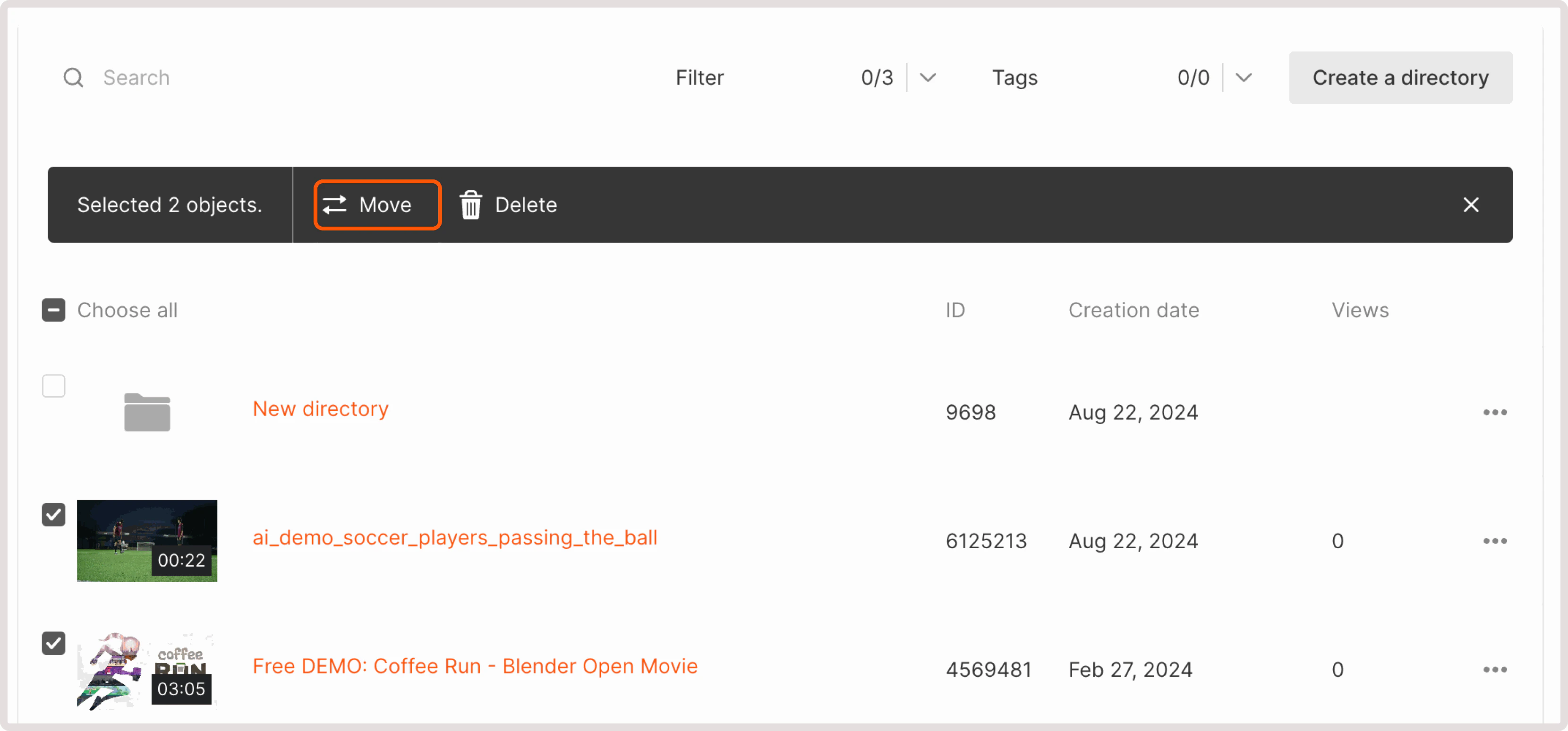 3\. Choose the target directory and confirm your action.
### Delete a directory
**Warning**
Videos from the directory will be permanently deleted, and you won't be able to restore them. If you want to delete only the directory, move the videos to another one prior to deleting it.
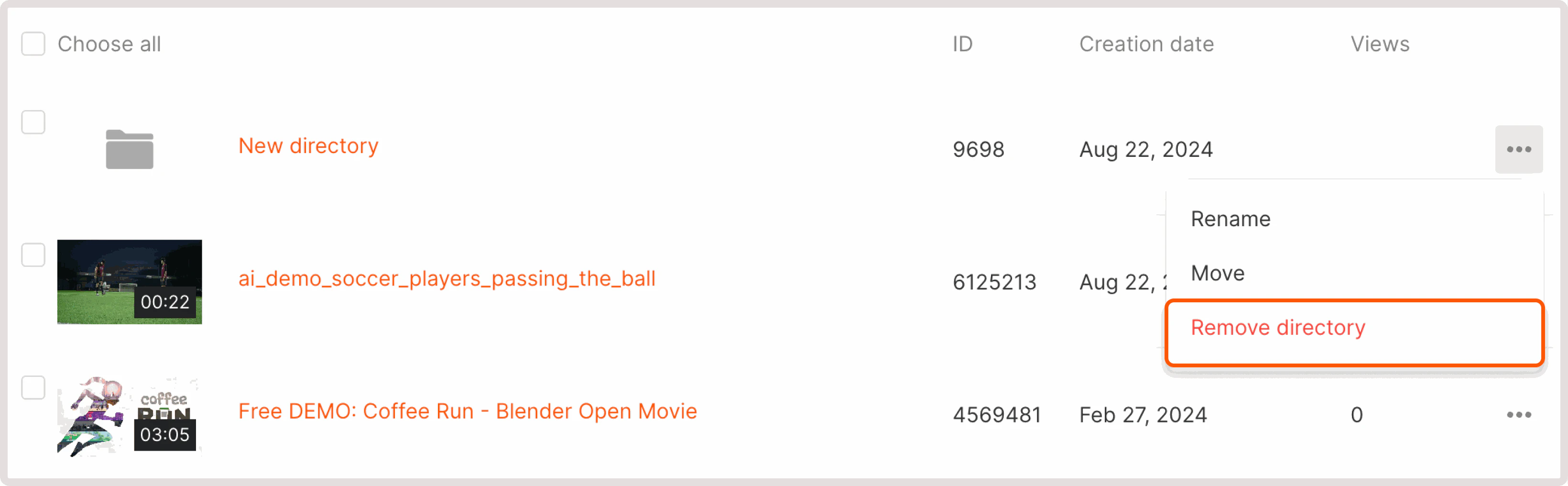
To delete a directory with videos, click the three-dot icon next to the relevant directory, select **Remove directory**, and confirm the action.
3\. Choose the target directory and confirm your action.
### Delete a directory
**Warning**
Videos from the directory will be permanently deleted, and you won't be able to restore them. If you want to delete only the directory, move the videos to another one prior to deleting it.
To delete a directory with videos, click the three-dot icon next to the relevant directory, select **Remove directory**, and confirm the action.
 ## How to use tags
### Add a tag to a video
1\. Go to the [Video](https://portal.gcore.com/streaming/video/list) tab and open the settings of the desired video.
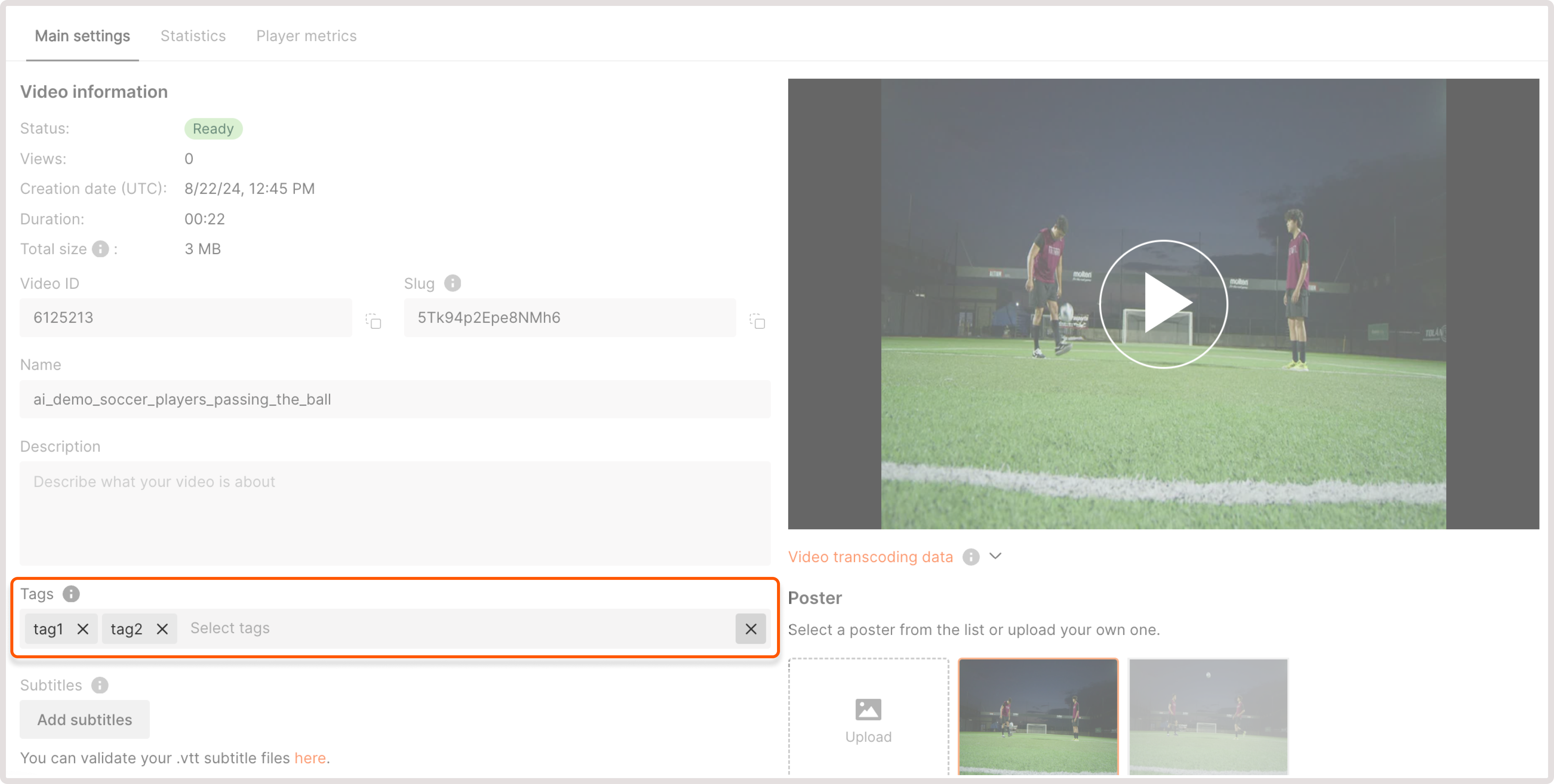
2\. To add a new tag, specify its name in the **Tags** field and click **Enter**. To add an existing tag, select it from the **Tags** dropdown.
You can add as many tags as you want.
3\. Save the changes.
## How to use tags
### Add a tag to a video
1\. Go to the [Video](https://portal.gcore.com/streaming/video/list) tab and open the settings of the desired video.
2\. To add a new tag, specify its name in the **Tags** field and click **Enter**. To add an existing tag, select it from the **Tags** dropdown.
You can add as many tags as you want.
3\. Save the changes.
 ### Filter videos by tags
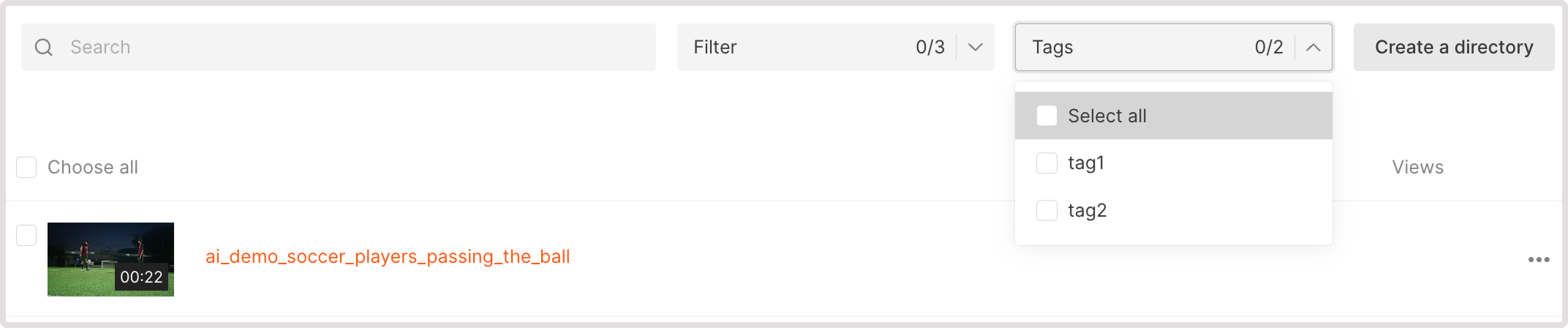
To view the list of created tags, open the **All videos** page and expand the **Tags** dropdown. To filter videos by tag, click on the tag's name.
### Filter videos by tags
To view the list of created tags, open the **All videos** page and expand the **Tags** dropdown. To filter videos by tag, click on the tag's name.