> ## Documentation Index
> Fetch the complete documentation index at: https://gcore.com/docs/llms.txt
> Use this file to discover all available pages before exploring further.
# Manually add endpoints to the API base path
If your domain uses APIs hosted on the same domain and you don't have enabled [API Discovery](/waap/api-discovery-and-protection/api-discovery), you can manually add endpoints to the API base path. This will define a communication path for WAAP to expect API requests and protect your endpoints.
**Info**
This setting doesn't add API endpoints to the allowlist.
When you enter a path, note that:
* Paths are recursively allowed. For example, `api/` allows `api/v1/*`, `api/v2/*`, etc.
* Regex/wildcard input is not accepted. Use `api/` instead of `api/*`.
* Don't enter the protocol or domain. Use `api/` instead of `https://example.foobar.com/api/`. The domain is automatically added.
* Paths are not case-sensitive. `API/` and `api/` are interchangeable.
* To add multiple APIs, you must create separate entries.
## Add endpoints to the base path
1. In the [Gcore Customer Portal](https://portal.gcore.com/accounts/reports/dashboard), navigate to **WAAP** > **Domains**.
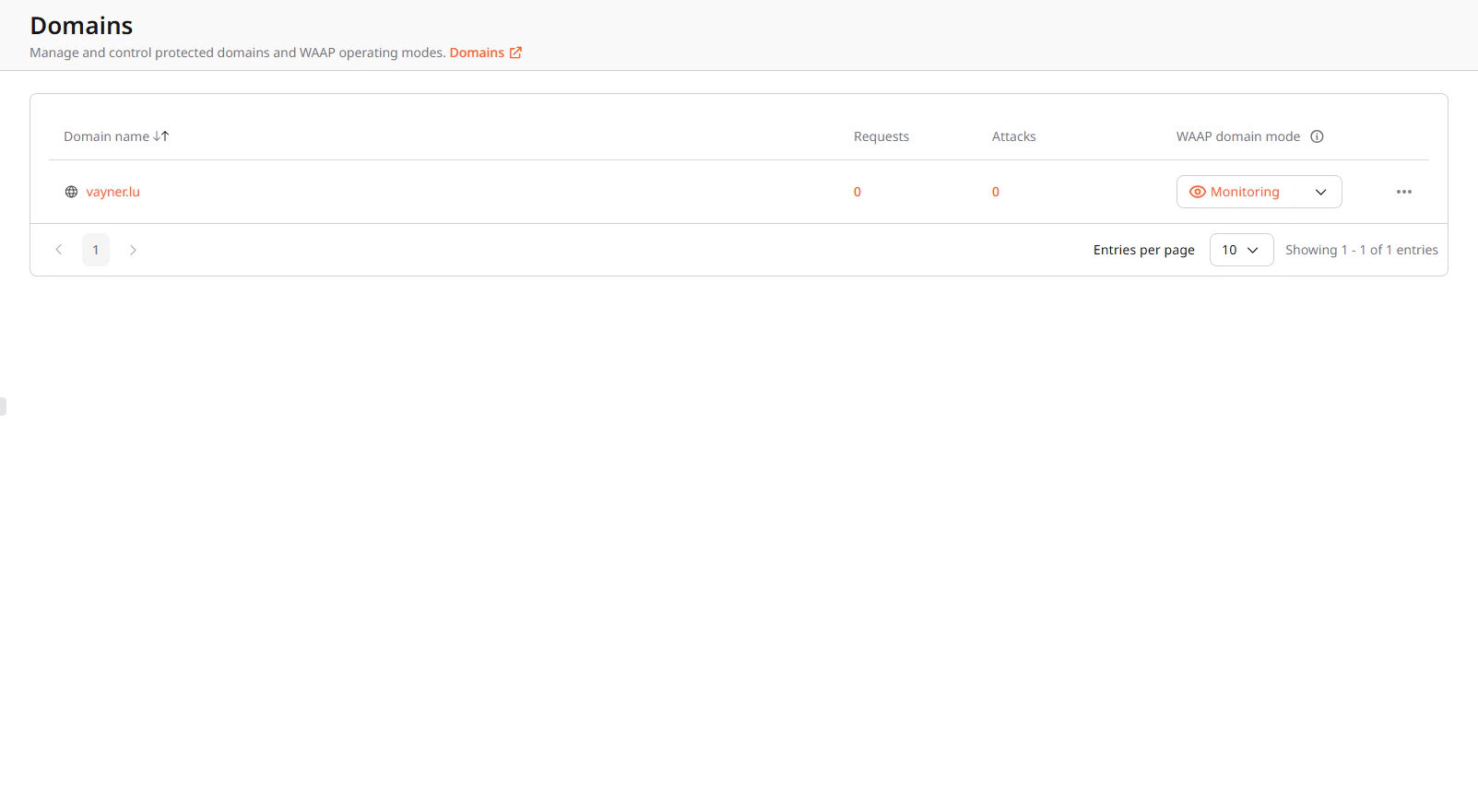 2. Choose a domain from the list and click its name to open it. You'll be directed to the **Overview** page.
3. In the sidebar, click **Settings**. On the page that opens, select the **API Base Path** tab.
2. Choose a domain from the list and click its name to open it. You'll be directed to the **Overview** page.
3. In the sidebar, click **Settings**. On the page that opens, select the **API Base Path** tab.
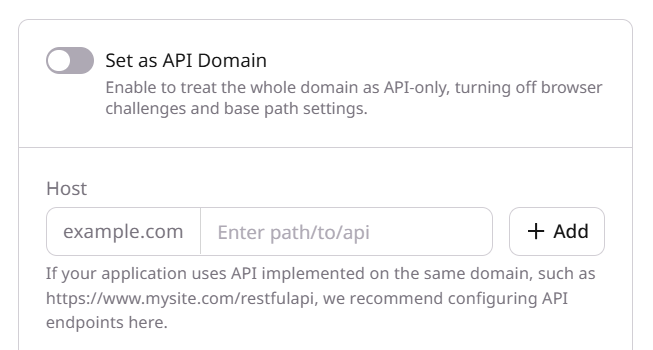 4. Either enable the **Set as API Domain** checkbox to treat the whole domain as an API or enter a specific API endpoint path into the **Host** input field.
5. Click the **Add** button, and the endpoint will appear in the **Endpoint** table below.
## To remove endpoints from the base path
1. Find the relevant endpoint and click the three-dot icon next to it.
2. Select **Delete**.
3. Confirm your action by clicking **Delete** again.
After you configure the API base path, CAPTCHA and JavaScript validation will be disabled for added endpoints.
The [DDoS protection](/waap/ddos-protection), [IP reputation](/waap/waap-policies/ip-reputation), and rate limitation features will continue to protect those endpoints. Custom [WAAP rules](/waap/waap-rules/custom-rules) and [firewall rules](/waap/firewall/access-control#managing-allowed-and-blocked-ips) can also impact content delivery via API and potentially block users.
4. Either enable the **Set as API Domain** checkbox to treat the whole domain as an API or enter a specific API endpoint path into the **Host** input field.
5. Click the **Add** button, and the endpoint will appear in the **Endpoint** table below.
## To remove endpoints from the base path
1. Find the relevant endpoint and click the three-dot icon next to it.
2. Select **Delete**.
3. Confirm your action by clicking **Delete** again.
After you configure the API base path, CAPTCHA and JavaScript validation will be disabled for added endpoints.
The [DDoS protection](/waap/ddos-protection), [IP reputation](/waap/waap-policies/ip-reputation), and rate limitation features will continue to protect those endpoints. Custom [WAAP rules](/waap/waap-rules/custom-rules) and [firewall rules](/waap/firewall/access-control#managing-allowed-and-blocked-ips) can also impact content delivery via API and potentially block users.