

Frequently asked questions
Protected IP assignment
Protected IP assignment
No. Gcore assigns a protected IP from the Anycast pool automatically.
Changing the origin server IP
Changing the origin server IP
No. The origin IP cannot be changed after creation. To use a different origin IP, delete the proxy and create a new one — a new protected IP will be assigned.
Editing proxy settings
Editing proxy settings
Yes, but partially. The proxy name and port mappings can be changed at any time from the Edit protection form. The origin IP cannot be changed.
Supported application types
Supported application types
Any TCP or UDP application can be protected. If the exact profile is not in the dropdown, select the closest matching engine or protocol (Unity, Unreal, or RakNet), or use generic TCP protection. An incorrect application type may cause legitimate traffic to be blocked during an attack.
Multiple proxies and applications
Multiple proxies and applications
Yes. Multiple proxies can use the same origin IP with different ports or protocols, and several proxies can share the same protected IP address.
Setup duration
Setup duration
Activation typically takes about 3 minutes after clicking Start protecting.
DNS migration
If clients connect using a domain name, update its A or AAAA record to point to the protected IP. Propagation depends on the DNS TTL and can take from a few minutes to 48 hours — lowering the TTL before the switch reduces downtime. Existing connections to the origin continue until clients reconnect. New connections automatically use the protected IP.Troubleshooting
Clients cannot connect
Clients cannot connect
Verify that:
- clients connect to the protected IP:PORT, not the origin address
- the origin server is running and listening on the configured port
- the proxy protocol matches the application (TCP or UDP)
- firewall rules allow Gcore edge IPs
- DNS resolves to the protected IP (check with
digornslookup)
High latency through the proxy
High latency through the proxy
Compare latency on a direct connection vs the protected IP to isolate the source. If the origin server is far from Gcore PoPs, round-trip time increases. An incorrect application type can also cause retransmissions that appear as latency.
Legitimate traffic blocked during an attack
Legitimate traffic blocked during an attack
The most common cause is an incorrect application type — the countermeasure profile is not tuned for the application and flags legitimate packets as malicious. Reconfigure the proxy with the correct application type. If the issue persists, contact support.
Proxy active but no traffic reaches the application
Proxy active but no traffic reaches the application
Confirm clients are connecting to the protected IP:PORT and not the origin address directly. Test from a network other than the origin server’s, as local routing may bypass the proxy.
Contact Gcore support
If the issue persists, reach Gcore support.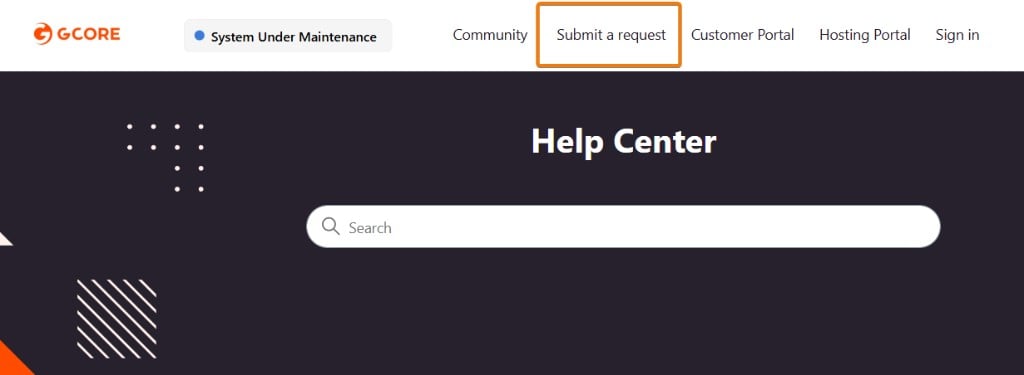
- Account ID
- Proxy name and protected IP
- Description of the issue
- Steps already taken
- Screenshots or logs, if available