Protected servers
Navigate to Security → Edge Proxy → Protected servers to view all configured servers. Each server card shows:Enable and disable protection
Use the toggle next to the server name to pause or resume protection without deleting the server.- Toggle on — starts activation. The card shows Processing (~3 min) while Gcore provisions the proxy. Once complete, status changes to Online and traffic routes through the proxy IP.
- Toggle off — protection pauses immediately. Status changes to Stopped. The proxy IP remains assigned but stops forwarding traffic.
Edit a server
Click Edit protection on the server card to open the Edit server panel.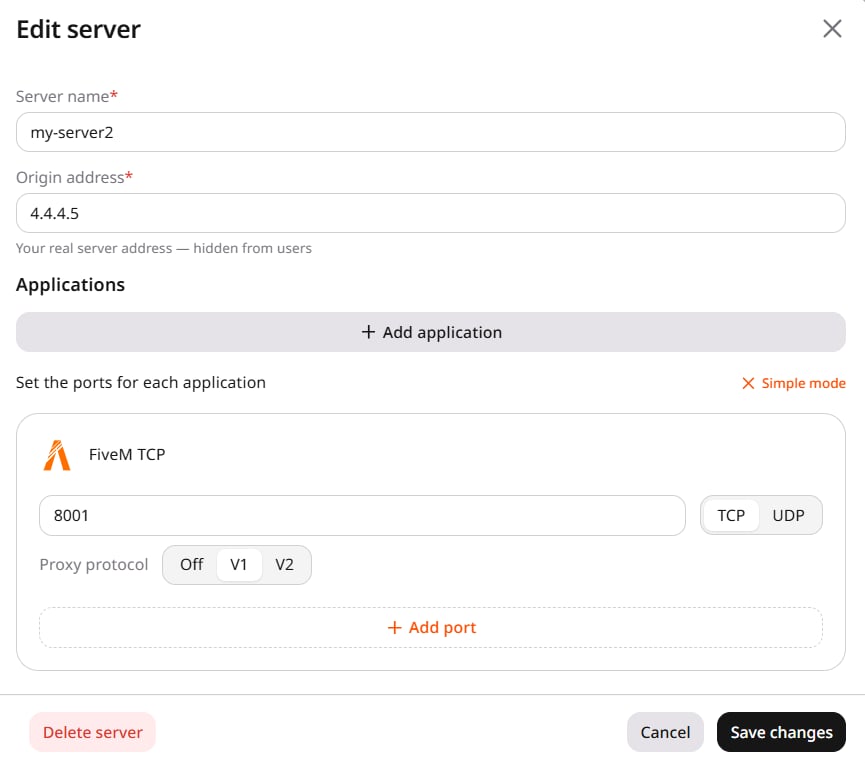
Click Advanced to set Proxy protocol on a port — V1 (TCP) or V2 (TCP and UDP), same control as in Setup and configuration. Leave the setting Off when the origin application does not support the selected version.
Click Save changes.
Delete a server
Click Delete server inside the edit panel. A confirmation dialog appears with the server name and the message “This will permanently remove [name] and all its application configurations.” Click Delete to confirm. Alternatively, click Delete protection on the server card in the Protected servers list and confirm in the same dialog. Deleting a server removes its configuration and all port mappings. The billing period is charged on the highest number of port mappings active at any time in that period — deleting mappings does not lower that number for the current period. Cancellation takes effect from the next billing period.Monitor traffic
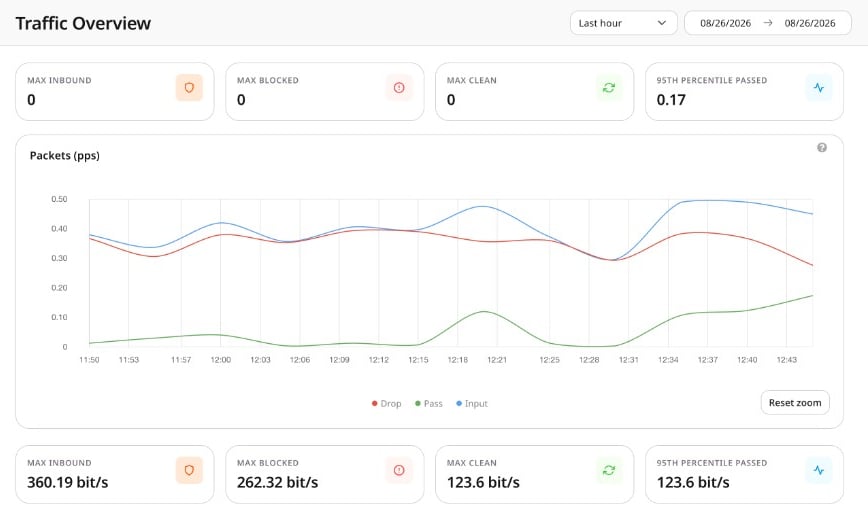
Traffic Overview (Security → Edge Proxy → Traffic Overview) displays aggregated traffic across all active servers.