

PV and PVC overview
A PV (PersistentVolume) in Managed Kubernetes is a resource used to store data. It is attached to pods but has a separate lifecycle, specified by its reclaim policy. This policy determines if a PV will continue to exist or will be deleted when a pod attached to it gets destroyed. A PV represents available storage in the cluster. Applications don’t use PVs directly — instead, they request storage by creating a PersistentVolumeClaim (PVC). Kubernetes forwards that request to a StorageClass, which provisions a matching PV automatically.Create a PVC
Before creating a PVC, create a storage class with the required disk type. Gcore provides the following disk types:- Verify that the required disk type is available in the target region. Navigate to Managed Kubernetes, select the region, and click Create Cluster. In the Pools section, open the Volume type dropdown to see the available options.
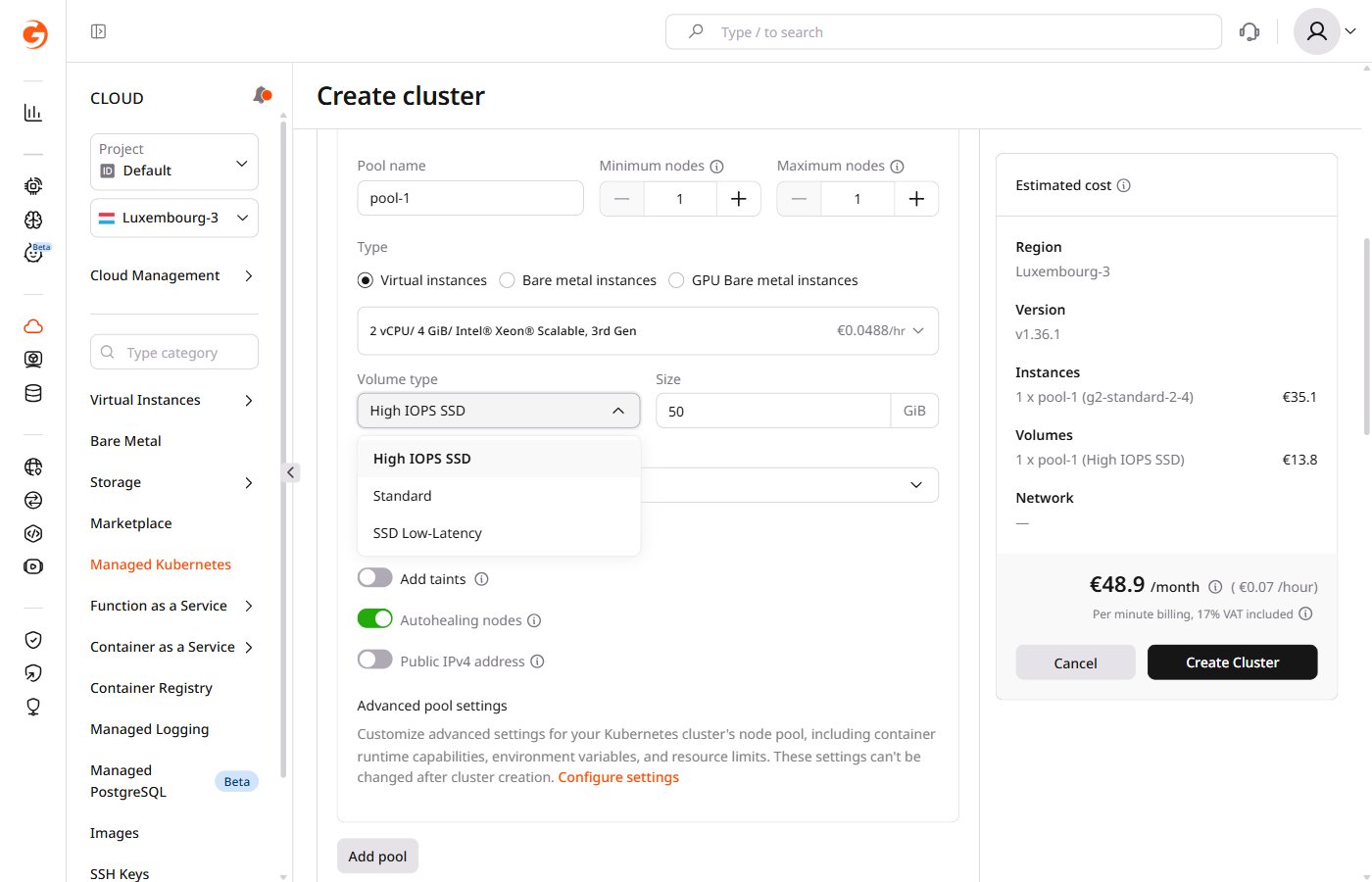
- Create a YAML file to create a storage class with the required disk type:
csi-sc-cinderplugin-hiiops: Storage class namessd_hiiops: Disk type (standard,ssd_hiiops, orssd_lowlatency)
- Run the kubectl command from the file directory:
- Create a YAML file to configure a PVC:
block-pvc: PVC namecsi-sc-cinderplugin-hiiops: Name of the created storage class1Gi: Storage size
- Run the kubectl command from the file directory:
Bind a PVC to a pod
- Reference the PVC from the pod manifest to mount the volume inside the container.
mypod: Pod namemyfrontend: Container name"/var/www/html": Mount path inside the containermypd: Volume nameblock-pvc: PVC name
- Run the kubectl command from the file directory:
Resize a PVC
To increase the size of a volume, update the PersistentVolumeClaim that was used to provision it. When a PVC is created, Managed Kubernetes provisions a dynamic PV that matches its specs — resizing the PVC triggers a corresponding resize of the underlying PV.Only increasing PVC storage size is supported. Reducing the size of a PV is not possible.
- Find the PVC by querying all PVCs with this command:
- In the PVC YAML, update the
storagefield underresources.requeststo the desired size (1Ti,250Gi, etc.).
- Run the following command to apply the updated PVC manifest to the cluster:
- Verify the resize was applied successfully: