

Site Manager setup
1
Open Site Manager
Click the Site Manager icon in the top-left corner of the toolbar:
2
Create a new site
In Site Manager, click New Site: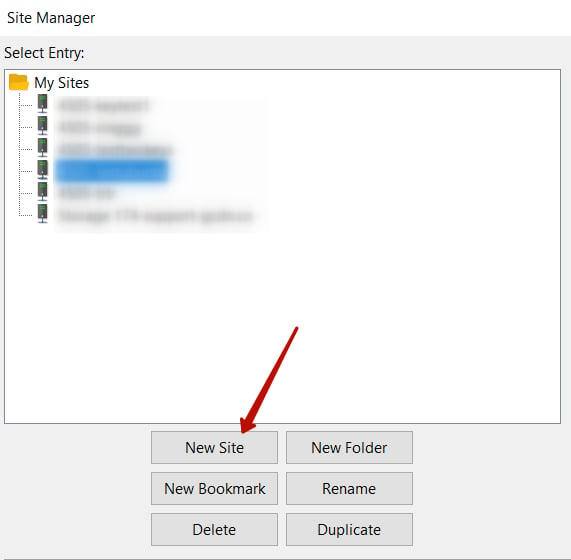
3
Name the site
Enter a name for the site, then open the General tab on the right.
Connection configuration
Both authentication methods use the same base configuration — only the Logon Type field and the Key file step differ:
Complete the General tab fields:
1
Set the protocol
In the Protocol field, select SFTP - SSH File Transfer Protocol.
2
Enter the hostname
In the Host field, enter the hostname from the Details panel in the Gcore Customer Portal. To open it: go to Object Storages, click … next to the storage name, then select Details.
3
Set the port
In the Port field, enter
2200.4
Set the logon type
Set Logon Type to Ask for password (password) or Key file (SSH key), as shown in the table above.
5
Enter the username
In the User field, enter the Object Storage\User name shown in the Details panel.
6
Specify the key file (SSH key only)
In the Key file field, specify the path to the private key file. An SSH key must be added to the storage beforehand.
7
Save and connect
Click OK to save, then click Connect to open the connection.