

- Navigate to the Gcore Customer Portal.
- Open the account menu.
- Select Profile.
- Under Account, select Audit log.
Read an entry
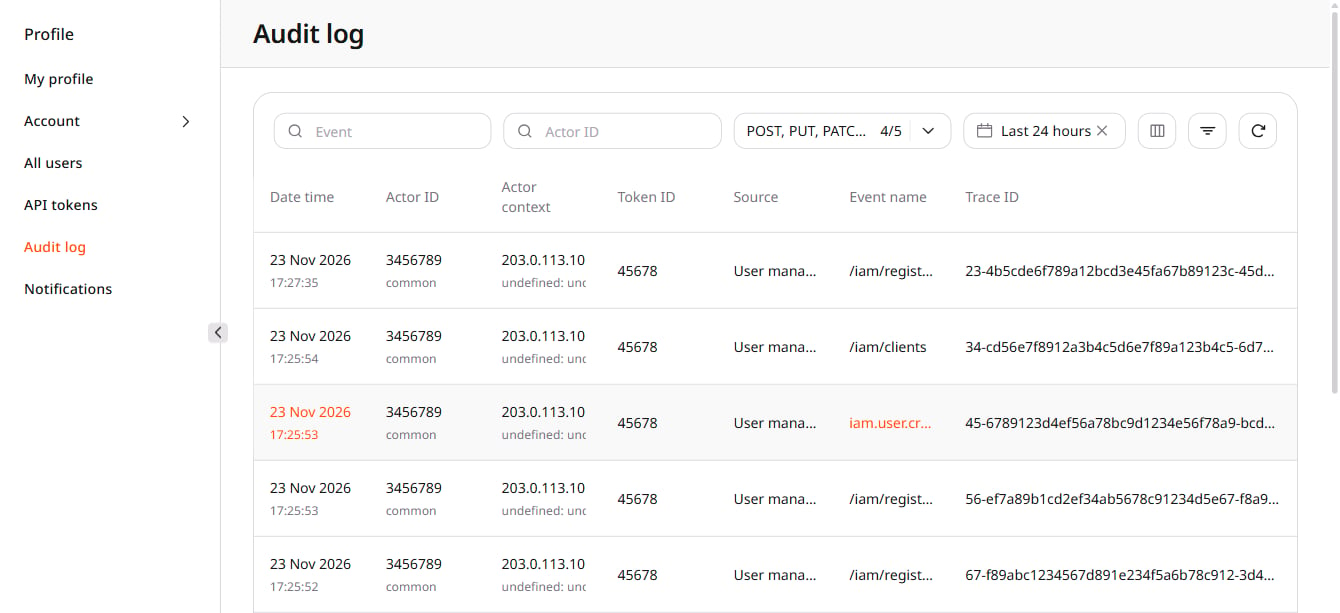
The newest events are listed first. Select a row to open its details. The details list the method and path, the actor, and the source, then the JSON recorded for that call. The JSON includes the response code and, when the call changed a resource, the state after the request. That shows what changed and which response the call returned.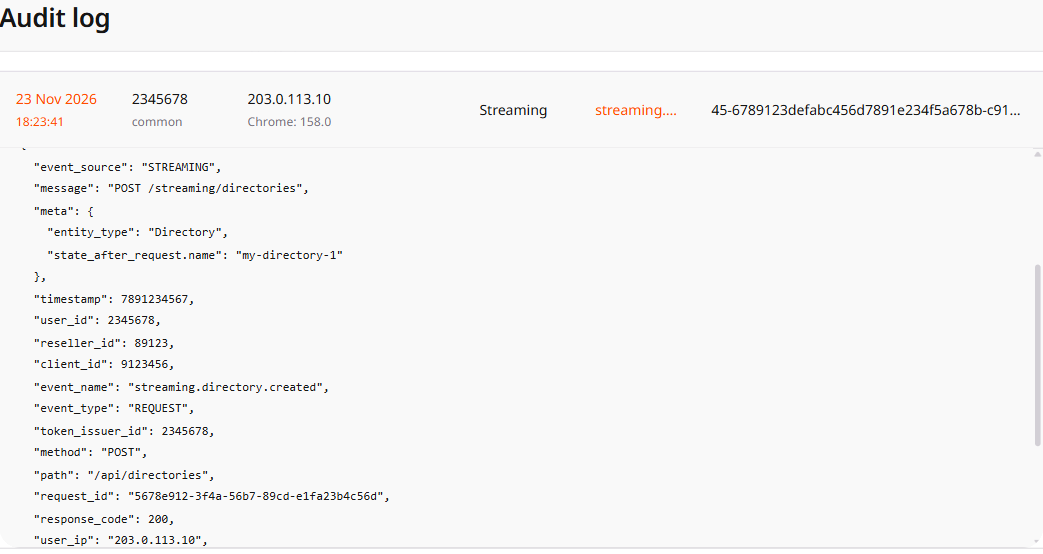
The column button shows or hides these columns. Drag a column edge to change its width. Entries per page can be 10, 20, 50, or 100. The page opens at 10.
Filter events
The table updates when a filter changes. If nothing matches, the page says No events match your filters. These filters are on the page when it opens:- Event matches an event name that contains the text.
- Actor ID matches the user ID.
- The method list contains GET, POST, PUT, PATCH, and DELETE. POST, PUT, PATCH, and DELETE are selected, so GET requests appear only after GET is selected.
- The date filter opens on Last 24 hours. The other choices are Last week, Last month, Last 3 months, and Custom range. Custom range is a start day and an end day.
- Source
- Trace ID, which matches the trace text, including a prefix of it
- Token ID, which matches the API token ID
- (Meta) Entity ID, (Meta) Entity type, and (Meta) Task ID, which match metadata stored on the event. Entity type includes Stream and Video.
- (Meta) Custom filters, which matches a metadata key and a value
- User management
- Notifications
- Access management
- Authentication
- Billing
- CDN
- Object Storage
- Streaming
- Cloud
- Colocation Services
- DDoS Protection
- Managed DNS
- FastEdge
- WAAP
- Everywhere Inference
user_login in the Event filter and select Authentication as the source.
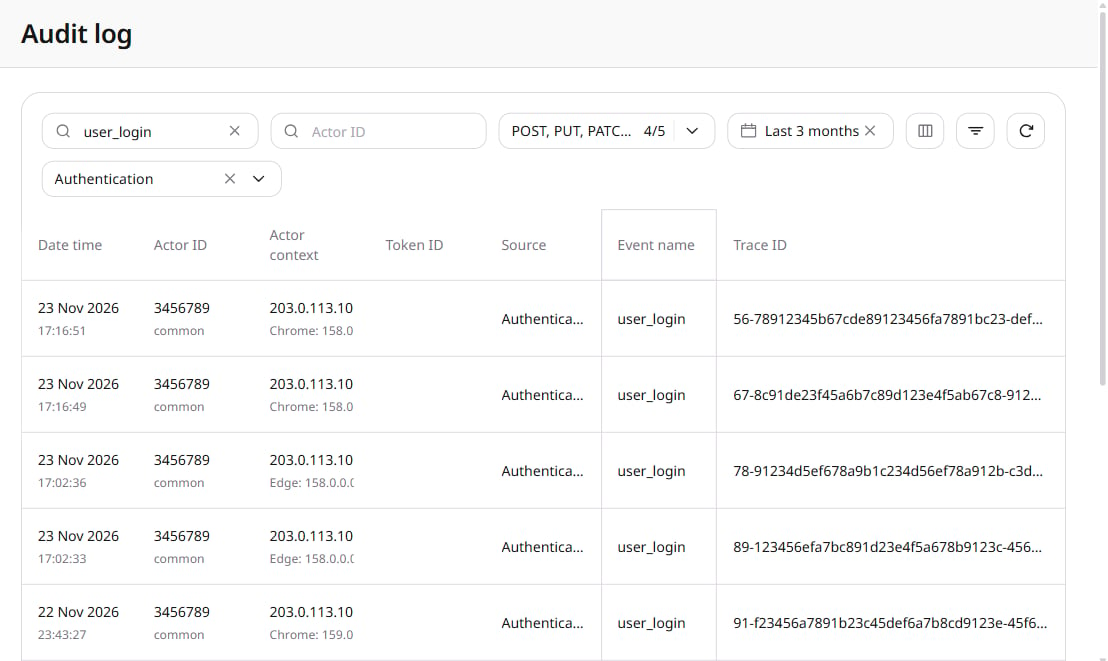
iam.user.create, iam.auth.password.reset, iam.auth.password.recover, iam.auth.invitation.resend, and /iam/register. Streaming records streaming.live.stream.created and streaming.live.stream.deleted.