

1
Open the server list
Navigate to Products/Services → Virtual private servers.
2
Select the server
Select the checkbox next to the server.
3
Open VMmanager 6
Click To panel in the toolbar.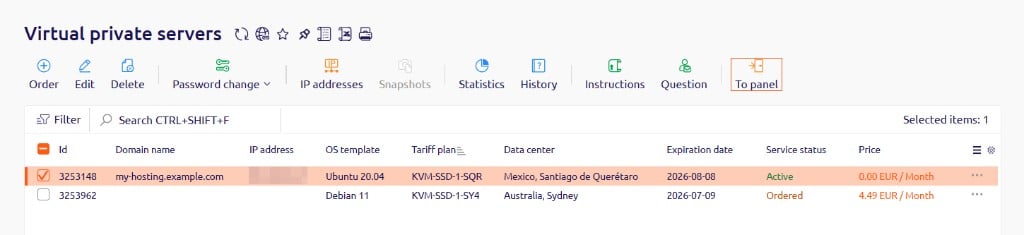
Panel interface
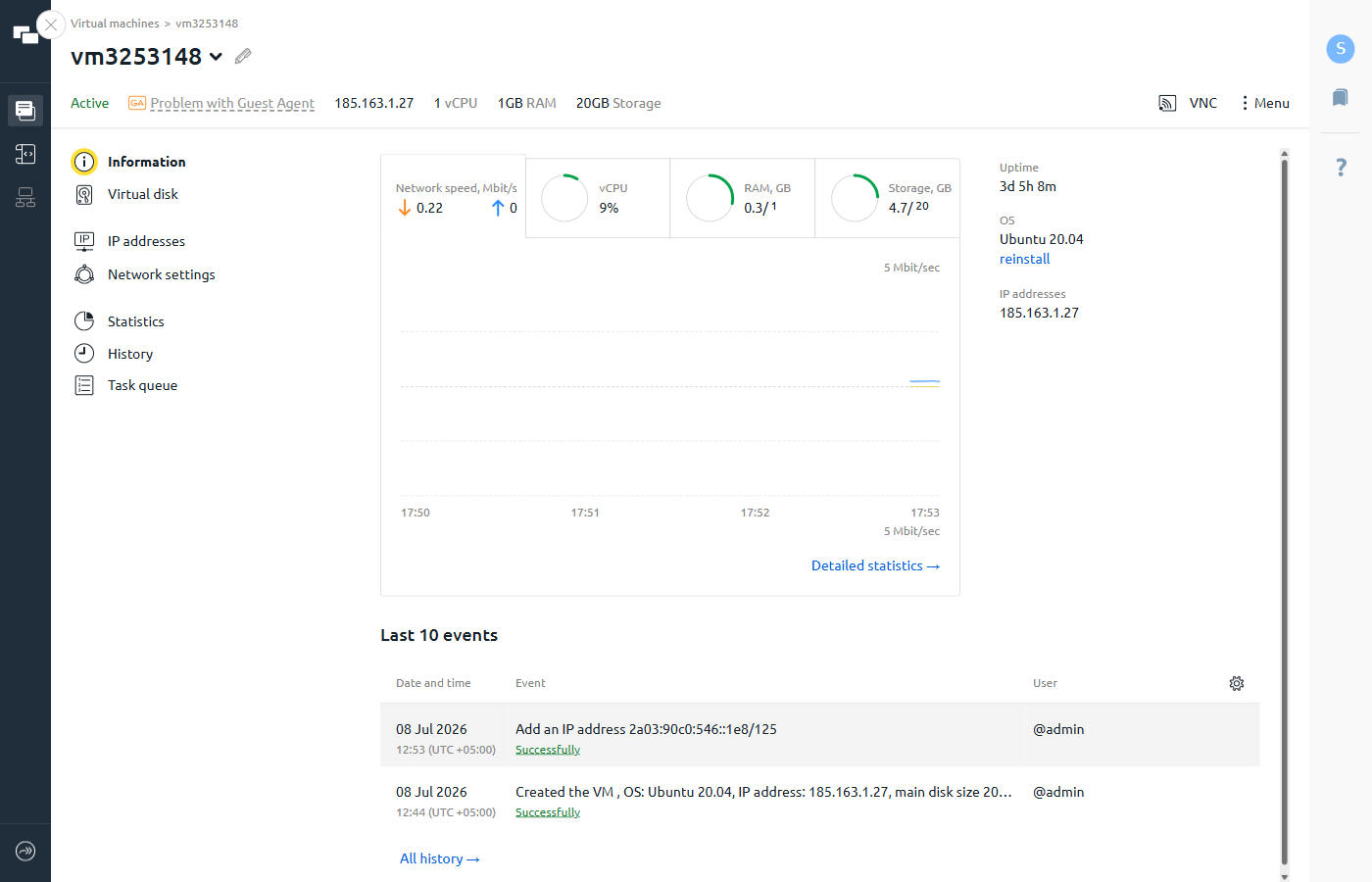
The panel opens on the Information page for the selected server. The left sidebar provides access to all server management sections:
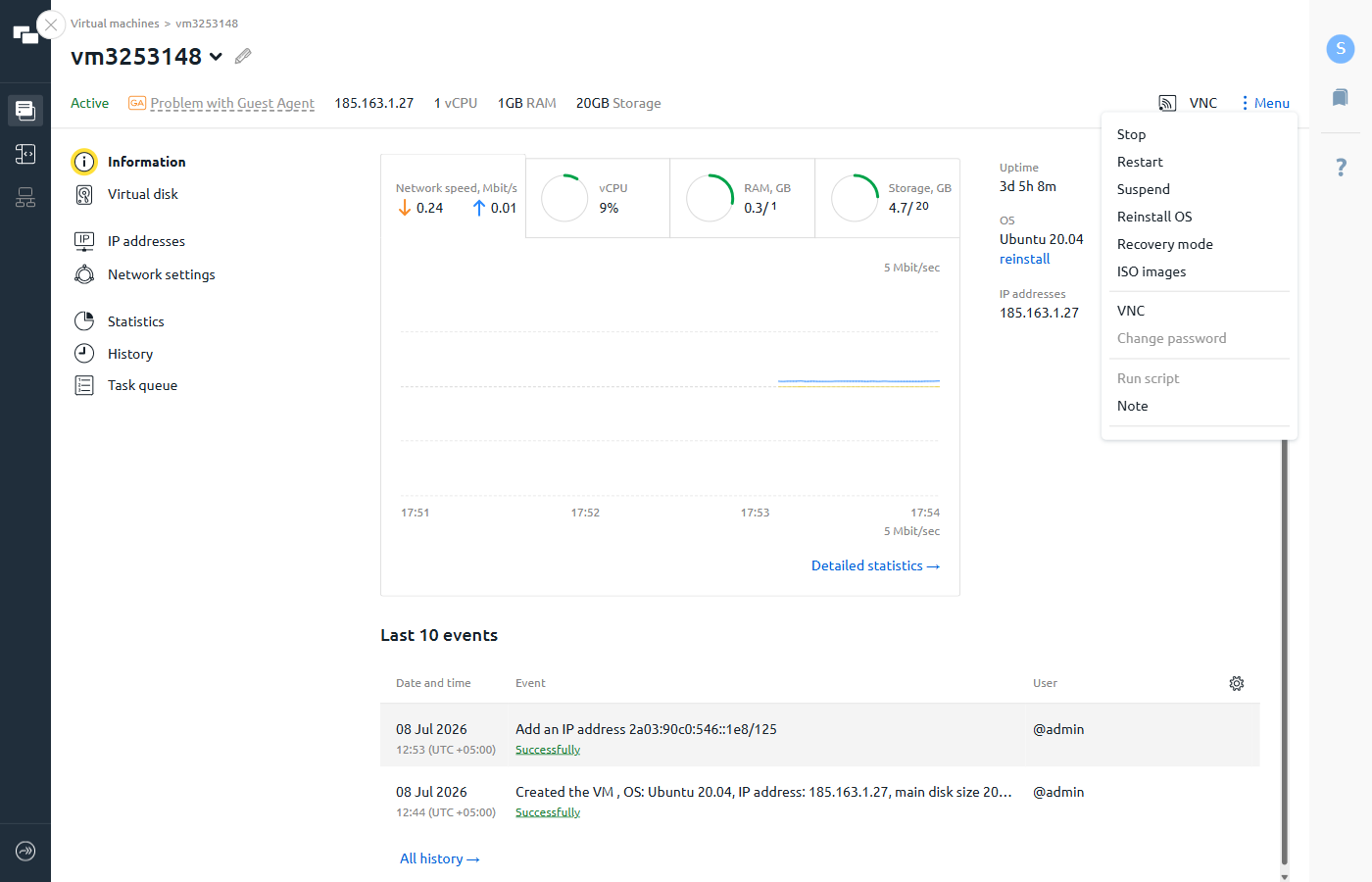
The VNC and Menu buttons remain available regardless of the selected section. Menu provides access to server management actions, while the global sidebar on the far left switches between the Virtual machines list and the Scripts library.
Available actions
All server management actions are available from the Menu button in the header.Stopping a server does not shut it down permanently — billing requires the server to stay active, so it restarts automatically.
VMmanager specifics
- Panel password. The access password is sent once in the server activation email — after ordering the first server in a location. All subsequent servers in the same location share this password.
- Recovery mode. For maintenance and troubleshooting, the server can be booted into SystemRescueCD — a minimal rescue operating system. Select Recovery mode from Menu to enable it.
- Scripts. VMmanager 6 includes a library of pre-built scripts for common setup tasks (web servers, databases, control panels). Custom scripts can also be created. On Linux, scripts run as Bash; on Windows, as PowerShell.
- Private VNC. The VNC console is accessible only through VMmanager 6, not from external VNC clients.
- Automatic IP configuration. Additional IP addresses added to a server are configured automatically — no manual network configuration is required inside the OS.
- IPv6 subnet. When a server is created, an IPv6 subnet is allocated. An address from this subnet can be selected during server setup.