

Connection setup
1
Navigate to the server list
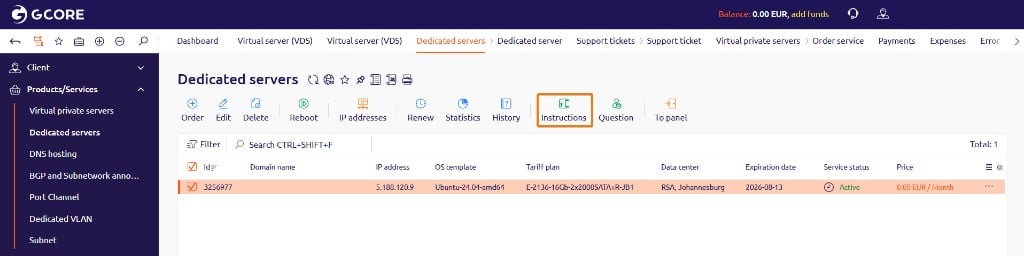
Log in to the Hosting portal. In the left sidebar, select Products/Services → Virtual private servers or Dedicated servers.
2
Select the server
Check the box next to the server row. The toolbar activates.
3
Retrieve credentials
In the toolbar, click Instructions. A page opens with the connection credentials.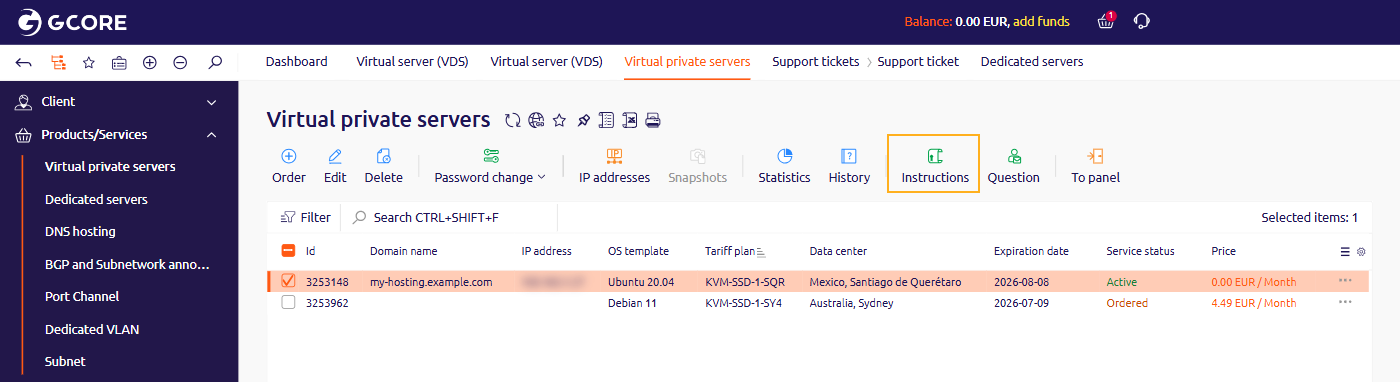
4
Open Remote Desktop Connection
- Windows: press Win + R, type
mstsc, and press Enter. - macOS: open Remote Desktop from the App Store.
5
Enter the server address
In the Computer field (Windows) or PC name field (macOS), enter the IP address from the Instructions page.
6
Authenticate and connect
Enter the username and password, then click Connect. If a certificate warning appears, click Yes to proceed. The remote desktop session opens.