The VNC console in VMmanager 6 provides browser-based access to a virtual server without installing a separate client.

Connection setup

1

Retrieve connection credentials

Log in to the Gcore Hosting Portal. In the left sidebar, select Products/ServicesVirtual private servers. Check the box next to the server, then click Instructions in the toolbar.
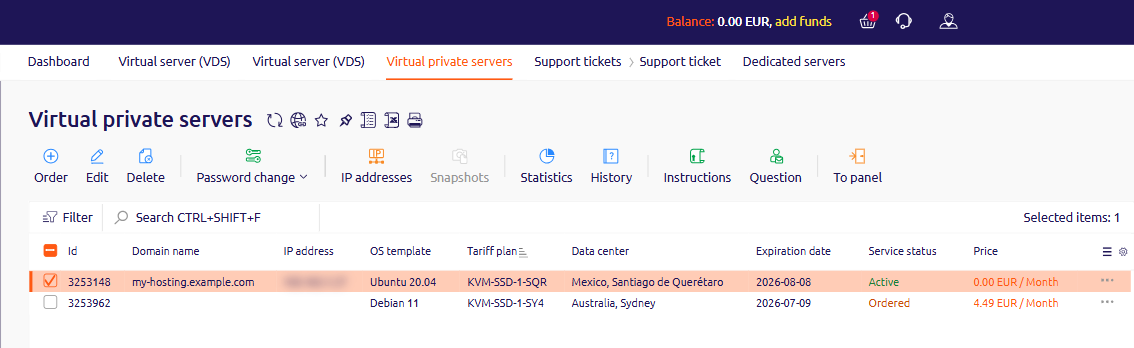
Virtual private servers list with a server selected and the Instructions button in the toolbar
A page opens listing the server IP address, Username, and Password. The same credentials are in the activation email sent after provisioning.
2

Open VMmanager

In the Virtual private servers list, check the box next to the server, then click To panel in the toolbar.
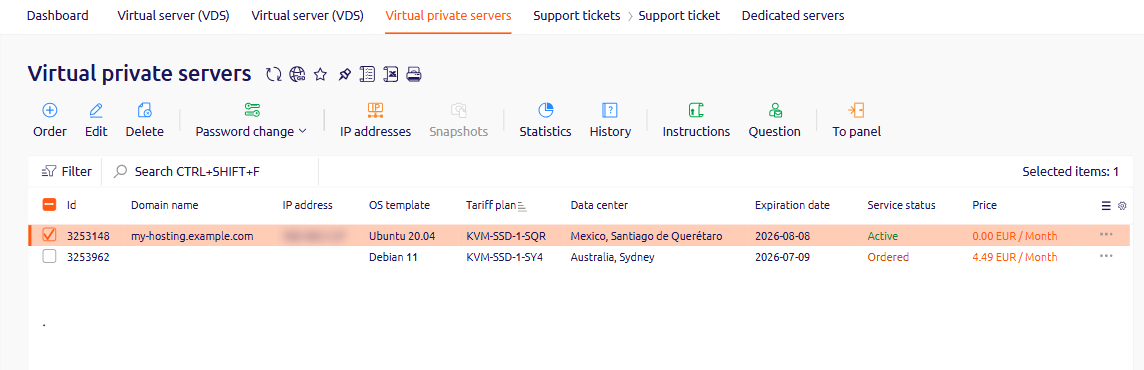
Virtual private servers list with a server selected and the To panel button in the toolbar
VMmanager 6 opens on the server’s information page.
3

Start the VNC session

Click VNC in the top right corner, or open Menu and select VNC.
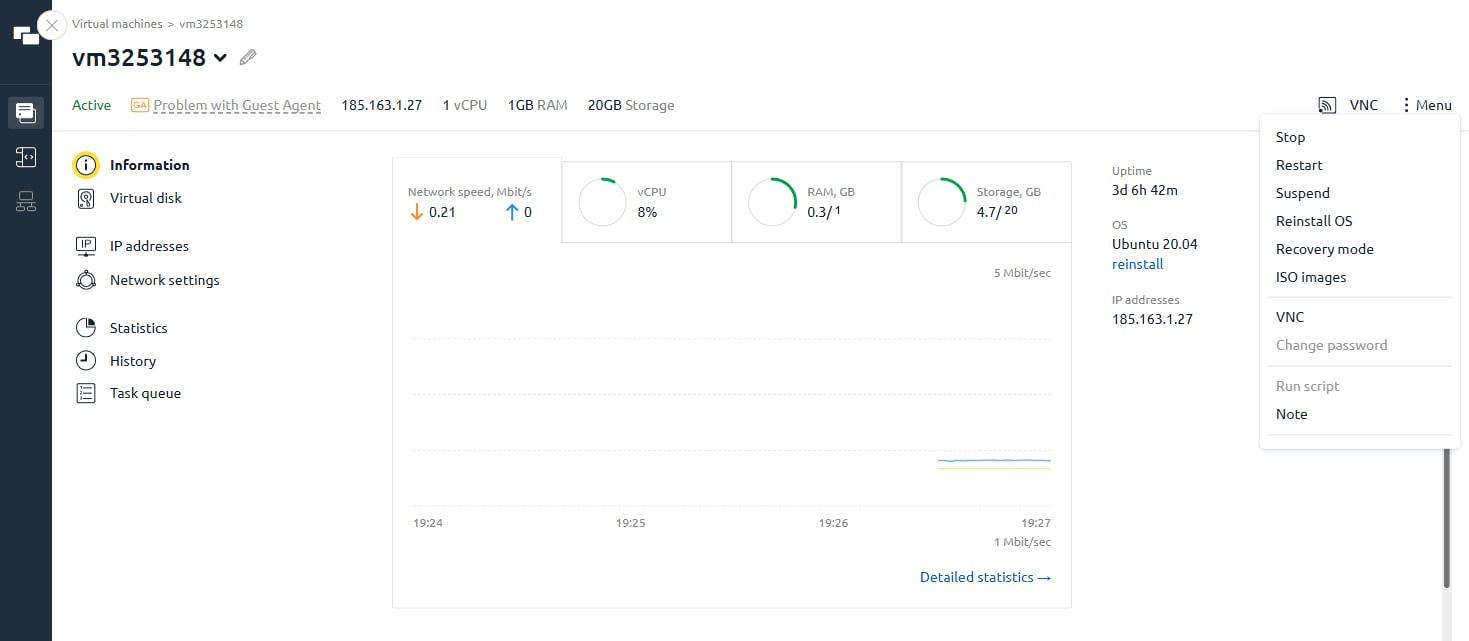
VMmanager server page with the Menu dropdown open and VNC option visible
The VNC console opens in the browser.
4

Authenticate

At the login prompt, enter the Username and Password from the Instructions page or the activation email.
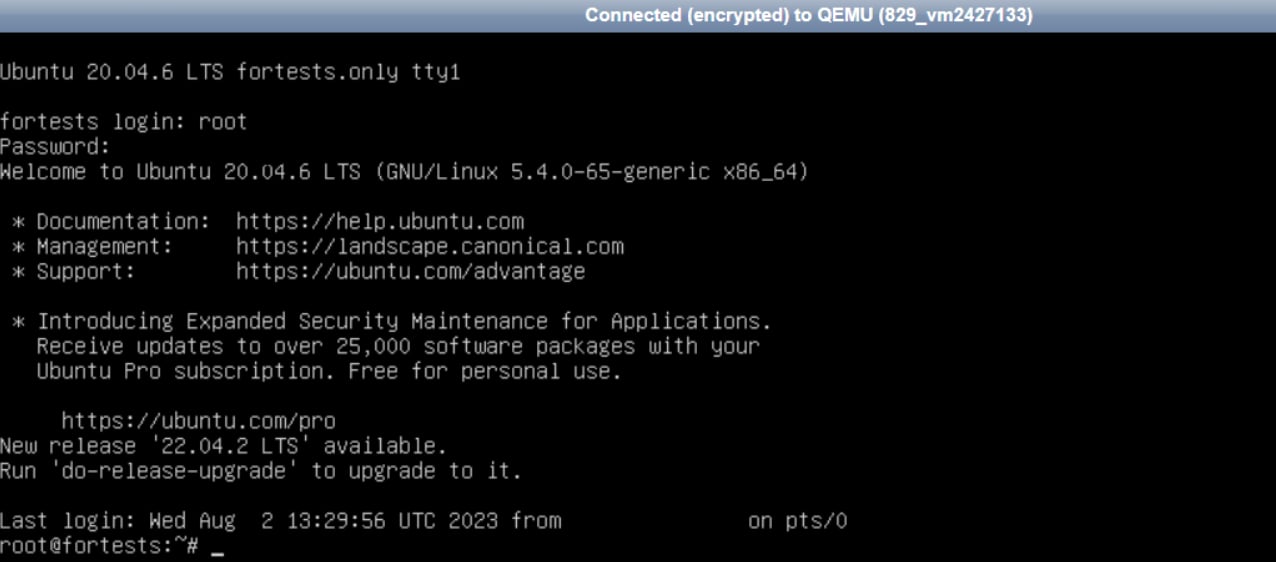
VNC console showing Ubuntu login prompt with root user authenticated