

Webhook types
A single universal endpoint is used for all types of webhooks.
Each payload contains the main fields needed to identify the entity and process the state change.
Webhooks for live streams
When the state of a live stream changes, the system triggers a webhook with typestream. The payload contains a message.stream object. Webhooks fire on key state changes — ingest start, transcoding start, stream stop — and carry enough data to track whether a stream is active, whether playback output is ready, and the stream source (PUSH or PULL).
The state fields change as the stream moves through the following stages:
Use
live: true (or backup_live: true) to track active ingest. Use transcoding: true to track when the live stream is ready for playback.Read more in stream availability.
Example:
Stream is ready for playback:
Webhooks for VOD
VOD webhooks usetype: video for create and status updates, and type: video_delete when a video is deleted.
A full description of each status is in VOD statuses.
VOD create and update
Theconverted_videos[].status field tracks each rendition independently of the top-level status.
VOD processing statuses in the API reference:
- Video status — status
- Rendition status — converted_videos/status
VOD delete
A webhook with typevideo_delete fires when a video is deleted via API or portal. It carries the video ID, slug, name, status at the time of deletion, and deletion timestamp.
Example:
Webhooks for restreams
When a restream changes state — starts or stops — the system sends a webhook with typerestream.
The payload contains a message.restream object.
Example:
Restream starts:
Webhook delivery
Webhooks are delivered from IP addresses92.223.112.0/24 and 92.223.123.0/24. Add these ranges to the server allowlist.
Enable webhooks
Webhooks require manual setup by Gcore. Contact the support team with the endpoint URL to configure webhooks for the account.
1
Prepare an HTTP server
Set up an HTTP server to receive webhooks.
2
Contact Gcore support
Contact Gcore support via chat or email support@gcore.com and request the webhook integration. Include the following in the request: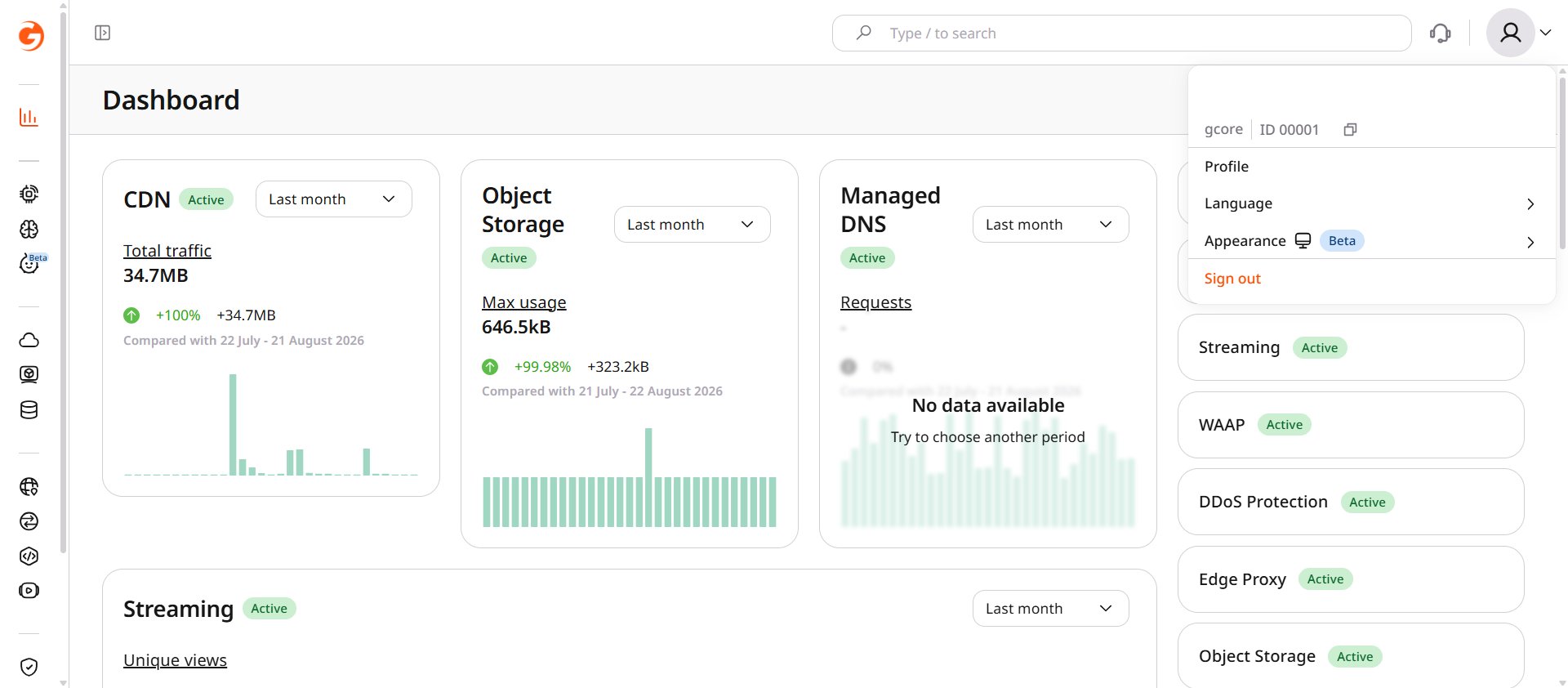
- Account ID — click the profile icon in the top-right corner of the Gcore Customer Portal. The ID appears next to the account name in the dropdown.
- Webhook endpoint URL — the server address that will receive the HTTP POST callbacks.
3
Receive confirmation
Gcore support will confirm when the webhook integration is configured for the account.
A free tool for inspecting webhook payloads is available at https://webhook.site. It generates a temporary endpoint that captures and displays incoming requests. Send the generated endpoint URL to Gcore support when testing the integration.