1
Open the account menu
Click the avatar in the top-right corner of the Gcore Customer Portal.
2
Navigate to Profile
Select Profile.
3
Navigate to General information
In the sidebar, expand Account and select General information.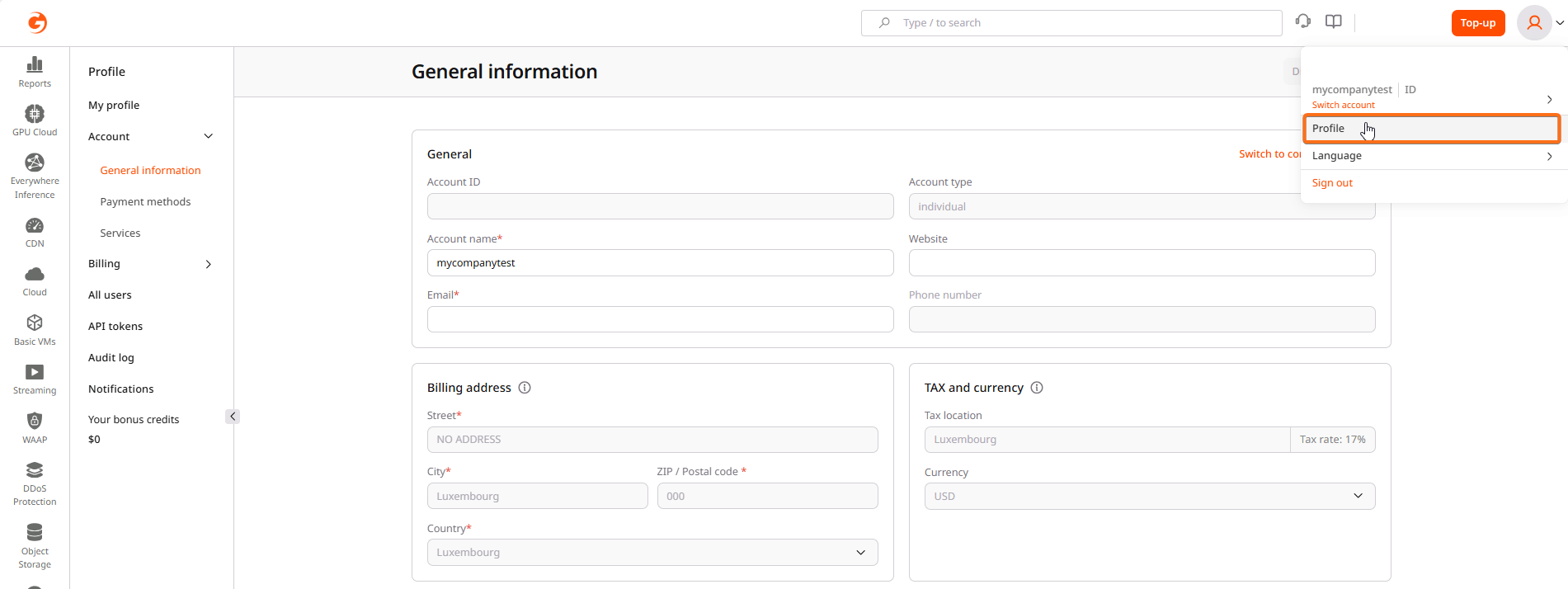
General information
The General information page displays core account details and billing configuration. The account ID and account type are read-only; the account name, website, and contact information are editable.Switch to company account
Individual accounts can request conversion to a company account, which requires identity verification (KYC) and business documentation. Gcore reviews the request and sends status updates to the account contact email. Company accounts have access to additional billing features, including VAT invoicing and the ability to add business details to invoices. To initiate the switch:1
Open the company conversion form
On the General information page, click Switch to company account.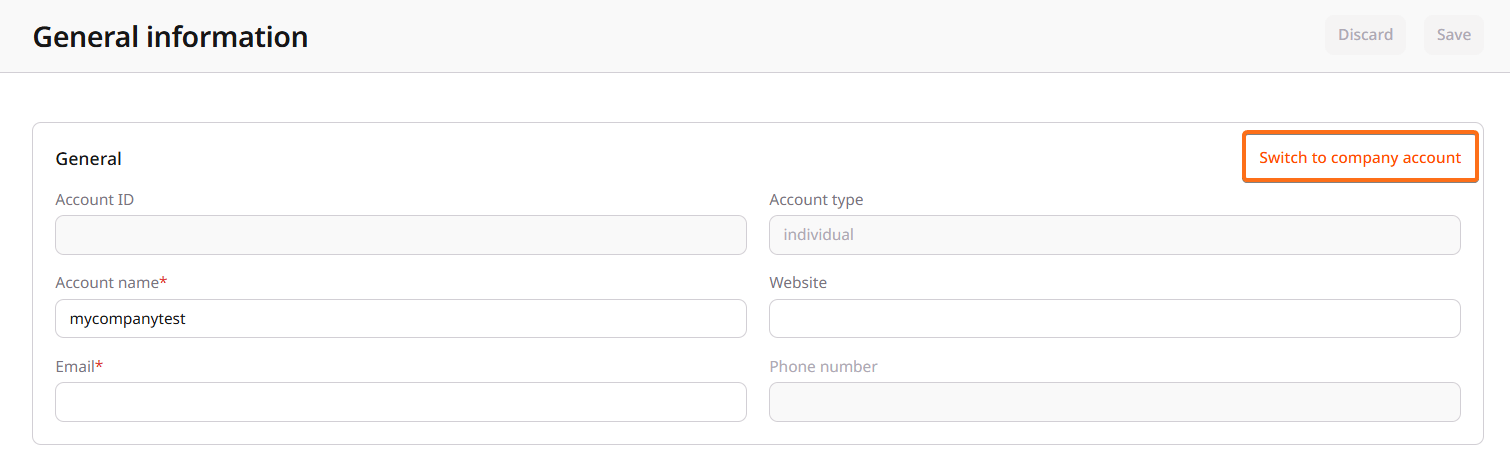
2
Complete the form
Complete the company and billing information required for verification.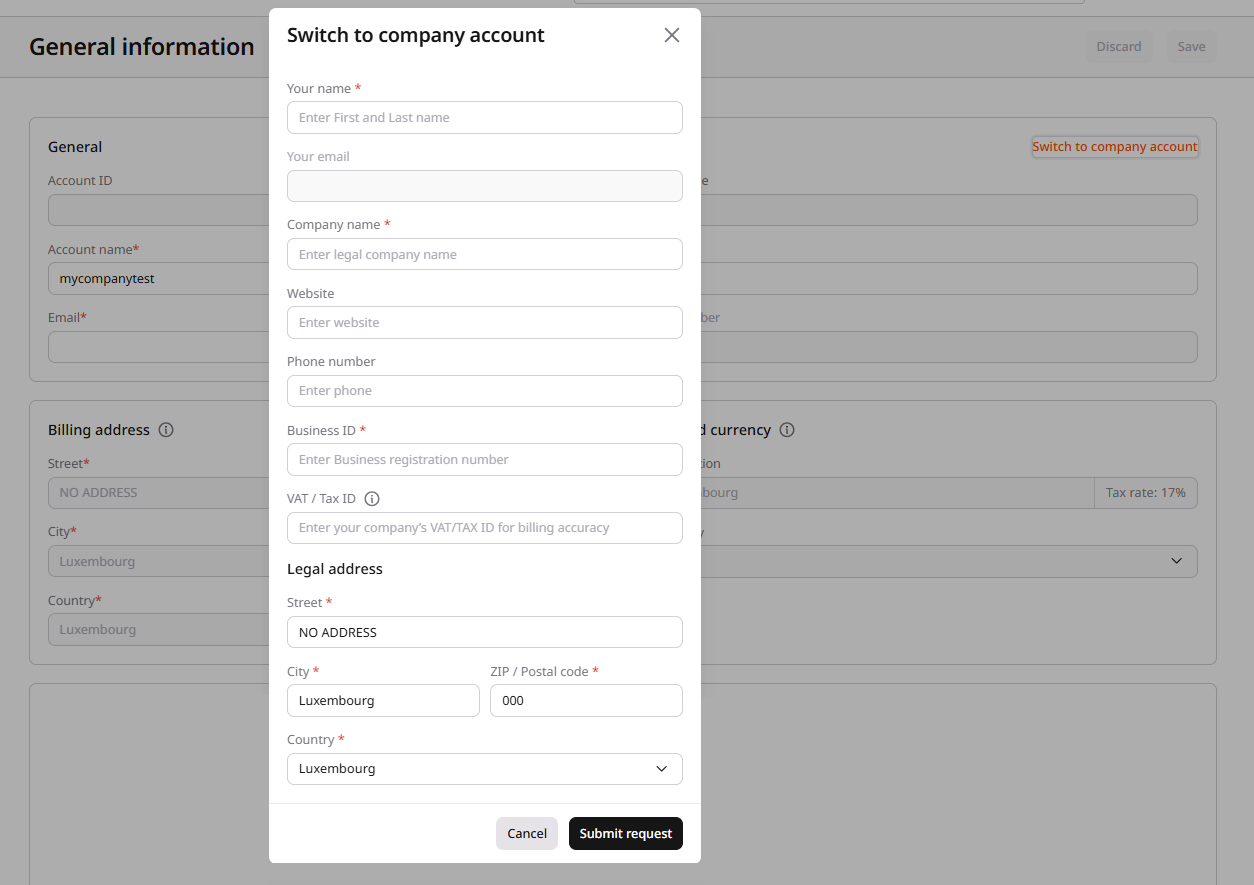
3
Submit the request
Click Submit request.
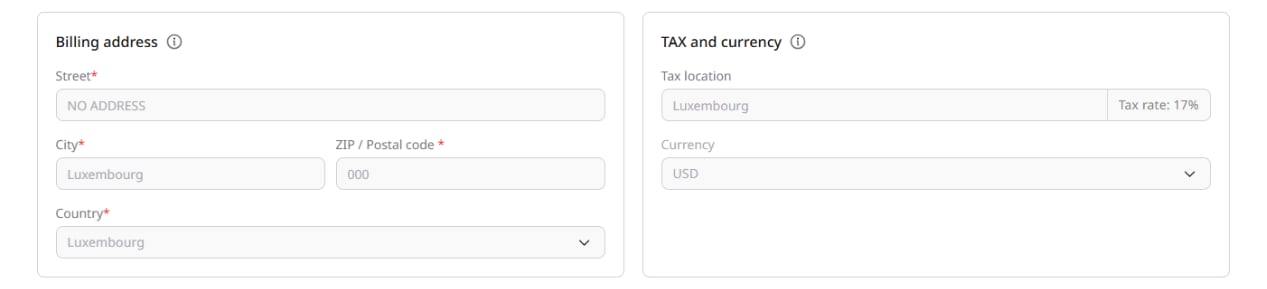
Billing address
The billing address appears on invoices and is used for tax calculations. To edit the billing address, update the fields and click Save in the top-right corner.The billing address is separate from the address specified in the payment method, so changes made on one page don’t affect the other.
Tax and currency
Tax settings determine how charges are calculated:- Tax location: The country used for tax rate calculation, which determines the applicable tax rate percentage.
- Currency: The account billing currency (USD or EUR). If the account has active subscriptions, contact Gcore Support before changing it, because currency changes may affect existing commitments and payment methods.