

Reserved tags by policy
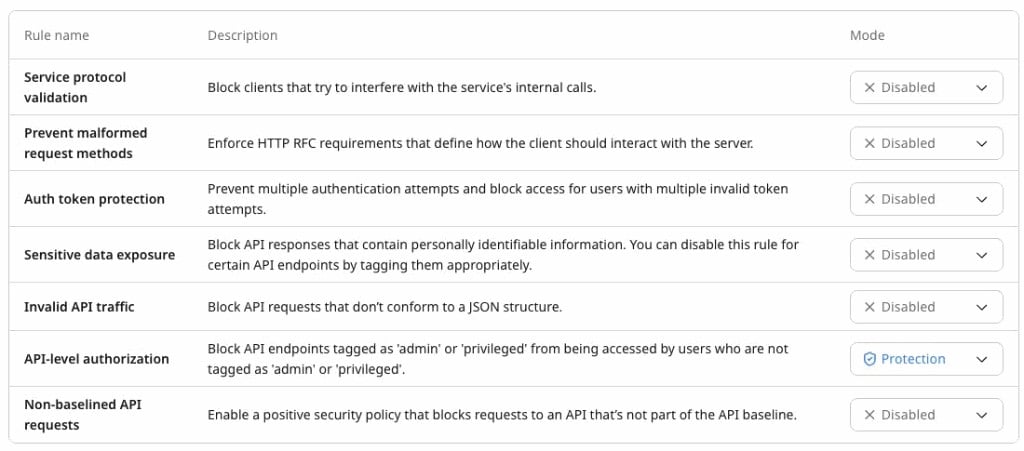
API-level authorization evaluates the following reserved tags for endpoint access requirements and requester roles:
Auth token protection evaluates the following reserved tag for additional OAuth token paths:
Sensitive data exposure evaluates the following reserved exception tags for supported PII types:
Assign endpoint-related tags to confirmed API paths in the Gcore Customer Portal on the API Discovery page, or through the Gcore API.
Apply requester-role tags to matching requests with Custom or Advanced Rules on the Customer Portal Custom Rules page, or through the Gcore API Custom Rules or Advanced Rules endpoints.
API-level authorization in API Protection
API-level authorization adds a traffic-filtering layer for designated API endpoints based on requester-role signals. Access-level tags (API Admin Access, API Privileged Access) define what each endpoint requires, while requester-role tags (Indicate API Admin User, Indicate API Privileged User) mark matching requests. The policy blocks a request when the requester-role signal doesn’t meet the endpoint’s access requirement.Access-level tags on API paths
Configure the API paths that API-level authorization evaluates on the Customer Portal API Discovery page. For each relevant API path:- Add the path to the API Baseline if it isn’t already listed.
- Mark the path as Confirmed.
-
Assign no more than one reserved tag according to the requester roles permitted to access the path:
- For paths available only to Admin requesters, assign API Admin Access.
- For paths available only to Privileged and Admin requesters, assign API Privileged Access.
- For paths that shouldn’t be restricted by API-level authorization, don’t assign either tag.
Requester-role tags in Custom Rules
Apply Indicate API Admin User or Indicate API Privileged User to matching requests through Custom or Advanced Rules on the Customer Portal Custom Rules page. The use case below shows an additional traffic-filtering layer based on a client-provided role header and a shared office IP address.Subscription-service traffic filtering example
An online subscription service provides a mobile application backed by an API protected by Gcore WAAP. To follow this use case, configure three confirmed API paths as shown below. Replace the example paths with the corresponding paths from the protected API.
The mobile application adds an
X-User-Role header to every request sent after sign-in:
-
Standard users (non-paying)
- Intended access: General API paths.
- Request header:
X-User-Role: standard. - Requester-role reserved tag: None.
-
Paid users
- Intended access: General and Privileged API paths.
- Request header:
X-User-Role: privileged. - Requester-role reserved tag: Indicate API Privileged User.
-
Administrators
- Intended access: General, Privileged, and Admin API paths.
- Request header:
X-User-Role: admin. - Requester-role reserved tag: Indicate API Admin User.
- Network condition: Requests originate from the service’s shared static office IP address.
X-User-Role is client-provided and can be modified or forged. The office IP address identifies a network, not an individual administrator.
The following procedures create one Custom Rule for Paid users and another for Administrators.
Custom Rule for paid-user requests
This rule applies Indicate API Privileged User when the role header matches.1
Open the Custom Rules page
Log in to the Customer Portal, navigate to WAAP > Custom Rules, and click Add custom rule.
2
Name the rule
In Rule name, enter
Identify paid user requests. Leave Status enabled.3
Set the domain condition
Under Define rule, verify the intended domain in Domains / Zones.
4
Add the Header condition
In the first And row:
- Select Header.
- Select Equals.
- Enter
X-User-Role: privileged.
5
Apply the reserved tag
Under Then: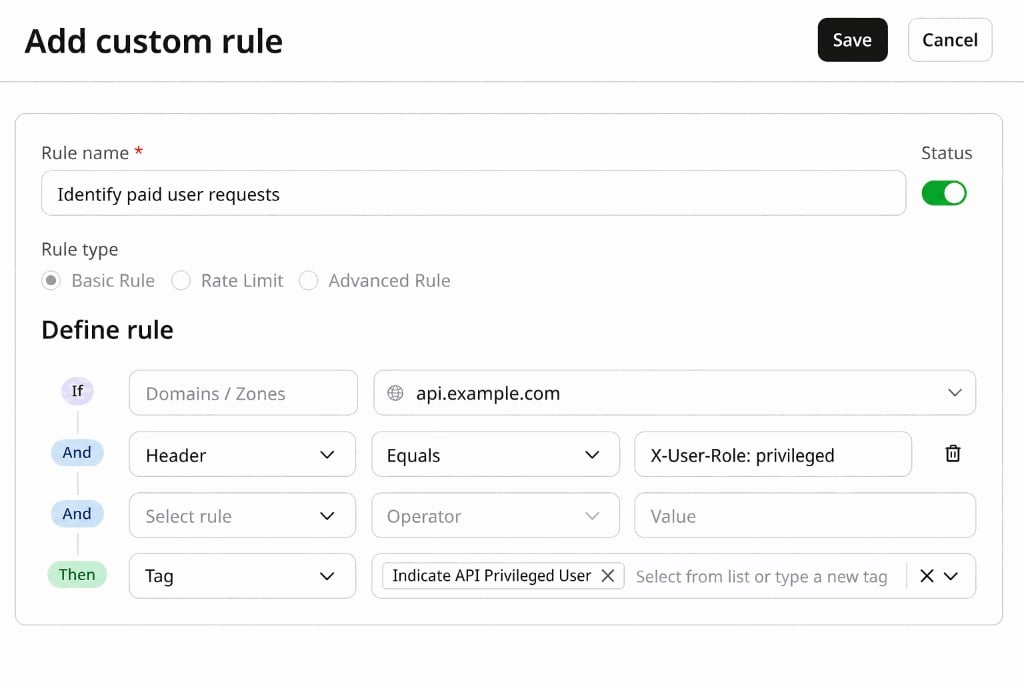
- Select Tag.
- Select Indicate API Privileged User.
Custom Rule for administrator requests
This rule applies Indicate API Admin User when both the role header and office IP address match.1
Open a new custom rule
Click Add custom rule.
2
Name the rule
In Rule name, enter
Identify administrator requests. Leave Status enabled.3
Set the domain condition
Under Define rule, verify the intended domain in Domains / Zones.
4
Add the Header condition
In the first And row:
- Select Header.
- Select Equals.
- Enter
X-User-Role: admin.
5
Add the IP condition
In the next And row:
- Select IP.
- Verify Equals is selected.
- Enter
203.0.113.10.
6
Apply the reserved tag
Under Then, select Tag, then select Indicate API Admin User.Click Save.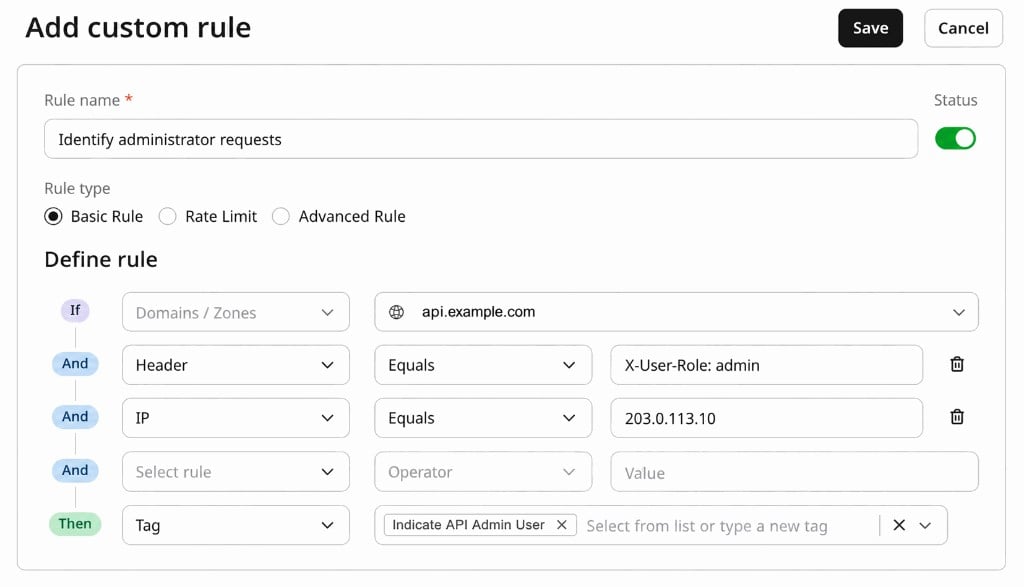
Requester-role matching tradeoffs
API-level authorization is an additional traffic-filtering layer. The conditions in requester-role rules determine how selective this layer is:- More conditions: Fewer requests receive the requester-role tag. This reduces unintended tag assignment but can increase false blocks on restricted API paths.
- Fewer conditions: More requests receive the requester-role tag. This reduces false blocks but increases the risk of assigning the tag to unintended traffic.
Auth token protection in API Protection
Unlike API-level authorization, which filters access by requester role, Auth token protection targets authentication and authorization abuse — including brute-force attacks, invalid authentication tokens, and authorization-bypass attempts. WAAP automatically identifies OAuth token endpoints whose paths match common patterns. Matching paths include/oauth/token, /oauth2/token, and /oauth2/v1/token.
Auth Endpoint tag on API paths
The Auth Endpoint reserved tag marks additional OAuth token paths as authentication endpoints. Configure those paths on the Customer Portal API Discovery page. For each additional authentication endpoint:- Add the OAuth token path to the API Baseline if it isn’t already listed.
- Mark the path as Confirmed.
- Assign the Auth Endpoint reserved tag.
Sensitive data exposure in API Protection
Sensitive data exposure detects and blocks API responses that contain personally identifiable information (PII): credit card numbers, Social Security numbers (SSNs), email addresses, and phone numbers. Exception tags on confirmed API paths turn off blocking for specific PII types on those paths.Exception tags on API paths
When a reserved exception tag is assigned to an API path, Sensitive data exposure doesn’t block responses from that path based on the corresponding detected PII type. Each tag applies only to its corresponding PII type. Other detected PII types remain subject to enforcement.
Configure policy exceptions on the Customer Portal API Discovery page.
For each policy exception:
- Add the API path to the API Baseline if it isn’t already listed.
- Mark the path as Confirmed.
- Assign the exception tag corresponding to the PII the endpoint is expected to return.
- Assign additional exception tags to the same path only when it is expected to return multiple supported PII types.