

Available reserved tags
Reserved tags can be divided into two categories: general tags that are used in custom rules with various conditions and API protection tags that are specifically designed to protect your APIs. API protection tags contain the URL rule condition. General tags:- Registered
- Logged In
- Paid
- Monitor
- Ignored Automation
- Login Page
- Legitimate Activity
- Malicious Activity
- Item Added to Cart
- Cart Checkout
- LLM Trigger
- API Privileged Access
- API Admin Access
- Indicate API Privileged User
- Indicate API Admin User
- Ignore Email Address Detection
- Ignore Phone Number Detection
- Auth Endpoint
- Ignore CCN Detection
- Ignore SSN Detection
Tag requests from logged-in, registered, or paid users
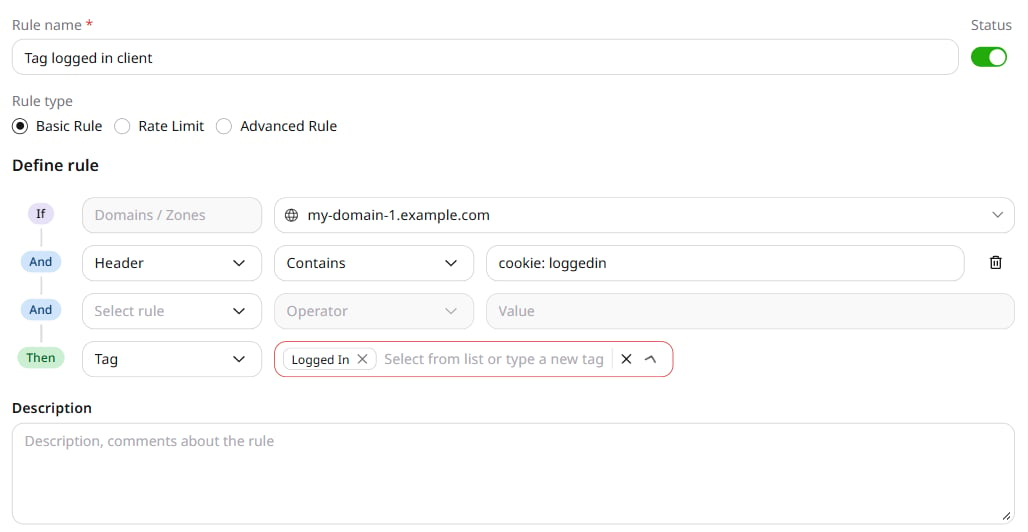
The registered, logged-in, and paid tags allow you to identify requests from users who have created accounts on your domain, are authenticated, or have paid subscriptions. When creating a rule, make sure that you specify a secure condition. For example, explicitly define the IP address from which the requests will be coming (e.g., IP=1.2.3.4). Don’t use the conditions that are easy to spoof, such as the User Agent header. You can also use a server signal that will serve as a unique identifier and can verify the client. For instance, apply a tag based on a session cookie or a specific HTTP response header. For example, you can create the rule that looks for the X-Registered header, which designates registered users: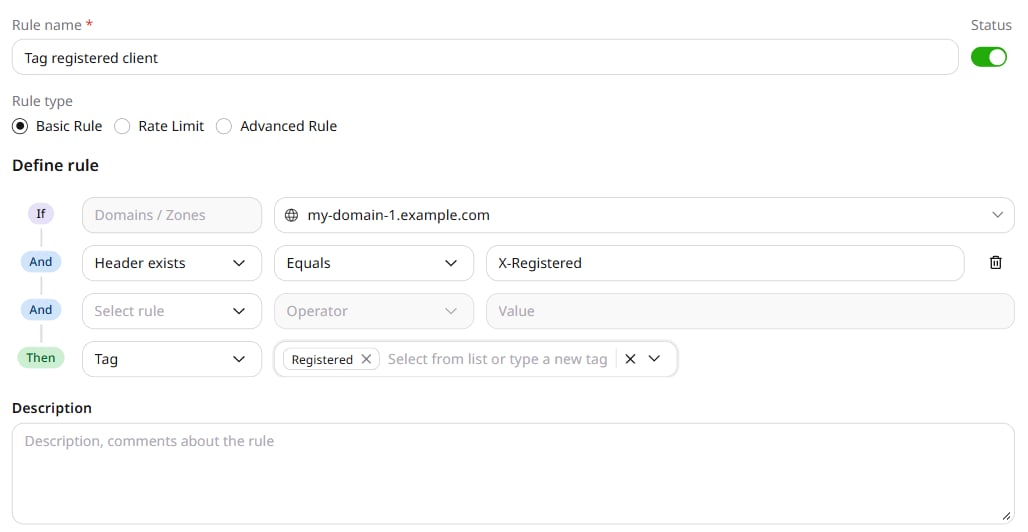
Inspect WAAP traffic
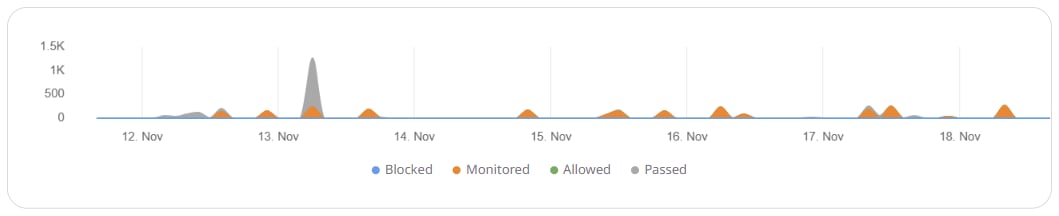
To track certain traffic on the Events page, use the reserved monitor tag. Each request marked with this tag will appear:- On the Events chart, in the Monitored series.
- In the events table, where Action is Monitored.
Sample rule with the monitor tag
As an example, create a rule that will allow you to view analytics on monitored requests from particular countries: 1. In the condition row, select Country. The operator is Equals. 2. Choose the country. 3. In the Then section, select Tag and select Monitor. 4. Click Save.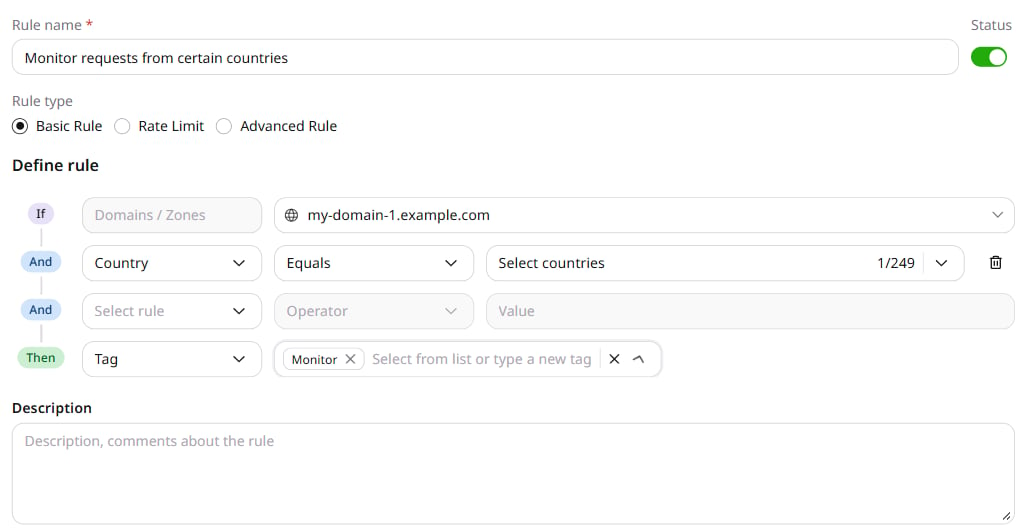
Ignore automation services
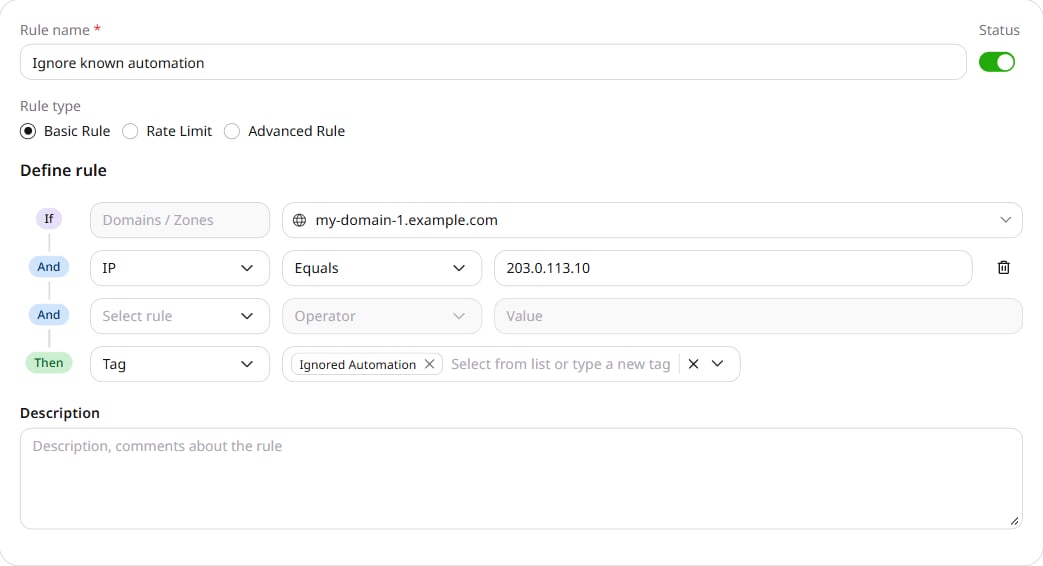
This functionality will notify WAAP of legitimate automation behavior and exclude requests from being affected by our Anti-automation and bot protection policy group. This means that you stay protected from unknown automation services while allowing known bots to access your domain. To allow a known automation service, create a custom rule that matches its IP address and assigns the Ignored Automation tag: 1. In the condition row, select IP. The operator is Equals. 2. Enter203.0.113.10.
3. In the Then section, select Tag, then select Ignored Automation.
Protect login pages
Use this tag to notify WAAP if certain endpoints are used as login pages. This functionality will help identify such threats such as brute force attacks. To identify login pages for the WAAP, create the following custom rule: 1. In the condition row, select URL. The operator is Contains. 2. Enter the login page path. 3. In the Then section, select Tag and select Login Page.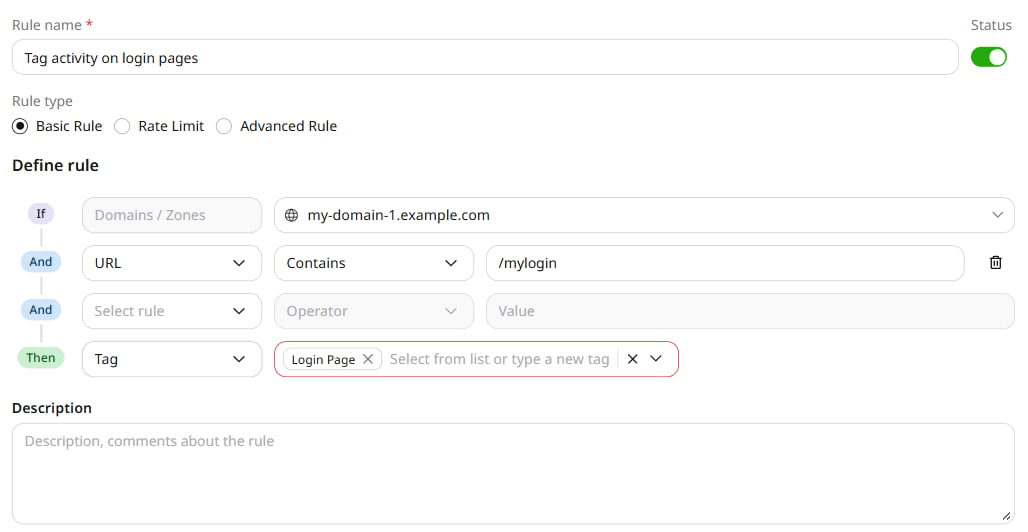
Identify LLM resources
The LLM Trigger reserved tag marks traffic that belongs to Large Language Model (LLM) endpoints. The LLM Attack policy inspects only requests with this tag — enabling the policy without tagging LLM resources leaves that traffic unprotected by LLM Attack rules. Create a custom or advanced rule that matches reliable LLM resource identifiers — URL path segments, request headers, or response headers — then apply the LLM Trigger tag: 1. In the IF section, add conditions that identify the LLM resource. Match a URL path that contains the LLM endpoint, or match a dedicated request or response header that the application sets for LLM traffic. 2. In the Then section, select Tag and select LLM Trigger.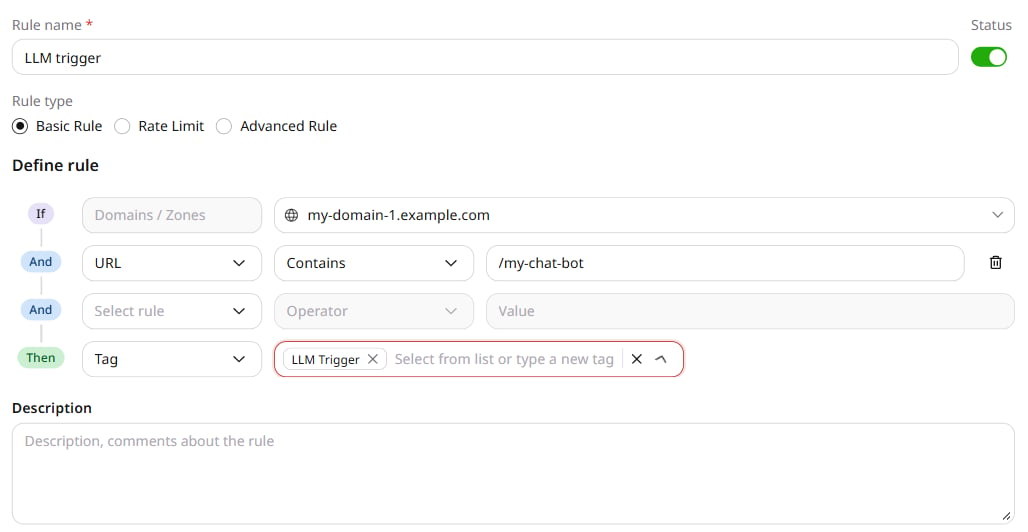
Detect malicious and legitimate activity
Gcore WAAP has preconfigured thresholds that identify and tag requests as malicious or legitimate. This works as follows: 1. Our heuristic models check for good and bad behavioral patterns associated with a particular request. 2. Based on the analyzed behavior, the request is tagged as either malicious or legitimate. The relevant tag sticks to the client based on identifiers like the IP or session data. 3. If the client behavior changes, our heuristic models can remove the previous tag and update it either to a legitimate or malicious one. However, the tag can only be replaced after the client consistently demonstrates a particular behavior, meeting the defined threshold. This threshold represents the number of times a request has to be tagged as malicious or legitimate until it sticks to the client. For example, if the threshold for declined orders is set to three, and the threshold for successful orders is set to two, then a client would be considered a legitimate actor if it made two successful orders after being wrong twice.Sample rule with the legitimate and malicious activity tags
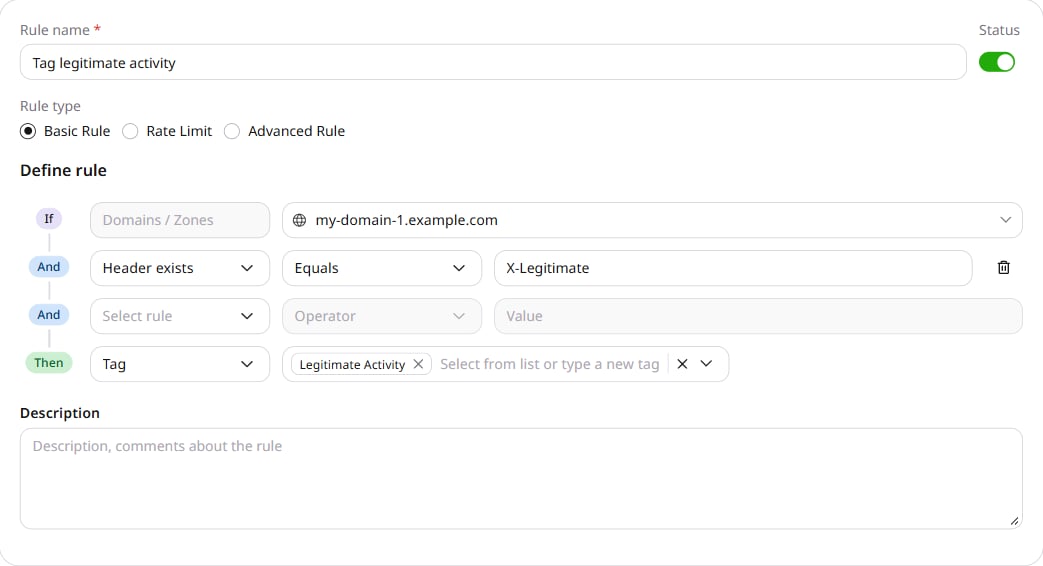
Assign Legitimate Activity when the request contains a header that the application sets for this behavior: 1. In the condition row, select Header exists. The operator is Equals. 2. In Header key, enterX-Legitimate.
3. In the Then section, select Tag, then select Legitimate Activity.
InfoContact our support team to get additional configuration for the malicious activity and legitimate activity tags.
Detect denial of inventory
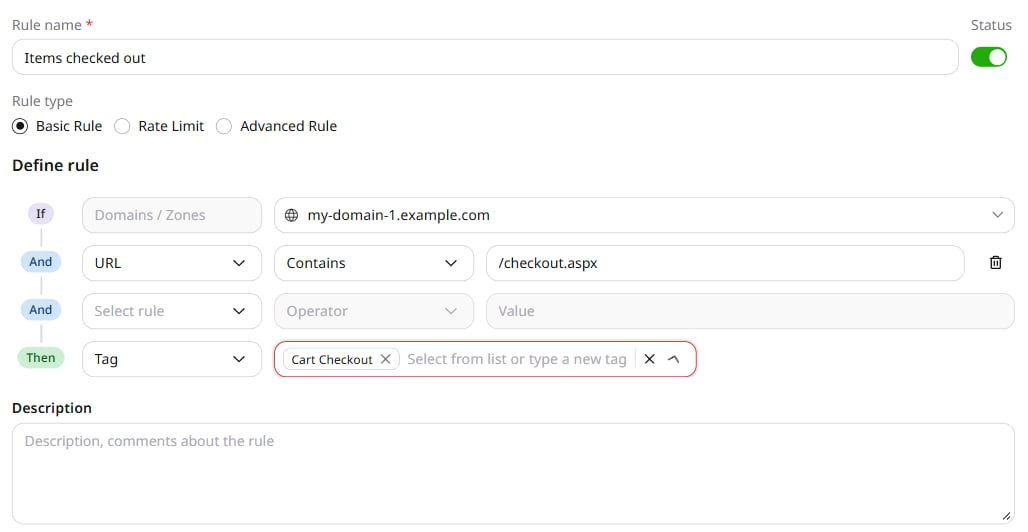
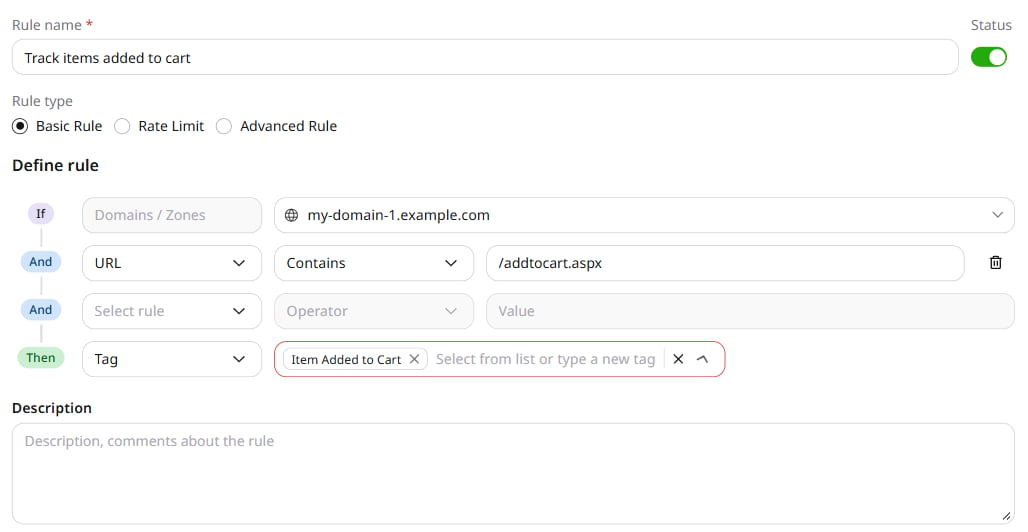
Custom rules assign reserved tags to the cart and checkout endpoints that denial of inventory (inventory hoarding) attacks use. This mitigation method aims to detect hoarder bots that use endpoints to rapidly add items to a cart without completing the purchase. Support configures the cart threshold. The rules below assign Cart Checkout to the checkout URL and Item Added to Cart to the cart URL. WAAP counts the items in each client’s cart and compares that count with the threshold. If the count exceeds the threshold and the client does not check out, WAAP tags the client as hoarderbot. Create a rule that assigns Cart Checkout: 1. In the condition row, select URL. The operator is Contains. 2. Enter/checkout.aspx.
3. In the Then section, select Tag and select Cart Checkout.
/addtocart.aspx.
3. In the Then section, select Tag and select Item Added to Cart.
Use reserved tags for API protection
There’s a range of tags that you can use to manage access to API endpoints. These tags include:- API Privileged Access
- API Admin Access
- Indicate API Privileged User
- Indicate API Admin User
- Auth Endpoint
- Ignore Email Address Detection
- Ignore Phone Number Detection