- Ubuntu/Debian
- CentOS
Ubuntu and Debian use
netplan for network configuration. On older systems without netplan, each step includes the equivalent command.1
Install the required tools
Install
ethtool, net-tools, and nano, or another text editor of choice.2
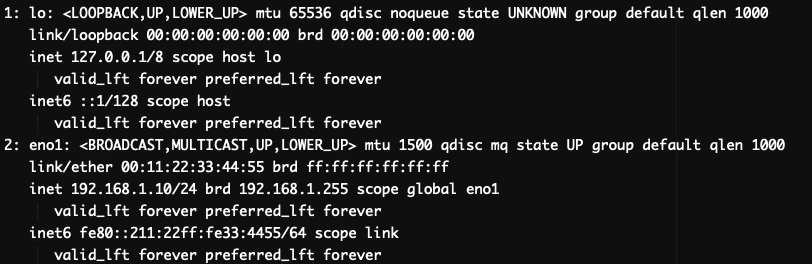
Check active interfaces
Run The output resembles the following, where 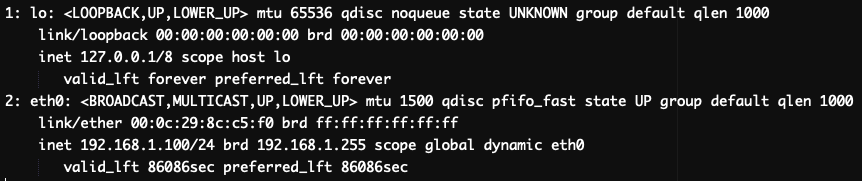
ip to list active network interfaces.eth0 is the active 1 Gbps interface.ip is not available, use ifconfig instead.3
Check interface settings
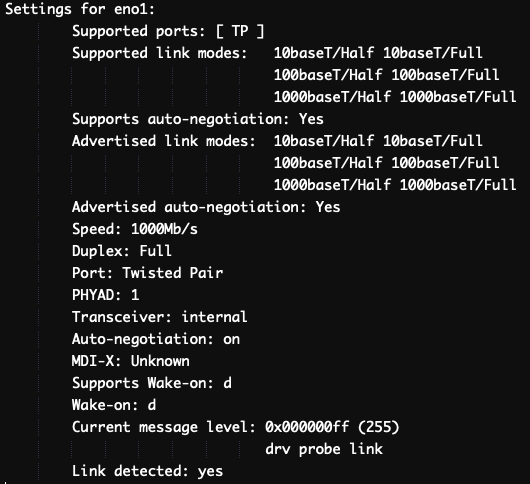
Inspect the settings of the active interface to confirm its speed.The output resembles the following: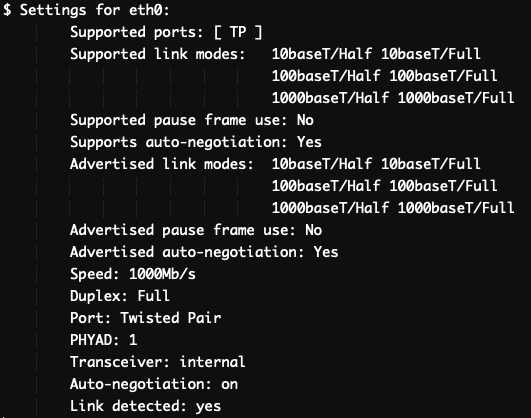
1000baseT/Full means the interface supports a maximum speed of 1 Gbps. Find an interface that lists 10000baseT/Full, which indicates 10 Gbps support.4
List all interfaces
List all interfaces, including inactive ones, to find the 10 Gbps candidate.The output lists each interface and its state (up or down).
ip link show is not available, use ifconfig instead.5
Activate inactive interfaces
Bring up each interface that is listed as down. Replace On older Linux versions, use
eth1 and eth2 with the interface names shown in the previous step.ifconfig eth1 up instead of ip link set. To verify that an interface is active, run ip and check for state UP in the output (state DOWN means the interface is still inactive; use ifconfig on older systems).6
Find the 10 Gbps interface
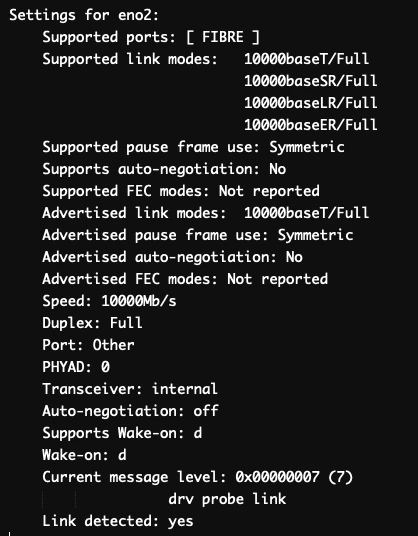
Run The output resembles the following: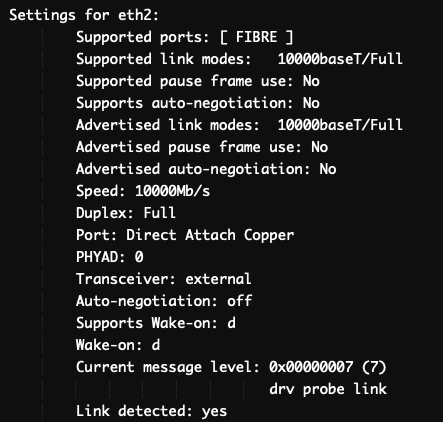
ethtool on each inactive interface until finding the one that supports 10 Gbps.yes and Speed is 10000Mb/s (10 Gbps). Note the interface name — the next step requires it.7
Update the network configuration
Open the network configuration file in a text editor.On older Linux versions, use becomes:
nano /etc/network/interfaces instead.In the configuration file, find every line where the current 1 Gbps interface name (eth0) appears and replace it with the 10 Gbps interface name identified in the previous step. Leave the lo interface unchanged.If the 10 Gbps interface is eth2, a section that reads:8
Apply the configuration
Save the file and exit the text editor, then apply the new configuration.On older Linux versions that do not use
netplan, reboot the server instead.If the server becomes unreachable after applying, reboot it to recover. If it still does not respond, use IPMI to access it.