

VLAN support is not enabled by default. To enable it for an account, contact support.
Assign a VLAN to a switch port
VLAN membership is configured per switch port. To put two or more servers into the same VLAN, assign the same VLAN to a switch port on each server. To start, open DCImanager for the target server.1
Expand the server row
In the Servers list, click the server name to expand its row.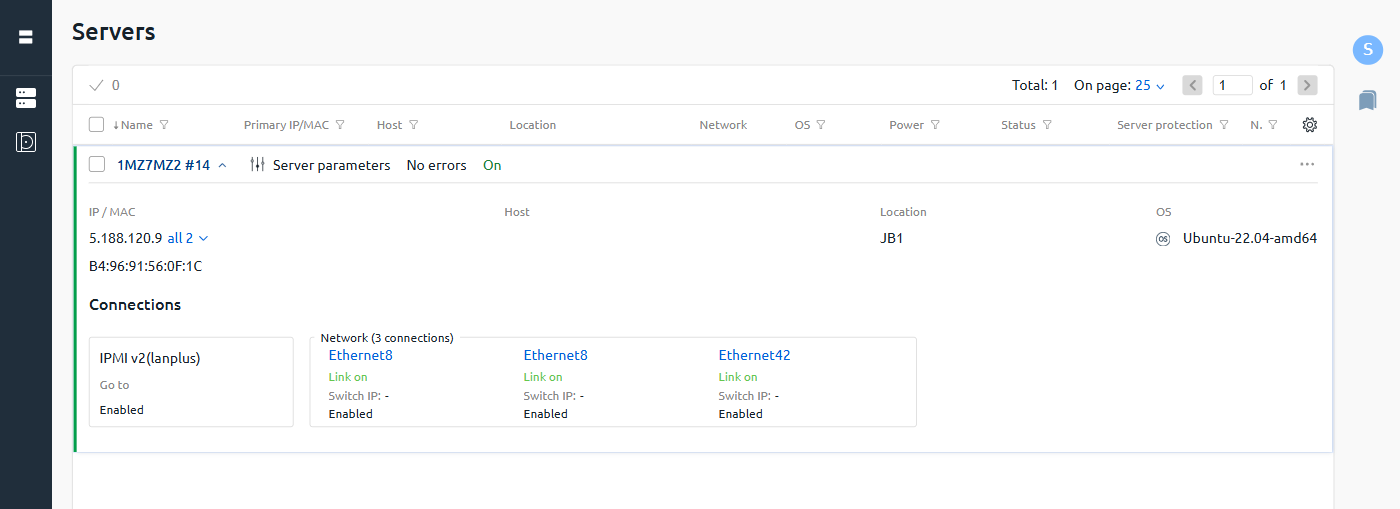
2
Open switch port settings
Under Connections, click the switch port to configure (for example, Ethernet8). The port settings panel opens on the right.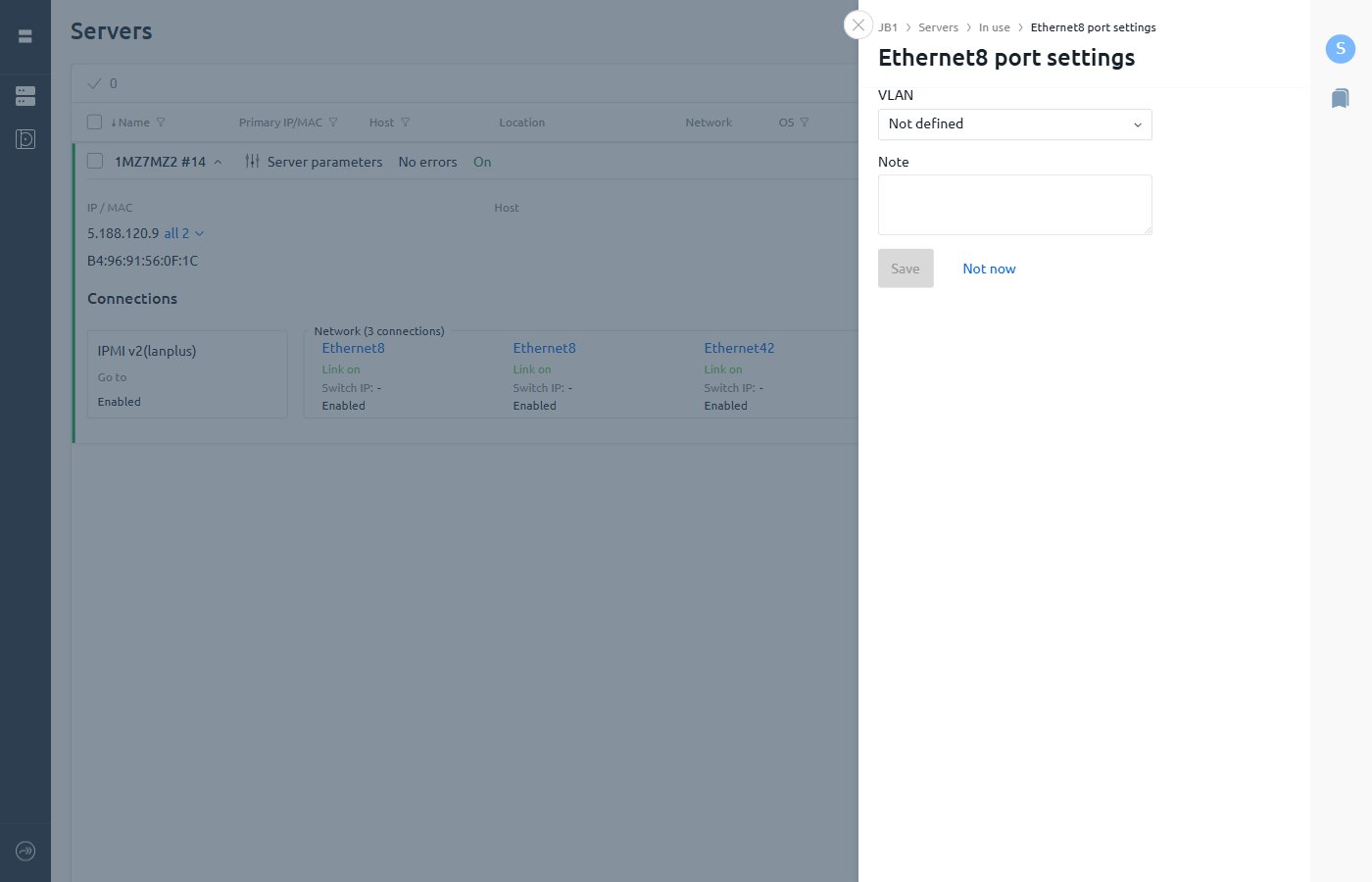
3
Assign or create a VLAN
In the VLAN dropdown, select an existing VLAN or select New VLAN. For a new VLAN, enter a name when prompted.Optionally, add a Note to describe the VLAN’s purpose.Click Save.