

Windows Server can only be added at the time of ordering a dedicated server and cannot be installed later using this method.
Reinstall the OS
1
Open DCImanager
In the Gcore Hosting Portal, navigate to Products/Services → Dedicated servers, select the server, and click To panel. DCImanager opens in a new tab.
2
Open the context menu
In the server list, click the … (three-dot) menu on the right side of the server row. A dropdown appears with available operations.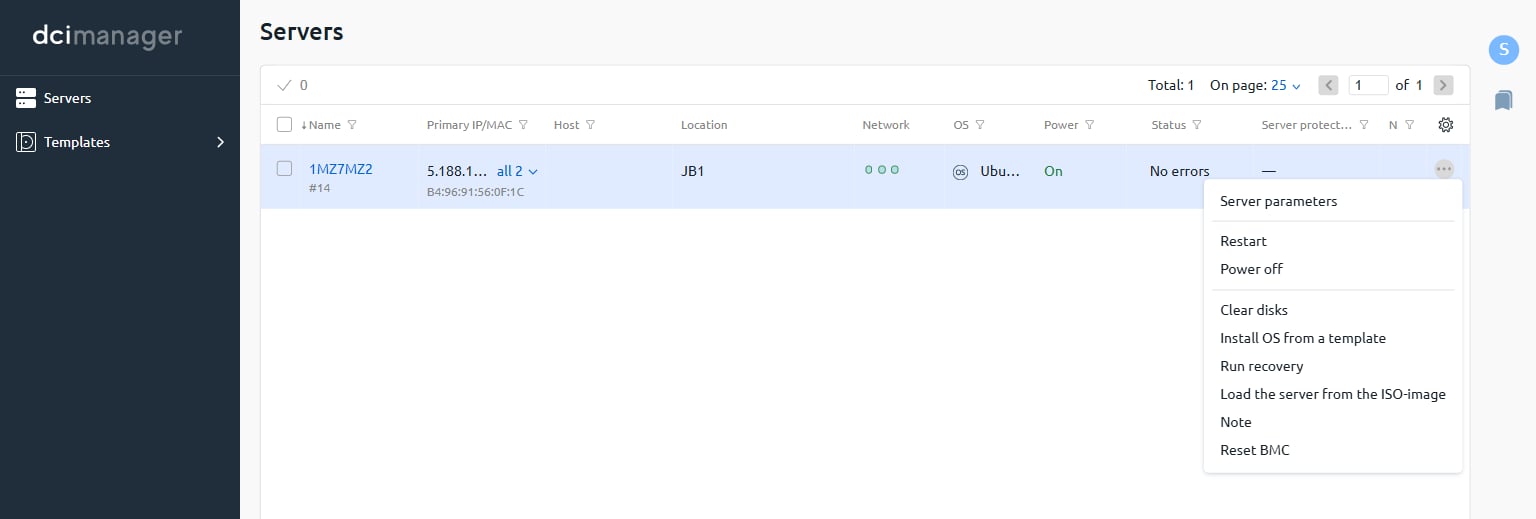
3
Select Install OS from a template
Click Install OS from a template. The installation wizard opens.
4
Select the OS
In the OS and script selection step, click the OS to install. Each OS shows the available versions in a dropdown — select the version needed.Available distributions include AlmaLinux, CentOS, Debian, FreeBSD, and Ubuntu.Optionally, select an Applications and scripts option to configure the environment after installation, and set the Server boot mode if required.Click Next.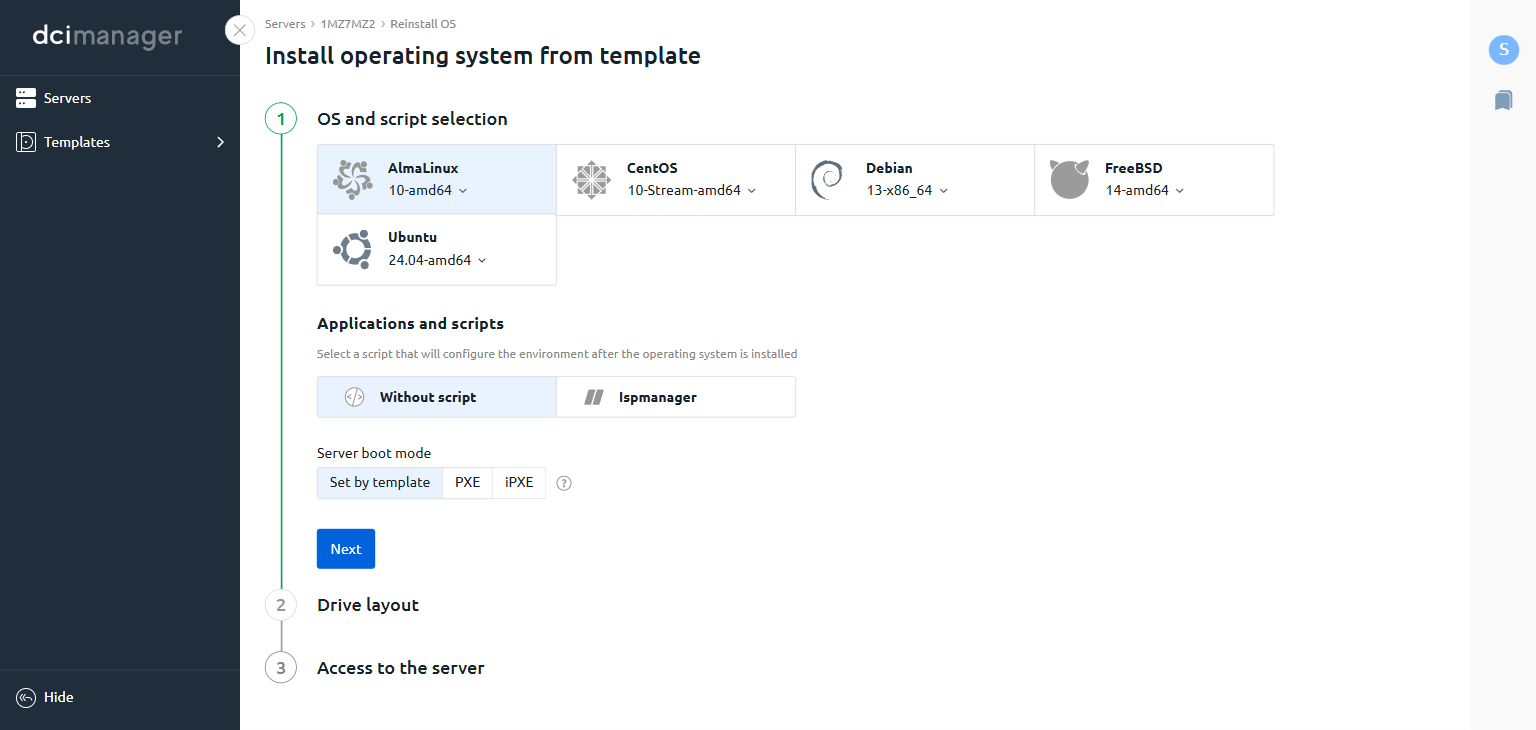
5
Set access credentials
In the Access to the server step, enter a Server administrator password. By default,
root is used as the login.Optionally, update the Hostname and add SSH keys.Click Install. DCImanager begins the OS installation. The server will reboot and come back online with the new OS.