

1
Navigate to Virtual private servers
Log in to the Hosting portal and navigate to Products/Services > Virtual private servers.
2
Open the server instructions
Select the server row by checking its checkbox, then click Instructions in the toolbar.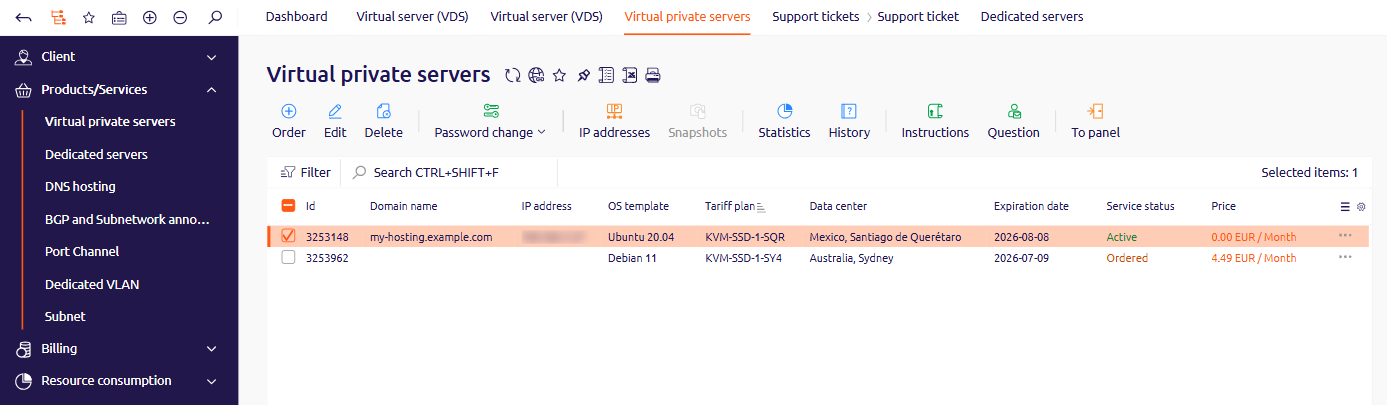
3
Note the connection credentials
The Instructions page lists the server IP address, username, and password needed for the SSH connection.
4
Connect to the server
Open a terminal. On macOS and Linux, use the built-in Terminal app. On Windows, use Command Prompt, PowerShell, or Windows Terminal.Run the SSH command using the username and IP address from the Instructions page:
5
Enter the password
At the password prompt, enter the server password from the Instructions page.
Some SSH clients do not display characters as they are typed. Enter the password and press Enter — the connection establishes even though the screen appears blank.