

Signs of non-payment suspension
Two indicators appear when a server is suspended for non-payment:- The server’s Service status shows Suspended in the server list.
- On the dashboard, the Minimum amount for service activation value exceeds the current Account balance.

Reactivate the server
There are two ways to reactivate a suspended server.Recharge the account balance
When funds are added to the account balance, the system automatically applies them to unpaid services and reactivates the server immediately.- At the top of the page, click Dashboard. On the dashboard, click Add funds in the Quick access section.
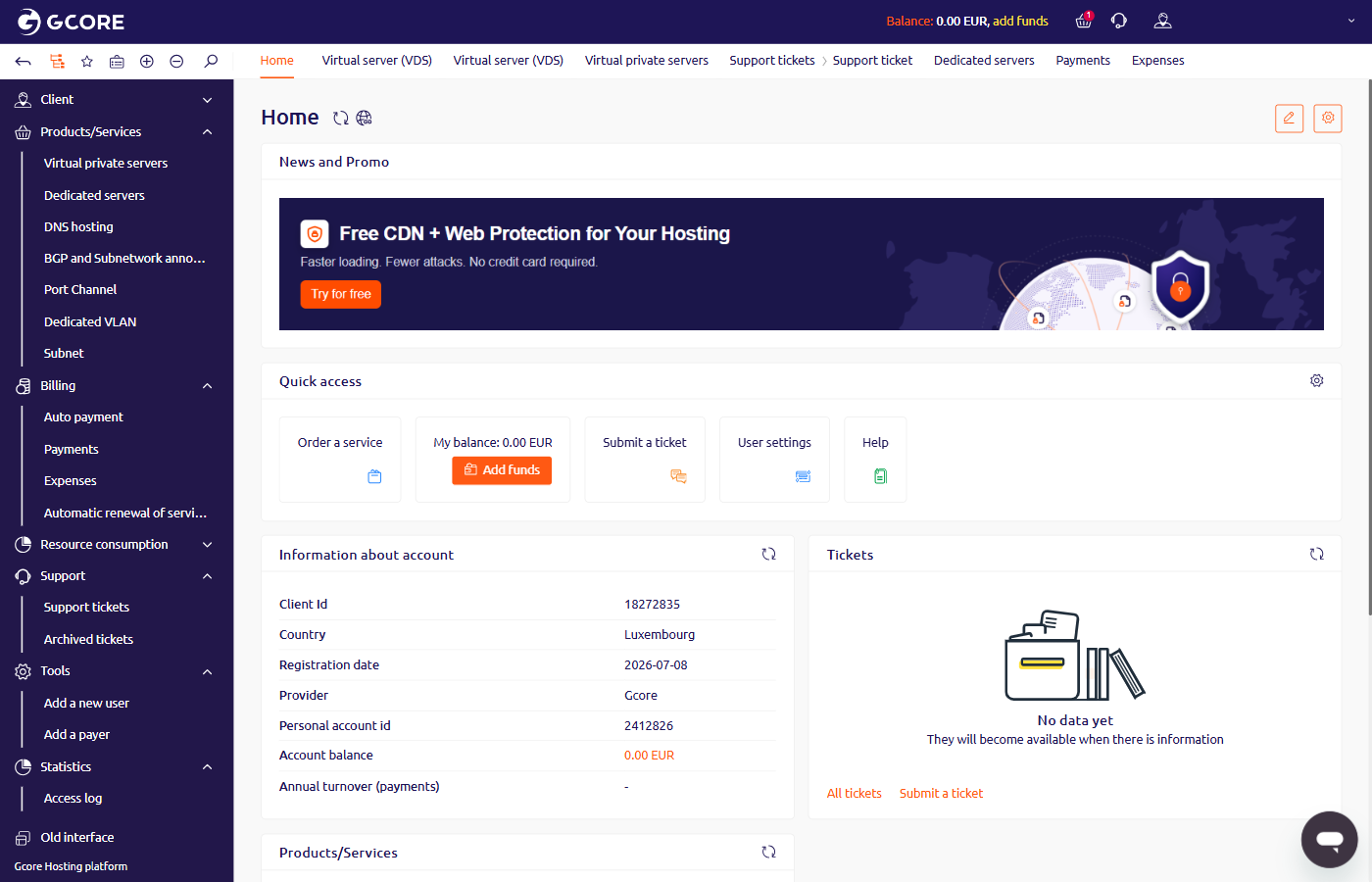
- Select a payment method and complete the payment.
Reactivate through auto payment
When auto payment is enabled, the system first deducts from the account balance and — if the balance is empty — charges the linked card. If both are empty, services are suspended. The system retries the charge 10, 5, 4, 3, 2, 1, and 0 days before the services expire. Add funds to the linked card — the next automatic retry will charge the card, credit the account balance, and reactivate the server.Payment timing
Crediting times depend on the payment method.- Card charge: funds are credited to the balance within 15 minutes.
- Bank transfer: funds are credited within five business days.
Verify the payment
Track the payment status in the Billing section depending on the method used.Manual balance recharge
Track the payment in Billing > Payments. When a payment is initiated, the system creates a record with New status. Once the funds reach the account, the status changes to Paid.
Auto payment charge
Track the charge in Billing > Expenses. Each charge attempt creates a row. When the charge succeeds, the Not paid column shows zero and the Payments column shows the corresponding payment number.